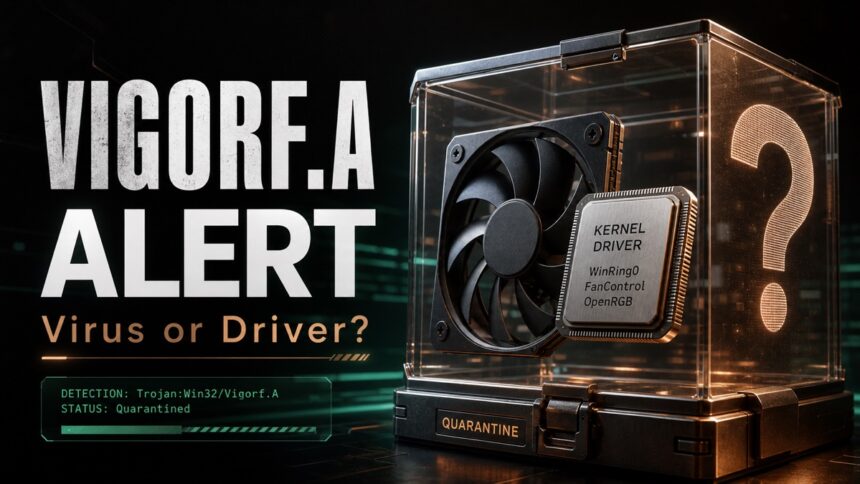
Trojan:Win32/Vigorf.A is not automatically proof of an active Trojan: the affected path, source and behavior guide the malware-versus-false-positive check. Keep quarantine and delete the source when the path points to Temp, AppData, Downloads, a crack, browser cache, or an unknown installer. If it points to FanControl/WinRing0 or Dell SupportAssist/Dell Update, update or remove that trusted utility first, then rescan before restoring anything. If the alert repeats or Defender cannot remove it, check whether the same file is active, recreated, or only left in Protection History.
Remove Vigorf.A or verify a false positive?
- Unknown download, crack, Temp, AppData, or browser-cache path: keep quarantine, delete the source package, and run a full scan.
- FanControl, OpenRGB, Libre Hardware Monitor, or WinRing0 path: update or uninstall the parent tool, reboot, and rescan before considering any exclusion.
- Dell SupportAssist, Dell Update, SARemediation, or shadow-copy path: update the Dell tools first; do not delete random recovery files merely to clear an alert.
- No current file, only an old Protection History event: confirm with a fresh full scan before treating it as an active infection or restoring anything.
If the file came from an unsafe source or the alert keeps returning, Defender may have quarantined the visible item while a loader, scheduled task, service, browser change, or bundled component remains. Run a full Gridinsoft Anti-Malware scan before restoring or excluding the file so the decision includes those persistence points.
A false positive is possible, but restore only after checking that the system has no companion detections, startup entries, scheduled tasks, or hidden files tied to the same source.
Scan before restoring Vigorf.ATrojan:Win32/Vigorf.A is a Microsoft Defender detection name, not one single file or one single malware family. Microsoft lists it as a Trojan detection and recommends Defender plus a full scan for removal [1]. In real user reports, however, the same label can also appear around low-level hardware drivers that access sensors, RGB controllers, or fan-control interfaces.
Important 2026 context: WinRing0 has its own vulnerable-driver alert, which is why this case is not always a simple false positive. FanControl’s V238 release notes document the move from WinRing0 to PawnIO; that release no longer shipped WinRing0 [2]. The safe answer is to update or remove the affected utility first and consider an exclusion only after you verify the source, path, signature, and scan results.
This guide explains both sides: how to remove a real Vigorf.A infection and how to handle the common WinRing0/FanControl/OpenRGB false-positive scenario without weakening your system security.
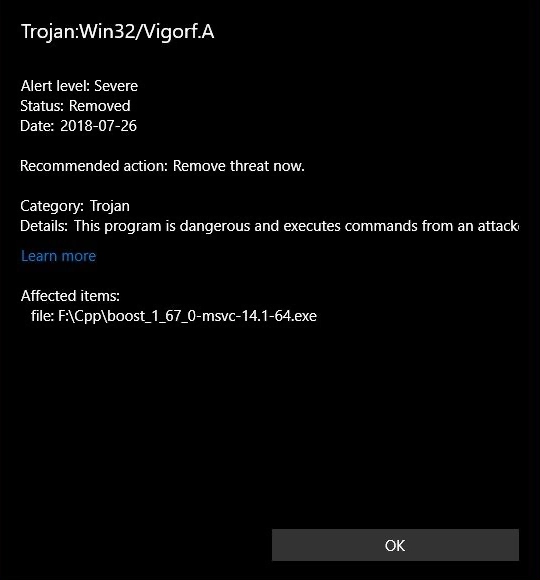
| Detection name | Trojan:Win32/Vigorf.A |
| Detected by | Microsoft Defender Antivirus |
| Can be real malware? | Yes. Treat unknown downloads, cracked software, scripts, and files in Temp/AppData as suspicious. |
| Common false-positive context | WinRing0, OpenRGB, FanControl, Libre Hardware Monitor, OpenHardwareMonitorLib.sys, Intel NUC utilities, Dell tools, RGB/fan/sensor software. |
| Dell SupportAssist / Dell Update | If the path is under C:\ProgramData\Dell\SARemediation or a HarddiskVolumeShadowCopy, update Dell Update and SupportAssist first; Dell’s community manager documented that resolution for this alert [3]. |
| History-only event | If the affected file no longer exists and fresh full scans are clean, the entry may be stale Protection History rather than an active file. Do not restore it or delete unrelated system files just to clear the record. |
| Common Defender message | Threat quarantined, remediation incomplete, or detection returning after reboot. |
| Safest first action | Copy the detected path, keep the file quarantined, run a full scan, and verify the vendor/signature before restoring anything. |
What is Trojan:Win32/Vigorf.A?
Trojan:Win32/Vigorf.A is a generic Microsoft Defender label. It can describe a malicious dropper or loader that installs additional payloads, but it can also be used when Defender sees driver-level or suspicious behavior that resembles malware. This is why the file path matters more than the detection name alone.
A real Vigorf.A case usually starts from an unsafe source: a fake installer, torrent, cracked game, activator, malicious email attachment, bundled downloader, or suspicious archive. In those cases, the detection should be treated as malware until the machine is clean.
A likely false positive usually has a more recognizable context. Many recent reports mention WinRing0, a low-level driver used by fan-control, RGB, and hardware-monitoring applications. Defender may quarantine the driver, then the affected app stops reading sensors or fails to start. That is still worth checking, because vulnerable drivers can be abused by malware even when the original program is legitimate.
Trojan:Win32/Vigorf.A analysis: real malware vs vulnerable driver
Think of Vigorf.A as a decision tree. The same alert can mean different things depending on what Defender found.
When it is probably real malware
- The detected file came from a crack, keygen, torrent, fake update, unknown installer, or email attachment.
- The path points to %TEMP%, %APPDATA%, browser cache, a random user folder, or a file with a meaningless name.
- Defender keeps finding related files after reboot, or the same threat appears in multiple folders.
- You notice high CPU usage, new startup entries, browser redirects, unknown extensions, or suspicious network traffic.
- More than one reputable scanner flags the same file.
When it may be a false positive or vulnerable-driver warning
- The file is WinRing0x64.sys, WinRing0.sys, FanControl.sys, OpenHardwareMonitorLib.sys, or a similar hardware-monitoring driver.
- The alert appeared after installing or updating OpenRGB, FanControl, Libre Hardware Monitor, SignalRGB, Intel NUC Software Studio, Dell utilities, RGB software, or fan/sensor tools.
- After quarantine, the only visible problem is that the hardware-control app no longer starts or cannot read motherboard sensors.
- A full Defender scan and Microsoft Safety Scanner find no additional threats.
- The file is signed or clearly belongs to a vendor directory you recognize.
False positive does not mean “ignore it forever.” If Defender flags a vulnerable driver, do not simply whitelist the old file and move on. Update the affected software, remove leftovers from uninstalled tools, and only add an exclusion if you trust the file and understand the risk.
Is Trojan:Win32/Vigorf.A a false positive?
Use this quick check before you remove or restore the file.
Step 1: Check the exact file path
- Open Windows Security.
- Go to Virus & threat protection -> Protection history.
- Open the Trojan:Win32/Vigorf.A event and copy the affected item path.
- Write down the detection time and whether Defender says Quarantined, Removed, or Remediation incomplete.
Paths under C:\Program Files or C:\Windows\System32\drivers can still be risky, but they deserve verification. Paths under Downloads, Temp, AppData, an extracted archive, or a cracked software folder are much more suspicious.
Step 2: Verify the file source and signature
If the file still exists, right-click it, open Properties, and check Digital Signatures. A trusted signature from the expected vendor is a good sign, but not a complete guarantee. If there is no signature, the file came from an unofficial download, or the folder name looks random, keep it quarantined.
Step 3: Scan with Microsoft Safety Scanner
Download Microsoft Safety Scanner from Microsoft and run a full scan. This is especially useful when Defender says remediation incomplete or when the alert returns after reboot.
Step 4: Submit suspicious false positives
If you believe a legitimate file was detected incorrectly, submit it to Microsoft for analysis through the official Microsoft Security Intelligence file submission page. Do this before creating a permanent exclusion.
Manual removal steps
Use these steps when the path, source, or behavior suggests real malware. If the alert points to a trusted WinRing0-based tool, skip to the false-positive section below instead of deleting random driver files.
Step 1: Disconnect and quarantine
Disconnect from the internet if you suspect an active infection. In Windows Security, choose Quarantine or Remove for the detected item. Do not restore the file while you are still investigating.
Step 2: Boot into Safe Mode
If normal Windows prevents cleanup, save your work and have your account password and BitLocker recovery key available. Hold Shift while selecting Restart, then choose Troubleshoot → Advanced options → Startup Settings → Restart → 4/F4. Restart normally to leave Safe Mode. If you previously enabled Safe boot in msconfig, clear that option before restarting.
Step 3: Stop suspicious processes
Open Task Manager and look for processes with random names, high CPU usage, or file locations in Temp/AppData. Right-click the process, open its file location, and compare it with the Defender path. End only suspicious processes that match the infection context.
Step 4: Delete the original source
Remove the installer, archive, crack, script, or download that created the detection. If you leave the original ZIP or EXE in Downloads, Defender may detect the same threat again even after the active component is gone.
Step 5: Check startup entries
- Open Task Manager -> Startup apps.
- Disable unknown entries created around the detection time.
- Open Settings -> Apps and uninstall suspicious software you do not recognize.
Step 6: Check Scheduled Tasks
- Press Windows + R, type taskschd.msc, and press Enter.
- Look for recently created tasks with random names or triggers at logon/startup.
- Delete tasks that launch the detected file or a suspicious script.
Step 7: Clean registry persistence carefully
Open regedit and check these locations:
HKEY_CURRENT_USER\Software\Microsoft\Windows\CurrentVersion\Run
HKEY_LOCAL_MACHINE\Software\Microsoft\Windows\CurrentVersion\Run
HKEY_CURRENT_USER\Software\Microsoft\Windows\CurrentVersion\RunOnce
HKEY_LOCAL_MACHINE\Software\Microsoft\Windows\CurrentVersion\RunOnce
Export the relevant key before any change. Remove only an entry confirmed to launch the detected malicious file. If the target is uncertain, leave it in place and ask for analysis; a random name alone is not enough.
Step 8: Review network changes only when symptoms match
If redirects continue, inspect Windows proxy settings, the adapter’s DNS configuration and browser settings. Confirm the intended values with your network administrator or provider before changing them. A Winsock reset repairs its catalog; flushing DNS clears cached answers. Neither removes malicious browser extensions or proves the configured DNS server and proxy are trustworthy. Avoid blanket resets on work, VPN or static-IP connections.
Step 9: Run a full scan and reboot
Run a full Microsoft Defender scan, then run Microsoft Safety Scanner. Reboot normally and check Protection history again. If Vigorf.A returns, review startup entries and scheduled tasks again; a persistence entry may still be recreating the file.
Automatic removal with GridinSoft Anti-Malware
Manual cleanup can miss hidden components, especially if the trojan installed a downloader, browser extension, scheduled task, or registry persistence. A full anti-malware scan is the safer option when the file came from an unsafe source or when Defender reports remediation incomplete.
After the scan, reboot and confirm that Windows Security no longer shows active Trojan:Win32/Vigorf.A detections. If the only remaining event is an old Protection history entry, clear the original download/archive and monitor the system for a day before restoring anything.
Vigorf.A keeps returning or Defender cannot remove it
An alert that returns every few minutes, reappears after reboot, or says remediation incomplete needs one more path check. The same active file may be recreated by a download, driver, service, or scheduled task; a known utility may be rebuilding its driver; or Defender may be displaying an old history event after the file is already gone. Try this order:
- Reboot once and run Windows Update, including Defender intelligence updates.
- Delete the original installer/archive that caused the alert.
- Run a full Defender scan, not only a quick scan.
- Run Microsoft Safety Scanner in full-scan mode.
- If the path mentions WinRing0 or FanControl, install the current FanControl release from the official project, or uninstall the hardware-monitoring app; remove leftover drivers through the vendor uninstaller when possible.
- If the path points to Dell SupportAssist, Dell Update, SARemediation, or a Dell shadow copy, update the Dell tools and rescan before changing recovery data.
- If the affected file no longer exists and full Defender plus follow-up scans are clean, record the event as history-only; do not restore it or keep deleting unrelated files.
- If the path is unknown or in Temp/AppData, continue with the manual removal steps above.
Browser cleanup
Real trojan droppers often arrive with browser extensions, search hijackers, notification spam, or malicious profiles. If you saw redirects, pop-ups, unexpected search engines, or fake security alerts, clean the browser after removing the main detection.
Remove malicious browser extensions
Remove extensions you did not install yourself, especially coupon tools, search helpers, PDF converters, download managers, and extensions installed around the detection time.
- Launch Chrome.
- Click the three dots (...) in the top right corner.
- Select Extensions > Manage Extensions.
- Click Remove next to the extension you want to delete.
Quick Access: Type chrome://extensions/ in the address bar.
- Open Safari.
- In the menu bar, click Safari and select Settings (or Preferences).
- Click on the Extensions tab.
- Select the extension and click Uninstall.
- Click the menu button, select Add-ons and themes.
- Go to the Extensions tab.
- Click the three dots (...) next to the extension and select Remove.
Quick Access: Type about:addons in the address bar.
- Launch Microsoft Edge.
- Click the three dots (...) in the top right corner.
- Select Extensions.
- Find the extension and click Remove.
Quick Access: Type edge://extensions/ in the address bar.
- Launch Brave browser.
- Click the menu icon > Extensions.
- Find the extension and click Remove.
Quick Access: Type brave://extensions/ in the address bar.
- Launch Opera.
- Click the Opera logo in the top left corner.
- Select Extensions > Extensions.
- Click the X or Remove button next to the extension.
Quick Access: Type opera://extensions/ in the address bar.
Reset your browser
If redirects continue after removing extensions, reset the browser profile. This usually keeps bookmarks and passwords but removes unwanted settings and startup pages.
- Tap on the three dots (...) in the top right corner and Choose Settings.

- Choose Reset and Clean up and Restore settings to their original defaults.

- Tap Reset settings.

Quick Access: Type chrome://settings/reset in the address bar.
- Open Safari.
- In the menu bar, click Safari > Clear History.
- Select all history and click Clear History.
- Go to Safari > Settings (or Preferences).
- Click the Privacy tab and select Manage Website Data... > Remove All.
- In the Advanced tab, check Show features for web developers.
- In the menu bar, select Develop > Empty Caches.
- Launch Brave browser.
- Click the menu icon in the top right corner and select Settings.
- Click Additional settings > Reset settings.
- Tap Restore settings to their original defaults.
- Confirm by clicking Reset settings.
Quick Access: Type brave://settings/reset in the address bar.
- In the upper right corner tap the three-line icon and Choose Help.

- Choose More Troubleshooting Information.

- Choose Refresh Firefox... then Refresh Firefox.

Quick Access: Type about:support and click Refresh Firefox.
- Tap the three dots.

- Choose Settings.

- Tap Reset Settings, then Click Restore settings to their default values.

Quick Access: Type edge://settings/reset in the address bar.
- Launch the Opera browser.
- Click the Opera menu button in the top left corner and select Settings.
- Scroll down to the Advanced section in the left sidebar and click Reset and clean up.
- Click Restore settings to their original defaults.
- Click Reset settings to confirm.
Quick Access: Type opera://settings/reset in the address bar.
Handling false positives safely
If the detection points to WinRing0, FanControl, OpenRGB, Libre Hardware Monitor, Dell software, Intel NUC Software Studio, or another hardware utility, the safest response is controlled verification, not panic deletion and not blind whitelisting.
For OpenRGB, FanControl, Libre Hardware Monitor, and WinRing0
- Update the affected application from its official site or GitHub release page.
- If you no longer use the app, uninstall it and reboot.
- Check whether a leftover driver remains in C:\Windows\System32\drivers or the application folder.
- Run a full Defender scan and MSERT scan after uninstalling or updating.
- Avoid permanent Defender exclusions unless you are certain the file is legitimate and you need the software.
For Dell, firmware, RGB, or sensor utilities
Use the vendor updater or official download page. Do not restore a quarantined driver from a random folder. If the affected utility is optional and you do not need it, uninstalling it is safer than excluding the driver.
When an exclusion is acceptable
Add an exclusion only when all of these are true: the file came from the official vendor, the path is expected, the digital signature looks correct, an additional full scan is clean, and you understand why the app needs low-level driver access. Never exclude an entire Downloads, Temp, AppData, or user profile folder.
System recovery after removal
Run System File Checker
If Windows behaves strangely after cleanup, open Command Prompt as administrator and run:
DISM /Online /Cleanup-Image /RestoreHealth
sfc /scannow
Use System Restore only when needed
If the machine became unstable after removing a driver or cleaning malware, use a restore point from before the detection. After restoring, immediately update Defender and run a full scan.
Change passwords after real malware
If the infection came from a suspicious download or multiple scanners confirmed malware, change passwords from a clean device. Prioritize email, banking, Microsoft, browser-sync, and work accounts.
How to prevent future infections
Avoid risky downloads
Cracks, activators, fake installers, and bundled downloaders are common sources for trojan alerts. They are also a common reason users misread real infections as false positives. If the detection appeared after installing pirated software, treat it as real malware.
Keep Windows and Defender updated
Install Windows security updates and Defender intelligence updates promptly. Detection behavior can change as Microsoft updates vulnerable-driver and malware signatures.
Review hardware tools periodically
RGB, fan-control, and hardware-monitoring tools often need low-level drivers. Keep them current, remove tools you no longer use, and avoid old portable builds left in Downloads.
Back up important files
Use offline or cloud backups. If a trojan turns out to be a loader for ransomware or an infostealer, backups make recovery much easier.
FAQ
Is Trojan:Win32/Vigorf.A always dangerous?
No. It can be a real trojan detection, but it can also appear around vulnerable or low-level drivers used by legitimate software. The file path, source, signature, and system behavior decide how risky it is.
Should I restore the file from quarantine?
Only restore it if you have verified the vendor, path, signature, and scan results. Never restore files from cracks, torrents, unknown installers, email attachments, or Temp/AppData folders.
What if Defender keeps detecting WinRing0x64.sys?
Update or uninstall the software that installed it. Common sources include OpenRGB, FanControl, Libre Hardware Monitor, SignalRGB, and similar fan/RGB/sensor tools. If the tool is no longer needed, remove it instead of excluding the driver.
Can Microsoft Safety Scanner remove Vigorf.A?
It can help find and remove related malware, and Microsoft recommends it as an additional scanner for threats detected by Defender. Use a full scan when Defender says remediation incomplete or when the alert returns.
Why did FanControl or OpenRGB stop working after the alert?
Defender may have quarantined the driver these apps use to read hardware sensors. Update the app from the official source. Do not restore an old driver until you verify it and understand the vulnerable-driver risk.
Final thoughts
Trojan:Win32/Vigorf.A deserves a careful response, not a one-click assumption. If the detection came from an unsafe download, remove it as malware and scan the whole system. If it points to WinRing0 or a trusted hardware utility, verify it as a possible false positive or vulnerable-driver warning, update the affected software, and avoid broad exclusions. The safest path is to quarantine first, verify the file path, run a full scan, and restore only when the evidence supports it.
Related Microsoft Defender guides
References
- Microsoft Security Intelligence. “Trojan:Win32/Vigorf.A threat description.” Microsoft, accessed July 17, 2026. Microsoft Security Intelligence threat description
- Rem0o. “Fan Control.” FanControl.Releases repository, GitHub, accessed July 17, 2026. FanControl V238 release notes
- Dell Technologies Community. “Dell false positive? Trojan:Win32/Vigorf.A.” Official community-manager resolution, published November 14, 2024, accessed July 17, 2026. Dell SupportAssist and Dell Update resolution
Procedure references: Microsoft Windows Startup Settings and netsh winsock, accessed September 7, 2026.