
If Microsoft Safety Scanner shows infected files while it is still running but finishes with “no threats” or “no malicious software detected,” do not panic first. The in-progress counter can be a preliminary signal, especially while the scanner is opening archives or checking suspicious patterns. The final result and the log are what matter. Check C:\Windows\debug\msert.log, compare it with Windows Security protection history, and only escalate if the log lists a confirmed detection, the same warning returns, or you also see account-compromise symptoms.
This guide is for the confusing case where the scan appears to count infected files, but the final screen says nothing was found. It does not mean every computer is clean. It means you need to separate a preliminary scan counter from confirmed malware evidence.
If your question is why the monthly Windows process started or whether its file is genuine, use the separate MRT.exe path, signature, CPU, and mrt.log verification guide.
If Windows Security also shows Remediation incomplete, Quarantine failed, or Threat abandoned, compare that wording with our Microsoft Defender detection names and Protection History status guide before clearing history or restoring files.
Quick Verdict
| What you saw | Most likely meaning | What to check |
|---|---|---|
| Files infected count rises during the scan, final result says no threats | Preliminary suspicion was not confirmed by the end of the scan | C:\Windows\debug\msert.log and Windows Security protection history |
| The log lists a threat name, path, or remediation action | A confirmed detection or action may have occurred | Threat name, file path, action status, and whether the item still exists |
| Warnings return after reboot or new detections appear | Active malware, persistence, or a repeated download/source problem is possible | Startup apps, Task Scheduler, browser extensions, recent downloads, and a second-opinion scan |
| Account logins, email, Discord, Steam, banking, or crypto accounts look suspicious | Treat it as a possible account-compromise incident, not only a scanner-message issue | Clean-device password reset, session revocation, MFA, and malware cleanup first |
If the confusing scan result involves a Defender HTML redirector label, first copy the affected path. Our Trojan:HTML/Redirector!MTB guide covers cache-only detections, Office external links, and when to investigate deeper.
What the Safety Scanner Mismatch Looks Like
The confusing part is visual: during the scan, Safety Scanner may show a non-zero Files Infected number, but the final page may still say no unwanted software was detected. These real Microsoft Q&A screenshots show the exact pattern readers usually mean.
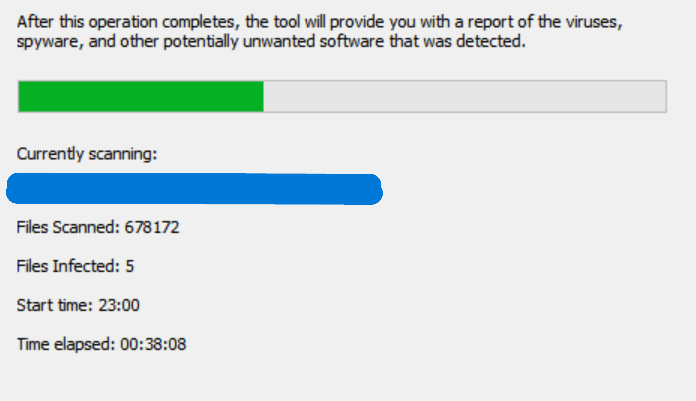
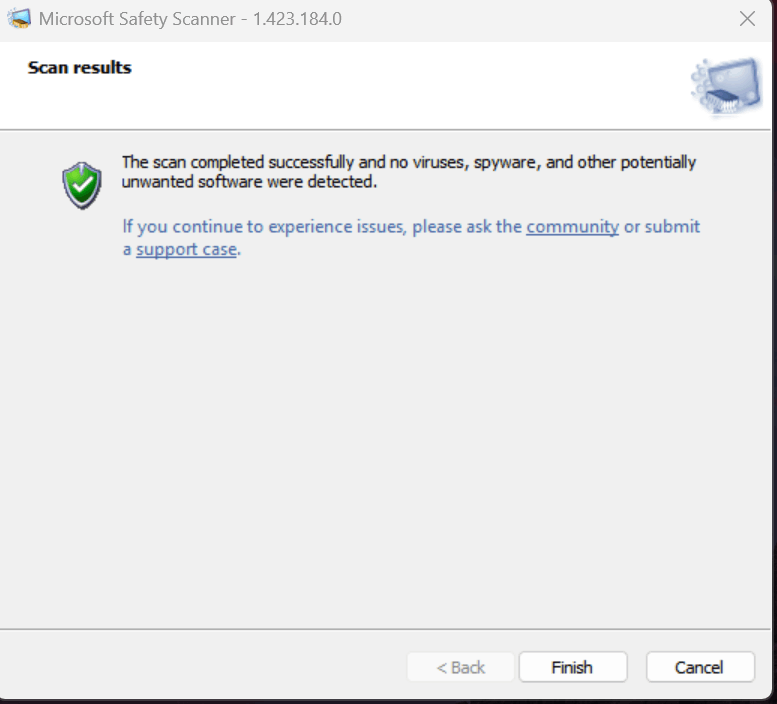
That is why the article treats the progress screen as a signal to investigate, not as the final verdict. The final screen, C:\Windows\debug\msert.log, and Windows Security protection history carry more weight than the live counter alone.
Why the Counter Can Look Worse Than the Final Result
Microsoft community answers and Microsoft support material describe a practical reason for the mismatch: scanner status during a scan can flag items for deeper checking before the final verdict is known. Large archives, old installers, backups, browser caches, and compressed files can trigger more scrutiny than ordinary documents.
That is why the final screen can say no malware was found after the in-progress counter looked alarming. The important question is not “Did the counter move?” but “Did the final result, log file, protection history, or quarantine show a confirmed threat?”
There is a second source of confusion: people mix three Microsoft tools with similar names and overlapping purposes. Microsoft Safety Scanner is commonly referred to as MSERT. Windows Malicious Software Removal Tool is MSRT or MRT. Microsoft Defender Offline is a boot-time scan option. They are related security tools, but their logs and purpose are not identical.
Where to Find the Microsoft Safety Scanner Log
For Microsoft Safety Scanner, open this location:
- Press Win + R.
- Enter
%systemroot%debugand press Enter. - Open
msert.login Notepad. - Search inside the file for words such as
Threat,Found,Detected,Removed,Return code, or a file path you remember seeing.
On a typical Windows installation, %systemroot% is C:\Windows, so the full path is C:\Windows\debug\msert.log. If you were using Windows Malicious Software Removal Tool instead, check C:\Windows\debug\mrt.log.
Do not rely only on the live counter you saw while the scan was moving. If the final result says no threats and the log does not show a confirmed detection or failed remediation, the earlier number was likely a preliminary suspicion rather than a confirmed infection.
MSERT, MSRT, and Defender Offline: What Is the Difference?
| Tool | Use it for | Log or result to review |
|---|---|---|
| Microsoft Safety Scanner / MSERT | One-time scan when you want Microsoft’s portable scanner result | C:\Windows\debug\msert.log |
| Windows Malicious Software Removal Tool / MSRT / MRT | Microsoft’s monthly tool for specific prevalent malware families | C:\Windows\debug\mrt.log |
| Microsoft Defender Antivirus | Normal real-time protection, full scans, protection history, quarantine | Windows Security app and protection history |
| Microsoft Defender Offline | Harder cases where malware may interfere with normal Windows scanning | Windows Security scan history after the offline scan completes |
What to Do Next
- Save the final result and log. Take a screenshot of the final scanner screen and keep a copy of
msert.logormrt.log. - Update Windows Security intelligence. Open Windows Security, check for protection updates, and run a normal Microsoft Defender full scan.
- Check the file paths. A warning involving
Downloads,Temp, browser cache, cracked software, game mods, password stealers, or unknown archives deserves more caution than an old harmless backup that never executes. - Use a second opinion when the context is suspicious. If the warning involved unknown installers, cracks, scripts, or repeated alerts, scan the system with Gridinsoft Anti-Malware and check suspicious files with the Gridinsoft Online Virus Scanner.
- Escalate if symptoms continue. Repeated detections, unknown startup entries, browser hijacking, blocked security settings, or login alerts mean you should treat the machine as potentially compromised.
If you downloaded a fake game, mod, crack, or unknown archive before seeing the scanner warning, also read Gridinsoft’s infostealer cleanup checklist. A scan-result mismatch is one problem; stolen browser cookies, Discord tokens, or saved passwords are a separate risk.
When “No Threats” Is Not Enough
The final “no threats” result is reassuring only when the rest of the evidence is clean. Take stronger action when one of these is true:
- Windows Security protection history shows a current threat, remediation failed, or “action needed.”
- The same detection appears after reboot or after you delete the suspicious file.
- The file path points to a crack, keygen, fake installer, unsigned script, browser extension, or random AppData folder.
- You saw suspicious account activity, MFA prompts, browser redirects, or new startup items.
- The scan log shows errors that prevented scanning or cleanup from completing.
In those cases, run a full cleanup pass before changing passwords from that PC. Use a clean phone or computer to change important passwords, revoke active sessions, and enable MFA. For severe signs such as persistent detections, security tools being disabled, or unknown administrator accounts, consider Microsoft Defender Offline or a clean Windows reinstall workflow. Gridinsoft’s clean install USB after malware guide explains when reinstalling is the cleaner path.
What Not to Do
- Do not restore a quarantined file just because the final scan screen was clean.
- Do not delete random files from
System32without confirming the exact path, signature, and detection source. - Do not keep rerunning the same scanner without reviewing the log; you may only repeat the same confusing counter.
- Do not reset passwords on a computer that may still have an active infostealer.
- Do not assume old archives are safe forever; scan backup archives before opening or extracting executable files from them.
FAQ
Does Microsoft Safety Scanner really find infected files and then ignore them?
Usually it is not ignoring confirmed malware. The number shown during the scan can represent items being checked more deeply. If the final result and msert.log show no confirmed threat, the earlier count was likely preliminary.
Where is msert.log?
Open %systemroot%debugmsert.log. On most PCs, that means C:\Windows\debug\msert.log.
Should I run Microsoft Safety Scanner again?
Only after checking the log and updating security intelligence. If the same confusing result repeats but no confirmed threat appears, use a different verification path: Windows Security protection history, a Gridinsoft second-opinion scan, or Microsoft Defender Offline when normal Windows scanning is not trustworthy.
Does “no malicious software detected” mean my accounts are safe?
No. Scanner results and account security are related but separate. If you saw suspicious logins or downloaded a likely stealer, clean the device first, then change passwords and revoke sessions from a clean device.