
SteamWebHelper.exe is a legitimate part of the Steam client, and seeing several copies is normally expected. The problem is not the process count by itself. Investigate when their combined memory keeps growing while Steam is idle, the client becomes slow, or Steam shows the “steamwebhelper is not responding” dialog. First exit Steam completely and measure again. If the processes disappear, follow Valve’s repair order. If a copy remains, runs outside the Steam installation, or lacks a valid Valve signature, treat that file as suspicious and scan it.
Do not download a replacement steamwebhelper.exe from a file site. Steam installs and updates this component itself.
What SteamWebHelper.exe Does
Steam uses SteamWebHelper.exe to render web-based parts of the desktop client, including the Store, Library, Community pages, chat, and other interface views. Valve describes it as a key component and calls its processes Steam’s rendering components.
Several helper processes are not automatically waste or malware. Chromium-based applications separate renderers and other services into multiple processes for stability and isolation. One process can handle a page or interface task while others handle graphics, networking, storage, or utility work. That is why Task Manager may show a group of Steam Client WebHelper entries even when only one Steam window is visible.
Is the Memory Use Actually Abnormal?
There is no universal “safe” RAM number. Steam’s current page, open chat windows, animated content, display scale, client version, and available system memory all affect the total. A steady few hundred megabytes on a PC with free memory is a different problem from a total that climbs every few minutes until Windows starts paging or Steam stops responding.
| What you observe | What it means and what to do |
|---|---|
| Several helpers, steady total, Steam works normally | Usually expected multiprocess behavior. Leave the files in place. |
| Total rises continuously while Steam is idle | Treat it as a client, page, cache, driver, or software-conflict problem and follow the fix order below. |
| Steam freezes or shows “not responding” | Use Valve’s restart options, then test GPU acceleration and the display driver. |
| A helper remains after Steam fully exits | Confirm whether steam.exe also remains. If not, inspect that helper’s path and signature. |
| The file is outside the Steam folder or has no valid Valve signature | Do not allow or delete it blindly. Keep it closed, scan the system, and investigate its source. |
Measure the Total Before Changing Settings
- Close unneeded Steam views. Close extra Store, Community, chat, and overlay windows, but leave the main client open.
- Open Task Manager. In Processes, expand the Steam group and note the group’s total memory. In Details, you can also sort by name to see individual
steamwebhelper.exeentries. - Wait 10 to 15 minutes at idle. A stable total is more useful than one instant reading. Record whether the total settles, slowly grows, or jumps when a specific Steam view opens.
- Exit from Steam’s menu. Choose Steam > Exit, not only the window’s close button. Confirm that
steam.exeand its helper processes disappear. - Relaunch once. Compare the same idle state. If memory begins climbing again, continue with the supported fixes.
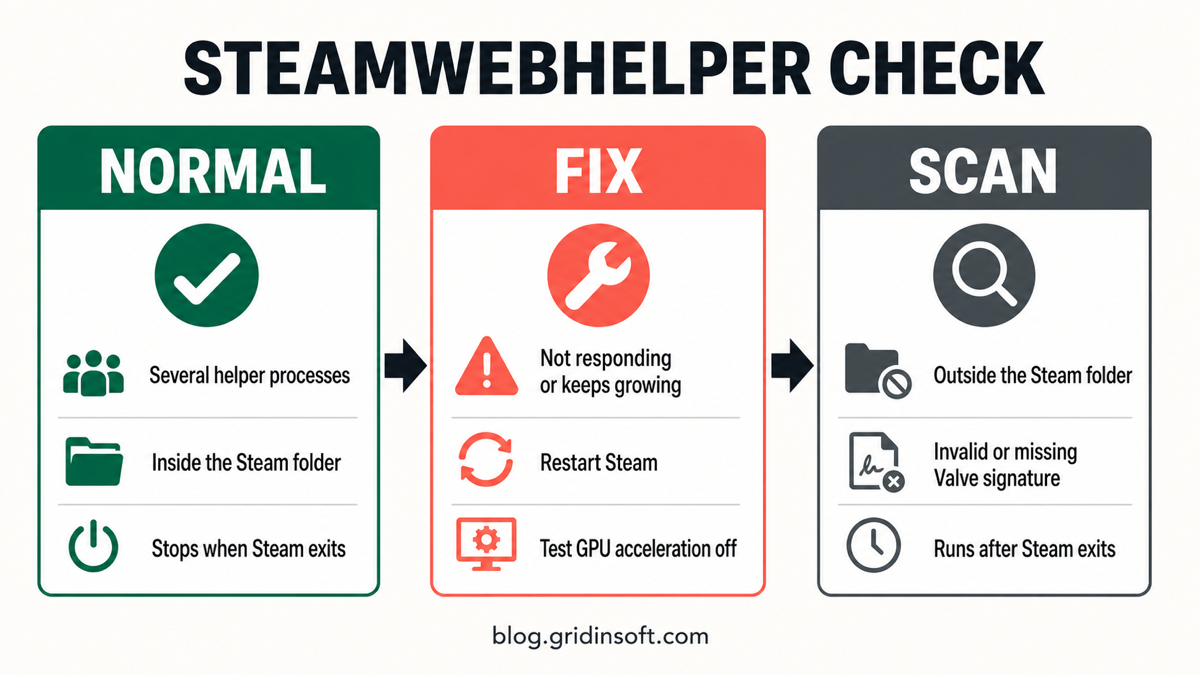
Fix High Memory or “Not Responding” in a Safe Order
1. Restart Steam or only the helper
Valve’s error dialog offers options to restart Steam or restart only steamwebhelper.exe. Start there. A clean restart clears a stuck renderer without changing files, security settings, or the game library.
2. Test Steam with GPU acceleration disabled
Valve says some graphics drivers can have trouble rendering Steam content when GPU acceleration is enabled. Use the dialog’s Restart Steam with GPU Acceleration disabled option, or turn the option off under Steam > Settings > Interface. If this fixes the hang, update the graphics driver before deciding whether to leave acceleration off; disabling it can reduce interface performance.
3. Update the graphics driver
Install the current stable driver for the GPU from Windows Update or the hardware vendor. Reboot, enable Steam’s GPU acceleration again, and repeat the same idle measurement. Changing one thing at a time tells you whether the driver was responsible.
4. Test third-party interference without weakening security
Valve notes that security and other third-party software can interfere with SteamWebHelper’s sandbox and cause hangs or crashes. Close overlays, monitoring utilities, traffic filters, and recently installed desktop customization tools one at a time, then retest. Do not permanently disable protection or add a broad Steam-folder exclusion before you have confirmed the file path and signature.
5. Reinstall the Steam client only as a last step
If the official restart and driver checks do not help, preserve the steamapps library and important userdata first, then reinstall the client from Steam’s official site. Do not delete the whole Steam folder as an early experiment: that can turn a client repair into an unnecessary game download or local-save problem.
Is SteamWebHelper.exe Safe or a Virus?
The filename alone cannot answer that question. A legitimate copy should be under the Steam installation that launched it, commonly inside a bin\cef subfolder. A custom drive or library location is allowed, so compare it with the location of your own steam.exe rather than trusting one hard-coded path.
- In Task Manager, right-click the helper and choose Open file location.
- Confirm that the folder belongs to the same Steam installation you intentionally installed.
- Open Properties > Digital Signatures and inspect the signature. The expected publisher is Valve; the signature details should report that it is valid.
- Exit Steam from its menu. A normal child process should not keep running indefinitely without the Steam client.
You can also inspect the signature from PowerShell after substituting the actual path shown by Task Manager:
Get-AuthenticodeSignature -LiteralPath 'C:\full\path\to\steamwebhelper.exe' | Select-Object Status, SignerCertificate
A valid signature is strong identity evidence, but it does not excuse an unexpected source or suspicious behavior. Conversely, a missing signature is a reason to investigate, not proof of a specific malware family. For a broader checklist, use our guide to checking whether an EXE file is safe.
When SteamWebHelper.exe Should Be Scanned
Scan the PC when the process runs from Downloads, Temp, AppData, a random folder, or another location unrelated to Steam; when the Valve signature is invalid or missing; when it survives after Steam exits; or when it appeared after an unofficial game tool, mod installer, crack, or file-sharing download. A separate program such as SteamTools.exe is not the official Steam helper, even when its name and icon look convincing.
Closing one suspicious file may not remove what launched it. An untrusted installer can leave a startup entry, scheduled task, service, or bundled module that recreates the process after reboot. In that situation, keep the file closed and run a full Gridinsoft Anti-Malware scan; review detections, reboot, and scan again if the process returns. Our guide to scan results and next steps explains what to verify afterward.
If the process path is wrong, the name imitates a Windows component, or high CPU started after an unknown installer, scan for hidden miners, services, startup entries, and bundled components.
Scan a suspicious SteamWebHelper copyWhat Not to Do
- Do not download a loose replacement EXE from a process database or file mirror.
- Do not delete SteamWebHelper merely because Task Manager shows several instances.
- Do not leave Steam’s browser sandbox disabled as a general performance tweak.
- Do not create a broad antivirus exclusion before checking the file’s path, signature, and source.
- Do not install a “RAM booster” to hide continuous growth. Find the Steam view, driver, or conflicting software that triggers it.
FAQ
Why are there so many Steam Client WebHelper processes?
Steam’s web interface uses a Chromium-style multiprocess design. Separate renderers and services improve isolation and allow one interface component to restart without taking down everything else. Process count alone is not a malware sign.
How much RAM should SteamWebHelper.exe use?
There is no fixed safe number for every PC. Judge the combined trend and impact: whether memory settles, keeps growing at idle, causes paging, or accompanies freezes and the not-responding dialog.
Can I disable SteamWebHelper.exe permanently?
Not without breaking or degrading web-based parts of the Steam client. Use the supported restart and GPU-acceleration controls instead of deleting the executable or relying on unsupported no-browser hacks.
Is SteamWebHelper.exe malware if it has high CPU or memory?
No. Resource use is a troubleshooting symptom, not a malware verdict. The stronger warning signs are an unrelated file location, an invalid or missing Valve signature, persistence after Steam exits, or arrival through an untrusted download.
Should I allow SteamWebHelper through antivirus?
Verify the path and Valve signature first. If the file is authentic and protection is demonstrably causing the official client to hang, follow the security vendor’s support process for a narrow exception. Never exclude an unknown copy just to stop an alert.
References
- Valve Corporation. “Steamwebhelper is not responding.” Steam Support, accessed August 5, 2026. https://help.steampowered.com/en/faqs/view/6C3E-9504-CC20-AF49
- The Chromium Projects. “Multi-process Architecture.” Chromium Design Documents, accessed August 5, 2026. https://www.chromium.org/developers/design-documents/multi-process-architecture/
- Microsoft. “Get-AuthenticodeSignature.” Microsoft Learn, accessed August 5, 2026. https://learn.microsoft.com/en-us/powershell/module/microsoft.powershell.security/get-authenticodesignature?view=powershell-7.5