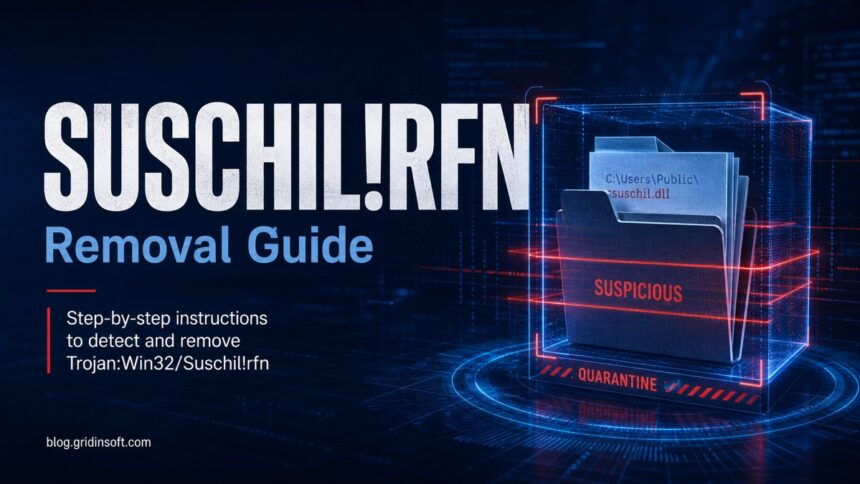
Trojan:Win32/Suschil!rfn is a Microsoft Defender detection for a suspicious Windows file. Keep it quarantined. If the file came from a crack, repack, fake update, or unknown attachment and you ran it, scan the PC for other components it may have installed. Do the same if the alert returns after removal.
Gridinsoft Anti-Malware gives you a scan-and-cleanup path without requiring you to inspect startup entries and scheduled tasks first. Review detected files and unwanted programs, apply cleanup, then restart and check the original symptom. If Defender blocked the file before it ran, check its source first; a trusted app may need false-positive verification rather than removal.
If the suspicious file ran or the alert returns, use Gridinsoft Anti-Malware to scan for related threats and unwanted programs. Review the detections, apply cleanup, and restart to check whether the symptom is gone.
Free 6-day full trial for eligible new users, including cleanup. Email activation; no credit card required.
Download Gridinsoft Anti-Malware for WindowsWhat should you do with Trojan:Win32/Suschil!rfn?
- Do not click Allow or Restore first. Keep Defender’s quarantine or removal action while you verify the file.
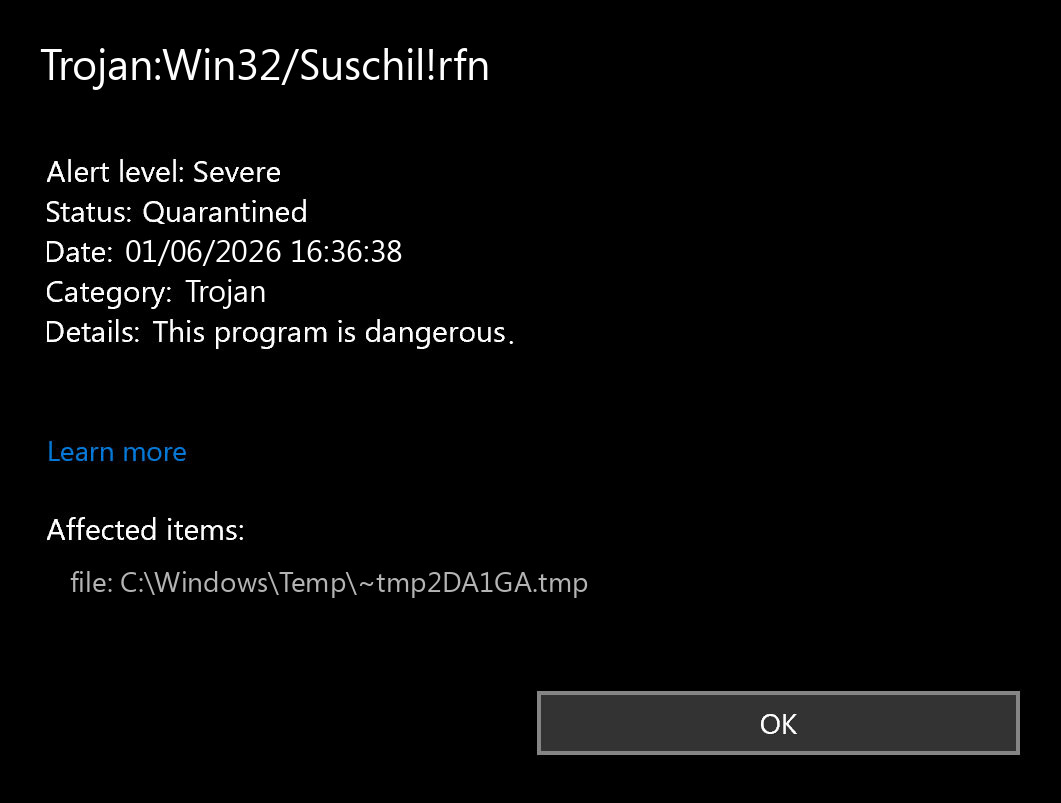
- Open Protection History and record the affected item path, source folder, and threat status.
- Delete the source package if it came from Downloads, Temp, an archive, a torrent, a crack/repack, an email attachment, or a fake update page.
- If the file ran or the alert returns, scan with Gridinsoft Anti-Malware, review detections, apply cleanup, and restart. Investigate startup points if the symptom remains.
- Submit only trusted files as false positives. If the file has no clear publisher or came from an unsafe source, remove it instead.
| Detection | Trojan:Win32/Suschil!rfn |
| Likely intent | Identify whether a Defender alert is a real trojan, a blocked download, or a false-positive candidate |
| Risk signals | Unknown executable, crack/repack, fake update, email attachment, Temp/AppData path, repeated alert after reboot |
| Safer first action | Quarantine/remove, delete the original source, rescan, then investigate persistence only if the file ran |
What is Trojan:Win32/Suschil!rfn?
Microsoft Defender uses names such as Trojan:Win32/Suschil!rfn to label files that match a trojan pattern, reputation rule, or machine-learning verdict. The suffix !rfn is not a full behavioral report by itself. For this reason, the most useful evidence is the path, source, publisher, and whether the file actually ran.
A blocked file in a browser cache or Downloads folder is different from an executed file that created startup entries, scheduled tasks, or browser changes. Treat the alert as real until the source is proven clean, but do not assume every alert means Windows is already fully compromised.
Use the affected item path to decide the risk
| Where Defender found it | What it usually means |
|---|---|
Downloads, extracted archive, torrent, crack, repack, trainer, keygen |
High risk. Delete the source package and do not restore the detected file. |
Temp, AppData, startup folder, unknown installer cache |
Suspicious. Remove it, reboot, then check startup apps, Task Scheduler, and recently installed programs. |
| Browser cache or a blocked web download | Often a blocked download/cache event. Clear the browser cache and rescan; deeper cleanup is needed if alerts return. |
| Email attachment or Outlook/Thunderbird attachment cache | Keep quarantine, delete the message or attachment, and scan the mailbox/cache location again. |
| Known signed business app or your own build output | Possible false positive. Verify the publisher and hash, update Defender, scan again, then submit the file to Microsoft if it still looks clean. |
Could Trojan:Win32/Suschil!rfn be a false positive?
Yes, but only after the source checks pass. False positives are more plausible for uncommon administrative tools, new builds, emulators, scripts, or packed software from a trusted vendor. They are much less plausible for cracks, fake installers, pirated games, password-protected archives, or files downloaded from redirect-heavy pages.
- More likely false positive: the file is signed by a vendor you recognize, downloaded from the vendor’s official domain, and other scanners or later Defender definitions do not repeat the alert.
- More likely malware: the file has no reliable publisher, arrived through a bundle/repack, appears in Temp/AppData, or returns after removal.
- Do not restore just to test it. Copy the hash, source URL, and vendor details first; test in an isolated environment if you are responsible for the software.
How to remove Trojan:Win32/Suschil!rfn safely
If you ran the suspicious file or the alert keeps returning, use this scan-and-cleanup path. Keep Microsoft Defender enabled and leave its quarantined item blocked.
- Save the alert details. Open Windows Security → Virus & threat protection → Protection history. Note the affected path, action status, and detection time. Do not choose Restore or Allow.
- Install Gridinsoft Anti-Malware and update its detection database. Eligible new users can request the free trial in the app and activate it with the code sent by email.
- Run a Full Scan and review the results. Check the detected names and file locations. Another scanner may use a different name from Suschil; compare the affected files rather than expecting identical labels.
- Apply cleanup to confirmed threats. Review the suggested actions, then quarantine or remove detected items. Delete an untrusted source installer or archive so you do not run it again.
- Restart and check the original symptom. Run a follow-up scan if needed. A clean scan is useful evidence, but does not guarantee that no compromise occurred. If the alert returns, continue with the targeted checks below.
Optional manual checks if the symptom remains
If the symptom remains, review apps installed around the incident, Startup Apps, Task Scheduler, and browser extensions. Check the original archive, installer, email attachment, or browser cache as a possible source. Remove only confirmed unwanted items; keep the detection path and timestamp instead of clearing Protection History.
Why does Suschil!rfn come back after removal?
Recurring alerts usually mean the original source is still present, an archive keeps being extracted, the browser re-downloads the same file, or a companion app recreates the detected item. If the path points to a startup location, Task Scheduler, AppData, or a recently installed program folder, treat it as active cleanup rather than a one-time blocked download.
- Remove the original archive or installer, not only the file Defender names.
- Clear browser downloads/cache if the path is browser-related.
- Disable unknown startup entries before rebooting and rescanning.
- Use the same path from Protection History to confirm the repeated alert is the same source, not a new download.
What not to do
- Do not restore the file because a forum post says the name can be a false positive.
- Do not delete Protection History before copying the affected path; the path is the main clue.
- Do not run the file in normal Windows to “see what happens”.
- Do not keep a password-protected archive or crack just because Defender removed the extracted copy.
Related Defender guides
For naming context, read our Microsoft Defender detection-name guide. Similar exact-detection workflows are covered in Trojan:Win32/Skeeyah.A!rfn, Trojan:Script/Conteban.A!ml, and Trojan:Win32/Ravartar!rfn. For broader generic-trojan cleanup context, compare it with Trojan:Win32/Wacatac.
FAQ
Should I allow Trojan:Win32/Suschil!rfn?
No, not on a normal PC. Allow it only in an isolated lab or after Microsoft or the software vendor confirms a false positive.
Is Trojan:Win32/Suschil!rfn always malware?
No detection name is enough by itself, but you should treat it as malware until the source, publisher, path, and scan results support a false-positive explanation.
Why does it come back after removal?
The source archive, browser cache, extracted folder, scheduled task, or companion app may still be present. Use the repeated affected path to find the source.
Do I need to reinstall Windows?
Usually no if Defender quarantined the file before it ran. Consider deeper recovery if the file executed, Defender reports remediation incomplete, or suspicious startup/network behavior remains.
How do I report a false positive?
Submit the file to Microsoft only if it came from a trusted source and you can provide the file hash, vendor, download URL, and Defender detection details.
References
- Microsoft Learn. “Microsoft Defender Antivirus in Windows.” Microsoft, accessed June 1, 2026. https://learn.microsoft.com/en-us/defender-endpoint/microsoft-defender-antivirus-windows
- Microsoft Support. “Stay protected with the Windows Security app.” Microsoft, accessed June 1, 2026. https://support.microsoft.com/en-us/windows/stay-protected-with-the-windows-security-app-2ae0363d-0ada-c064-8b56-6a39afb6a963
- Microsoft Learn. “Submit files for analysis.” Microsoft, accessed June 1, 2026. https://learn.microsoft.com/en-us/defender-xdr/submission-guide/