Trojan:Win32/Ravartar!rfn is a Microsoft Defender alert. Keep the item quarantined. If it returns at startup or PowerShell flashes when you sign in, another component may be triggering it. An amsi: path naming PowerShell or MSBuild is not a reason to delete those Windows programs.
Start a Gridinsoft Anti-Malware system scan to look for related threats, review detected items, and apply cleanup. This gives you a practical first step before tracing scripts and scheduled tasks manually. If the alert only concerns an unopened Outlook attachment or a trusted game update, use the specific checks below; the detection name alone does not establish what ran.
Use Gridinsoft Anti-Malware to check for related malware and unwanted startup components. Review detections and clean flagged items without first guessing which PowerShell command or registry entry to delete.
Free 6-day full trial for eligible new users, including cleanup. Email activation; no credit card required.
Download Gridinsoft Anti-Malware for Windows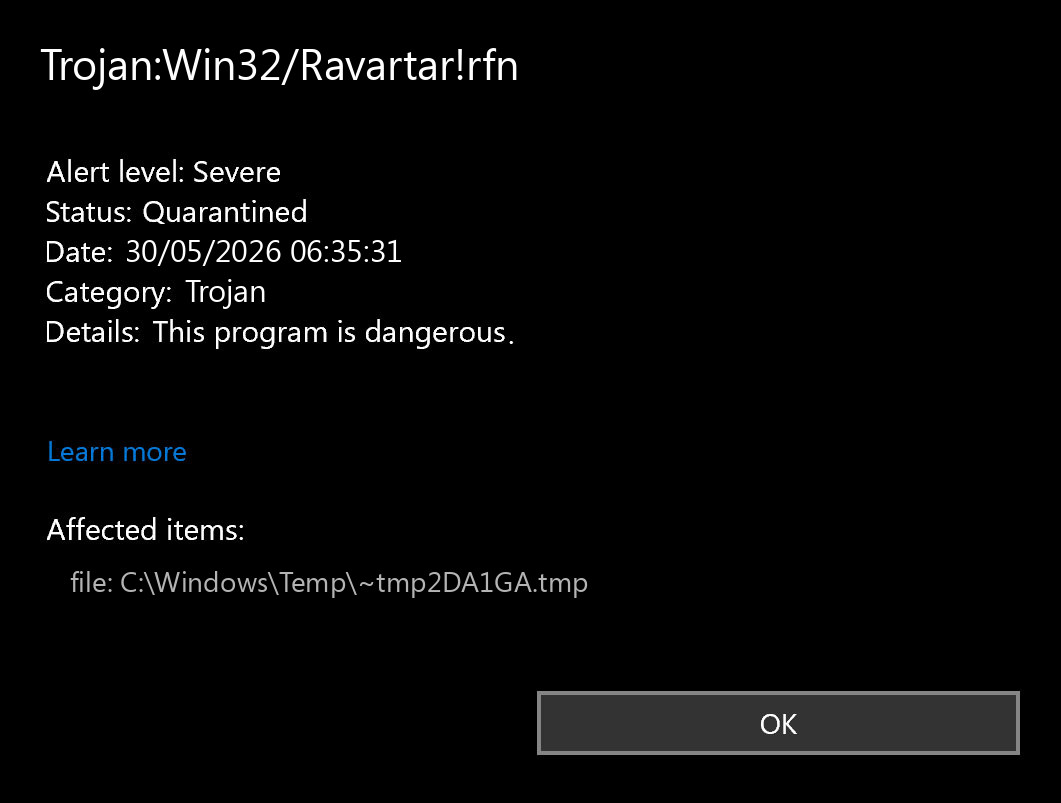
Quick Verdict
| Detection | Trojan:Win32/Ravartar!rfn |
| Detected by | Microsoft Defender Antivirus |
| Severity | Treat as dangerous until the affected file is verified. |
| Common anxiety point | Recurring PowerShell/AMSI alerts at startup, Outlook attachment-cache hits, or an official game/update file. |
| First action | Keep quarantine, update security intelligence, run a full scan, and check the affected path. |
What Trojan:Win32/Ravartar!rfn Means
Microsoft Security Intelligence lists Trojan:Win32/Ravartar!rfn as a Microsoft Defender Antivirus detection. Microsoft says Defender detects and removes this threat, and that the threat can perform actions chosen by a malicious actor on the device [1]. Microsoft also states that technical details for this detection are currently not available [1].
That limited public detail is why you should not make the decision from the name alone. A Ravartar alert in a random installer, archive, crack, script, fake update, or email attachment should be treated as real malware until proven otherwise. A false positive is possible only when the file has a trusted source, a matching digital signature, a normal path, and a clear reason to be on the system.
If Ravartar Appears in an Outlook Attachment Folder
Outlook can store attachments locally while it previews, opens, saves, or handles messages. Microsoft also blocks or restricts many risky attachment types because they can threaten the computer if opened or launched [3]. So an alert in an Outlook attachment location means a suspicious file was present there, but it does not by itself prove that the payload executed.
Use the path and your actions to judge the risk:
- Lower risk: you only viewed the message list or email body, did not open the attachment, Defender quarantined the item, and follow-up scans are clean.
- Higher risk: you opened, previewed, saved, extracted, or ran the attachment; the alert returns; or the same message/source keeps reintroducing the file.
- Account risk: you entered passwords, approved MFA prompts, saw browser redirects, found unknown extensions, or noticed suspicious account activity after the email.
Do not restore the attachment to inspect it on your main PC. Preserve the detection path, delete the suspicious message or attachment source, and scan the system after Defender updates.
If Ravartar Appears in Rec Room or Another Game Update
A Ravartar alert against RefereeClientApp, an anti-cheat component, launcher, mod, or another game file can be a false-positive candidate, but the product name alone is not proof. Keep the file quarantined, confirm that the game or update came from its official store or vendor, check that the path and digital signature match the installed product, update Defender security intelligence, and compare a fresh official copy before restoring anything.
Treat the alert as unsafe when the file came from a mod mirror, crack, cheat, repack, unofficial launcher, temporary folder, or an unexpected download. Also treat it as a compromise case when the alert returns outside the game folder, PowerShell opens at startup, new tasks or services appear, or accounts show unauthorized activity.
If Ravartar Points to PowerShell.exe, MSBuild.exe, or an AMSI Path
An affected item such as amsi:\Device\HarddiskVolume3\Windows\System32\WindowsPowerShell\v1.0\powershell.exe or amsi:\Device\HarddiskVolume4\Windows\Microsoft.NET\Framework64\v4.0.30319\MSBuild.exe does not automatically mean the signed Windows host file was replaced. The amsi: prefix means Defender inspected content or activity through the Anti-Malware Scan Interface, which Microsoft uses to catch fileless, script-based, and other nontraditional threats [4].
Do not delete or replace Microsoft-signed powershell.exe or MSBuild.exe just because it appears in the affected-item line. Trace the script, command, project file, installer, archive, fake update, Run entry, or scheduled task that caused the trusted host to execute suspicious content. A PowerShell window flashing at login or a Ravartar alert returning after every reboot is a persistence signal, not a reason to allow the detection. The broader MSBuild.exe safety guide covers that trusted-tool abuse path in more detail.
- Copy the full path and timestamp. Save the Protection History details before cleanup so you can trace the source file or task.
- Keep quarantine or removal active. Update Defender and run a full scan; use Microsoft Defender Offline if the alert returns before Windows fully loads.
- Find the trigger. Check recent downloads, extracted archives, scripts, Startup Apps, Task Scheduler, and the folder that launched the project or installer.
- Scan for persistence. If this followed an opened executable, crack, fake update, or returns after reboot, run Gridinsoft Anti-Malware to look for related loaders, startup entries, scheduled tasks, and browser changes.
- Protect accounts if something ran. Change passwords from a clean device if the downloaded file executed or you saw browser, session, or account symptoms.
How to Check Whether It Is a False Positive
- Open Protection History. In Windows Security, go to Virus & threat protection, open Protection history, expand the Ravartar event, and copy the affected path.
- Identify the source. Outlook attachment, browser cache, official game/update folder, download, archive extraction, game mod, crack, keygen, fake update, or unknown installer all change the risk level.
- Check the file name and extension. Watch for double extensions, script files, executable attachments, password-protected archives, and files that pretend to be PDFs or invoices.
- Verify the signature. If the file is still available in a controlled location, check Properties and Digital Signatures. Missing or unrelated signatures are not a clean signal.
- Compare with a trusted source. If this is supposed to be a legitimate app, download it again only from the official vendor and compare the name, signature, version, and hash if the vendor publishes one.
- Scan for related artifacts. Use Gridinsoft Anti-Malware for a second-opinion scan, especially if the file came from email, a browser download, a crack, or an unknown installer.
- Submit controlled false positives. If the file is business-critical and all evidence points to a clean file, submit it to Microsoft for analysis instead of restoring it blindly [2].
Remove Trojan:Win32/Ravartar!rfn Safely
If you ran the suspicious file or the alert keeps returning, use this scan-and-cleanup path. Keep Microsoft Defender enabled and leave its quarantined item blocked.
- Save the alert details. Open Windows Security → Virus & threat protection → Protection history. Note the affected path, action status, and detection time. Do not choose Restore or Allow.
- Install Gridinsoft Anti-Malware and update its detection database. Eligible new users can request the free trial in the app and activate it with the code sent by email.
- Run a Full Scan and review the results. Check the detected names and file locations. Another scanner may use a different name from Ravartar; compare the affected files rather than expecting identical labels.
- Apply cleanup to confirmed threats. Review the suggested actions, then quarantine or remove detected items. Delete an untrusted source installer or archive so you do not run it again.
- Restart and check the original symptom. Run a follow-up scan if needed. A clean scan is useful evidence, but does not guarantee that no compromise occurred. If the alert returns, continue with the targeted checks below.
Optional manual checks if the symptom remains
If the alert returns after reboot, use the affected path and timestamp to trace the source: Startup Apps, Task Scheduler, Services, browser extensions, suspicious commands, an email attachment, or a synced folder. Do not delete Microsoft-signed PowerShell or MSBuild executables. Change passwords from a clean device and revoke sessions if the file ran or accounts show unusual activity.
Why Trojan:Win32/Ravartar!rfn Keeps Coming Back
A recurring Ravartar alert usually means one of four things: the original attachment or archive is still present, a synced folder is downloading it again, a scheduled task or startup entry is recreating files, or a larger infection left remnants behind. The exact path in Protection History tells you which lane to investigate first.
- If the path is under Outlook or email storage, remove the message, empty Deleted Items/Junk if appropriate, and rescan.
- If the path is under
Downloadsor an extracted archive, delete the archive and extracted folder, not only the detected file. - If the path is under
AppData,Temp, or a random subfolder, scan for persistence and recently created startup entries. - If the path is in OneDrive, Dropbox, Google Drive, or another sync folder, remove it from the cloud source too.
For related naming context, read our Microsoft Defender detection-name guide. Similar exact-detection workflows are covered in Trojan:Win32/Skeeyah.A!rfn, Trojan:Win32/Pomal!rfn, and Trojan:Win32/Suschil!rfn. For broader generic-trojan context, compare it with Trojan:Win32/Wacatac.
When to Worry About Passwords
You do not need to change every password just because Defender quarantined an unopened attachment. You should treat accounts as exposed if the detected file executed, if you entered credentials after opening a suspicious attachment, if browser extensions changed, if saved sessions disappeared, or if sign-in alerts appeared around the same time.
In that case, change passwords from a clean phone or PC, revoke suspicious sessions, review email forwarding rules, check MFA devices, and watch financial or gaming accounts for recovery attempts.
Related Tecabans.ST!cl Decision Guide
If Defender shows Trojan:Win32/Tecabans.ST!cl instead of Ravartar, use the same safe order: keep quarantine, copy the affected path, verify the file source, and scan before restoring a possible false positive.
FAQ
Is Trojan:Win32/Ravartar!rfn definitely malware?
Treat it as malware first. Microsoft lists it as a Defender-detected trojan threat, but public technical detail is limited. The affected path, file source, digital signature, and whether the alert returns decide whether a false-positive review is reasonable.
Can Ravartar in Rec Room or another official game update be a false positive?
It can be a false-positive candidate when the file came from the official store or vendor, sits in the expected game folder, has the expected signature, and clean scans remain after Defender and the game are updated. Do not restore it solely because other players report the same name; unofficial launchers, mods, cheats, cracks, and files outside the normal game path remain high-risk.
Does an AMSI path ending in powershell.exe mean PowerShell is infected?
Not necessarily. An amsi:\...\powershell.exe affected-item line can mean Defender inspected a suspicious script or command handled by the legitimate PowerShell host. Keep the detection blocked and trace the task, Run entry, script, archive, download, or other parent source instead of deleting the signed Windows executable.
Does an Outlook attachment-folder alert mean I am infected?
Not automatically. It means Defender found a suspicious file where Outlook stored or handled an attachment. If you did not open or run the attachment and scans are clean after quarantine, the risk is lower. If you opened the attachment or the detection returns, investigate it as a real compromise path.
Should I restore the file from quarantine?
No. Do not restore it on your main PC to test it. Keep quarantine, verify the source and signature, run scans, and submit the sample to Microsoft if you have strong evidence that it is a clean false positive.
Why does Ravartar keep coming back?
The original source may still be present, a cloud sync folder may be restoring it, Outlook may still have the attachment, or another startup entry may be recreating related files. Use the exact Protection History path to find the source.
References
- Microsoft Security Intelligence. “Trojan:Win32/Ravartar!rfn threat description.” Microsoft, published and updated March 19, 2026, accessed May 30, 2026. https://www.microsoft.com/en-us/wdsi/threats/malware-encyclopedia-description?Name=Trojan%3AWin32%2FRavartar%21rfn&ThreatID=2147965211
- Microsoft Learn. “Submit malware, non-malware, and other suspicious files to Microsoft for analysis.” Microsoft, updated April 24, 2024, accessed May 30, 2026. https://learn.microsoft.com/en-us/defender-office-365/submissions-submit-files-to-microsoft
- Microsoft Support. “Blocked attachments in Outlook.” Microsoft, accessed May 30, 2026. https://support.microsoft.com/en-gb/office/blocked-attachments-in-outlook-434752e1-02d3-4e90-9124-8b81e49a8519
- Microsoft Learn. “Anti-malware Scan Interface (AMSI) integration with Microsoft Defender Antivirus.” Microsoft, accessed June 20, 2026. https://learn.microsoft.com/en-us/defender-endpoint/amsi-on-mdav