
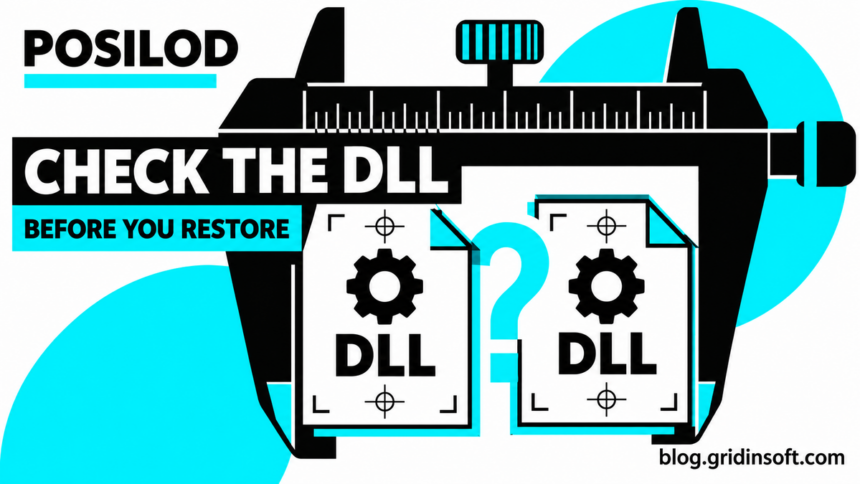
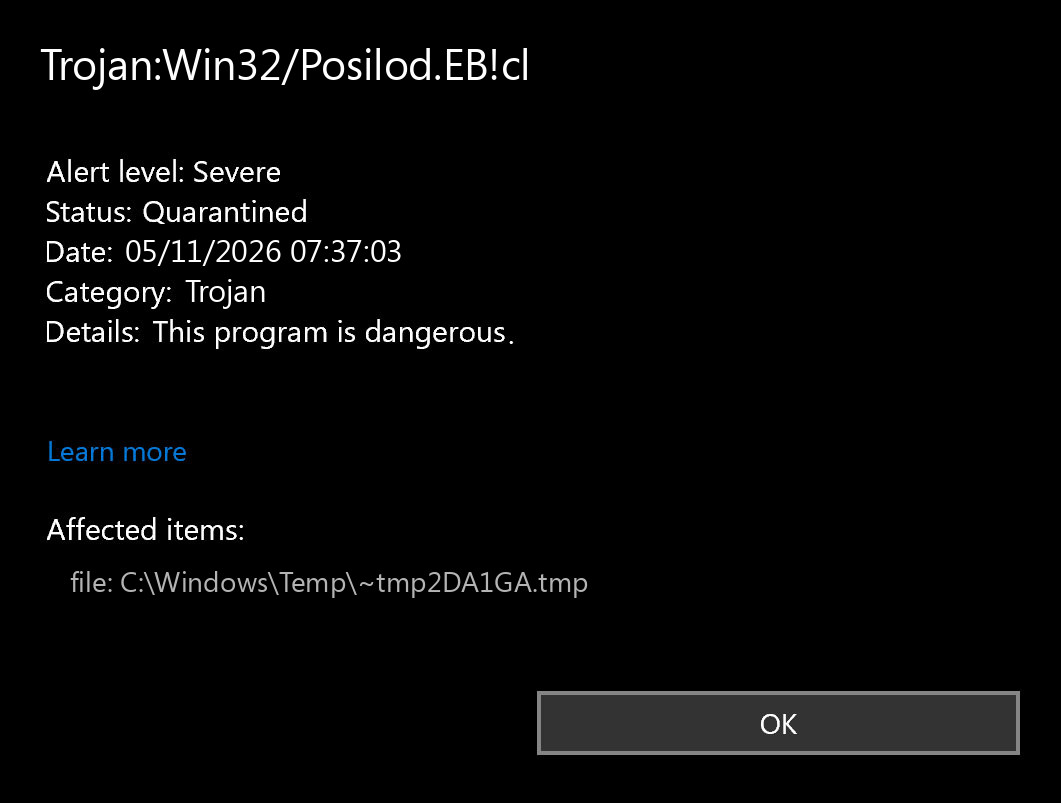
Trojan:Win32/Posilod.EB!cl is a Microsoft Defender detection that needs a file-specific check before you restore anything. A reported alert in agent-browser’s downloaded Chrome for Testing package was treated by its maintainer as a likely false positive. That conclusion concerns the identified browser file; it does not clear every program carrying the Posilod label.
Keep quarantine enabled while you check the source and version. If the file came from an uncertain download, already ran, or keeps returning, use Gridinsoft Anti-Malware to check the rest of the PC before allowing it back. Quarantining one DLL can leave other malware or a component that recreates it. Update the database, run a Full Scan, review and remove detected threats, then restart when requested.
What does Trojan:Win32/Posilod mean?
Microsoft lists Trojan:Win32/Posilod.EB!cl as a Defender detection. Its public entry provides general removal advice but no detailed technical behavior for this label. It therefore does not establish a particular password stealer, persistence method, or infection campaign on your computer. [1]
Record the full variant, affected path, time, and action status in Windows Security → Virus & threat protection → Protection history. A family search for Trojan:Win32/Posilod can bring up other variants and unrelated files. The exact item in your event is the starting point.
The agent-browser case: a browser DLL was quarantined
In issue #1281, opened April 21, 2026, a Windows 11 Pro user reported Defender quarantining libGLESv2.dll while installing agent-browser. The reported location was under .agent-browser\browsers, in the chrome-147.0.7727.57 version folder. [2]
On October 30, a project maintainer said the file belonged to Chrome for Testing downloaded from Google, rather than an agent-browser binary. The maintainer described a likely Defender false positive and said comparing SHA-256 with Google’s download confirmed the match. The issue was closed. The thread does not publish the numeric hashes; this article reports that explanation, not an independently repeated sample test.
The useful distinction is which component supplied the detected file. An automation tool can download a separate browser package, so its installation directory can contain code from another project. To investigate, follow the file back to that exact package rather than assuming the surrounding application’s name identifies the detected component.
Why an unsigned DLL is not enough to decide
A related Chrome for Testing issue reported chrome_elf.dll with the same Posilod variant in the Windows 64-bit 147.0.7727.57 build. A user later reported that the detection stopped. A Google project member explained that published Chrome for Testing package contents do not change, then described a subsequent report as a likely Defender false positive. The member also noted that Chrome for Testing binaries are unsigned and asked for a false-positive report. [3]
That is relevant context for the testing-browser package. It does not mean that an unsigned DLL from a random download deserves an exclusion. A digital signature, a familiar filename, or a location inside an expected folder is one piece of evidence. Source and exact artifact identity still matter.
Version 147.0.7727.57 identifies the historical reports. It is not a recommendation to reinstall that old build. For normal use, obtain a current compatible release through the tool’s official installation process.
How to check the DLL without undoing quarantine
- Preserve the event details. Record the full detection, affected filename, package/application version, download source, and Defender security-intelligence version. Note whether you ran the application before quarantine.
- Identify the supplying package. For the agent-browser example, distinguish the automation tool from its downloaded Chrome for Testing build. For another application, ask its developer which release and component should contain that DLL.
- Match version, platform, and file. Chrome for Testing provides official version/platform download information. Compare the same inner DLL from the same release and Windows architecture. A ZIP archive’s hash cannot be compared to the hash of a DLL inside it. [4]
- Use an already available hash or accessible copy. If your security tooling recorded SHA-256, give it to the developer or IT team for comparison. If the original is quarantined and no hash is available, ask the developer to review its release artifact. Do not restore a blocked file just to calculate a hash.
- Request a current classification review. Microsoft accepts files believed to have been detected incorrectly. The developer can submit its own affected release while your copy remains isolated. Include the exact detection and release information. [5]
Only inspect a file that protection already permits you to access, without launching it. Avoid third-party “DLL fix” downloads, instructions to register an unknown DLL, or broad exclusions for the browser’s entire installation folder.
What the comparison changes
- The same inner DLL matches a trusted release. This supports its package identity and makes a release-specific false-positive review meaningful. Ask the publisher or Microsoft to resolve the current detection before using the flagged copy again. A match says nothing about unrelated files or earlier activity on the PC.
- The hashes differ. Check the version, Windows architecture, and extraction target first. A different release naturally gives different bytes. If those details match but the file differs, leave it isolated and investigate the source or modification with the developer.
- You cannot compare because the file is quarantined. Keep the event record and use the developer-review route. Missing access is an expected consequence of containment, not a reason to allow the file.
The Bearfoos false-positive and restore guide covers the broader decision about trusting a specific release. Its detection name is different; use your own event’s full label when requesting review.
When a full malware scan matters
The official-package explanation is strongest when you can establish the exact source and release. If your file arrived in a crack, repack, unsolicited archive, replacement-DLL download, or unknown installer, a legitimate browser-package discussion does not explain that copy.
In those cases, or if you ran the file and see additional alerts, use Gridinsoft Anti-Malware’s updated Full Scan to check beyond the quarantined item. Review detections, apply removal actions, restart, and compare any new findings with the original paths. If the installer cannot run, use an offline recovery route or specialist help, then return to a full scan once access is restored.
If an untrusted program executed and accounts may have been exposed, use a clean device to change important passwords and revoke unfamiliar sessions. Malware removal cannot retract credentials that were already disclosed. The Posilod name alone does not establish that disclosure occurred.
If Posilod keeps returning after quarantine
Compare timestamps and actions. An old event still listed in Protection history is different from a new detection. If an installation retries the same browser download, it can recreate the same flagged DLL; that is not automatically proof of a hidden startup infection.
Stop the repeated installation while the release is reviewed. Update Defender’s security intelligence and the application through official channels. If the file reappears without another installation or download, investigate the responsible application or startup activity and run the full scan. Unknown services, scheduled tasks, or bundled software are investigation possibilities, not documented behavior of every Posilod detection.
FAQ
Does the GitHub issue prove every Posilod alert is false?
No. It documents a specific browser-package report and the maintainer’s response. A different file, release, source, or variant needs its own assessment.
Should I download libGLESv2.dll separately to replace the quarantined file?
Use the application’s official repair or installation process after the detection concern is resolved. A standalone replacement from an unrelated DLL site adds another unverified file.
Can I allow the whole browser folder so installation finishes?
Keep the file isolated while it is reviewed. A broad exclusion also permits other files in that folder to avoid checks, so it is a poor substitute for resolving the exact release’s detection.
References
- Microsoft. “Trojan:Win32/Posilod.EB!cl.” Microsoft Security Intelligence, March 17, 2026; accessed November 4, 2026. Detection entry.
- agent-browser contributors. “Detected: Trojan:Win32/Posilod.EB!cl,” issue #1281. GitHub, April 21–October 30, 2026; accessed November 4, 2026. Report and maintainer response.
- Chrome for Testing contributors. “chrome_elf.dll flagged as containing a Trojan:Win64/Malgent!MSR / Trojan:Win32/Posilod.EB!cl,” issue #205. GitHub, April 2026; accessed November 4, 2026. Package-specific detection discussion.
- Google Chrome Developers. “Chrome for Testing availability.” GoogleChromeLabs; accessed November 4, 2026. Official releases and platform assets.
- Microsoft. “Submit a file for malware analysis.” Microsoft Security Intelligence; accessed November 4, 2026. Classification review.