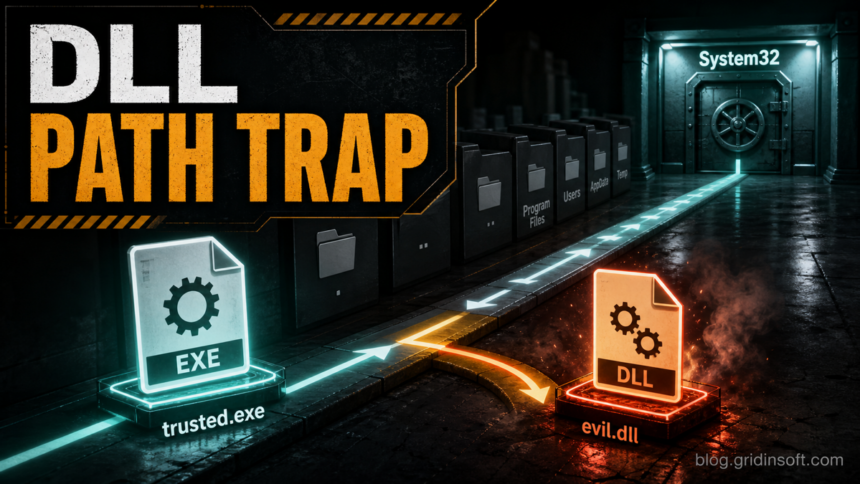
DLL search order hijacking is a Windows attack technique where a trusted program loads a malicious DLL because the program asked for a library by name instead of by a full, fixed path. If an attacker can place a same-named DLL in a folder Windows checks first, the malicious code can run inside a legitimate process, making the activity harder to notice and sometimes helping it bypass allowlisting or basic security checks.
The technique is not a single malware family. It is a loading-path weakness that attackers reuse in loaders, infostealers, backdoors, signed-app abuse, and post-intrusion toolsets. For a reader, the practical question is simple: did a trusted executable load a DLL from a folder where that DLL does not belong?
How Windows Chooses Which DLL to Load
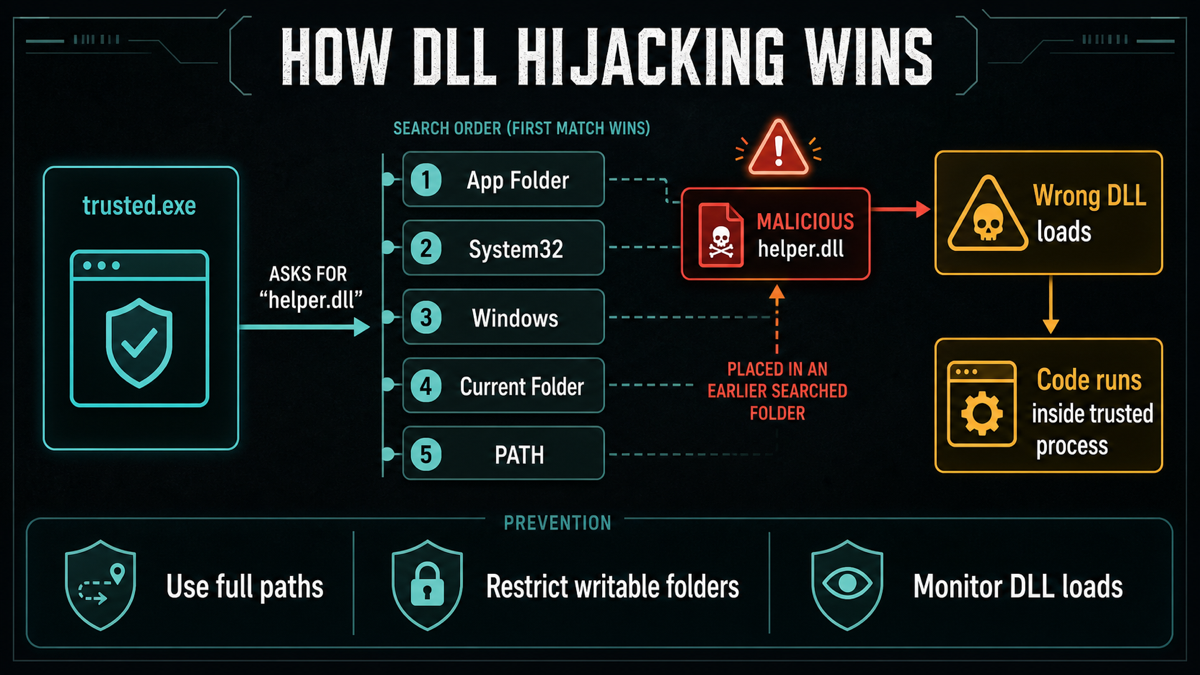
When a Windows application loads a DLL with a full path, such as C:WindowsSystem32version.dll, there is little ambiguity. The risky case is a bare name such as version.dll, mscorsvc.dll, or helper.dll. Windows then searches a defined set of locations and loads the first matching DLL it finds.
The exact order depends on how the application is packaged and which loading flags or APIs it uses. For normal unpackaged desktop applications with Safe DLL Search Mode enabled, Microsoft documents early checks such as DLL redirection, API sets, SxS manifest redirection, loaded modules, KnownDLLs, the package dependency graph on newer Windows versions, the application folder, and then system locations, the current folder, and PATH directories.
Attackers abuse the first-match behavior. They do not need to break the DLL loader; they only need a writable location that appears before the legitimate DLL location for that specific load.
How DLL Search Order Hijacking Works
- A target executable is found. The attacker looks for a legitimate program that loads a DLL by name or searches for a missing dependency.
- A malicious DLL is named like the expected one. The filename must match the library the executable tries to load.
- The DLL is placed in a searched folder. Common abuse paths include the executable’s folder, a writable working directory, a plugin folder, or a directory added to PATH.
- The trusted executable starts. Windows follows the search order and finds the attacker’s DLL before the legitimate one.
- Malicious code runs in a trusted-looking process. The process name may look normal even though the loaded module is not.
This is why DLL hijacking can confuse quick manual checks. Task Manager may show a known executable, but the important evidence is the DLL path, signature, hash, parent process, command line, and whether the executable is running from its expected location.
Search Order Hijacking vs DLL Side-Loading vs Phantom DLLs
People often use these terms loosely, and that can make the topic harder than it needs to be. The overlap is real, but the defensive questions are different.
| Term | What to check |
|---|---|
| DLL search order hijacking | A program asks for a DLL by name and Windows loads a same-named DLL from a location searched earlier than the legitimate one. |
| DLL side-loading | A legitimate executable and a malicious DLL are placed together, often in a user-writable or temporary folder, so the executable loads the nearby DLL. |
| Phantom DLL hijacking | A program tries to load a DLL that is normally missing. The attacker creates that missing DLL in the expected location. |
| WinSxS-related abuse | Trusted Windows side-by-side component paths or manifests are involved. The core question is still whether the loaded DLL path is expected and trusted. |
Why Attackers Still Use It
DLL search order hijacking remains useful because it hides behind normal Windows behavior. A signed or familiar executable can make the activity look less suspicious, while the malicious payload lives in a DLL that many users never inspect.
- Defense evasion: the suspicious code is loaded by a trusted-looking process instead of running as an obvious unknown EXE.
- Persistence: a vulnerable app, service, scheduled task, or startup entry can repeatedly load the DLL.
- Privilege abuse: if the hijacked process runs with elevated rights, the DLL code may inherit that context.
- Supply-chain leverage: legitimate vendor tools can be abused when their load paths are weak or when attackers package a trusted executable with a malicious DLL.
Warning Signs on a Windows PC
Home users usually do not see “DLL search order hijacking” as an alert name. They see side effects: a trusted program launching from a strange folder, security tools flagging an unsigned DLL, a startup item returning after removal, or a game/mod/tool installer leaving suspicious DLLs beside legitimate executables.
- A familiar executable runs from
Downloads,Temp,AppData, a game folder, or a cracked-software directory instead of its normal install path. - A DLL beside that executable has a generic name, no signature, a recent timestamp, or a different publisher from the EXE.
- Security software detects a DLL but the visible process name looks legitimate.
- A process creates outbound connections shortly after loading a DLL from a user-writable folder.
- Autoruns, scheduled tasks, or services point to copied system tools or vendor binaries in unusual locations.
If you are checking a suspicious file, do not delete random DLLs from System32 or WinSxS. Those folders contain legitimate Windows components. Focus on mismatched locations, unsigned modules, recently created files near a trusted EXE, and security-tool detections.
How to Check a Suspicious DLL Load
- Identify the process path. A known process name is not enough. Check where the EXE is running from.
- List loaded modules. Tools such as Process Explorer, EDR module telemetry, or Sysmon ImageLoad logging can show which DLLs were loaded and from where.
- Compare publisher and signature. A Microsoft-signed executable loading an unsigned DLL from a user profile deserves attention.
- Check creation time and nearby files. A cluster of new EXE, DLL, config, and archive files often points to a recent dropper or installer.
- Scan the file and the folder. Use a reputable malware scanner. Gridinsoft Anti-Malware can help inspect suspicious DLLs, related startup entries, and other files dropped in the same location.
- Review persistence. Check Startup folders, Task Scheduler, services, browser extensions, and autorun entries before assuming the DLL was the only payload.
If the machine contains business data, isolate it from sensitive systems before deeper triage. DLL hijacking is often part of a broader chain, not the whole incident.
Detection Checklist for Defenders
Good detection combines process execution, file creation, and module-load context. A single DLL load can be noisy; a trusted executable running from an unusual folder and loading a new unsigned DLL is much stronger.
- Alert when system or vendor binaries execute from user-writable folders such as
%TEMP%,Downloads,AppData, shared folders, or removable drives. - Monitor DLL loads where the module path is outside the executable’s normal install directory or expected vendor path.
- Look for signed executables loading unsigned DLLs with the same timestamp as a recent archive extraction or installer run.
- Watch for PATH changes that add user-writable directories ahead of safer system or application paths.
- Use Sysmon Event ID 1 for process creation and Event ID 7 for image loads when your environment can handle the volume.
- Correlate suspicious DLL loads with network connections, child processes, credential-access behavior, and persistence changes.
Microsoft’s September 2026 NeedyMantis investigation shows why that correlation matters: an intruder copied a legitimate application, a replacement DLL and an extensionless archive together after gaining access. The application name alone concealed the chain.
How to Prevent DLL Search Order Hijacking
Prevention is mostly about removing ambiguity. The more precisely software names the DLL location and the less attackers can write to searched folders, the harder this technique becomes.
- For developers: load libraries by full path when possible, avoid unsafe use of
SearchPath, and use safer DLL directory controls such asSetDefaultDllDirectories,AddDllDirectory, or restrictiveLoadLibraryExflags where appropriate. - For administrators: audit writable folders in application paths, plugin directories, service paths, and PATH entries. Remove user-writable locations from high-priority search paths.
- For endpoint teams: baseline normal module loads for high-value applications and alert on rare DLL paths, unsigned DLLs, and copied system binaries.
- For home users: avoid cracked installers, fake game tools, unofficial codec packs, and random “fix DLL” downloads. These are common places for malicious DLLs to be planted beside a trusted-looking executable.
What to Do If You Find One
- Disconnect risky sessions. Stop using the affected PC for banking, email, work dashboards, crypto wallets, and password managers until it is checked.
- Preserve the file path before cleanup. The DLL location, EXE path, hash, and timestamp are useful for understanding how it got there.
- Scan beyond the single DLL. Check the folder, startup entries, scheduled tasks, services, browser extensions, and recently installed software.
- Remove the persistence path. Deleting the DLL alone may not stop the loader or scheduled task that restores it.
- Change passwords from a clean device if credential theft is possible. Do this after isolating the affected PC, not from the same possibly compromised system.
After uninstalling the suspicious app or deleting the visible threat, use Gridinsoft Anti-Malware to check hidden files, startup entries, scheduled tasks, bundled apps, browser changes, and other persistence points that can restore malware.
Download Anti-MalwareFAQ
Is DLL search order hijacking malware?
It is an attack technique, not a specific malware name. A malicious DLL used in the technique can be malware, but the vulnerable behavior is the unsafe or ambiguous way a program loads DLLs.
Can antivirus detect DLL hijacking?
Antivirus can detect many malicious DLLs and related droppers, but the technique can be subtle because the process name may look legitimate. Strong detection also checks DLL paths, signatures, parent processes, persistence, and network behavior.
Should I delete a DLL from System32 or WinSxS?
No. Those folders contain legitimate Windows files. Deleting random system DLLs can break Windows. If a security tool flags a file there, verify the path, signature, detection name, and surrounding evidence before taking manual action.
What is the difference between DLL side-loading and search order hijacking?
DLL side-loading is a common implementation where a legitimate executable and malicious DLL are placed together so the executable loads the nearby DLL. Search order hijacking is the broader behavior of abusing the locations Windows searches when a DLL path is not explicit.
References
- Microsoft Learn. “Dynamic-link library search order.” Microsoft, accessed June 11, 2026. https://learn.microsoft.com/en-us/windows/win32/dlls/dynamic-link-library-search-order
- Microsoft Support. “Secure loading of libraries to prevent DLL preloading attacks.” Microsoft, accessed June 11, 2026. https://support.microsoft.com/en-us/topic/secure-loading-of-libraries-to-prevent-dll-preloading-attacks-d41303ec-0748-9211-f317-2edc819682e1
- MITRE ATT&CK. “Hijack Execution Flow: DLL Search Order Hijacking (T1574.001).” MITRE, accessed June 11, 2026. https://attack.mitre.org/techniques/T1574/001/
- Red Canary. “DLL Search Order Hijacking.” Red Canary Threat Detection Report, accessed June 11, 2026. https://redcanary.com/threat-detection-report/techniques/dll-search-order-hijacking/