
If KB5127936 fails to install on Windows 11 26H2 or 25H2, record the error code before retrying. A missing repair source, an interrupted installation, and a package that does not apply to your PC need different fixes. Start with a normal restart and the Windows Update troubleshooter, then use the matching branch below. Because this is an optional preview, you can also leave it uninstalled if you do not need its fixes.
Microsoft released KB5127936 on October 28, 2026. The target builds are 26300.9818 for 26H2 and 26200.9818 for 25H2. This guide covers installation failures while you can still open Windows; a PC that no longer boots needs recovery first.[1]
Choose the fix that matches the failure
Open Settings → Windows Update → Update history and note the failed KB, code and attempt time. Press Win + R, enter winver, and record your version and build. If Windows reports success and the build matches, a later audio, taskbar or application problem is a separate post-installation issue.
- Only this optional preview fails; the PC otherwise works. Skip the preview and continue installing applicable security updates.
0x800f081f. Windows cannot locate a required servicing source. Run DISM and SFC; if DISM also fails, follow its source-error branch.[2]0x800f0920. Servicing detected an unresponsive operation. Retry after restarting and closing heavy workloads; a repeat failure needs the corresponding log entry.[2]0x80071a2d. The operation refers to a transaction that is no longer active. Restart once, retry, and preserve the error if it returns; the code alone does not identify the original trigger.[7]0x80070003or0x80070306, with clean DISM/SFC results. If Windows Sandbox is enabled, compare your log with the specific Sandbox report. Do not assume every occurrence has that cause.- The standalone installer says the package is not applicable. Check version, architecture and prerequisites. Do not force a mismatched package.
Can you skip KB5127936?
Yes. It is a non-security preview, so installing it immediately is optional. If your PC works normally and you do not need a particular fix, leave the preview alone and install the next applicable cumulative security update when offered. Skipping this preview does not require turning Windows Update off.[1]
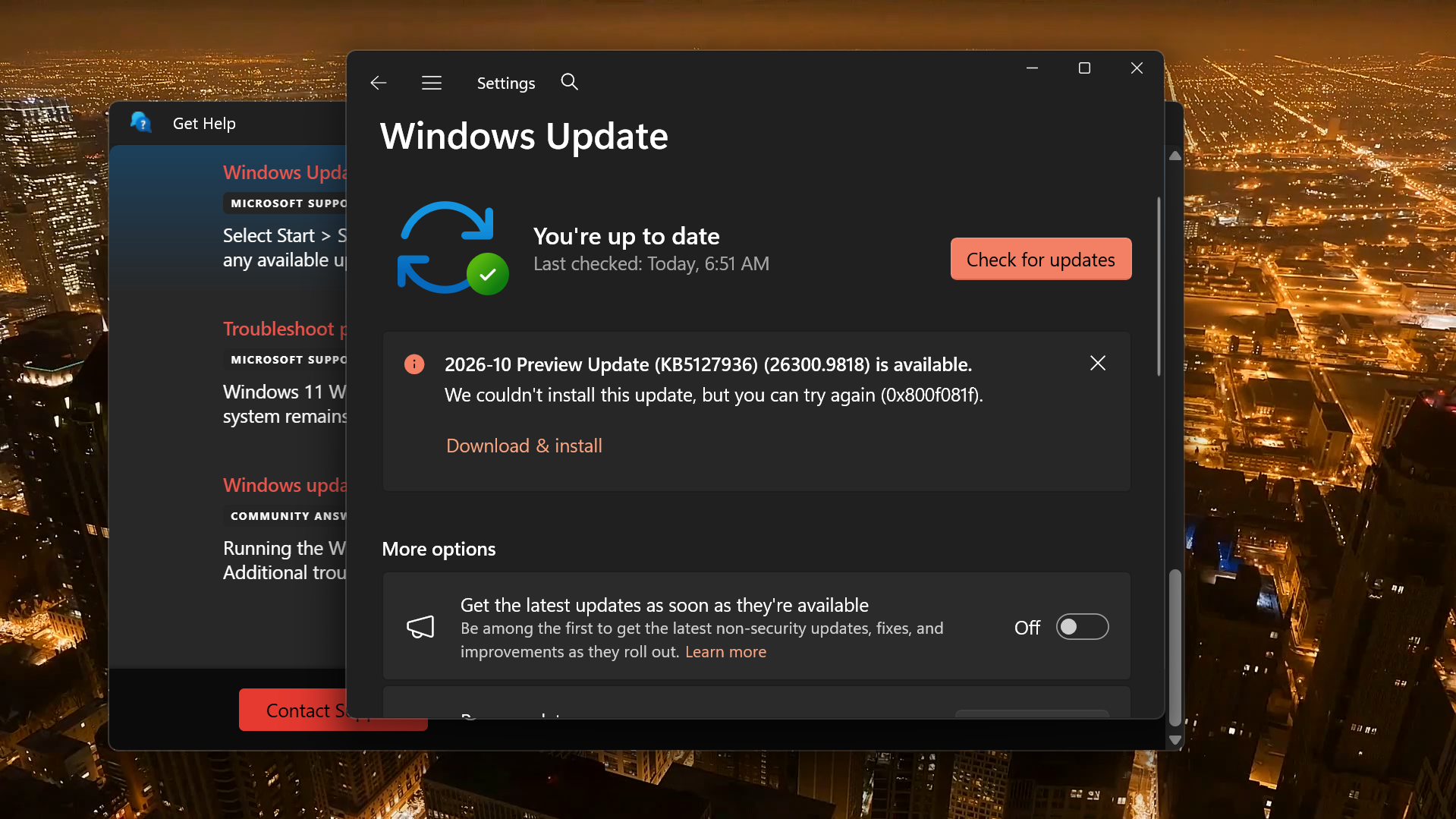
Windows may show an up-to-date status while separately offering the preview again. That combination appears in a public Microsoft Q&A report of error 0x800f081f; it does not mean that all Windows updates have stopped working.[6]
1. Restart, check storage and run the troubleshooter
- Save your work and restart from the Start menu. Complete any pending restart before attempting another installation.
- Connect a laptop to power and use a stable connection. Close games and other heavy workloads for the retry.
- Check Settings → System → Storage. If Windows requests more space, review Temporary files before deleting anything; keep files you still need in Downloads.
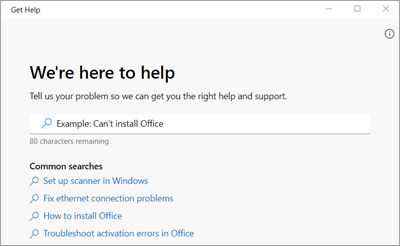
- Open Get Help, search for Windows Update troubleshooter, and follow its prompts. You can also start it through Settings → System → Troubleshoot → Other troubleshooters: find Windows Update and select Run.
- Retry KB5127936 once. If the same code returns, continue with the relevant section instead of repeatedly restarting.
These are general Windows Update checks, not a KB-specific hotfix.[3] A percentage that pauses is not, by itself, proof that installation has hung. Avoid forcing the power off while Windows is configuring the update.
2. Repair Windows files for 0x800f081f
Open Command Prompt → Run as administrator. Run DISM first, wait for it to finish successfully, then run SFC:[2]
DISM.exe /Online /Cleanup-Image /RestoreHealth
sfc /scannow
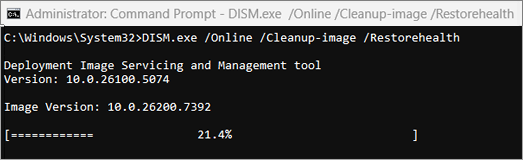
Restart after both commands finish and retry the update. Note their actual result messages; reaching the end of a scan is not the same as successfully repairing everything.
If DISM itself reports that source files could not be found, save that error and move to the repair-reinstall option, or ask your administrator for a compatible repair source. Repeating the same command cannot supply files it still cannot obtain. Do not download replacement Windows DLLs from unofficial sites.
If you notice a busy servicing process during the repair, our DISM Host Servicing Process guide explains how to distinguish normal update work from suspicious copies.
3. Check the Sandbox branch when DISM and SFC are clean
A November 4 report in Microsoft’s Windows Sandbox repository describes KB5127936 rolling back with 0x80070003 or 0x80070306 on Windows 11 Pro 26H2, even though DISM and SFC found no corruption. The reporter associated the failure with rebuilding a Sandbox container image.[4]
This is a user-reported workaround, not a Microsoft-confirmed fix for every installation failure. Consider it only if Sandbox is enabled and the entries from your failed attempt in C:\Windows\Logs\CBS\CBS.log include:
Failed to recreate container base images: HRESULT_FROM_WIN32(ERROR_PATH_NOT_FOUND)
Container Servicing failed
For that matching case, save your Sandbox work, run optionalfeatures from Win + R, temporarily clear Windows Sandbox, and restart. Retry the update, restart again, then re-enable Sandbox if you use it. Do not move untrusted tests onto the host while Sandbox is unavailable. On a managed PC, have IT evaluate this branch. If the log does not match, continue below.
4. Install the correct Microsoft Update Catalog package
Open the Microsoft Update Catalog results for KB5127936. Match both your version and Settings → System → About → System type; x64 and Arm64 packages are different.
Microsoft’s standalone instructions list checkpoint KB5043080 before KB5127936. Check the current prerequisites in reference [1], download the files for your architecture into one folder, and install applicable checkpoints before the target package. If Windows says a prerequisite is already installed, retain that result. If it says a package is not applicable, check applicability rather than bypassing the message.[1]
A manual download changes how you obtain the package; it still uses Windows servicing. If it fails with the same code, that is a reason to investigate the servicing error, not keep downloading the same file.
5. Refresh cached downloads if the download keeps failing
Use this after a failed attempt has returned you to the desktop, with no installation running. In services.msc, stop Windows Update. Open C:\Windows\SoftwareDistribution, delete its contents, then start the service again and check for updates. Windows will download fresh update data.[3]
If the service will not stop or files remain locked, skip this step and use the troubleshooter or IT support. Do not change folder permissions to force it, delete WinSxS, or leave update services disabled.
Ran an unofficial update installer? Check Windows for malware
A failed KB installation alone is not evidence of infection. The malware branch matters if you ran a supposed update or repair executable from an unfamiliar website, or now see recurring redirects, unwanted applications or unexplained security changes. Our coverage of fake Windows Update pages delivering malware shows why the download source matters.
We recommend Gridinsoft Anti-Malware for that situation. Uninstalling the visible download may leave another unwanted component or startup entry. Install Gridinsoft, update its threat database, run a Full Scan, review the detections and apply the recommended cleanup. Restart when prompted, then check whether the suspicious activity returns.
The scan addresses malware and unwanted software. It does not replace a missing Windows servicing package or guarantee that KB5127936 will install.
6. Repair the current Windows installation if failures persist
If multiple updates fail, or DISM cannot complete repair, back up important files and open Settings → System → Recovery → Fix problems using Windows Update → Reinstall now. Keep power and internet connected through the process.[5]
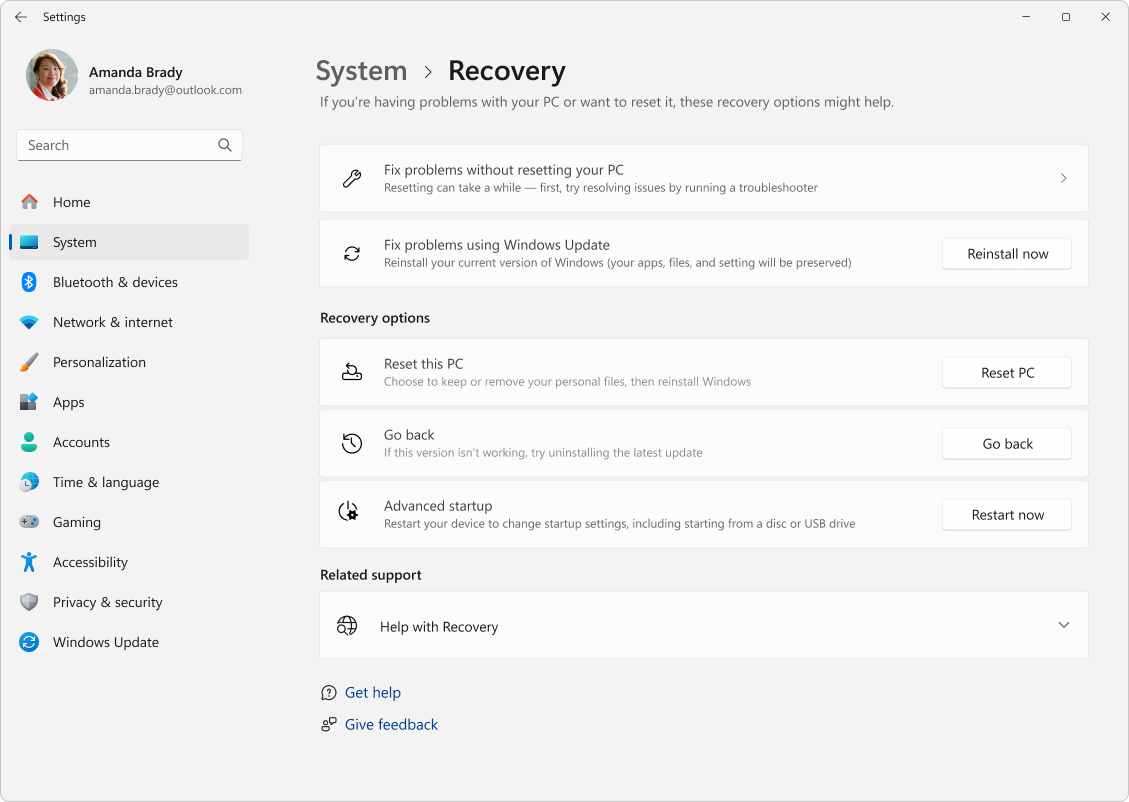
This option reinstalls the current Windows version and preserves apps, files and settings. It is different from Reset this PC or a clean installation. It may be unavailable when an organization manages updates; in that case, contact IT rather than changing update policies to expose the button.
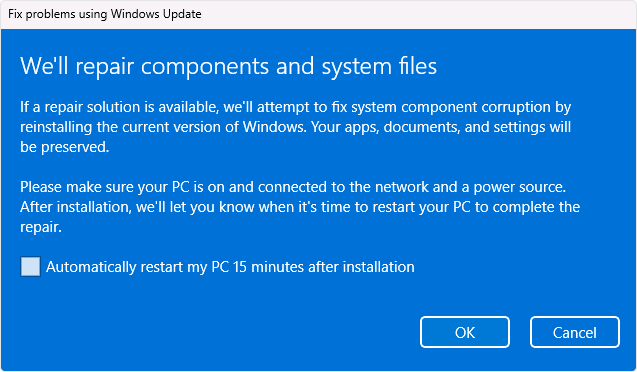
Afterward, restart and check Windows Update. If the failure repeats, collect the KB, version, build, error code, attempt time and relevant entries from C:\Windows\Logs\CBS\CBS.log and C:\Windows\Logs\DISM\dism.log for support. Review logs for personal information before posting excerpts publicly.
FAQ
Why do DISM and SFC pass but KB5127936 still fails?
Those results narrow the investigation; they do not validate every installation condition. Check the matching timestamp in CBS.log. The Sandbox branch above is one reported example where repeating the same file-repair scans did not resolve the failure.
Should I install KB5127936 if a newer cumulative update is already installed?
Do not downgrade just to make an old preview appear in Update history. Check the newer release notes and install the applicable update offered for your Windows version.
How do I know the retry worked?
Confirm a successful entry in Update history after restarting, then check winver against the target build near the top of this guide. A downloaded package or a completed scan alone does not confirm installation.
Do I need to disable my firewall or antivirus?
Not as a routine first step. Investigate a specific conflict only when a log or diagnostic result identifies it. Keep protection enabled while downloading updates and avoid repair scripts that disable security without explaining the cause.
References
- Microsoft. “October 28, 2026—KB5127936 (OS Builds 26300.9818 and 26200.9818) Preview.” Microsoft Support, October 28, 2026; accessed November 4, 2026. Release notes and prerequisites.
- Microsoft. “Common Windows Update errors.” Microsoft Learn; accessed November 4, 2026. Servicing error definitions.
- Microsoft. “Troubleshoot problems updating Windows.” Microsoft Support; accessed November 4, 2026. Windows Update troubleshooting.
- Peter (peteracs). “KB5127936 (26300.9818) fails with 0x80070003 / 0x80070306,” issue #144. Microsoft Windows-Sandbox repository, GitHub, November 4, 2026; accessed November 4, 2026. User report. Report and matching log entries.
- Microsoft. “Fix issues by reinstalling the current version of Windows.” Microsoft Support; accessed November 4, 2026. Repair reinstall and availability.
- Jay Willhoft. “2026-10 Preview Update (KB5127936) … couldn’t install … (0x800f081f).” Microsoft Q&A, October 31, 2026; accessed November 4, 2026. Installation-error report and screenshot.
- Microsoft. “System Error Codes (6000–8199).” Microsoft Learn; accessed November 4, 2026. Transaction error definitions.
- Microsoft. “About Get Help.” Microsoft Support; accessed November 5, 2026. Get Help interface and search field.