
Trojan:JS/Phish!MSR is a Microsoft Defender detection label for suspicious JavaScript associated with phishing. Keep the item quarantined and check its full affected path. A browser-cache entry, an installed extension, and a downloaded file call for different cleanup steps. The label alone does not establish that an attacker stole your passwords or installed a persistent program.
Gridinsoft Anti-Malware is useful when the alert is only the visible part of a larger problem. If you ran a download, installed an unfamiliar extension, or see fresh alerts after removal, a full scan can check for additional malware and components that recreate the detected file. Download it from the official source, update the database, run a Full Scan, review and remove detected threats, then restart when requested.
What does Trojan:JS/Phish!MSR tell you?
Microsoft lists this exact detection, but its public entry does not provide a detailed technical analysis. Treat it as an alert to investigate the affected item, rather than the name of one proven campaign with a fixed installation path or payload. [1]
The JS portion points to JavaScript context and Phish identifies the phishing-related label. Do not infer a particular theft technique or a false-positive verdict from !MSR. A saved script can be detected on disk without proving that you entered information into a fake page.
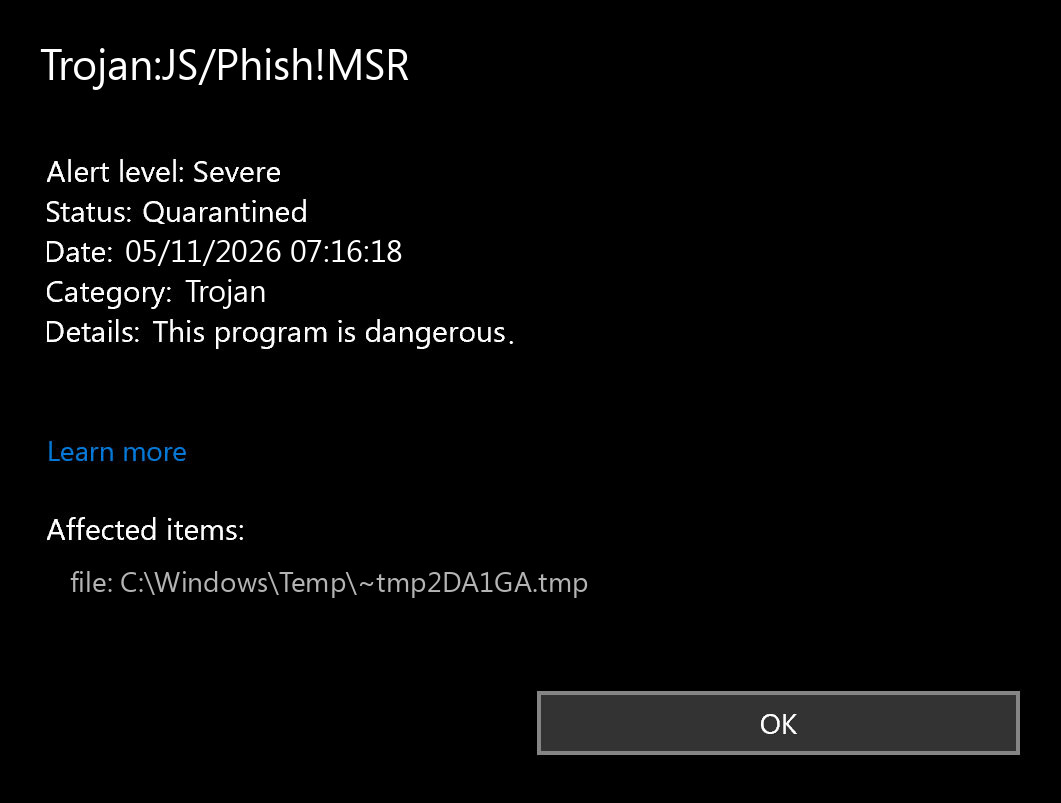
Open Windows Security → Virus & threat protection → Protection history, expand the event, and record its time, affected items, and action status. If it says Remediation incomplete, expand the card for the remaining action. An old quarantined item still visible in history is not by itself a fresh infection. [2]
Start with the affected file path
Read the complete path, including any container or archive mentioned by Defender. These are examples of locations to distinguish, not fixed indicators of this detection:
- Browser
Cache,Cache_Data, or temporary web content. Close the triggering page and clear the browser’s cached files through its settings. Check whether the alert returns without revisiting that site. Cache location alone does not rule out other activity. - A browser
Extensionsfolder or Firefox extension package. Identify the extension and version through the browser’s extension manager. Remove an unfamiliar or unwanted extension there; do not delete the entire profile. A script inside an extension is different from a page temporarily stored in cache. %USERPROFILE%\Downloads, a saved.html/.jsfile, archive, or mail container. Keep the item quarantined. Check whether you only received it, opened it, followed a sign-in page, or ran another file. If the alert points into a mailbox/archive, manage the source message or archive as well.- A file recreated under
%LOCALAPPDATA%, startup-related location, or an unexpected application directory. Investigate what creates it. Correlate fresh detection times with installed apps, extensions and startup activity, then run the Full Scan described above.
If it is in browser cache or an extension
For a cache-only event, keep the file isolated, close the page, update the browser, and clear cached images/files using the browser’s own settings. You do not need to erase all saved passwords or delete your entire browser profile to remove a cached resource. Run an updated full security scan and watch for new alerts during normal use.
If the item belongs to an extension, open the extension manager from the browser menu and match the installed extension to the recorded path and version. Remove one you do not trust. If it reappears, check whether another signed-in device, browser synchronization, a companion app, or an organization policy is reinstalling it. On a managed computer, ask IT before changing policies.
Record the extension’s name and permissions before removing it, particularly if it could read data on websites you used. Do not reinstall it simply because a forum post describes an old false positive. A review of a particular historical release does not determine whether your current copy is safe.
For a warning that instead says Redirector, the JavaScript and HTML Redirector guide explains the related cache-versus-persistent-redirect decision.
Example
A phishing message may try to make a document review depend on an urgent sign-in. The example below illustrates that pressure; it is not a message recovered from a particular Phish!MSR infection.
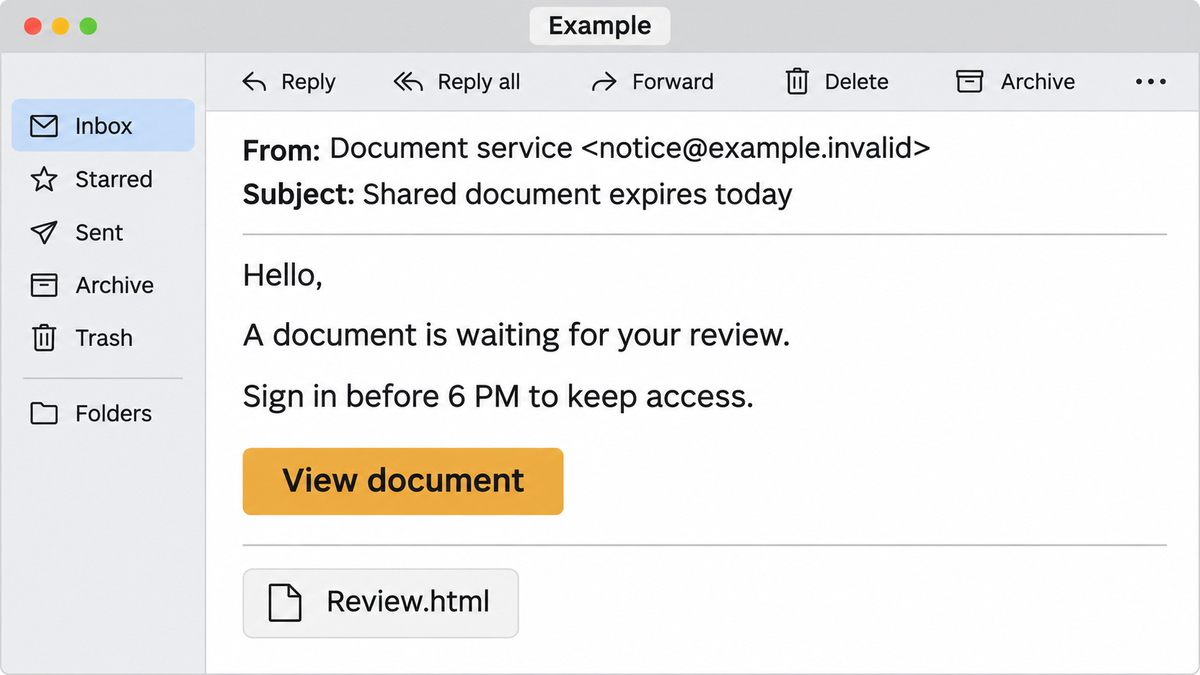
Subject: Shared document expires today
From: Document service — notice [at] example [dot] invalid
Hello,
A document is waiting for your review.
Sign in before 6 PM to keep access.
Button: View document
Attachment: Review.html
The deadline and requested sign-in are the useful clues here; this example contains no deliberate spelling mistakes. Verify a shared document by opening the service independently or contacting the sender through a known channel. Do not reopen a quarantined attachment to compare its appearance.
Your actions determine the next recovery step
- You only received the file or visited a page. Complete quarantine, remove the unwanted source, and scan. That event alone does not show that credentials were submitted.
- You typed a password or a one-time code into the page. From a clean device, open the real service independently, change the affected password and any reused copies, revoke unfamiliar sessions, and check recovery settings. Enable multifactor authentication. Report work-account exposure to IT. Microsoft treats credential recovery as an important response to suspected phishing. [3]
- You ran a downloaded program, installed an extension, or followed instructions to execute a command. Stop using the affected PC for sensitive accounts. Use Gridinsoft Anti-Malware’s updated Full Scan to look for additional threats and review the download/extension that started the chain.
- You supplied card details or a wallet recovery phrase. Contact the bank or the wallet’s official recovery resources from a clean device. Removing a local script cannot withdraw information already sent to someone else.
A local malware scan and account recovery solve separate parts of the incident. You may need both; neither should wait for the other when there is evidence of exposure.
Why Phish!MSR keeps returning
Compare each new event with the original. Same label does not necessarily mean the same file. An alert after reopening one website can come from a freshly downloaded page resource. An alert after launching the browser may involve an extension or startup page. A new file after reboot without opening that browser deserves a check of apps and startup activity.
Keep the unwanted site or source file closed while scanning. If new alerts continue, review extensions, recently installed programs, startup apps, scheduled tasks, and Defender exclusions that you did not deliberately create. These are conditional investigation locations, not claims that Phish!MSR always creates those persistence mechanisms. If another scan identifies a different threat, follow that detection’s specific cleanup instructions.
How to handle a suspected false positive
Preserve the full path, extension/app version, download source, detection date, and Defender security-intelligence version. For a trusted developer’s release, ask its developer to submit the affected artifact for Microsoft review. Microsoft accepts files thought to have been classified incorrectly. [4]
Keep the item quarantined while the concern is resolved. Do not restore it, add an exclusion, or disable protection merely to inspect or upload it. An isolated old alert or an otherwise familiar application is a reason to investigate carefully, not a sufficient basis for allowing the file.
FAQ
Does Phish!MSR mean my passwords were stolen?
The detection name does not establish theft. If you entered credentials into a suspicious page or used accounts after running an unknown download, take account-recovery steps without waiting for the label to prove what happened.
Should I reinstall Windows for a quarantined cache file?
A single resolved cache detection does not ordinarily justify that step. Start with source removal, updates and a full scan. Persistent new detections or confirmed execution of additional malware require a broader assessment.
Is removing the extension folder enough?
Use the browser’s extension manager to remove an unwanted extension properly. If it returns, investigate synchronization, companion software or management policy, and scan for other threats.
References
- Microsoft. “Trojan:JS/Phish!MSR.” Microsoft Security Intelligence, published December 23, 2019; accessed November 4, 2026. Detection entry.
- Microsoft. “Protection History in the Windows Security App.” Microsoft Support; accessed November 4, 2026. Actions, quarantine and incomplete remediation.
- Microsoft. “How to protect against phishing attacks.” Microsoft Learn; accessed November 4, 2026. Phishing recognition and response.
- Microsoft. “Submit a file for malware analysis.” Microsoft Security Intelligence; accessed November 4, 2026. File classification review.