The FedEx e-Order Notification email virus is a fake delivery or billing message that tries to make you open an attached Excel file. If you only received the email, do not open the attachment, do not reply, and verify any shipment from the official FedEx site or app. If you opened the XLS file or enabled editing, disconnect the PC from the network, keep the email and file for evidence, scan Windows, and change important passwords from a clean device.
This campaign works because it looks like routine shipping paperwork: an air waybill, tax bill, receipt, or payment document. The danger is not the FedEx name by itself. The danger is the unexpected spreadsheet and any prompt that asks you to enable editing, enable content, enter credentials, or install something to view the order.
What Is the FedEx e-Order Notification Email Virus?
It is a phishing and malware-delivery lure that impersonates FedEx and uses business-document wording to make the attachment feel normal. The file name may include terms such as fedex_awb, tax_bill, document, receipt, or payment, followed by dates or random numbers. Attackers change names often, so treat the subject, sender, attachment, and pressure tactics together instead of trusting a single indicator.
FedEx warns that fraudulent emails can be disguised as delivery notices and may include attachments that contain malware. FedEx also says it does not request payment or personal information through unsolicited email, mail, text, or calls for goods in transit or in its custody [1]. That is the key rule for this lure: a message that appears from FedEx but pushes an unexpected spreadsheet should be handled as suspicious until verified through a separate official channel.
Insoorya Express Cargo and Updated Shipping Documents.xls
A related shipping-document lure impersonates INSOORYA EXPRESS CARGO, a Chennai freight-forwarding company, instead of FedEx. The message refers to PO RFQ10930 and says that an updated checklist, air waybill, packing list, certificate, and invoice are attached. The file name reported with this variant is Updated Shipping Documents.xls. A real company name, office address, or believable purchase-order format does not authenticate an unexpected workbook.
Excel may open the file in Protected View. That read-only state is a security boundary for files obtained from the internet, not an error that the sender needs you to fix [2]. Close the workbook rather than clicking Enable Editing, Enable Content, or any embedded link. The final payload in this campaign is not confirmed. Macro or CVE-2017-0199 detections on an individual sample describe possible execution techniques; they do not prove a specific malware family was installed on every recipient’s PC.
DHL Express Shipment Arrived and AWB DOCUMENT 7820456066.xls
Another malicious shipping lure uses the subject DHL AWB 7820456066 NOTIFICATION FOR FINAL MOVEMENT OF THE SHIPMENT TO CUSTOMS WAREHOUSE. The body lists waybill 3809 *** 831, a scheduled delivery date, and a contact named John, then asks the recipient to review and acknowledge shipping documents. The unexpected attachment is AWB DOCUMENT 7820456066.xls.
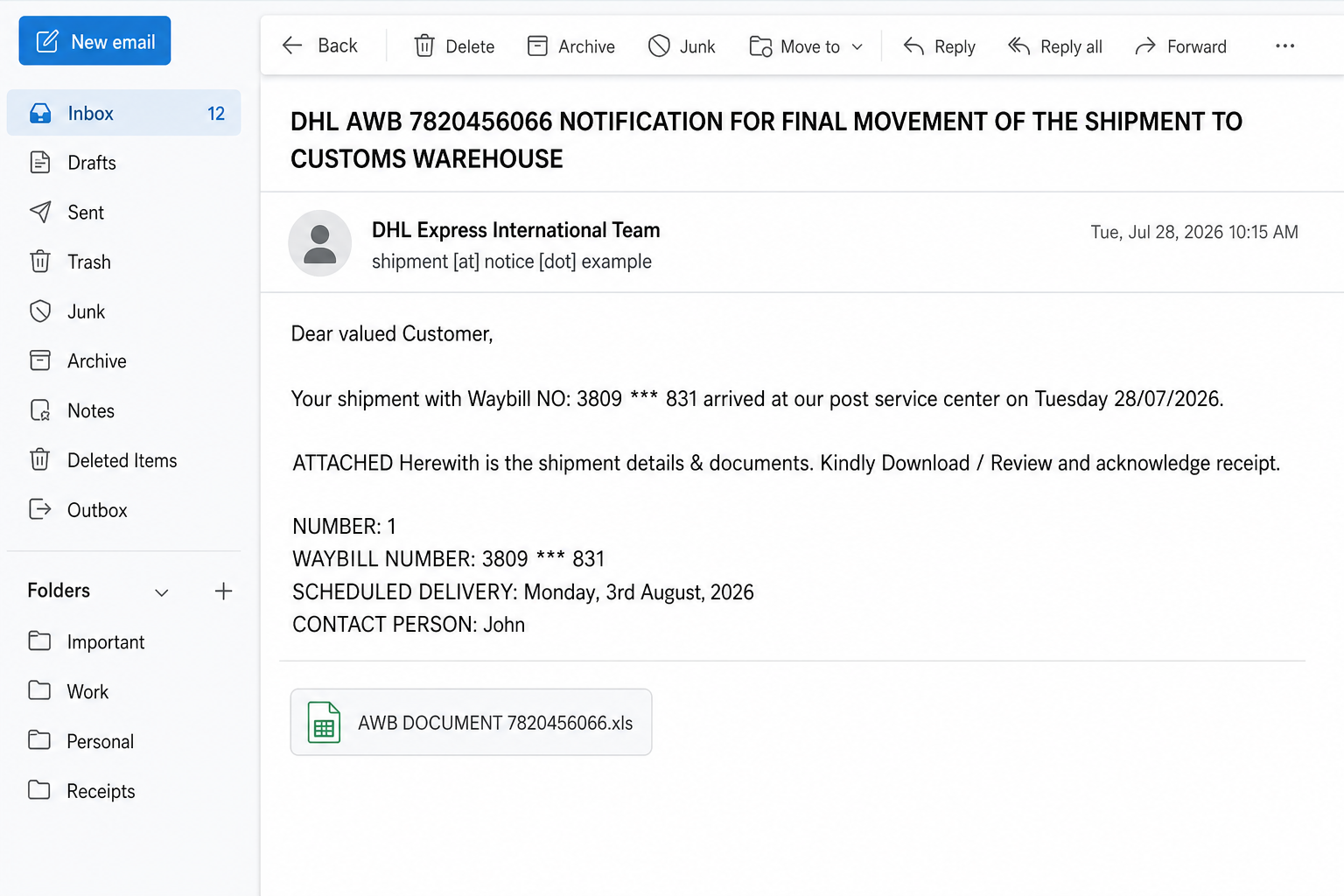
Example
From: DHL Express International Team <shipment [at] notice [dot] example>
Subject: DHL AWB 7820456066 NOTIFICATION FOR FINAL MOVEMENT OF THE SHIPMENT TO CUSTOMS WAREHOUSE
Dear valued Customer,
The message says waybill 3809 *** 831 reached a service center, gives a scheduled delivery date, names John as the contact, and asks for an acknowledgment after the documents are reviewed.
Attachment: AWB DOCUMENT 7820456066.xls
The workbook can appear almost empty, with only merged cells visible in Protected View. Do not click Enable Editing to reveal supposed shipment details: leaving Protected View can allow embedded code to run. The final payload in this campaign is unknown, so a detection name from one sample must not be treated as a confirmed malware family for every copy of the email. Use the exposure-stage checklist below to choose the response.
What to do at each exposure stage
- Email received only: do not open the XLS, reply, or use contact details from the message. Verify the purchase order with the known sender or freight partner through a separately obtained channel, then report the email.
- Opened in Protected View: close Excel without enabling editing or content. Opening in read-only mode does not by itself prove infection; keep the file closed and scan it or hand it to your IT team if the shipment claim must be investigated.
- Clicked Enable Editing or Enable Content: disconnect the PC from the network, do not enter passwords, preserve the email and filename, and run full antivirus and second-opinion scans. Check whether Excel launched another process or created a new file around the same time.
- Child process, download, or network activity observed: treat the host as potentially compromised. Record alerts and timestamps, isolate it, scan for persistence, and change exposed account passwords from a clean device. Use the post-malware Windows security audit for the follow-up checks after containment.
If You Received the Email but Did Not Open the XLS
- Do not open the attachment and do not click links inside the message.
- Do not reply, call numbers from the email, or send account, identity, card, invoice, or login details.
- Check the shipment only by typing
fedex.commanually or using the official FedEx app. - Forward or report the suspicious message through your email provider and FedEx fraud reporting flow.
- Delete the email after reporting it, or keep it in a safe mailbox folder if your workplace IT team needs the original headers.
If you are unsure whether the message is a delivery scam or a real shipment notice, compare it against the red flags in our phishing email checklist. Delivery brands are common bait because many people are waiting for packages and may open paperwork quickly.
If You Opened the Excel Attachment
Opening the file is not always the same as infection. Modern Office versions may open internet-sourced files in Protected View, which reduces risk while the document is read-only [2]. The risk increases if you clicked Enable Editing, Enable Content, bypassed a macro warning, entered credentials, downloaded another file, or saw command windows, browser tabs, or security alerts afterward.
- Disconnect the computer from Wi-Fi or Ethernet if you enabled editing/content or saw unusual activity.
- Do not log in to email, banking, work portals, crypto wallets, or password managers from that computer.
- Save the email headers and attachment name for your IT team or incident notes. Do not forward the attachment to coworkers.
- Move the attachment out of Downloads/Desktop into a quarantine folder only if you know what you are doing; otherwise leave it and scan the system.
- Run a full antivirus scan and a second-opinion malware scan. Use Gridinsoft Anti-Malware to check for loaders, stealers, suspicious startup entries, and leftover payloads.
- Check recent Downloads, Temp, Startup, Task Scheduler, and browser extension changes if the scan finds anything or the machine behaves oddly.
- Change passwords from a clean phone or another trusted computer if you typed credentials, enabled content, or suspect stealer activity.
Microsoft documents macro malware as a common email-attachment delivery method, and Office blocks macros from internet-sourced files by default in supported configurations [3]. That protection helps, but it is not a reason to trust a suspicious workbook. Attackers can use old file formats, password-protected archives, embedded links, fake instructions, or social pressure to make users bypass security prompts.
Windows Checks After a Suspicious FedEx XLS
After scanning, look for signs that the workbook triggered a second-stage payload or credential theft. The most important clues are recent files and persistence points created around the time you opened the attachment.
- Downloads and Temp: look for new executables, scripts, archives, or documents created immediately after opening the spreadsheet.
- Startup apps: open Task Manager, check the Startup apps tab, and disable unknown entries until they can be identified.
- Task Scheduler: review tasks created today, especially ones launching PowerShell,
wscript.exe,mshta.exe,rundll32.exe, or files from AppData/Temp. - Browser sessions: sign out of email, shopping, shipping, banking, and social accounts if the machine may have been compromised.
- Security history: check Windows Security or your antivirus history for blocked scripts, Trojan detections, suspicious outbound connections, or quarantined Office payloads.
If the suspicious email led to a download, fake invoice portal, or credential prompt, treat it like a phishing incident as well as a malware incident. Our infostealer recovery guide explains the password, session, and account-reset sequence that also applies when a malicious document may have run code.
How to Verify a Real FedEx Shipment Safely
A real tracking problem can exist at the same time as a scam email. Verify it without using the message itself.
- Open a new browser tab and type
fedex.commanually. - Paste the tracking number only if you already expected the package or received it from the merchant through a trusted order page.
- Use your retailer’s order history rather than the email link when possible.
- Call FedEx only from a phone number on the official website, not from the suspicious email.
- For unexpected delivery-fee, tax, or address-correction messages, compare the wording with common delivery scam patterns, including fake USPS and courier notices.
For package-themed scams that arrive by SMS rather than email, see our USPS delivery scam guide. The brands differ, but the pressure pattern is similar: urgent delivery problem, a link or attachment, and a request that moves the victim outside a trusted order flow.
If the message promises FedEx shipping labels or documents in PDF format but opens an HTML file or login page instead of an Excel workbook, use our FedEx Shipping Labels/Documents email scam guide. That sibling lure is mainly a credential-theft and fake-document trap, while this page focuses on malicious XLS attachments.
What Not to Do
- Do not enable macros, editing, or content because the spreadsheet says the document is protected.
- Do not remove Office security warnings to make a suspicious file work.
- Do not upload the attachment to public forums with your email headers or customer details visible.
- Do not pay a delivery fee, customs fee, or invoice from a link in the message.
- Do not reset passwords from the same PC if you believe the attachment ran malware.
After uninstalling the suspicious app or deleting the visible threat, use Gridinsoft Anti-Malware to check hidden files, startup entries, scheduled tasks, bundled apps, browser changes, and other persistence points that can restore malware.
Download Anti-MalwareFAQ
Is the FedEx e-Order Notification email real?
Treat it as suspicious if it arrived unexpectedly and asks you to open an Excel attachment. Verify the shipment through the official FedEx website, official app, or the retailer’s order page instead of using links or files from the email.
Can an Excel file infect my computer without macros?
It depends on the file, Office version, security settings, and whether a vulnerability or embedded content is abused. The most common risk is that the user is pushed to enable content, click embedded links, or run something outside the workbook. Do not bypass Office warnings for an unexpected delivery document.
Should I change passwords after opening the attachment?
Change passwords from a clean device if you enabled editing/content, typed credentials, saw suspicious activity, or your antivirus found malware. Start with email, password manager, banking, work, shopping, and shipping accounts.
Should I delete the email immediately?
If this is a personal mailbox and you did not open the attachment, report it and delete it. In a workplace, follow your IT team’s process because they may need the original email headers for investigation.
References
- FedEx. “How to Recognize and Help Prevent Fraud and Scams.” FedEx, accessed June 5, 2026. https://www.fedex.com/en-us/report-fraud.html
- Microsoft Support. “What is Protected View?” Microsoft, accessed June 5, 2026. https://support.microsoft.com/en-us/office/what-is-protected-view-d6f09ac7-e6b9-4495-8e43-2bbcdbcb6653
- Microsoft Learn. “Macros from the internet are blocked by default in Office.” Microsoft, updated April 18, 2025, accessed June 5, 2026. https://learn.microsoft.com/en-us/deployoffice/security/internet-macros-blocked