SynkLoader malware turns a Microsoft Teams help-desk message into a multi-stage Windows compromise. Expel says the attacker posed as “IT Service Desk,” convinced a user to install a fake PowerShell Cleaner MSI, and then deployed credential theft, network tunneling, a remote shell, and VNC access. The most visible trick is PhishLocker: a full-screen imitation of the Windows lock screen designed to capture the victim’s sign-in password.
The campaign is not a confirmed ransomware operation. Expel assessed with low-to-medium confidence that the loader may support an initial-access or ransomware group, but the operator’s final objective remains unknown. That distinction matters: the observed access is serious, while attribution and end goal are still unconfirmed.
How the Teams help-desk lure becomes malware
In the case Expel investigated, an external Teams account using an onmicrosoft.com tenant impersonated internal support. The conversation led to an MSI installer hosted in Azure and presented as “PowerShell Cleaner.” Running it created a PowerShell-based loader plus a bundled Python runtime under the user profile.
A Teams message alone does not install SynkLoader. The decisive step is executing the downloaded MSI. That makes the exposure state more useful than the message wording:
| What happened | Recommended response |
|---|---|
| You only received or opened the Teams message | Do not download anything. Report and block the external sender; preserve the chat for your security team. |
| You downloaded the MSI but did not run it | Delete the file, empty the recycle bin, scan the device, and report the download. No malware execution is established. |
| You ran the MSI or approved a prompt | Disconnect the PC from the network and escalate immediately. Treat the host as compromised, even if the installer window disappeared. |
| You entered a password into the unexpected lock screen | From a clean device, reset the Windows/account password, revoke active sessions, and rotate any reused credentials. |
| You see remote-control or internal-service activity | Isolate the endpoint and investigate lateral movement, scheduled tasks, account use, and access to internal systems. |
Why the fake Windows lock screen is convincing
PhishLocker reads the current username and uses a Windows lock-screen background, then draws a borderless full-screen window over the desktop. It is not the secure Windows sign-in screen. Expel found that the fake lacked the normal background blur when the password field was focused. The Alt+Tab task switcher could also appear above it, although the malicious window tried to pull focus back.
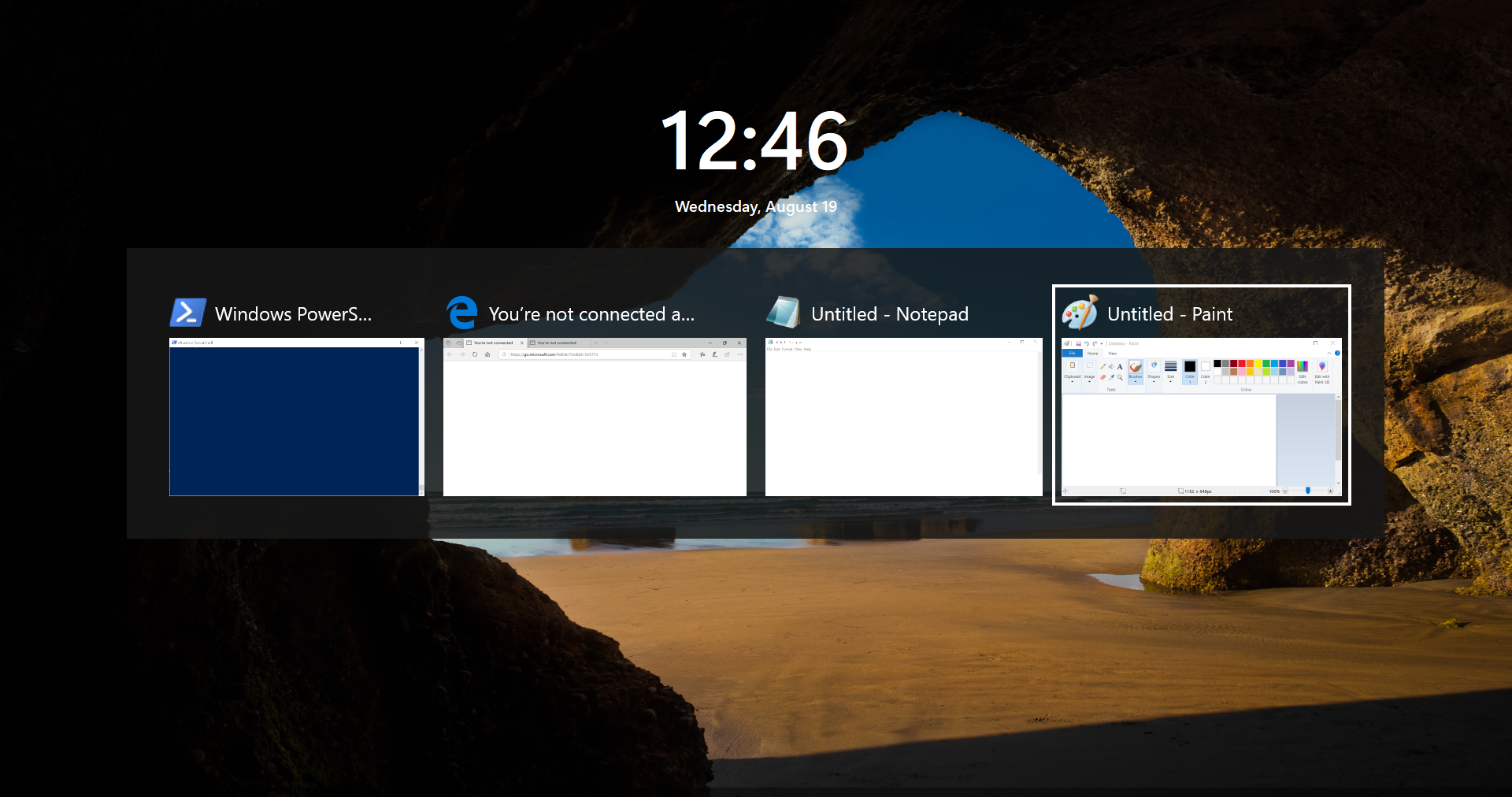
Do not type a real password to test a suspicious screen. If an unexpected lock screen follows a help-desk chat or installer, disconnect the device from the network and contact support using a known internal channel. On a managed workstation, let the security team preserve evidence before cleanup.
What SynkLoader can do after execution
The loader is modular. Expel recovered components that profile the computer, create persistence, steal the Windows password through PhishLocker, proxy traffic, open an interactive PowerShell shell, and provide VNC-style remote access. Its profiler collects the host and user name, privilege level, processes, services, and Active Directory details.
Persistence is created with a randomly named scheduled task that runs at logon and again each day. The traffic-redirector module can turn the infected PC into a bridge to internal or external services. Combined with stolen credentials and remote control, that gives an operator several paths for hands-on-keyboard access and lateral movement.
How to remove SynkLoader safely
- Isolate the computer. Disconnect Ethernet and Wi-Fi. Do not continue working from the suspected device.
- Reset exposed credentials from a clean device. Revoke sessions and review MFA methods. Reset the local or domain password if it was entered into the fake screen.
- Scan the full system. Removing the original MSI is not enough because a scheduled task and modules under the user profile may remain.
- Review persistence and remote activity. Check newly created scheduled tasks, PowerShell execution, unexpected Python processes, remote sessions, and access to internal services.
- Run an organization-wide search. Look for the external Teams identity, matching downloads, the fake installer, and related sign-ins on other endpoints.
A visible file cleanup cannot establish that the PowerShell loader, scheduled task, and remote-access modules are gone. Scan the isolated Windows PC before returning it to service.
For a structured follow-up, use a Windows security audit after malware. Organizations should also compare this incident with other Microsoft Teams help-desk lures: an external chat identity and a familiar cloud-hosted download are not proof of legitimacy.