mDNSResponder.exe is normally the legitimate background service for Apple Bonjour on Windows, not a Windows system file and not malware by default. Its job is to help applications discover devices and services on the local network. Keep it when an app relies on Bonjour; otherwise, test by stopping the service and uninstall Bonjour through Windows. Do not delete the executable or rename its DLL first.
The safety decision depends on more than the filename. A normal copy has an Apple signature, belongs to the Bonjour Service, and usually runs from C:\Program Files\Bonjour\ or the corresponding Program Files (x86) folder. A same-named file in AppData, Temp, Downloads, or a random folder needs closer inspection.
mDNSResponder.exe at a Glance
| What it is | Apple Bonjour’s multicast DNS and service-discovery process for Windows. |
| Windows component? | No. It is installed by Apple software or another application that bundles Bonjour. |
| Normal location | C:\Program Files\Bonjour\mDNSResponder.exe or a matching Program Files (x86) path. |
| Normal service | Bonjour Service. |
| Safe to disable? | Usually safe as a temporary test, but local device, media, printer, license-server, or control-surface discovery may stop. |
| Safe to remove? | Yes, when no installed application needs Bonjour. Use the supported Windows uninstaller. |
What Does mDNSResponder.exe Do?
Bonjour lets software find services on the same network without requiring you to enter an IP address or configure a DNS server. The Windows process listens for and advertises multicast DNS and DNS Service Discovery information. That can make a printer, shared media library, Apple TV, network license server, or another local service appear automatically inside an application.
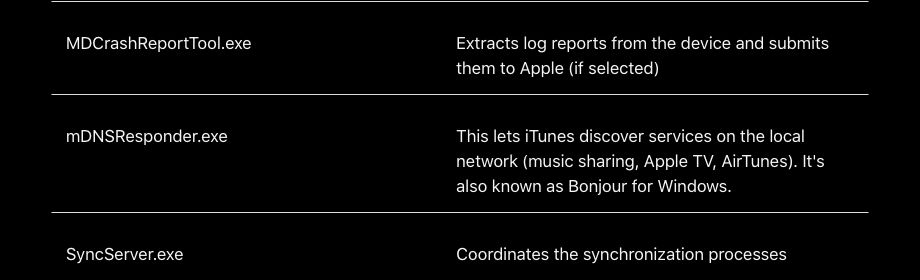
Apple’s current iTunes support page says mDNSResponder.exe lets iTunes discover local-network services such as music sharing, Apple TV, and AirTunes. Third-party software can install it too. For example, Avid documented in June 2026 that PACE iLok software bundled with Media Composer can install Bonjour; standalone editors may not need it, while network licensing or EUCON discovery may require either Bonjour or manual IP configuration.
This is why a static list of “apps that need Bonjour” is unreliable. The safer test is to identify what installed it, stop the service temporarily, and check the particular network features you use before uninstalling anything.
Is mDNSResponder.exe a Virus?
The expected Apple file is legitimate. Malware can still use a trusted-looking filename, so “the name matches” is not enough. Check four things together: location, digital signature, service registration, and behavior.
1. Open the file location
- Open Task Manager and select Details.
- Right-click
mDNSResponder.exeand choose Open file location. - Confirm that it is inside a Bonjour folder under
Program Files, not a user-writable folder such asAppData,Temp, orDownloads.
A different path is not automatic proof of malware—software can use custom installation folders—but it changes the decision from “probably normal” to “verify before allowing.”
2. Check the digital signature
Open the file’s Properties → Digital Signatures tab and inspect the signer. Depending on the Bonjour version, the publisher may appear as Apple Inc. or an older Apple Computer, Inc. identity. Windows PowerShell can also report the signature with Get-AuthenticodeSignature -LiteralPath 'C:\Program Files\Bonjour\mDNSResponder.exe'. Microsoft documents this cmdlet specifically for retrieving a file’s Authenticode signature.
A valid Apple signature supports legitimacy; it does not prove the entire installation is current or that every bundled component is compatible. An invalid, missing, or unrelated signature deserves investigation, especially outside the expected folder.
3. Confirm the service registration
Press Win + R, enter services.msc, and open Bonjour Service. Its executable path should point to the same file you inspected. If Task Manager shows the filename but no matching Bonjour service exists, or the service points somewhere else, scan the file and review its startup source.
4. Compare behavior with the purpose
Normal Bonjour activity is local service discovery. Warning signs include sustained high CPU, repeated launches from a user profile, connections unrelated to local discovery, several unsigned copies, an unknown scheduled task, or the file returning after Bonjour and its parent application were removed.
Do You Need Bonjour Service on Windows 11?
You need it only when an application uses Bonjour discovery. The fastest low-risk test is reversible:
- Close iTunes, Apple utilities, audio/video applications, license managers, and any app that discovers devices on your LAN.
- Open
services.msc, right-click Bonjour Service, and choose Stop. - Reopen the applications you actually use.
- Test shared libraries, Apple TV/AirTunes discovery, printers, network licenses, control surfaces, and other local-device features.
- If nothing breaks after normal use and a reboot, Bonjour is a reasonable uninstall candidate. If a feature disappears, start the service again and keep or repair the component.
Stopping the service does not remove it. That makes this a better first step than deleting mDNSResponder.exe or unregistering DLLs based on old web instructions.
How to Disable or Remove mDNSResponder.exe Safely
Temporarily disable Bonjour
- Press Win + R, type
services.msc, and press Enter. - Double-click Bonjour Service.
- Select Stop.
- Set Startup type to Manual for a reversible test. Use Disabled only when you are confident no application needs it.
Uninstall Bonjour through Windows
- Open Settings → Apps → Installed apps.
- Search for Bonjour.
- Select Uninstall, follow the prompts, and restart Windows.
- Check the applications that previously used local discovery.
If Bonjour is not listed in Settings, open Control Panel → Programs → Programs and Features. Do not make the old command-line mDNSResponder.exe -remove route your first choice: it can unregister the service without cleanly resolving the application that installed it, its repair state, or dependent components.
If Bonjour keeps coming back
A parent application is probably reinstalling it during an update or repair. Sort Installed apps by installation date and look for Apple software, PACE/iLok components, Avid software, or another network-aware application installed around the same time. Update, repair, reconfigure, or remove that parent application instead of repeatedly deleting the Bonjour folder.
If uninstall fails, restart Windows and try again. Microsoft also provides an install/uninstall troubleshooter for damaged Windows Installer registrations. Avoid third-party “forced uninstall” utilities until the supported repair and removal paths fail.
Fix mDNSResponder.exe High CPU or Network Use
Bonjour should not continuously consume a large share of the CPU. Short bursts can happen when devices join the network or an application searches for services. Sustained activity calls for troubleshooting:
- Restart Bonjour Service. Stop and start it in
services.msc. If usage returns immediately, continue. - Close Bonjour-dependent applications one at a time. This identifies the app repeatedly requesting discovery.
- Restart the router and affected local devices. A noisy or looping device advertisement can trigger repeated discovery traffic.
- Update or repair the parent application. An old bundled Bonjour component or damaged configuration is more likely than Windows itself being at fault.
- Verify the path and signature. High CPU from an unsigned copy outside
Program Filesis a security problem, not a Bonjour tuning problem. - Test with the service stopped. If CPU returns to normal and no required feature breaks, uninstall Bonjour through Windows.
Do not block random network ports or delete the executable before identifying the dependent app. That can leave a service entry behind and turn a simple performance issue into a recurring startup error.
Fix mDNSResponder.exe Application or System Errors
Messages such as “mDNSResponder.exe application error,” a missing-component error, or a Bonjour Service startup failure usually point to a damaged or incompatible Bonjour installation. Use this order:
- Restart Windows once and reproduce the error.
- Update or repair the application that installed Bonjour.
- If you do not need local discovery, uninstall Bonjour through Installed apps.
- If you do need it, reinstall or repair the parent application from its official source so it deploys a matching Bonjour component.
- Never download a loose
mDNSResponder.exeormdnsNSP.dllfrom a DLL-download site.
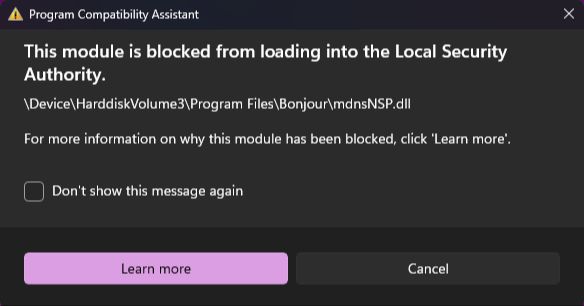
Windows 11 may separately report that mdnsNSP.dll was blocked from loading into Local Security Authority. Keep LSA protection enabled. Our dedicated guide explains how to verify and fix the mdnsNSP.dll LSA warning without weakening Windows security.
When mDNSResponder.exe May Be Suspicious
Escalate from ordinary Bonjour troubleshooting to a security scan when one or more of these conditions apply:
- The file runs from
AppData,Temp,Downloads,System32, or an unrelated application folder. - The digital signature is missing, invalid, or belongs to an unexpected publisher.
- The service path and Task Manager file path do not match.
- Several copies run from different folders.
- An unknown scheduled task, startup entry, or service launches the file.
- High CPU or network use continues even when all Bonjour-dependent applications are closed.
- The process reappears after a supported uninstall, but no known application explains the reinstall.
- The behavior began after a crack, repack, fake update, or unknown installer was executed.
In these cases, removing the visible file may leave the launcher, scheduled task, service, or bundled application that restores it. Run a full Gridinsoft Anti-Malware scan, remove the detections it finds, reboot, and scan again if the process returns. A broader Windows security audit after malware can help check startup entries, scheduled tasks, browser changes, and security exclusions.
If the process path is wrong, the name imitates a Windows component, or high CPU started after an unknown installer, scan for hidden miners, services, startup entries, and bundled components.
Scan a suspicious mDNSResponder.exe copyWhat to Do If an App Breaks After Removal
- Reinstall or repair the application from its official installer.
- Check whether the app offers a manual IP address instead of automatic Bonjour discovery.
- Confirm that the PC and target device are on the same local network.
- Restore Bonjour only through the dependent application’s installer or an official Apple package—not a file-download site.
The key distinction is between discovery and connectivity. Removing Bonjour may stop an app from automatically finding a service while direct IP communication still works. If manual addressing restores the feature, you have confirmed a discovery dependency rather than a malware problem.
FAQ
Can I end mDNSResponder.exe in Task Manager?
Yes, but the Bonjour Service can start it again. Stop the service in services.msc when you want a meaningful temporary test.
Is mDNSResponder.exe required for Windows 11?
No. Windows does not require Apple’s Bonjour process. An installed application may require it for automatic local-network discovery.
Why is Bonjour installed when I do not use Apple devices?
Third-party software can bundle Bonjour for printer, media, license-server, control-surface, or other local service discovery. Check applications installed around the same date before removing it.
Does disabling Bonjour stop internet access?
It should not stop normal internet access. It can stop automatic discovery of local services inside applications that rely on Bonjour.
Should I delete mDNSResponder.exe manually?
No. First stop the service and test dependencies, then use Windows Installed apps or Programs and Features. Manual deletion can leave service entries and dependent software in a broken state.
Why does mDNSResponder.exe return after I remove it?
An installed application is likely repairing or reinstalling Bonjour. Identify and update, reconfigure, or uninstall that parent application.
References
- Apple Inc. “About iTunes for Windows background processes.” Apple Support, accessed August 27, 2026. https://support.apple.com/en-us/102018
- Microsoft. “Get-AuthenticodeSignature.” Microsoft Learn, accessed August 27, 2026. https://learn.microsoft.com/en-us/powershell/module/microsoft.powershell.security/get-authenticodesignature
- Avid Technology. “Windows Security Warning: Bonjour Service or mdnsNSP.dll at Boot.” Avid Knowledge Base, updated June 9, 2026; accessed August 27, 2026. https://kb.avid.com/pkb/articles/en_US/Error_Message/Windows-Security-Warning-Bonjour-Service-or-mdnsNSP-dll-at-Boot