An “Instant System Health Boost” pop-up is asking you to act on a cleanup offer; its wording alone does not establish that Windows found a threat. Before pressing Clean My PC, identify the app or website sending it. A website notification, an installed program’s promotion, and an unexpected installer need different fixes. Close the offer, note its sender, and use the matching steps below.
If you already clicked, the key question is whether a page opened, a file downloaded, or a program actually ran. You do not need to treat all three outcomes as the same incident.
What the “Instant System Health Boost” message means
The reported wording includes “Remove hidden clutter and protect your privacy today” and a Clean My PC button. In the public discussion behind these reports, people suggested Avast or a browser notification; one person said clicking started an Avast-labelled package. Those comments did not establish a single verified source for every appearance of the window. [1]
The important distinction is between an offer and a finding. “Health boost” does not tell you which file was detected, what condition was measured, or what action a security tool took. A familiar logo or an installer’s name is not enough to authenticate the sender. Do not buy a cleanup subscription or run a downloaded package just to find out who made the message.
Find the sender without clicking Clean My PC
Look outside the offer’s large headline. Record the small app name, website address, window title, and the time the message appeared. If it is still in Windows Notification Center, inspect those details there without opening the offer.
- A browser name plus a website address: check that site’s notification permission in the named browser. The browser delivers the message; the site supplies the offer.
- A standalone window belonging to a known installed app: open the app separately from Start and look for its promotion or offer settings.
- An unfamiliar app or a setup window: cancel the setup. Establish what downloaded or ran before uninstalling anything.
For a separate app window, open Task Manager with Ctrl + Shift + Esc and expand the matching app entry. Where available, use Open file location and the file’s Properties to record its path and publisher. Compare them with the installed application. An unfamiliar name is a reason to investigate, not a reason to delete an entire folder.
If no sender is visible, keep the headline, time, and a screenshot for your own records. Check browser notification permissions and recently added apps first. Do not run the offer again as an identification test.
If a website is sending the notification
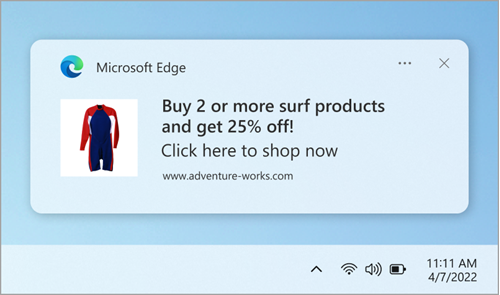
Block the specific sending site in the browser that delivered the message. Closing the visible window does not revoke a saved permission. Microsoft also documents that permitted Edge notifications can appear while Edge is closed. [3]
- Chrome: open Settings → Privacy and security → Site settings → Notifications. Locate the sending domain among permitted sites and block it. If needed, add the recorded domain to the blocked list. [2]
- Edge: open Settings → Privacy, search, and services → Site permissions → All sites. Select the sending site and set Notifications to Block. Settings labels can vary with browser version. [3]
You can make this change from browser settings without revisiting the suspicious page. Preserve notifications you actually need. A new browser tab or an alert drawn inside a webpage is a different case from a desktop notification; use the fake virus alert and browser pop-up guide if the page claims to have scanned your PC, demands a support call, or repeatedly opens new tabs.
If it is an installed app’s offer, including Avast
First confirm the sender by opening the installed product independently. Finding an old Avast folder, or seeing “Avast” in a downloaded filename, does not establish that an installed Avast application generated this particular window.
For Avast Premium Security, the current support instructions put product-offer controls under Menu → Settings → General → Notifications → Offers. Turn off the offer options for Avast products and third-party products. Apply these directions only if that is your product and those controls are present; other Avast applications use different menus. [4]
Do not enable a mode that hides every warning just to stop promotions, and do not turn off antivirus protection. If the actual message says Threat Secured and identifies a blocked connection or file, follow the separate Avast Threat Secured troubleshooting guide. A threat event calls for checking its source, rather than merely hiding an offer.
If you do not want the confirmed application, uninstall it through Windows’ installed-apps controls or its official removal instructions. Avoid deleting program folders by hand: that can leave services or startup entries behind.
If Clean My PC opened a download or installer
Use what actually happened to choose the response:
- Only a webpage opened: close it. Decline notification requests, downloads, payment prompts, and remote-support offers. Then block the original sender if it was a website notification.
- A file downloaded but you did not open it: do not run it. Delete the unwanted download or leave it quarantined if your security software already detected it. The presence of the download alone does not establish that installation completed.
- A setup program ran or new apps appeared: cancel any remaining setup, record the package name and displayed publisher, then review Settings → Apps → Installed apps. Look for software added at the time of the click. Uninstall confirmed unwanted additions through their normal controls.
If an unwanted installer ran, deleting its download may leave companion applications, startup entries, or browser changes in place. At that point, run a full Gridinsoft Anti-Malware scan to check for malicious or unwanted components. Review the findings before cleanup, restart, and check whether the same sender returns.
Scan for malicious or unwanted apps and related components, then review the findings before removing them.
Download Gridinsoft Anti-MalwareA confirmed ordinary promotion that stops through the app’s offer settings does not, by itself, create a malware-cleanup need. If a suspicious program ran and you also see account alerts or security settings changing, use the broader Windows security audit after malware. A scan cannot reverse information already shared with another party.
Check whether the source is gone
Keep a short before-and-after record: sender or domain, time, what you changed, and whether a new notification appeared. Dismiss the old message after recording it, restart Windows, and use the PC normally. Do not reopen the suspicious site or run the installer to provoke another alert.
- No new message from the same sender: the selected change addressed the observed interruption. Continue watching for unrelated symptoms without making more changes blindly.
- The same sender returns with a new time: recheck the exact browser/profile or installed app. An old notification still sitting in history is different from a newly delivered one.
- The sender changes, or its permission/app returns: inspect extensions, installed apps, and startup activity; scan if the changes remain unexplained or unwanted software is present.
A clean scan can coexist with an unwanted marketing offer or a permitted website notification. If the offer is gone but the computer genuinely feels slow, use the safe Windows cleanup checklist to diagnose performance separately.
References
- r/computerviruses participants. “Hi iv been getting weird pop ups lately…” Reddit, accessed September 15, 2026. User discussion of the Health Boost message.
- Google Chrome Help. “Use notifications to get alerts.” Google, accessed September 15, 2026. Chrome notification controls.
- Microsoft Support. “Manage website notifications in Microsoft Edge.” Microsoft, accessed September 15, 2026. Edge notification controls and sample notification.
- Avast Support. “Managing pop-up notifications in Avast products.” Avast, accessed September 15, 2026. Product-specific notification and offer settings.