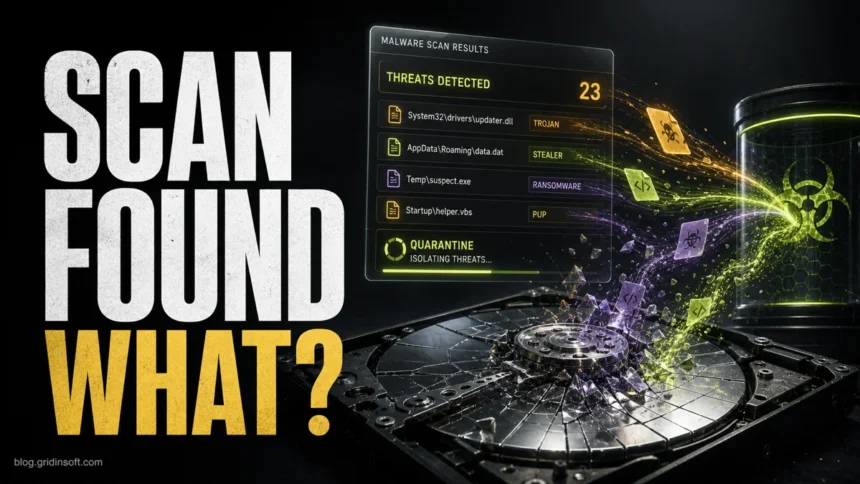
If your anti-malware scan found threats, do not start by guessing whether the result is a “virus” or by restoring the file because a program stopped working. A scanner result is a triage clue: it tells you what was found, where it was found, how it behaves, and whether the item was blocked, quarantined, removed, or still active. The safest next step is to quarantine or remove the item, reboot if the scanner asks for it, run a full scan, and then check whether the original symptom is gone.
This guide explains what anti-malware tools usually catch, how to read common detection labels, and what to do after a scan reports Trojans, adware, spyware, ransomware behavior, potentially unwanted programs, suspicious scripts, or risky network activity.
What anti-malware detects
Modern anti-malware does more than compare files against a list of old computer viruses. It can flag known malicious files, suspicious behavior, unwanted browser changes, dangerous scripts, persistence entries, exploit activity, and network connections that match malware behavior. That matters because many current attacks are financially motivated and often involve ransomware, infostealers, credential theft, phishing, and fast exploitation of known software flaws. Verizon’s 2026 DBIR says vulnerability exploitation became the top breach entry point at 31%, while Microsoft reports heavy daily malware and phishing blocking at global scale and a surge in infostealer-driven identity risk.[1][2]
For a home Windows user, the important question is not only “what category did the scanner show?” It is “what did the detected item try to do, and is there still anything left to clean?”
Scan result terms that matter
| What you see | What it usually means |
|---|---|
| Threat name | The family or behavior label, such as Trojan, PUP, Adware, Spyware, HackTool, Script, Downloader, or Ransomware. Exact names are useful when checking whether other users saw the same alert. |
| File path | The location tells you whether the item came from Downloads, a browser cache, a temp folder, startup, an archive, a USB drive, or an installed app directory. |
| Status | Blocked, quarantined, removed, allowed, or action needed. “Action needed” means the scanner has not fully finished cleanup yet. |
| Detection type | Signature, heuristic, behavior, reputation, cloud, or PUP category. Behavior and heuristic alerts deserve attention even when the file name looks ordinary. |
| Count of detections | Many entries do not always mean many separate infections. One adware bundle can create browser entries, scheduled tasks, startup files, and cached installers. |
Top threats a scanner may catch
| Detection or symptom | What to do first |
|---|---|
| Trojan, loader, downloader, or backdoor Often appears after cracked software, fake installers, game cheats, unknown email attachments, or suspicious archives. It may install more malware or open remote access. |
Quarantine/remove it, reboot, run a full scan, and inspect recent downloads. If the alert mentions a password stealer, RAT, or backdoor, change important passwords from a clean device. |
| Infostealer, spyware, or keylogger Designed to steal passwords, browser cookies, crypto wallet data, screenshots, or typed text. Microsoft notes that infostealers help criminals turn stolen data into later account compromise and ransomware access.[2] |
Remove the threat, disconnect risky sessions, change passwords, revoke active sessions, enable MFA, and check email, banking, social, and crypto accounts for unauthorized activity. |
| Ransomware behavior Mass file renaming, encryption attempts, ransom notes, blocked files, or suspicious access to backups. ENISA’s 2025 threat landscape keeps ransomware among the most prominent current threats.[3] |
Disconnect from the network, stop using the machine for normal work, preserve ransom notes and file samples, scan from a trusted environment, and avoid paying or downloading random decryptors. |
| Adware, browser hijacker, or PUP Pop-ups, notification spam, fake virus alerts, changed search engine, unknown extensions, or bundled “optimizer” apps. |
Remove the detected app, reset affected browser settings, delete suspicious extensions, revoke notification permissions, and scan again after reboot. |
| Exploit, script, or fileless behavior PowerShell, JavaScript, Office macros, browser exploits, or abuse of legitimate Windows tools. The file may be small, temporary, or hidden in a cache. |
Let the scanner block it, update Windows and browsers, remove the source file or extension, and check whether scheduled tasks or startup entries were created. |
| Rootkit or bootkit warning Rare, but serious. These threats try to hide from normal tools or load before Windows starts. |
Run an offline or boot-time scan if available. If alerts keep returning after cleanup, back up personal files carefully and consider a clean Windows reinstall. |
| Cryptominer, proxyware, or botnet activity High CPU/GPU usage, loud fans, slow browser, unknown outbound traffic, or a security tool blocking repeated connections. |
Remove the detected process and persistence entries, check startup tasks, uninstall suspicious bundles, and review browser extensions and recent downloads. |
Quarantine, remove, or allow?
If you are not completely sure a file is safe, quarantine is usually the right first action. Quarantine isolates the item so it cannot run while you check the detection name, source, and file path. Remove is appropriate when the file is clearly unwanted, came from a suspicious download, or is part of adware, a Trojan, a cracked app, or a fake installer. Allow should be rare and reserved for files you can verify from a trusted vendor source.
| Action | Use it when |
|---|---|
| Quarantine | You need to stop the file now but want the option to review the detection, path, and source before permanent deletion. |
| Remove | The item is clearly malicious, unwanted, bundled, downloaded from an untrusted site, or keeps reinstalling browser/search changes. |
| Allow/restore | Only after verifying the file hash, vendor signature, original download source, and a credible false-positive explanation. |
What to do after threats are found
- Write down the detection name and path. The label alone is not enough. A Trojan in Downloads is different from the same label inside a browser cache, a startup folder, or an archive.
- Quarantine or remove the detected item. Do not restore it just because a game, crack, extension, or “optimizer” stopped working.
- Reboot if the scanner asks. Some locked files, drivers, scheduled tasks, and services can only be cleaned during restart.
- Run a full scan after reboot. A quick scan may catch the obvious file, while a full scan can find related installers, scripts, startup entries, and browser leftovers.
- Check the original symptom. Look for returning pop-ups, changed search engine, unknown extensions, high CPU, new startup entries, blocked outbound connections, or repeated alerts.
- Change passwords when theft is possible. If the alert mentions spyware, stealer, keylogger, backdoor, RAT, or browser-session theft, change passwords from another clean device and enable MFA.
- Update the software that was abused. Patch Windows, browsers, Office, PDF readers, archivers, game launchers, and remote-access tools.
Gridinsoft Anti-Malware scan results show detected threats and PUPs so you can review what was found before cleanup. If you need help reading the scan panel, the Gridinsoft helpdesk has a short guide to scan results and next actions.
Gridinsoft scan results: what you are seeing and what to do next
After uninstalling the suspicious app or deleting the visible threat, use Gridinsoft Anti-Malware to check hidden files, startup entries, scheduled tasks, bundled apps, browser changes, and other persistence points that can restore malware.
Download Anti-MalwareWhen the alert may be a false positive
False positives happen, especially with scripts, packed installers, admin tools, game mods, password recovery utilities, and unsigned internal tools. Treat a false-positive claim as something to verify, not as a reason to ignore the alert. Check whether the file came from the official vendor, whether the digital signature is valid, whether the file hash matches the vendor download, and whether the path makes sense. A legitimate tool in a strange temp folder or bundled with a cracked installer should still be treated as suspicious.
If the same threat keeps returning after removal, the scanner is probably catching a symptom rather than the original source. Common sources include a browser extension, scheduled task, startup item, cracked installer, sync folder, archive that is being re-extracted, or another user profile on the same PC.
Related Gridinsoft guides
If you are trying to match a scanner result to a real symptom, these guides may help: current malware threats and warning signs, types of malware, how to tell if your computer has a virus, adware symptoms, spyware symptoms, and Trojan malware signs.
FAQ
Should I quarantine or remove a threat?
Quarantine first when you are unsure. Remove the item after you confirm it is unwanted, malicious, bundled, or from an untrusted source. Do not restore a file unless you can verify it is a clean false positive.
Why does my anti-malware keep finding the same threat?
The original source may still be present. Check browser extensions, startup apps, scheduled tasks, sync folders, archives, recent installers, and other Windows user profiles.
Can anti-malware catch every threat?
No single tool catches every attack. Use anti-malware with safe downloads, browser updates, Windows updates, MFA, backups, and caution around cracks, fake installers, email attachments, and unexpected scripts.
Are PUP and adware detections serious?
They are often less destructive than ransomware or spyware, but they can still change browser settings, push fake alerts, track browsing, install more unwanted components, and make the PC harder to use. Remove them unless you deliberately installed and trust the software.
References
- Verizon. “Vulnerability exploitation top breach entry point, 2026 industry-wide DBIR finds.” Verizon News, May 19, 2026, accessed June 7, 2026. https://www.verizon.com/about/news/breach-industry-wide-dbir-finds
- Microsoft. “Extortion and ransomware drive over half of cyberattacks.” Microsoft On the Issues, October 16, 2025, accessed June 7, 2026. https://blogs.microsoft.com/on-the-issues/2025/10/16/mddr-2025/
- European Union Agency for Cybersecurity. “ENISA Threat Landscape 2025.” ENISA, October 1, 2025, revised January 9, 2026, accessed June 7, 2026. https://www.enisa.europa.eu/publications/enisa-threat-landscape-2025