Spyware symptoms are often subtle: a slower device, disabled security tools, browser changes you did not make, unknown outbound traffic, bank or account-security alerts, and suspicious account activity. One weak signal can be a normal software problem, but several signals together mean you should stop using the device for banking or passwords, disconnect risky sessions, and run a full malware scan.
This guide focuses on practical signs of spyware on Windows PCs and everyday devices. It also explains what to check first, which symptoms matter most, and what to do before more data is stolen.
Spyware Symptoms: What to Check First
Spyware is malware that watches activity, collects data, or helps an attacker maintain access without obvious disruption. It can steal browser sessions, passwords, payment details, screenshots, clipboard data, or messages. Because good spyware tries to stay quiet, the safest approach is to look for patterns instead of one dramatic warning.
| What you notice | Why it can matter |
|---|---|
| Security tools, Task Manager, or Registry Editor are blocked | Malware sometimes disables tools that could expose or remove it. |
| Unknown traffic appears while no heavy app is open | Spyware may be uploading logs, cookies, screenshots, or stolen files. |
| Browser settings, extensions, search engine, or home page changed | Browser hijackers and stealers often live where passwords and sessions are stored. |
| Accounts show new logins, password resets, or MFA prompts | Stolen credentials or session cookies may already be in use. |
| Battery, data usage, or CPU spikes without a clear reason | Background collection, persistence, or network activity may be running quietly. |
Strong Signs of Spyware on a Computer
System tools are disabled
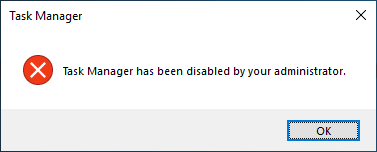
If Task Manager, Registry Editor, Windows Security, browser security settings, or your antivirus suddenly stop opening, treat it as a high-risk sign. Spyware and related malware may block these tools to make removal harder.
Unknown processes or startup items appear
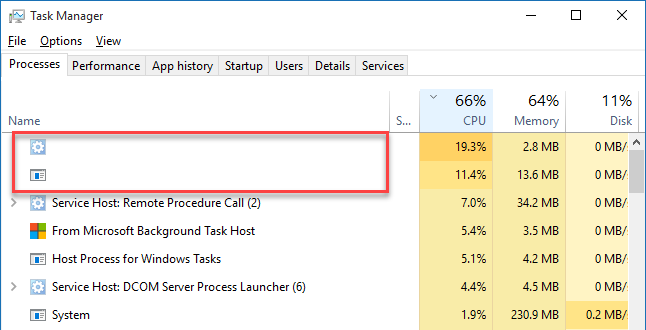
Open Task Manager and check the Startup apps tab, then look at recently installed programs and browser extensions. A suspicious process is more likely to matter when it has a random name, runs from a temporary folder, returns after removal, or has no clear publisher. Do not delete system files blindly; verify the path and scan the file first.
Network activity does not match your usage
Spyware has to send collected data somewhere. Warning signs include upload spikes while the computer is idle, unknown remote connections, security warnings about outbound traffic, or a browser that keeps connecting to unfamiliar domains after all tabs are closed. If the device is on a limited plan, unexplained data usage can be especially visible.
Browser behavior changes
Browser hijackers are not always “just adware.” They can read search activity, inject redirects, install tracking extensions, or capture login pages. Review installed extensions, search engine settings, notification permissions, and site permissions. Remove anything you did not install deliberately, especially extensions with broad access to every website.
Passwords, sessions, or accounts start acting wrong
New sign-in alerts, unexpected MFA prompts, password reset emails, sent messages you did not write, or payment attempts can mean the spyware already captured credentials or browser cookies. In that situation, change passwords from a clean device first, then clean the suspected device.
Your bank says the device is unsafe or spyware-affected
A bank warning, unhealthy-device message, removed mobile-banking profile, or account lockout does not prove money was stolen. It does mean you should treat the device as high risk until you verify the alert through the official bank app, typed website address, or phone number on your card. Do not use links from email or text messages to “unlock” the account.
- Use a clean device for banking. Check recent transactions, card activity, saved payees, and active sessions from a trusted phone or computer.
- Clean the Windows PC before logging in again. Scan for stealers, browser hijackers, unknown extensions, and remote-access tools. If passwords or cookies may be stolen, follow our password stealer recovery steps before reusing the device.
- Check mobile risk settings. On Android, review sideloaded apps, Device Admin, Accessibility, Display over other apps, VPN/proxy apps, and unfamiliar banking-protection tools. Our Android malware guide covers the same risky permissions in more detail.
- Do not stop at a password change. If the bank saw suspicious device behavior, also secure the email account, password manager, and recovery phone number tied to the bank. If personal data may be exposed, use the identity theft warning signs checklist.
- Resume banking only after cleanup or bank clearance. If the warning returns after scanning and updates, ask the bank what device state they require, and consider a full reset or reinstall instead of repeatedly unlocking the account.
Webcam, microphone, clipboard, or screenshots behave unexpectedly
Some spyware families can capture screenshots, record keystrokes, monitor the clipboard, or access camera and microphone permissions. Watch for indicator lights, permission prompts, clipboard changes after copying crypto wallet addresses, or apps that request access they do not need.
How Spyware Usually Gets In
Most home infections do not start with a cinematic “hack.” They start with a choice that looked normal in the moment:
- Installing cracked games, activators, cheat tools, or pirated software.
- Opening email attachments or links from unknown senders.
- Installing fake browser updates, fake codec installers, or “required” video players.
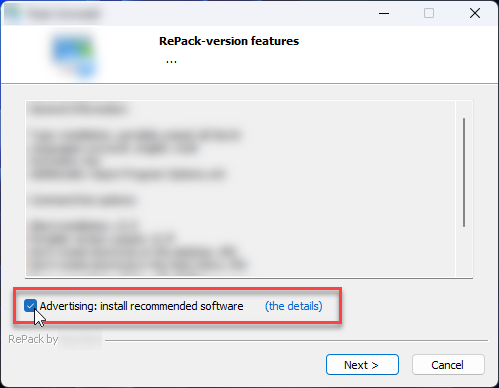
- Accepting bundled installers that add extra software or browser extensions.
- Clicking malicious ads, fake download buttons, or scam pop-ups.
- Using outdated apps with known security holes.
For phone-specific location concerns, see how Location Services, Find My, Find Hub, Bluetooth, and spyware can still expose phone location. If the concern is whether remote spyware or personal monitoring fits your situation, compare the difference in our spyware vs stalkerware guide.
What to Do If You Suspect Spyware
- Stop using the device for sensitive logins. Do not open banking, email, crypto, work dashboards, or password managers from the suspected device. If a bank already locked the account or flagged the device, verify the alert through an official channel from a clean device first.
- Disconnect risky sessions. From a clean phone or computer, sign out of important accounts, revoke unknown sessions, and change passwords.
- Check browser extensions and notification permissions. Remove unknown extensions, reset the search engine and home page, and block suspicious notification senders.
- Run a full malware scan. Update your security tool first, then scan all drives. If security software will not run, boot into Safe Mode with Networking and scan again.
- Review startup apps and scheduled tasks. Look for unknown entries that return after reboot.
- Back up personal files carefully. Save documents and photos, but do not copy suspicious executables, installers, scripts, cracks, or browser profile folders.
- Reinstall Windows if account theft continues. If banking, email, or password-manager activity remains suspicious after cleanup, a clean reinstall is safer than guessing.
After uninstalling the suspicious app or deleting the visible threat, use Gridinsoft Anti-Malware to check hidden files, startup entries, scheduled tasks, bundled apps, browser changes, and other persistence points that can restore malware.
Download Anti-MalwareHow to Reduce the Chance of Another Spyware Attack
Keep Windows, browsers, and document readers updated. Avoid pirated software and unknown installers. Use a password manager, turn on MFA for important accounts, and keep browser extensions to a minimum. For a broader prevention checklist, read our anti-spyware tips for 2026.
If the symptoms look more like a stolen account than a local infection, start with the account recovery path: change passwords from a clean device, remove unknown sessions, and check forwarding rules in email.
FAQ
Can spyware be on my computer if antivirus finds nothing?
Yes. A clean scan is a good sign, but it is not absolute proof. Check browser extensions, startup items, account sessions, and suspicious network activity, especially if sensitive accounts keep showing unknown logins.
Is slow performance always a spyware symptom?
No. Slow performance can come from old hardware, full storage, updates, browser tabs, or normal background apps. It becomes more suspicious when it appears with disabled tools, unknown processes, browser changes, or account alerts.
Should I change passwords before or after removing spyware?
Change passwords from a clean device first. If you change them on the infected device, spyware may capture the new passwords too.
Can a factory reset remove spyware?
A clean reinstall or full factory reset usually removes ordinary spyware, but you must avoid restoring infected apps, browser profiles, scripts, and unknown installers afterward. For high-risk account theft, reset passwords and sessions as well.
References
- Federal Trade Commission. “Malware: How To Protect Against, Detect, and Remove It.” FTC Consumer Advice, accessed June 4, 2026. https://consumer.ftc.gov/articles/malware-how-protect-against-detect-and-remove-it
- Cybersecurity and Infrastructure Security Agency. “Recognizing and Avoiding Spyware.” CISA, accessed June 4, 2026. https://www.cisa.gov/news-events/news/recognizing-and-avoiding-spyware
- Lloyds Bank. “Device security | Mobile banking app.” Lloyds Bank, accessed June 9, 2026. https://www.lloydsbank.com/help-guidance/everyday-banking/mobile-banking-app/device-security.html