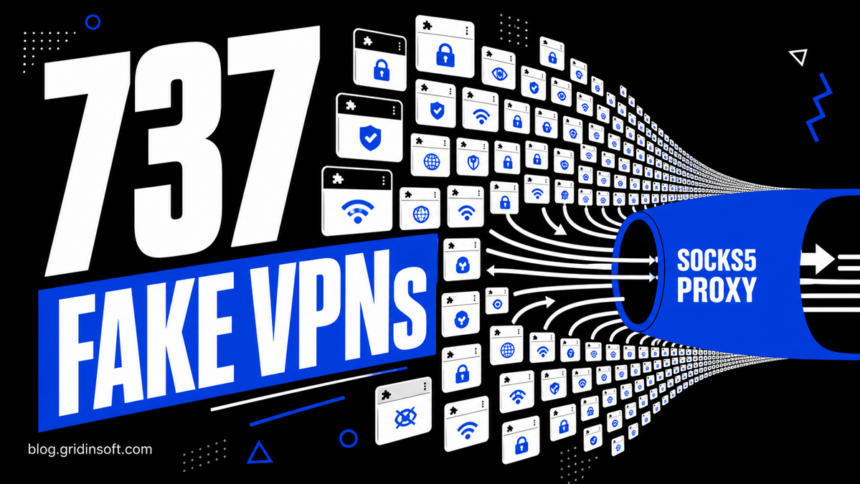
Socket researchers linked 737 Chrome VPN and proxy extensions to one coordinated operation. The extensions used familiar brand names and polished store listings, then configured Chrome to send browser traffic through SOCKS5 proxies controlled by the operator. The report covers extensions found in a large Chrome Web Store corpus; it does not prove that every listed extension stole passwords or that the proxy operator retained the traffic.
The immediate task is to compare an extension’s exact ID—not its name or icon—with Socket’s affected list. If you installed one, the right recovery step depends on whether you merely saw the listing, installed the extension, or actually browsed while its VPN connection was active.
Check whether your VPN extension is in the 737
- Open
chrome://extensionsin Chrome. - Turn on Developer mode in the upper-right corner.
- Find the VPN or proxy extension and copy its 32-character ID.
- Open Socket’s affected-extension list in the first reference below and use your browser’s Find command to search for that ID.
A matching name or logo is not enough. Several extensions impersonated real products, and two listings can share a visible name while having different IDs. Our guide to identifying a Chrome extension by ID shows the same check in more detail. Search Socket’s list even if Chrome already removed the extension, because a removed store page does not erase past exposure.
| Socket finding | What it means |
|---|---|
| 737 extension listings | The total set connected through shared infrastructure and campaign patterns. |
| 516 active listings | Still available when the corpus was collected; another 221 had been removed. |
| 274 impersonators | Listings that copied 66 known VPN and security brands. |
| 520 of 522 retrieved packages | Packages configured to use the same SOCKS5 proxy infrastructure. |
| 75,486 installs | Socket’s bucketed estimate across the identified listings, not a precise victim count. |
What the extensions changed
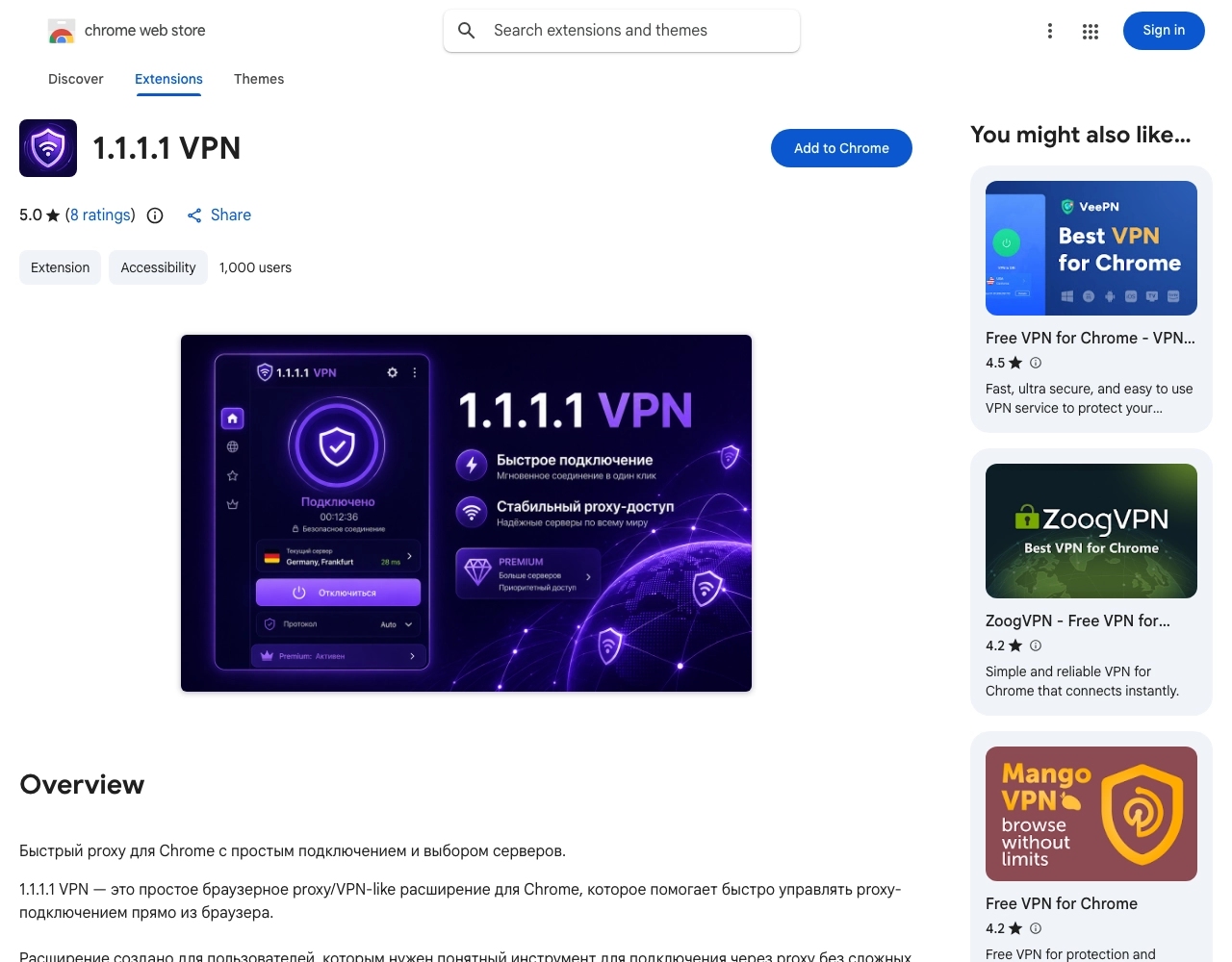
According to Socket, the retrieved packages used Chrome’s proxy capability to apply a fixed SOCKS5 server. That puts the proxy between the browser and destination sites. It can observe destination domains, the user’s source IP, TLS connection metadata such as SNI, and any unencrypted HTTP request data. A VPN label in the extension name does not add trustworthy encryption or make that operator safe.
There is an important limit to the evidence. HTTPS normally protects page contents and credentials from the proxy unless the browser shows a certificate warning, the user is redirected to a lookalike site, or another interception mechanism is present. Socket analyzed the client-side extensions and infrastructure configuration; the report did not establish what the proxy retained or transmitted onward. Treat exposure according to what happened in your session instead of assuming either total compromise or zero risk.
What to do after finding a match
- You only saw the store listing: no extension ran on the device, so the listing alone does not create browser exposure.
- You installed it but never connected: remove it from
chrome://extensions, restart Chrome, and check every Chrome profile on the device. - You browsed while it was connected: remove the extension, restart the browser, and confirm that no unexpected VPN or proxy remains. Open
chrome://managementandchrome://policy; a personal browser should not unexpectedly say it is managed. - You entered a password, payment data, or account recovery code: HTTPS by itself is not proof of theft. Change the affected password and revoke sessions promptly if you saw a certificate warning, redirect, lookalike login, unexpected account activity, or used a plain-HTTP page. Contact the card issuer for suspicious payment activity.
- The extension returns or Chrome is unexpectedly managed: record the policy name before changing it, remove unfamiliar desktop software, and scan the computer. A Gridinsoft Anti-Malware scan can check for bundled programs, startup entries, and browser changes; it cannot determine whether a remote proxy copied a password.
If account activity looks suspicious, use a known-clean device to reset the password, sign out other sessions, and enable phishing-resistant multi-factor authentication where available. Browser-session theft is a separate mechanism; our account and browser-session recovery guidance explains why password changes should be paired with session revocation.
False assumptions to avoid
- “It was in the Chrome Web Store, so it was safe.” Store availability and a five-star rating are signals, not proof. Socket found fabricated reviewer claims and reused identities.
- “The logo matches the real VPN.” The campaign copied established brands. Confirm the exact extension ID and official publisher link.
- “Google removed it, so no action is needed.” Removal stops new installs; it does not explain what happened during an earlier connected session.
- “Any proxy permission proves malware.” Legitimate browser VPNs also need proxy capability. The campaign assessment rests on the combined evidence: impersonation, misleading premium-server claims, repeated code, remote configuration, and shared infrastructure.
After removal, install extensions only from links published on the vendor’s own domain, review the publisher and permissions, and keep the number of browser extensions small. Chrome’s site-access setting is not a substitute for this check: Google notes that it does not restrict extensions that alter lower-level VPN or proxy settings.
References
- Kush Pandya, Socket, “737 Chrome VPN Extensions: Impersonation at Scale, False Reviews, and Traffic Hijacking”, August 11, 2026. Accessed August 13, 2026.
- Google Chrome Help, “Install and manage extensions”. Accessed August 13, 2026.
- Google Chrome Help, “Check if your Chrome browser is managed”. Accessed August 13, 2026.