Behavior:Win32/WinUtilAbuse.C is a Microsoft Defender behavior detection, not proof that every file named WinUtil or every Windows utility is malicious. Microsoft lists the label as a threat but currently provides no technical behavior details for it.1 Keep the affected item quarantined while you record its path, source, signer, and Defender action. Restore it only after those facts support a credible false positive; if the alert returns, the file came from an unknown source, or Windows security settings changed, treat it as a cleanup case.
- Do now: keep the item quarantined and save the full detection name, affected path, date, and action status.
- Do not assume: the word
WinUtildoes not identify Chris Titus Tech WinUtil, WinUtilities, or any other same-named project by itself. - Restore only when verified: intended download, official source, valid signature, expected path, no suspicious persistence, and a credible Microsoft or vendor false-positive result.
- Clean up when suspicious: unknown source,
Temp/AppDataexecution, PowerShell or script activity, new exclusions, repeat alerts, tasks, services, or startup entries.
What Behavior:Win32/WinUtilAbuse.C means
The Behavior: prefix tells you that Defender classified observed activity rather than merely matching an ordinary product name. The rest of the label is useful for searching the exact alert, but it is not a complete forensic description. Microsoft published the detection on October 24, 2025, says Defender detects and removes it, and explicitly says technical details are not currently available.1
That gap matters. Do not use the label alone to claim that a popular Windows optimization utility is infected, and do not dismiss the alert as a false positive because a legitimate project uses a similar word. The affected path, file origin, digital signature, command or parent process, and changes around the alert decide which response is safer. Our broader guide to Microsoft Defender detection names explains why the family name is only one part of the decision.
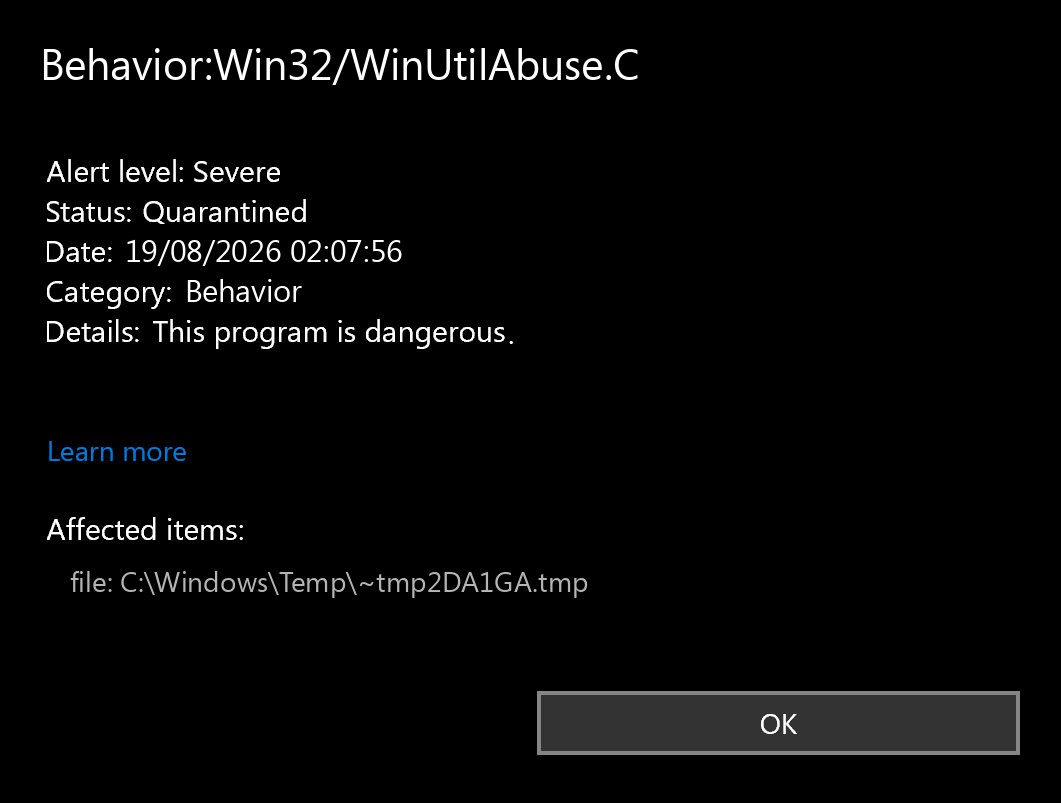
Record these details before you remove or restore anything
- Open Windows Security → Virus & threat protection → Protection history.
- Expand the
Behavior:Win32/WinUtilAbuse.Ccard and record the affected item, full path, time, and action status. - Write down what you intentionally downloaded or ran just before the alert, including the official page or app that supplied it.
- If available, record the publisher shown in Properties → Digital Signatures and the file hash from the original trusted download. Do not restore the quarantined copy merely to collect these details.
- Check whether the alert appears once, reappears after reboot, or returns when the same installer, archive, script, or updater runs again.
A path such as %USERPROFILE%\Downloads can identify the delivery file, while %TEMP%, %LOCALAPPDATA%, or %APPDATA% may show where an installer or script unpacked a component. None of those paths proves malware alone. They become more suspicious when the source is unknown, the name is random, the signature is invalid, or the same activity returns.
False positive or real compromise? Use the whole context
| What you find | Risk and what to do |
|---|---|
| You intended to install a utility from its official project or vendor, the signer is expected, the path matches the installer, and no other changes appeared. | A false positive is plausible, but not proven. Keep quarantine, update Defender, compare the official hash when available, and submit the file to Microsoft before restoring it. |
The filename contains WinUtil, but the source, signer, or path does not match the project you intended to use. |
Do not trust the familiar name. Delete the untrusted download, keep the detection quarantined, and scan for related files or persistence. |
The item ran from Temp, AppData, a random archive folder, a fake update, a crack/repack, or a sponsored-result download. |
High-risk delivery context. Treat the source as untrusted, disconnect from sensitive accounts if the file ran, and complete the cleanup checks below. |
| The alert returns after reboot or after Defender says it quarantined the item. | Look for the component that recreates it: a scheduled task, startup entry, service, script, browser change, exclusion, or downloader. |
| Several independent checks support the official file, Microsoft or the developer confirms a false positive, and no recurring activity exists. | Restoration can be considered. Restore only the specific confirmed file; do not exclude an entire folder or disable real-time protection. |
How to verify a legitimate utility without guessing
Confirm the exact source
Return to the official project or vendor page you intended to use. Compare the domain, release page, file name, version, and published hash when one is available. A copied installer on a mirror, file-sharing host, sponsored search result, or chat attachment is a separate artifact even when it uses the same name. The EXE safety checklist covers source, signature, hash, and behavior checks in more detail.
Check the signature and purpose
On an available official copy, open Properties → Digital Signatures. The signer should match the publisher you expected, and Windows should report the signature as valid. An unsigned community script can still be legitimate, but it needs stronger source and change-review evidence because a signature cannot establish its identity.
Also ask whether the behavior fits the tool’s stated purpose. A system customization utility may legitimately invoke PowerShell or change settings, but an unexpected child process, hidden download, new Defender exclusion, credential prompt, browser extension, or unrelated network connection is not excused by the utility name.
If WinUtilAbuse.C keeps coming back
A repeat alert can mean the original installer or archive keeps recreating the same file, an updater runs again, or a persistence mechanism launches a script after sign-in. It can also be the same event being displayed more than once in Protection History. Compare the path, timestamp, and action status before deciding that each card is a separate infection.
- Delete or isolate the original untrusted source. Remove the downloaded archive, installer, or script that produced the quarantined item. Do not fetch a replacement from another mirror.
- Update Defender and run a Full scan. If the scan does not start or finishes immediately, use the Defender Full scan troubleshooting guide.
- Review Startup Apps and Task Scheduler. Look for entries created near the first alert and commands that point into user-writable folders. The suspicious startup entry guide shows how to inspect them without deleting first.
- Review Defender exclusions. An unknown broad exclusion can hide related components. On a work or school PC, ask the administrator before changing managed settings.
- Check for related changes. Unknown services, browser changes, disabled security settings, new local users, or repeated outbound traffic widen the incident beyond one quarantined file.
These read-only PowerShell commands show Defender state and locally visible exclusions. They do not remove anything:
Get-MpComputerStatus | Select-Object AntivirusEnabled,RealTimeProtectionEnabled,AntivirusSignatureLastUpdated
Get-MpPreference | Select-Object ExclusionPath,ExclusionExtension,ExclusionProcess
If you find an unfamiliar startup command under HKCU\Software\Microsoft\Windows\CurrentVersion\Run, record the value name, command, and file path before disabling it for a reversible test. Do not delete registry keys from a generic removal recipe.
Remove suspicious components and confirm cleanup
Keep the Defender item quarantined, remove the untrusted source file or app, update security intelligence, and run a Full scan. Reboot after confirmed detections are removed, then scan again. If the alert returns, do not keep repeating quarantine while leaving the downloader, task, service, browser change, or exclusion in place.
Defender may quarantine the visible file while a loader, scheduled task, service, browser change, exclusion, or bundled module remains and recreates it. When the alert returns, the item ran from a user-writable folder, or the source is unknown, run a full Gridinsoft Anti-Malware scan to check for hidden files, startup entries, scheduled tasks, bundled apps, and other persistence. Remove confirmed detections, reboot, and scan again if the original symptom returns.
A false positive is possible, but restore only after checking that the system has no companion detections, startup entries, scheduled tasks, or hidden files tied to the same source.
Scan before restoring this fileAfter a suspicious file ran, use the post-malware Windows security audit before returning to banking, administrator, work, or crypto accounts on that PC.
Submit a possible false positive before restoring
Microsoft accepts files that users believe are malware and files they believe were incorrectly classified.3 Submit the exact file from a trusted original source when possible, include the detection name, product/version, source URL, and why the behavior is expected. Do not upload private customer data, credentials, or internal software without authorization.
Microsoft’s restore guidance says to restore a quarantined file when you are certain it is not a threat.2 For a home user, that means more than one clean-looking filename: the source, signer, hash/version, purpose, and behavior should agree, and the alert should not be accompanied by persistence or other compromise signs. Restore only the confirmed file. Never solve this alert by excluding %USERPROFILE%\Downloads, all of %LOCALAPPDATA%, PowerShell, or an entire utility folder.
If you accidentally selected Allow on device before checking the evidence, follow the steps to undo an allowed Defender threat, then scan and review the affected path again.
What not to do
- Do not call a specific WinUtil project malicious based only on the detection label.
- Do not restore the file because a forum comment says the alert is always a false positive.
- Do not disable Defender, Tamper Protection, or real-time scanning to make the utility run.
- Do not add broad file, folder, process, or extension exclusions.
- Do not download a replacement executable from a mirror or removal-guide link.
- Do not clear Protection History before recording the path, time, and action status.
FAQ
Is Behavior:Win32/WinUtilAbuse.C definitely malware?
Microsoft classifies it as a threat, but its public page does not provide technical behavior details. Treat the alert seriously and keep the item quarantined while you verify the exact file, source, path, signer, and surrounding activity.
Does WinUtilAbuse.C mean Chris Titus Tech WinUtil is infected?
No. The word WinUtil in the label is not enough to attribute the alert to that project or any other similarly named utility. Verify the actual file and where it came from.
Can I add an exclusion if I trust the utility?
Do not use a broad exclusion as the first fix. Submit the exact file to Microsoft, confirm the official source and signer or hash, and restore only the specific file when the evidence supports a false positive.
Why does the alert return after quarantine?
The original installer, archive, updater, scheduled task, startup entry, service, script, or browser download may recreate the item. Compare the path and timestamp, remove the source, audit persistence, and scan again after reboot.
References
- Microsoft Security Intelligence. “Behavior:Win32/WinUtilAbuse.C threat description.” Microsoft, published and updated October 24, 2025; accessed August 18, 2026. Microsoft detection record.
- Microsoft. “Restore quarantined files in Microsoft Defender Antivirus.” Microsoft Learn, updated July 17, 2026; accessed August 18, 2026. Microsoft Defender quarantine guidance.
- Microsoft Security Intelligence. “Submit a file for malware analysis.” Microsoft, accessed August 18, 2026. Microsoft file submission portal.