


To see what you can clear from System Data on a Mac, first open Apple menu → System Settings → General → Storage and check how much space is available on the startup disk. System Data is a category for files macOS groups together, including caches, logs and temporary files. The size of the category alone doesn’t tell you how much you can recover.
If the bar shows 100 GB of System Data but your Mac still has room for your work, there’s little reason to chase that number. If an update or a project is blocked, write down the available space and how much the operation needs. Those two numbers tell you when to stop.

How much space is actually in caches?
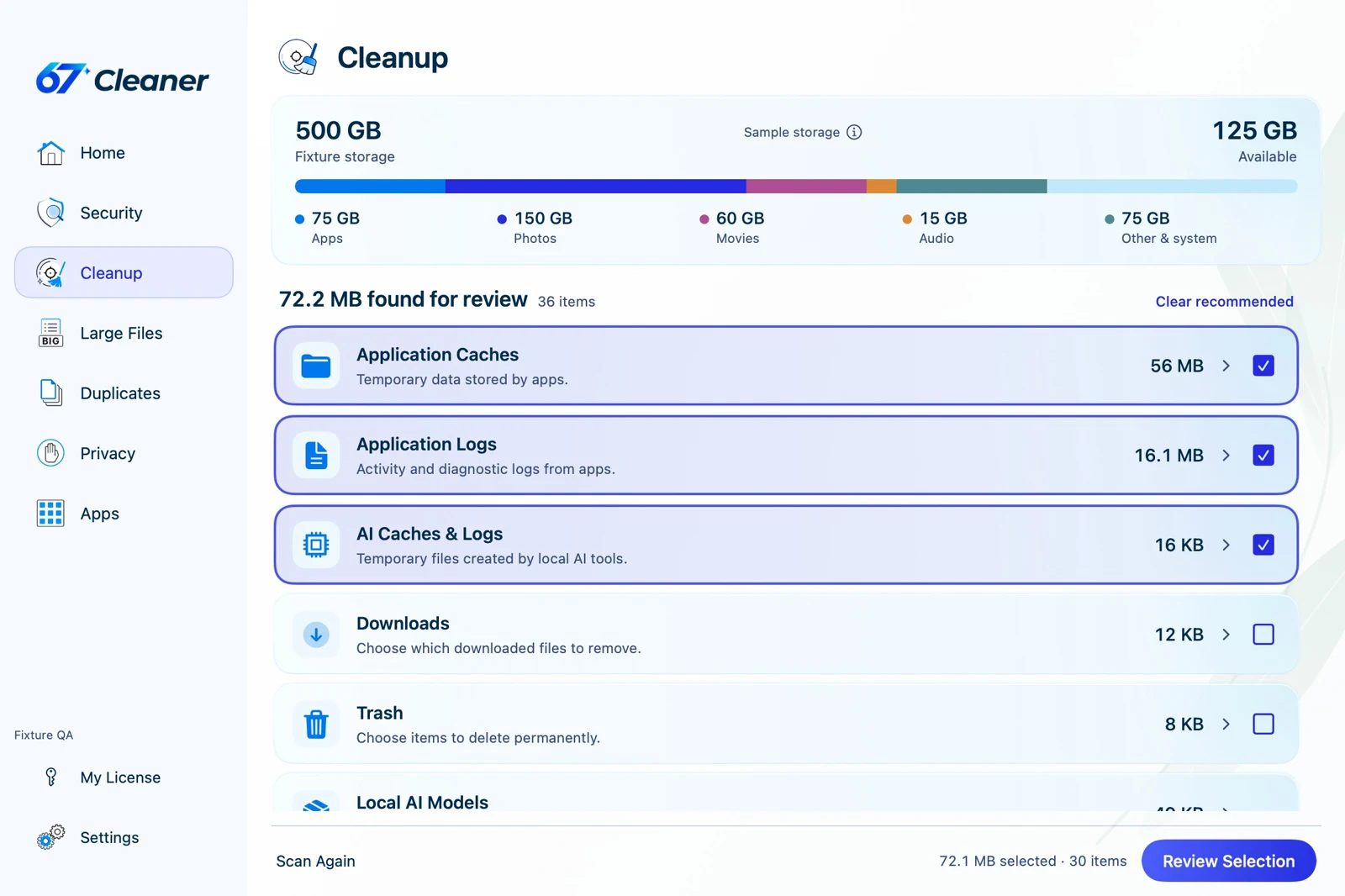
Review the size of caches and logs in 67 Cleaner before choosing which items to clear.
Measure space on the disk that is full
In Finder, choose Go → Computer, select the startup disk and press Command-I. Note the figure beside Available. Check that same disk in the same place after each change. macOS may count some space it can reclaim automatically as available, so readings from different tools can disagree.
For example, suppose Finder shows 12 GB available before you move an old 18 GB video off the startup disk. After checking the copy and emptying the Trash, Finder shows about 30 GB available. You’ve made room even if the System Data bar barely moves. A video can belong to Documents and the storage chart can take time to recalculate.
Check backups you can identify
iPhone or iPad backups. A Mac that backed up several phones may still hold a complete backup of each. Connect your device, select it in Finder, open General → Manage Backups and check the names and dates. Keep a known-good backup of devices you still need to restore. If you remove a backup you’ve identified as obsolete, use the Manage Backups dialog. Depending on the system, these files may appear under iOS Files.
Time Machine snapshots. Local snapshots let you recover earlier versions when your backup drive is away. Apple says the Mac counts their space as available and automatically removes snapshots as they age or another task needs room. Keep regular backups running. Compare available space and retry the blocked task before changing Time Machine settings.
Start with a folder whose contents you recognize
- Downloads. In list view, sort by size. Old disk images can be large. Use the eject-and-relaunch test before discarding an installer if you’re unsure that the app was copied.
- Apps with large projects or offline media. Look in the app’s own settings for downloads, render files or media storage. An editor’s original footage and its replaceable preview files can sit side by side.
- Caches and logs. Quit the app that owns the files. Prefer its built-in cache or download controls. Application Support can hold saved work and databases. Leave it intact unless you know which item you’re handling and have a backup.
If several exports look alike, check the two files by content before deleting either one. A similar name or size can hide a different edit.
Use the original problem as your final check
Review everything in the Trash before emptying it, then check Finder’s Available figure again. Retry the update or save a copy of the project. If only Photoshop reports that storage is full, check the volume selected as its scratch disk. It can differ from the drive you just cleared.
References
- Apple. Free up storage space on Mac. October 16, 2026. Accessed November 20, 2026.
- Apple. About Time Machine local snapshots. July 06, 2026. Accessed November 20, 2026.
- Apple. Locate and manage backups of your iPhone, iPad, and iPod touch. October 20, 2026. Accessed November 20, 2026.