


If Photoshop says its scratch disks are full and won’t open on your Mac, quit Photoshop, then hold Command-Option as you launch it. In the scratch-disk chooser, select a writable drive with enough available space. If there’s only one usable drive, free space on that drive in Finder and try again.
A scratch disk holds temporary working data while Photoshop edits an image. The volume holding your PSD and the volume doing that work can be different. Moving a 20 GB export off an external drive won’t help if Photoshop is trying to write its temporary files to the internal SSD.

What is taking up space on the scratch drive?
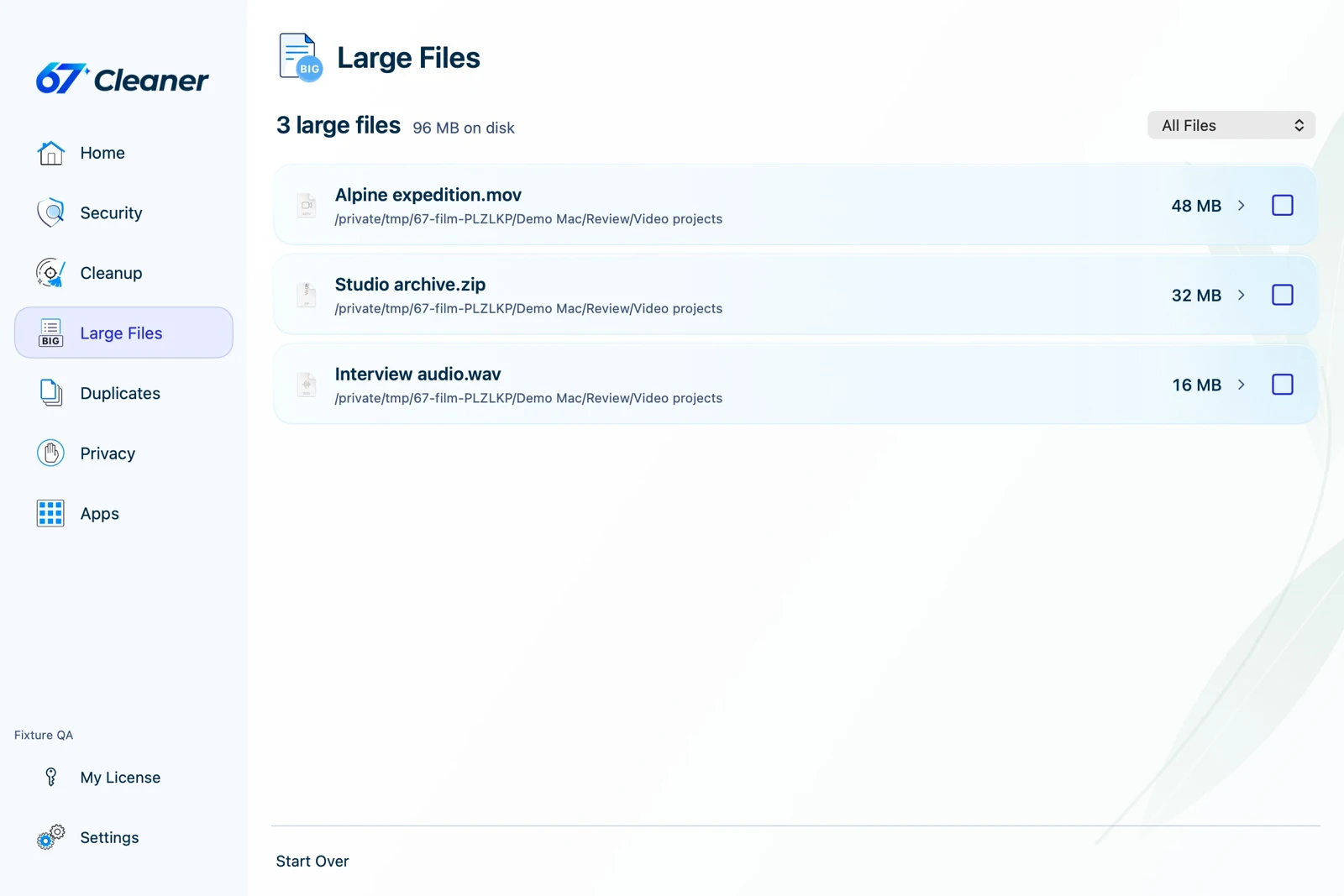
Use Large Files in 67 Cleaner to find big exports, archives and videos in a folder you choose.
Identify the drive Photoshop is using
If Photoshop opens: choose Photoshop → Settings → Scratch Disks (Preferences on some versions). Note the checked volumes and their order. If you switch to another volume, confirm the change and restart Photoshop. Make a note of the original setting if you plan to reconnect a portable drive later.
If it stops during startup: start Photoshop itself from Applications while holding Command-Option. Release the keys when the scratch-disk chooser appears. If the external SSD you expected to see is missing, check that it appears under Locations in Finder and that your user can save a small file to it. Adobe lists APFS and Mac OS Extended (Journaled) as supported Mac scratch-disk formats. Formatting an existing drive erases it. Use an already compatible volume or a backed-up spare.
Make space on the selected volume
- In Finder, select the volume under Locations and press Command-I. Record the Available figure and the drive’s name. For a Mac startup disk you can also use System Settings → General → Storage.
- Start with large files you recognize, such as completed video exports, archived jobs or installers in Downloads. If a project matters, copy it to another drive, open the copy, then remove the original only when you have a working backup.
- Review the Trash before emptying it. A file you’ve moved to the Trash can still occupy the original volume. Leave active Photoshop temp files, recovery folders and unsaved projects alone.
- Reopen Photoshop and try the same operation. Adobe uses 100 GB of free space as a troubleshooting target. Very large layered jobs may need more. Check the selected drive again if the error returns during a particular edit.
If a new or cropped image fills an almost empty drive
Check the size and units in the New Document dialog or Crop tool. A request for a 1,200 × 800 pixel image contains 960,000 pixels. Enter those same numbers as inches at 300 pixels per inch and Photoshop is being asked for 360,000 × 240,000 pixels. That one setting can turn a small edit into an enormous working document.
Create a small document with dimensions explicitly set to pixels. If that works, reopen a copy of the problem file and inspect its width, height, layer count and the operation that triggered the warning. A compressed JPEG’s size in Finder is a poor estimate of the working space its decoded pixels, layers and history will consume.
When the disk fills up again
If the available space falls only while one large job is open, save it, close it normally, then compare the same volume again. If space is already low before Photoshop starts, inspect what macOS counts as System Data and your larger personal files. Keep a separate backup of source artwork. Treat the scratch volume as working space rather than the sole home of a project.
References
- Adobe. Resolve scratch disk full errors in Photoshop. November 20, 2026. Accessed November 20, 2026.
- Adobe. Configure scratch disks in Photoshop. February 23, 2026. Accessed November 20, 2026.
- Adobe. Optimize Photoshop performance, section on managing scratch disks. Accessed November 20, 2026.