

Yes, you can usually delete a downloaded .dmg or .pkg after the Mac app has finished installing. For a drag-and-drop app, quit it, eject the mounted disk image, then open the app from Finder → Applications. If it runs with the image ejected, you can move the downloaded installer to the Trash.
The common exception is an app you launched straight from the disk image. It can appear in the Dock and work for days without ever being copied onto your Mac. It then seems to vanish after you eject the image or restart. Here’s how to tell which copy you’ve been using.

Which old installers are taking up room?
Use Large Files in 67 Cleaner to sort the files in Downloads by size. Check that the app runs independently before removing its installer.
Use the eject-and-relaunch test
- While the app is open, Control-click its Dock icon and choose Options → Show in Finder, if available. Turn on View → Show Path Bar. An app under Applications is installed there. An app on a volume named after the installer is still running from the image.
- Quit the app with Command-Q. For a drag-to-install download you trust, open the mounted image and drag the app to the Applications shortcut. Wait for the copy to finish. If the image contains a package installer instead, follow the developer’s instructions for that package.
- In Finder’s sidebar, click the eject symbol beside the installer volume under Locations. If it’s in use, close windows and apps open from the image and retry. Keep the downloaded file while doing this.
- Choose Go → Applications and open the copied app directly. Once it works, move the original
.dmgin Downloads to the Trash. Check the other contents of the Trash before emptying it to reclaim space.
A disk image is a file on your drive. Opening it mounts a volume that appears in Finder. Ejecting that volume leaves the downloaded file in place. The application you copied to Applications is a third item. Moving that application to the Trash would remove the installed app.
What changes for a .pkg installer?
A .pkg opened with Installer places files in the locations chosen by its developer. After Installer reports success, verify the result. For a conventional app, launch it from Applications. A plug-in, printer driver or audio component may instead appear inside its host app or in System Settings. Then you can remove the downloaded package. If the package came inside a disk image, eject the image and discard its downloaded file too.
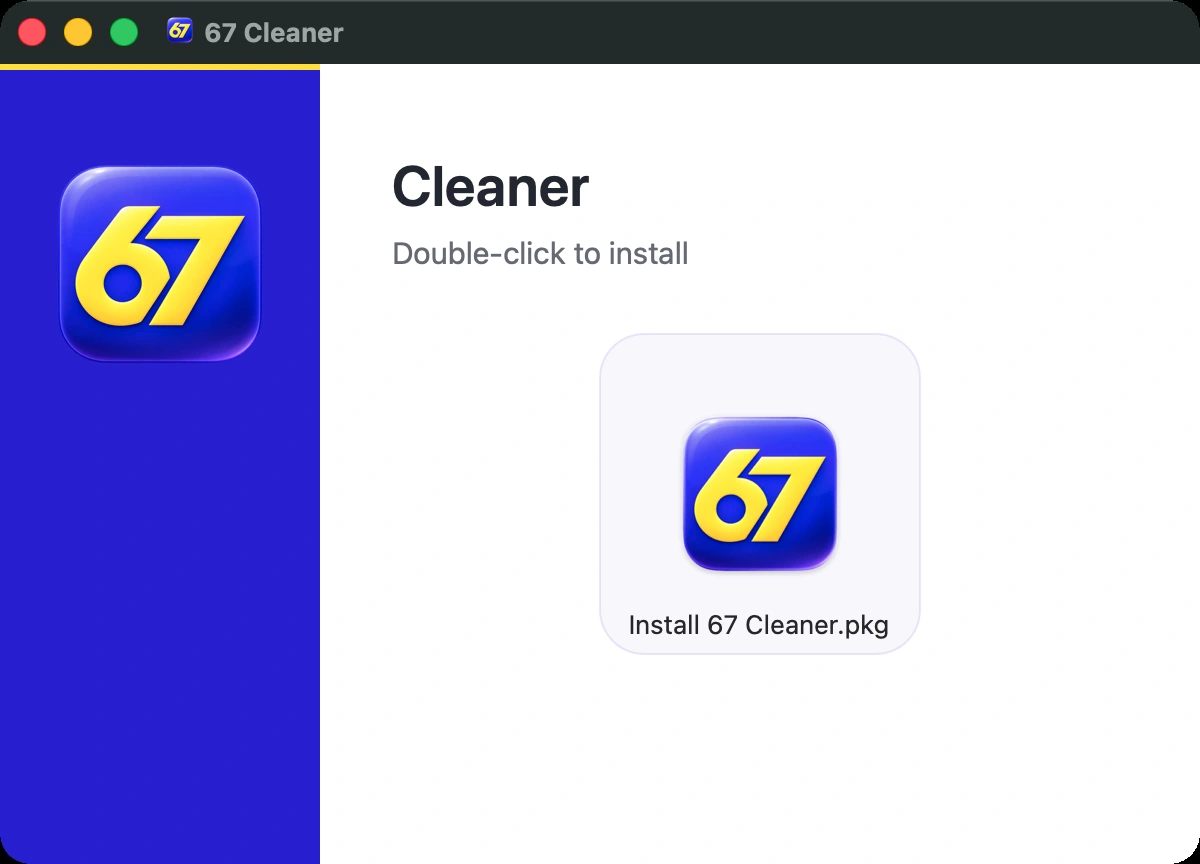
Some installers offer to move the download to the Trash when they finish. You can keep it until you have checked the app or component. Leave system installation receipts and support folders where they are. Removing the downloaded package also leaves the installed component in place.
When is a disk image worth keeping?
- It holds your files. Disk Utility can create an encrypted image containing documents, or an image of a folder. If that image is the only copy, deleting it deletes your data. Check what it holds and whether you have a verified backup.
- You need the exact installer later. Keep a verified copy of a licensed legacy version or a package needed on an offline Mac. Store it with your backup and any required license information.
- You see several similarly named downloads. Check the version and source before choosing one. For copies with different names, use a byte-for-byte comparison. A newer build can look almost identical in Finder.
If an old Dock shortcut stops working after you eject an image, open the verified copy from Applications and keep that copy in the Dock. If your aim was to recover storage, compare the startup disk’s available space in Finder before and after emptying the Trash.
References
- Apple. Install and uninstall apps from the internet or a disc on Mac. Accessed November 20, 2026.
- Mozilla Support. How to download and install Firefox on Mac. September 19, 2026. Accessed November 20, 2026.
- Apple. Create a disk image using Disk Utility on Mac. Accessed November 20, 2026.