GameAssembly.dll and lib_burst_generated.dll can be legitimate Unity game files, but their names do not establish that a particular copy is safe. If your antivirus quarantines either DLL, leave it isolated while you check the exact alert, game source and build. Do not restore it just to inspect it, disable protection to launch the game, or download a replacement DLL from a file-sharing site. The useful question is whether the detecting vendor and game developer can resolve the warning for your file and build. A Steam installation, familiar folder or clean scan result helps with context; none settles that decision alone.
What do these Unity DLLs do?
Unity creates native libraries when developers build a game. Different games can therefore contain files with the same name while having different code, sizes and hashes.
- GameAssembly.dll: Unity’s Windows IL2CPP documentation describes this library as containing the IL2CPP runtime and the game’s compiled script code. IL2CPP is Unity’s system for turning managed game code into native code. The documented Windows build places GameAssembly.dll among the game’s other output files. [1]
- lib_burst_generated.dll: Unity’s Burst compiler produces a native library for the target platform. Its documentation gives
Data\Plugins\lib_burst_generated.dllas a Windows example; actual game layouts may include a game-specific data directory or architecture subfolder. It is a build component, not a universal Windows system file. [2]
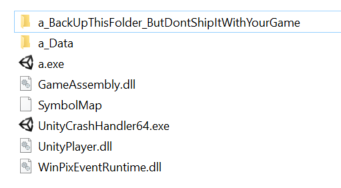
This explains why the names occur in ordinary games. It does not identify the contents of an alerted copy. A report for another game’s GameAssembly.dll—or even an older version of the same game—cannot clear yours. The same applies to a downloaded DLL advertised as a “clean replacement”: its name does not establish compatibility or provenance.
First, identify which warning you have
Several different problems can name the same DLL. Read the complete message before choosing a fix.
- A named antivirus detection or quarantine entry: record the security product, detection label and affected path. Follow the review steps below.
- A missing-DLL or game-launch error after quarantine: the removal may explain why the game no longer starts. Repairing it immediately can download the same blocked file again; resolve the alert first.
- A Smart App Control or other application-policy block: preserve the exact message and contact the game developer or your administrator. A policy block needs its own investigation; do not translate it into a confirmed malware diagnosis or turn off protection as a test.
- A crash or “Illegal Instruction” message with no security alert: start with the developer’s compatibility and crash guidance. A DLL named in a crash report is not, by itself, an antivirus finding.
Also check the time of the event. An old quarantine entry remaining in protection history is different from a new detection after every launch or reboot.
How to check a GameAssembly.dll or Burst alert
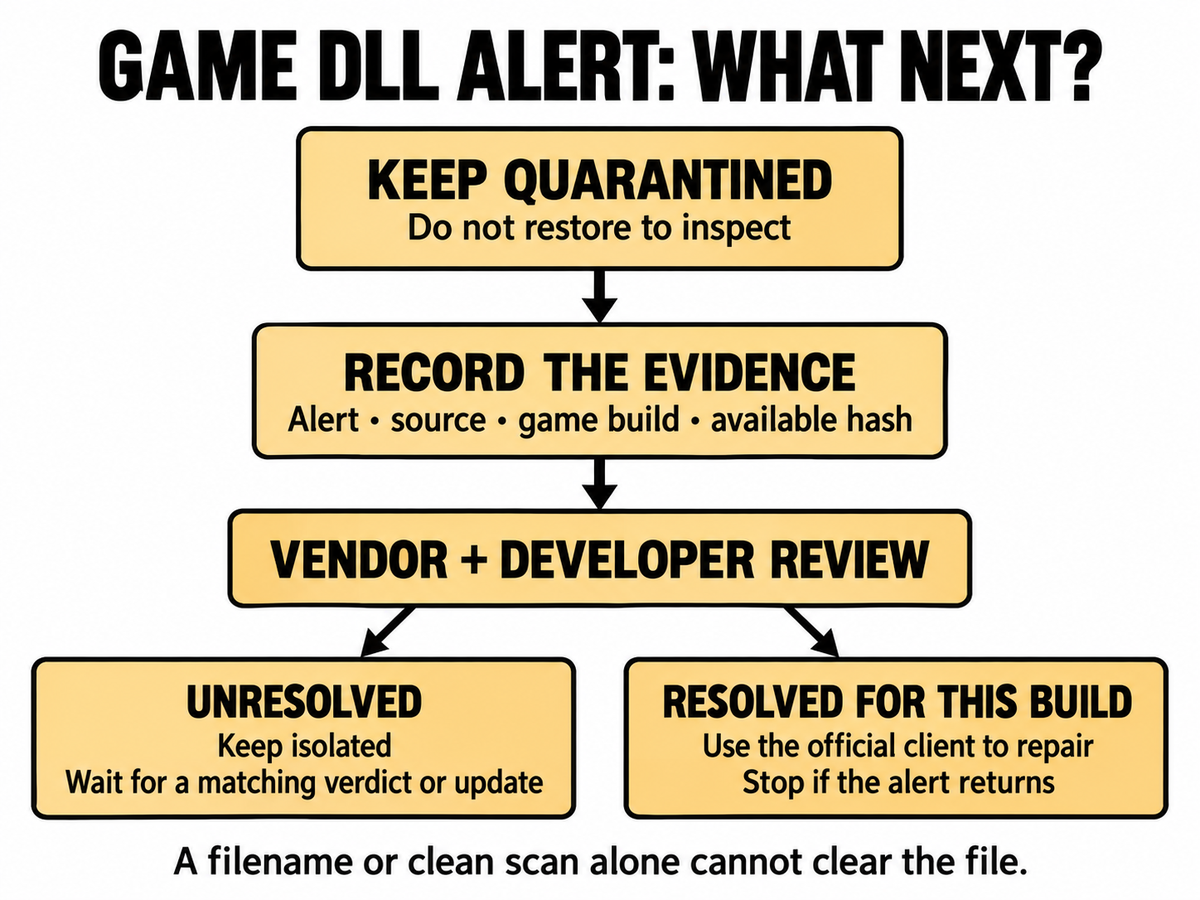
1. Keep the file isolated and record what you already have
Close the game and pause the affected mod profile. Leave the DLL in quarantine. Save the following details from the alert, launcher or existing logs:
- The antivirus name, exact detection label, time and action taken.
- The affected file’s full path, including which game or mod directory contains it.
- The game version or build, launcher and update channel—for example, the regular release versus an experimental branch.
- Where the installation came from: the official client, a developer download, a mod manager, or an unofficial installer or repack.
- A SHA-256 hash if the security report already supplies one. Do not restore or execute the file merely to obtain a hash.
A hash identifies the exact file being discussed; it is not a safety score. A match to a report lets you compare the same bytes, while a mismatch means that report concerns a different file. Likewise, a small number of scanner detections does not create a reliable “safe below this count” rule.
If an installer introduced the DLL, use the EXE safety checklist to examine the installer’s source without running it. If the alert began after adding plugins or a mod loader, the BepInEx and modpack checks help separate the framework from third-party components.
Game mods can also have packaging problems that resemble antivirus removal. The Lifegen.exe checks show how to distinguish a missing launcher in a source-code archive from an executable that was quarantined.
2. Ask for a verdict that matches the file and build
Contact the game developer through its official support channel and report the detection to the security vendor that raised it. Give both the evidence above. A useful response identifies the affected build or file, explains whether the detection was incorrect or the package changed, and states what update or correction applies.
For a Microsoft detection, its official submission service has an option for files incorrectly detected as malicious. [3] Follow the vendor’s supported process. If providing a sample would require taking it out of quarantine, ask support how to proceed instead of bypassing isolation. Do not post private files, account details or unredacted logs to a public forum.
While the answer is unresolved, keep the file quarantined. A forum reply about another game, a developer’s general reassurance or the absence of symptoms is not a file-specific resolution. Avoid blanket exclusions for the whole game library, Downloads folder or every file with that name.
3. Repair through the official client after the alert is resolved
Once the relevant vendor correction or developer update has been confirmed for the affected build, update the security software and game client, then use the client’s supported repair process. Prefer a fresh official copy to restoring an unidentified DLL from elsewhere.
For Steam, restart the computer, open the Library, right-click the game and select Properties → Installed Files → Verify integrity of game files. Let verification finish before launching. Valve advises against running verification alongside a virus scan or another intensive disk task. [4]
If the same alert returns, stop launching the game and send the new event back to support. Repeated verification is not a way to override a quarantine decision. A successful file check also does not inspect unrelated programs or remove everything an unofficial installer may have added.
If an untrusted installer or mod already ran
This is a different situation from an official game file that was simply blocked. Stop using the untrusted package and keep detected files isolated. If alerts return outside the game, new programs appear or the browser changes unexpectedly, quarantining one DLL may leave another bundled component or startup mechanism active.
Use Gridinsoft Anti-Malware to check the PC for additional threats: download and install it from the official site, update its database, run a Full Scan, review the findings, apply the appropriate cleanup and restart. This checks the wider system; it does not certify a game build as a false positive or replace the vendor review above.
If you also see unfamiliar account sessions, password changes or purchases, recover the affected accounts from a trusted device and revoke unknown sessions. Removing a local threat does not reverse account theft. A quarantined download alone, however, is not evidence that those accounts were accessed.
Why are several games showing the same DLL name?
GameAssembly.dll and lib_burst_generated.dll describe generated Unity components, so the names can recur across unrelated titles. A shared name is not evidence that an infection spread between the games. Compare the individual paths, builds, hashes and alert times before grouping the reports together.
If the alerts started together, tell the detecting vendor about that timing and any recent game or security-software updates. Keep each affected file isolated until its status is resolved. The practical endpoint is a matching verdict or corrected build followed by official-client repair—not a filename-wide whitelist.
References
- Unity Technologies. “Windows Player: IL2CPP build files.” Unity Manual, version 2018.4. Accessed October 17, 2026. Build-file documentation.
- Unity Technologies. “Building projects.” Burst 1.8 documentation. Accessed October 17, 2026. Generated-library documentation.
- Microsoft. “Submit a file for malware analysis.” Microsoft Security Intelligence. Accessed October 17, 2026. File review and incorrect-detection submission.
- Valve. “Verify Integrity of Game Files.” Steam Support. Accessed October 17, 2026. Official game-file verification procedure.