

If a search from your address bar passes through pdf2docs.com before opening Yahoo or a blocked page, check the browser profile where it happens. PDF2DOCS is a PDF converter extension whose publisher says it changes the new tab and default search engine. Disable it if you find it, repeat the same search, and restore the search engine you chose. You can do these checks without visiting the redirect site.
How to tell where the PDF2DOCS redirect starts
One Edge user noticed that typing “Costco” in the address bar brought up a security warning and a blank page. Typing the same word on Google’s homepage returned normal results. The address they saw contained pdf2docs[.]com/transfer and q=costco. That last part matters: in this example the intermediate site received the search term before the user reached any results. Use an ordinary word for testing and leave any browser warning in place.
- Test the address bar. In the affected profile, type a neutral word such as weather directly in the address bar and press Enter. Note whether PDF2DOCS appears, a warning opens, or you land at an unexpected search engine.
- Test the search provider directly. Type the address of your usual search provider, open its homepage and enter the same word in the page’s search box. If only the address-bar search takes the detour, start with the default provider and extensions in this profile.
- Open a new tab without typing. If a PDF converter or unfamiliar search box already appears, check for an extension that replaces the new tab. If both searches work and the odd page appears only when you launch the browser, check its startup pages instead.
Yahoo is a legitimate search provider. Its results page alone cannot tell you what sent the query there. The Chrome listing for PDF2DOCS mentions both Bing and Yahoo. The domain in your address bar, the extension installed in your profile, and what changes when you disable it are better clues.
Remove PDF2DOCS and restore your search engine
Start in the browser and profile that showed the redirect. Disable the matching extension and repeat the address-bar test before changing anything else. If the detour stops, remove the extension. If you cannot find an entry named PDF2DOCS, inspect other PDF or new-tab extensions you installed around the time the problem began. Disable them one at a time so you can identify which change helped.
Google Chrome
- Type
chrome://extensionsin the address bar. Find PDF2DOCS. If several extensions have similar names, the Chrome Web Store entry for this one has IDeoidebnenjkiaaojckmpiaolghkhbjdj. Chrome displays installed extension IDs when you switch on Developer mode on the Extensions page. You can switch it off after comparing. - Turn off the matching extension and test. Choose Remove if you no longer want it.
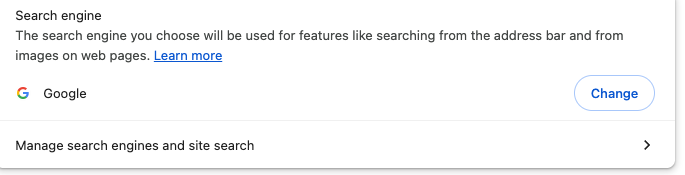
- Open Settings → Search engine → Change and choose your provider. Under Manage search engines and site search, inspect the URL behind any unfamiliar entry. If a custom entry points to the PDF2DOCS domain, select your preferred default first, then delete the unwanted entry where Chrome offers that option.
Microsoft Edge
Open edge://extensions and disable the matching extension if present. Then open edge://settings/search and check Search engine used in the address bar. If your version offers a choice between the search box and address bar on new tabs, test the address bar itself first. Removing an extension from Chrome leaves the copy in your Edge profile untouched.
Mozilla Firefox
Open about:addons, select Extensions and look for PDF2DOCS. The Firefox listing specifically describes a new-tab search and access to sites on the PDF2DOCS domain. Turn the add-on off, test, then use its menu to remove it if unwanted. In Settings → Search, restore your default search engine. If an unexpected page still opens on a fresh tab, check Settings → Home → New Windows and Tabs.
If PDF2DOCS comes back after a restart
Close the browser completely, reopen the same profile and repeat both searches. If they now go where you expect and the extension stays removed, the browser checks are complete. If the change reverses, note what returned: an extension, a search provider, or just the page shown at startup. That distinction will help you choose the next step.
- It happens in just one profile. Try a fresh local profile without signing in, importing settings or adding extensions. If search works there, keep the original profile and its bookmarks while you inspect its extensions and search entries. If the change appears only after signing back in, review the settings and extensions synced from other devices.
- The Remove button is unavailable or the search setting is locked. In Chrome, open
chrome://policy; in Edge, openedge://policy. Look for a policy that specifies a search URL or the matching extension ID. On a work or school device, give that detail to IT. A managed setting may be intentional. On a personal PC, identify the software that set the policy before changing it. - It returns in several browsers or after a Windows restart. Check Windows Settings → Apps → Installed apps for a PDF utility or bundled program installed when the changes began. If you recognize it as unwanted, uninstall it. A browser reset alone can leave the Windows application in place. The browser hijacker removal guide covers shortcuts and other settings that can restore a redirect.
If the provider or extension keeps returning on a Windows PC, install Gridinsoft Anti-Malware if needed, update its detection database and run a Full Scan. Review any detected bundled apps or startup entries, apply cleanup for the items identified, then restart and repeat the two searches. If the only remaining symptom is an unexpected Yahoo default, the Chrome guide to unwanted Yahoo searches walks through the remaining settings.
References
- PDF2DOCS. PDF2DOCS extension details. Chrome Web Store. Updated December 25, 2023. Accessed November 11, 2026.
- PDF2DOCS. PDF2DOCS add-on details and permissions. Firefox Browser Add-ons. Updated February 21, 2021. Accessed November 11, 2026.
- Google. Set default search engine and site search shortcuts. Google Chrome Help. Accessed November 11, 2026.