Ome-Relay.exe and ZoneDispa.exe are filenames reported after suspicious Windows downloads. In the case discussed here, an unexpected executable ran during an attempted game installation, followed by antivirus warnings, a file-in-use message, and repeated blocks. That sequence deserves a malware response, but the names alone do not identify a particular trojan. If this happened on your PC, stop running the download, disconnect while containing the incident, and scan the system. Secure potentially exposed accounts from a different, trusted device while cleanup proceeds.
A Sims download, an unexpected launcher, and two filenames
A user trying to install The Sims 1 described running a file called renpy from a site they called “El Amigos.” A command window opened, the expected game did not appear, and Windows Defender raised a warning. After scans, the user still received a message saying Ome-Relay.exe was being used by another application. Their follow-up described recurring blocks associated with ZoneDispa.exe and asked whether important PNG files could be preserved. [1]
The report does not establish which download domain was used, what either executable contained, or whether the two files belong to the same malware family. It also does not prove that passwords or pictures were stolen. Ren’Py itself is a legitimate game engine; an icon or filename is not a publisher check. Our RenPy fake-installer guide explains documented abuse of that engine, but those researched campaigns cannot automatically be assigned to this case.
“In use,” “blocked,” and “removed” mean different things
The most useful next step is to open the latest security record and read the action, affected path, and time. A notification disappearing tells you less than the underlying report.
Ome-Relay.exe is being used by another application
A file-in-use message means something has the file open in a way that prevents the requested operation. It does not tell you which program holds it, whether that program is malicious, or whether the file is copying itself. Security software, an ordinary application, or a running component can hold files open.
After an untrusted installer has run, do not solve this by downloading an unknown “unlocker,” force-deleting whole folders, or killing Windows processes at random. Record the message and let the security tool complete its cleanup, including a restart if requested. An antivirus can sometimes stop a malicious process or schedule removal at reboot; the claim that a running application can never be removed is too broad.
ZoneDispa.exe keeps appearing in a block notification
First check what was blocked. A website or network-connection block can stop communication without removing the program that attempted it. In Malwarebytes’ documented website-block report, an Outbound entry identifies a connection attempted by a local file or process; an Inbound entry describes a connection toward the device. Neither label, by itself, identifies a malware family. [2]
The supplied case description does not show the actual ZoneDispa block report, so its direction and category remain unknown. Preserve the full report rather than assuming every “blocked” popup means the same thing. Do not allow the file or destination merely to stop the notifications.
Defender’s Protection History has its own action labels
Open Windows Security → Protection history and expand the relevant entry. Microsoft distinguishes Threat quarantined, where the detected item is isolated, from Remediation incomplete, where cleanup did not finish. Its specific Threat blocked status means Defender blocked and removed the detected threat. That is different from a website connection block, and it still concerns the recorded item rather than proving that every component from an executed installer is gone. [3]
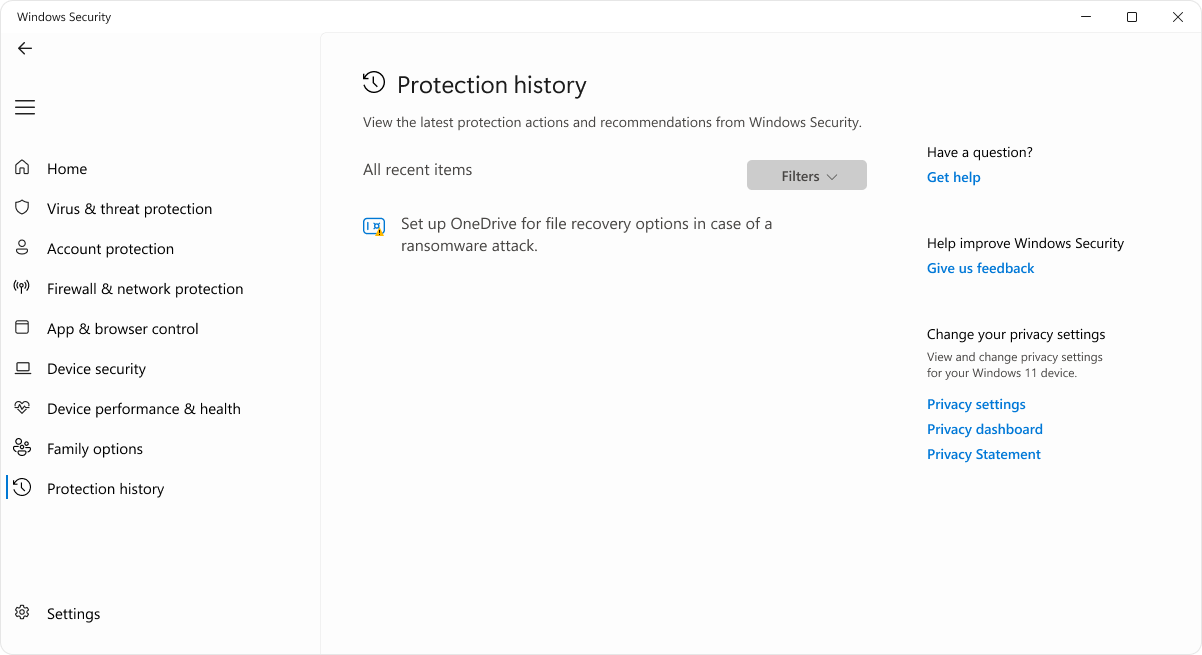
Compare any new warning with the previous entry:
- Time: is this a fresh event after cleanup or an old entry still visible in history?
- Path: is it the same executable, a retained download archive, or a newly created copy?
- Action: did the tool quarantine/remove a file, block a connection, or leave an action unfinished?
Record the actual path shown on your machine. Locations such as C:\ProgramData or %LOCALAPPDATA%\Temp are clues to investigate, not proof of malware and not instructions to delete the entire folder. Do not clear security history while you still need it to distinguish old records from new activity.
How to respond after the suspicious installer ran
Start with brief containment: disconnect Wi-Fi or Ethernet, stop reopening the installer, and keep suspicious detections quarantined. If this is someone else’s computer, involve its owner before changing applications or recovery settings. Avoid email, banking, password resets, and other sensitive sign-ins on the affected PC.
Removing the downloaded installer may leave a dropped component behind. If fresh warnings return, a startup entry, scheduled task, service, browser change, or another bundled file may be involved. These are possibilities to check, not findings established for Ome-Relay.exe or ZoneDispa.exe.
Use Gridinsoft Anti-Malware for a full cleanup scan: obtain the installer from the official download below, install it, update the Threat List, and choose Scan → Full. Review the detected objects and their paths, quarantine suspicious items or remove confirmed threats, then restart when prompted. The scan guide explains Full and Custom scans, including checks of a backup drive.
You can obtain the installer on a trusted computer first. Activation and updates require an internet connection; if the affected machine cannot safely reconnect, or security tools will not run, use the offline or rebuild route below instead of leaving it online while experimenting. Avoid simultaneous full scans from several products.
Run a Full Scan with Gridinsoft Anti-Malware, review detected files and related startup activity, then apply cleanup and restart. A blocked connection alone does not establish that its source was removed.
Download Anti-Malware for WindowsAfter restarting, check whether there is a new alert and run a follow-up scan if symptoms return. Save the cleanup report. A clean result means the scanner found no threats in that scan; it cannot prove that the earlier executable did nothing or that credentials were never exposed.
Because an unknown program already ran, protect potentially exposed accounts from a clean phone or computer now. Start with primary email and the password manager, change affected or reused passwords, sign out other sessions, review recovery details, and enable multifactor authentication. Do not wait for confirmed theft to begin that precaution. The game-download account recovery guide covers the detailed checks.
Can a trojan infect PNG files or read personal data?
An ordinary PNG image is data, not a Windows executable. Finding malware on a computer does not automatically turn every picture into a program. However, malware with access to your files may read, copy, modify, encrypt, or delete them without “infecting” the PNG format. These are different risks, and the reported filenames do not establish which, if any, happened here.
Image files are also not an absolute safety guarantee: a deliberately malformed image can exploit a vulnerable image decoder. Microsoft has documented PNG-processing vulnerabilities historically; that is a reason to use updated viewing software, not evidence that this incident altered the user’s pictures. [4]
Preserve important personal data selectively:
- Prefer a known pre-incident backup. If none exists, copy needed photos, documents, and project data to a separate backup location. Keep it disconnected when you are not copying.
- Show file extensions. A file named
photo.png.exeis an executable, not a PNG. Do not open unknown shortcuts or files just to identify them. - Leave the download chain behind. Do not carry over the suspect installer, cracks, scripts, unknown archives, portable applications, or entire browser and application profiles.
- Scan before restoring or opening. Use an updated security tool on a trusted or rebuilt system to inspect the backup. Keep Windows and the applications that open those files updated. Treat documents that request macros or external content separately.
- Verify the backup before erasing anything. Confirm that the needed files were copied and, after scanning, that representative files open correctly. Keep the originals until recovery is verified.
No public upload of private photos or documents is necessary for this process. If the files are irreplaceable, encrypted, or already damaged, get help preserving them before attempting a reset or reinstall.
When alerts return after reboot
A fresh detection or block after a completed scan deserves further investigation. Microsoft notes that recurring malware can be restored by an undetected component; it can also be reintroduced from the original source. An old history entry alone is not recurrence. [5]
If normal cleanup cannot finish, a Microsoft Defender Offline scan is a fallback that runs outside the normal Windows session. Save open work first, select it under Virus & threat protection → Scan options, and review the result in Protection History after the restart. Do not assume it succeeded simply because the PC rebooted.
If current alerts persist, security settings keep changing, or you cannot establish what the installer changed, stop the delete-and-rescan loop. Give a trusted technician the saved path, detection name, timestamps, and reports, or use a clean Windows installation USB made on a trusted computer. Do not apply a forum cleanup script written for another machine. Verify your backup and recovery keys before any destructive reinstall step.
The recovery goal is to remove the source of fresh activity, preserve needed data, and secure exposed accounts. Deleting two filenames, or seeing one quiet scan, is not enough to establish all three.
References
- r/computerviruses. “Ome-Relay.exe” user report and follow-up. Reddit, October 25, 2026; accessed October 25, 2026. Original discussion.
- Malwarebytes. Malwarebytes for Windows v4 Product Guide, “Web Protection Blocks,” pp. 34–35. 2026; accessed October 25, 2026. Connection-block definitions.
- Microsoft Support. “Protection History in the Windows Security App.” Microsoft; accessed October 25, 2026. Protection History status definitions.
- Microsoft. “MS05-009: Vulnerability in PNG Processing Could Allow Remote Code Execution.” Published February 8, 2005; updated July 6, 2005. Historical PNG-processing advisory.
- Microsoft Support. “Troubleshoot problems with detecting and removing malware.” Microsoft; accessed October 25, 2026. Recurring malware and recovery guidance.