

On a Mac, Finder can narrow down possible duplicates by size, kind or name. To identify two files with different names as exact copies, compare their contents. For a single pair, macOS includes a read-only command called cmp. For a folder with hundreds of files, a duplicate finder can group the matches for review.
First decide which copy belongs in your working folder. A file in Downloads may be disposable while an identical file is linked from a project, shared through iCloud, or deliberately kept on a backup drive. Knowing that the bytes match settles only half the question.

Find matching files even after a rename
67 Cleaner groups identical files in a folder you choose. Open each group to compare locations and decide which copy to keep.
Compare two files without installing anything
- In Finder, open the folder you want to check. Use list view and sort by Size, or press Command-F, choose that folder and add a Kind or File Size filter. Use Quick Look (Space) to check that you’re looking at the expected documents.
- Open Terminal from Applications → Utilities. Type
cmpfollowed by a space. Drag the first file from Finder into Terminal, type another space, then drag in the second file. Finder supplies paths with the right quoting. - Press Return. For two ordinary readable files, returning to the prompt without a message means their contents match. If they differ,
cmpreports a difference. A “No such file” or permission error means the comparison could not finish.
In our test, May-handout.txt and handout-final.txt both contained the line “May total: 42” followed by a line break. A third file changed 42 to 43. Finder could show the same 14-byte size for all three. Comparing the first pair produced no output. Comparing either one with the third reported a difference at byte 13. The names and sizes alone would have selected the wrong pair just as easily as the right one.
Review a folder of matches before moving anything
Start with one local folder you control, such as Downloads or a completed export folder. Leave Time Machine backups, application libraries and shared project folders outside the first pass. If a cloud file shows a download icon, reading its contents may download it and temporarily use more local storage.
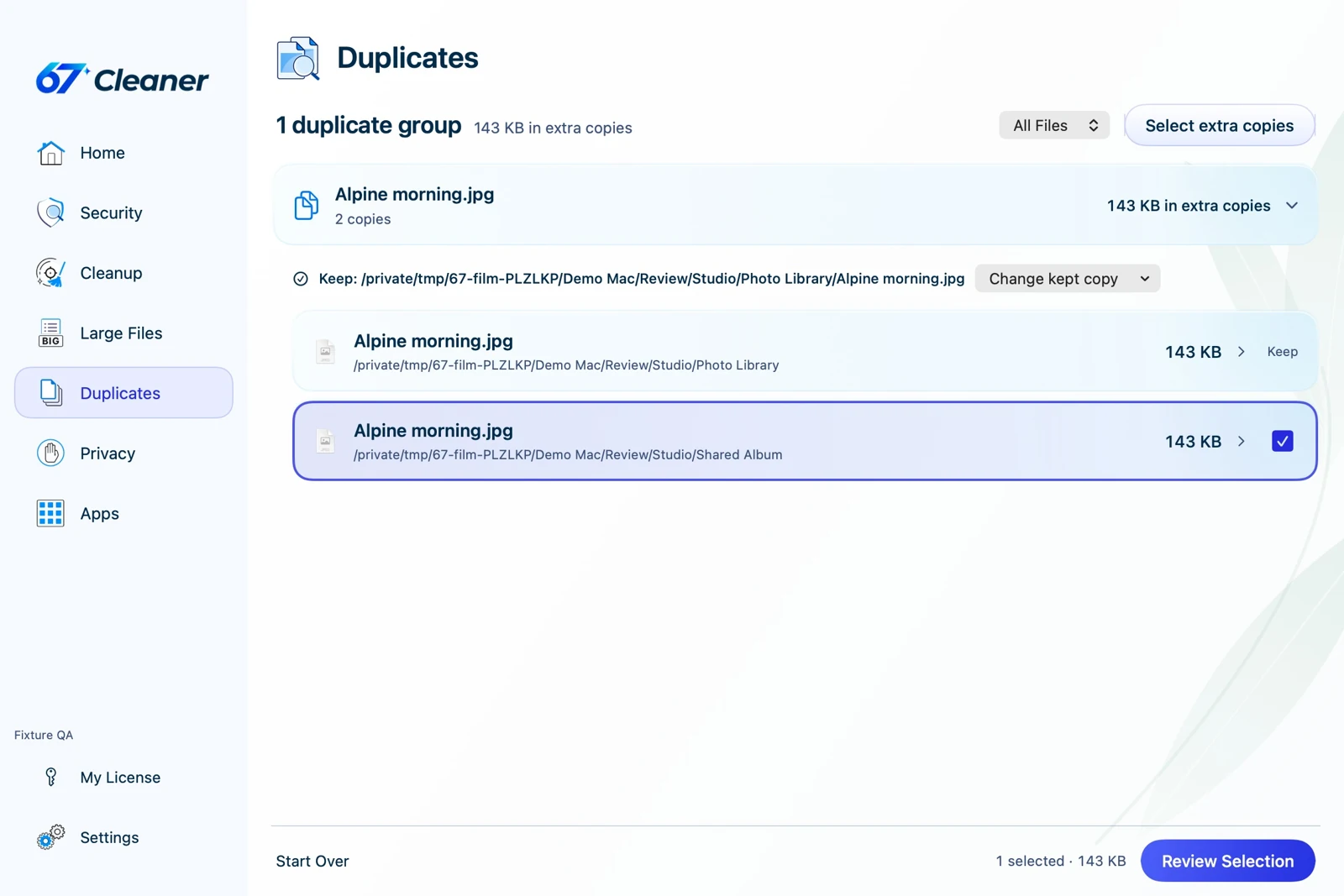
Expand a group and read the full paths. Keep the file an active project opens, even when another copy has a newer date. A Finder alias points to another item and can break if the target is removed. For an exported project, reopen it from the keeper’s location before emptying the Trash. Files on different drives may be deliberate backup copies. If the goal is installer cleanup, first check that the installed app runs with its disk image ejected.
Handle Photos and iCloud copies separately
Photos library. Open Photos and select Duplicates under Utilities in the sidebar, if shown. Review the pictures and use Merge for items you want Photos to combine. Photos can identify visually similar versions and preserve relevant information while moving the other items to Recently Deleted. A raw byte comparison only answers whether two files have identical contents. Let Photos manage the items stored inside its own library.
iCloud Drive. Deleting a synced file can remove it from your other devices too. To free space on this Mac while keeping the cloud copy, Control-click a fully synced file in Finder and choose Remove Download when available. Check that the upload has finished first.
After reviewing the files you moved to the Trash, empty it when you’re ready and compare the available space on the same disk. If the storage chart is still puzzling, check what System Data and available space measure.
References
- Apple. Narrow your search results in Finder on Mac. Accessed November 20, 2026.
- Apple. Remove duplicate photos and videos on Mac. Accessed November 20, 2026.
- Apple. Add your Desktop and Documents files to iCloud Drive. September 14, 2026. Accessed November 20, 2026.