
“SmartScreen can’t be reached right now” means Windows could not finish its online reputation check for the app you tried to open. Close the prompt without running the installer. The message does not tell you whether the file is safe or malicious. Even if your browser works, there are still two questions to answer: can Windows reach the service, and did you get the file you intended to install?
Read the line above the app name
The key words are “can’t be reached.” If the same window also says Unknown publisher, treat that as a separate detail about the file. It doesn’t explain why the online lookup failed. And if the headline says “Windows protected your PC” and calls the app unrecognized, that’s a different warning: SmartScreen is telling you about reputation, rather than saying the check was unavailable.
If all you saw was smartscreen.exe in Task Manager, there was no installer warning to diagnose. Likewise, a grayed-out SmartScreen switch in Edge is a browser setting. Changing it is not a test of the Windows installer check.
Choose the check that matches what happened
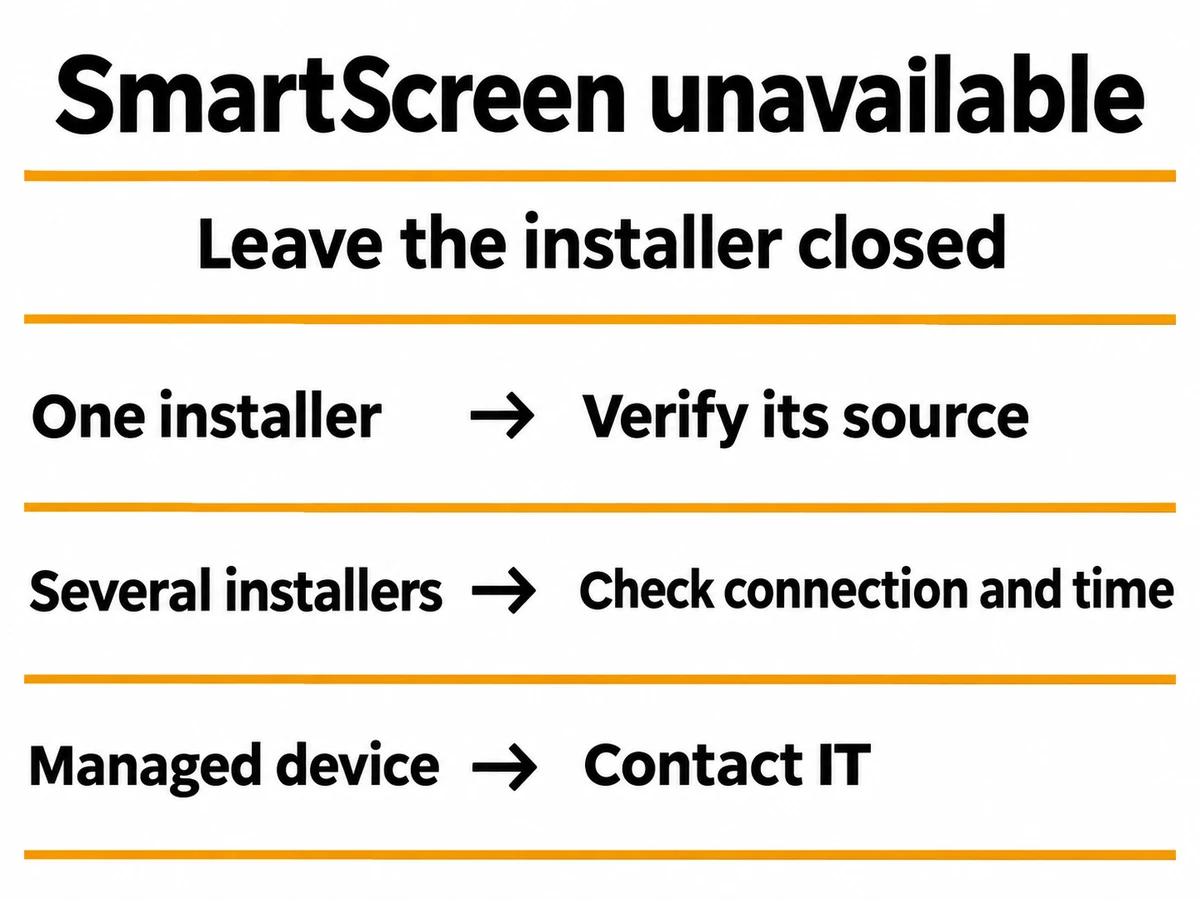
- Ordinary sites won’t load either. Restore your usual internet connection first. If you’re on guest Wi-Fi, finish its normal sign-in. Leave the installer closed.
- Sites load, but the error appeared with one installer. Check where that copy came from. One failed lookup cannot establish a service outage or a problem with the file.
- You’ve already seen the message for several unrelated downloads. Record when it began and check the PC’s date, time and time zone. If they’re wrong on a personal PC, correct them in Settings → Time & language → Date & time. A correct clock alone doesn’t verify an app.
- It’s a work or school device, or a managed network. Use the organization’s software portal or contact IT. Leave its VPN, proxy, firewall and application policies in place.
For example, if a vendor’s download page opens normally but its installer shows the warning, you’ve demonstrated that your browser can reach the vendor. You haven’t demonstrated that Windows can reach Microsoft’s reputation service. There’s no need to download and launch a second program just to see whether it behaves the same way.
Check the installer without opening it
- Return to the source independently. Open the publisher’s known website or your organization’s software catalog yourself. Match the product, version and operating system. If the file came from a sponsored look-alike, a chat attachment or an unsolicited “update,” discard that copy. An identical filename on the official site doesn’t authenticate the download you already have.
- Check who signed this copy. In File Explorer, right-click the file and open Properties → Digital Signatures, if the tab is present. Select the signer and open Details. Compare the signer with the publisher’s documented identity and look for a valid signature. A missing signature leaves identity unconfirmed; a valid but unexpected signer is a reason to stop and ask the vendor.
- Match the exact release. If the publisher provides a SHA-256 checksum for that version and architecture, compare it with your local file’s SHA-256. A mismatch means you don’t have those same bytes. A match only ties your copy to that published reference. The guide to checking an EXE shows how to inspect a signature and calculate the hash.
- Scan the unopened file locally. On a PC using Microsoft Defender Antivirus, right-click the file and select Scan with Microsoft Defender; Windows 11 may put it under Show more options. If another antivirus is active, use its file scan. Keep a detected file quarantined. A scan with no detections cannot supply a missing reputation result.
When to retry, and what to send IT
Retry only if you still need the app, its source checks out, and normal connectivity has returned. Use the official copy and let Windows evaluate it again. If you now get an unrecognized app or a named threat warning, follow that new message; the fact that the connection recovered is not an approval to run the file.
If the error persists on a work PC, a useful support request is: “At [time and time zone], Windows showed ‘SmartScreen can’t be reached right now’ for [app and version] from [official source]. Other websites loaded. I left the installer closed.” Add whether it affected one or several installers, whether you were on the company network, and the displayed publisher. IT can check the approved distribution path and relevant network or device policy. Don’t send them the executable unless they request it through an approved channel.
If you already ran the installer
Seeing the prompt and closing it is different from starting the app. If you ran a copy you can no longer verify, note its source and the time, then run a full scan with your active security software. On a work device, report the execution to IT. On a personal PC, if unfamiliar startup entries, browser changes or repeated alerts appear, a full Gridinsoft Anti-Malware scan can check for bundled software or persistence left by the installer. A clean result does not prove the earlier run was harmless.
FAQ
Why is there no “Run anyway” button?
Different Windows warnings offer different choices, and an organization can enforce a policy that prevents users from overriding a warning. A missing button alone doesn’t identify which policy is active. Use the exact message and ask for an approved build instead of trying to reveal the button.
Can a signed app still show the unavailable message?
Yes. The signature and the online lookup answer different questions. A valid signature can identify the signer and show that the signed content hasn’t changed since signing. It doesn’t establish that the online check succeeded or that the publisher’s software is harmless.
References
- Microsoft. SmartScreen reputation for Windows app developers. Microsoft Learn. Accessed November 10, 2026.
- Microsoft. Available Microsoft Defender SmartScreen settings. Microsoft Learn. Accessed November 10, 2026.
- Microsoft. Scan an item with Windows Security. Microsoft Support. Accessed November 10, 2026.