

Trojan:PDF/Sonbokli.A!cl is a Microsoft Defender Antivirus detection for suspicious PDF content. Microsoft has documented phishing PDFs under this name, including one disguised as a business proposal. If Defender quarantined the document before you opened it, leave it there. If you already followed a link inside the PDF, what you did on the next page matters. Quarantining the original file cannot undo a sign-in or remove a separate program you installed.
Check what Defender did with the PDF
Open Windows Security → Virus & threat protection → Protection history. Expand the Sonbokli entry and read the full detection name, time, status and Affected items. You may need an administrator account to expand the details. The path can tell you whether Defender found a download, a temporary copy or a file inside a mail store. It cannot tell you whether someone clicked a link.
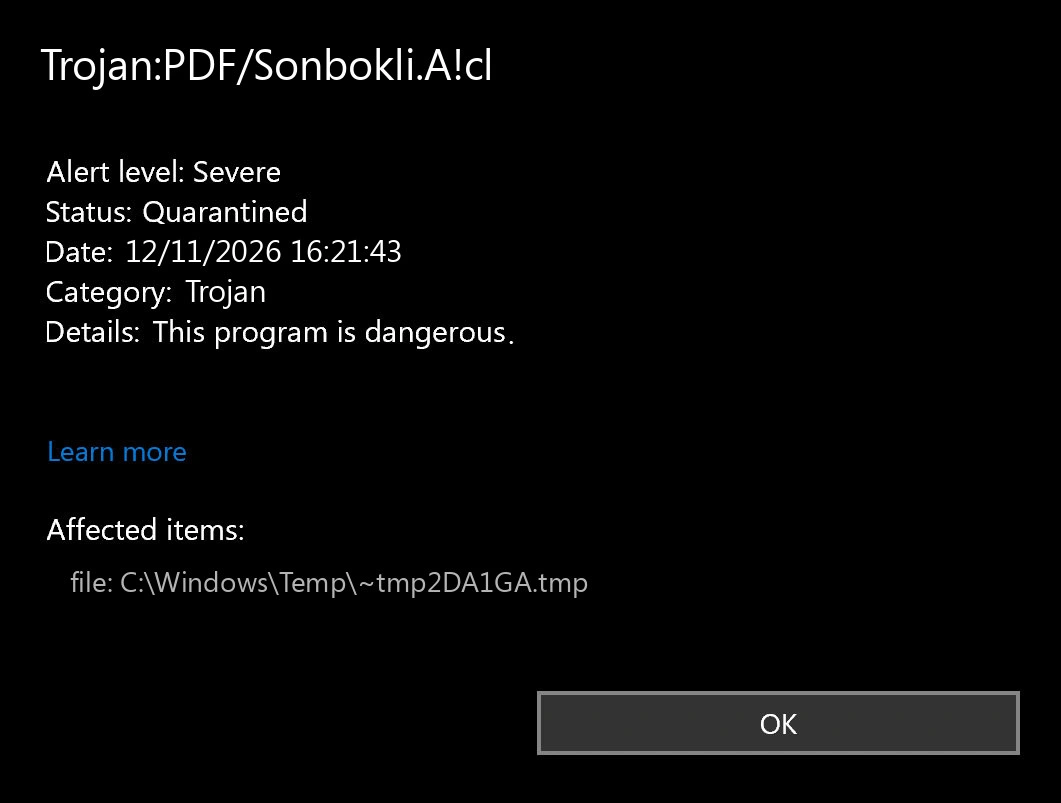
- Threat quarantined. Defender isolated the item. Leave it in quarantine or choose Remove to delete it. If you need the document, request a fresh copy from a source you can verify independently.
- Threat blocked. Microsoft says Defender blocked and removed the item. If you only received or saved it, the remaining practical step is to identify where it came from before downloading another copy.
- Action needed or Remediation incomplete. Expand the card. Choose quarantine for an unverified file, or follow Defender’s remaining steps if cleanup did not finish. Update security intelligence and run a full scan.
Why a phishing document gets a Trojan label
In its 2018 phishing research, Microsoft listed both Great Rock Capital Proposal.pdf and AppE0CommerenceID_825126723.doc[876].pdf under this exact detection. Each PDF pointed to a different malicious web address. One filename reads like an ordinary business proposal. The other contains .doc in the middle but ends in .pdf. Neither name would tell a recipient where a button inside the document would lead.
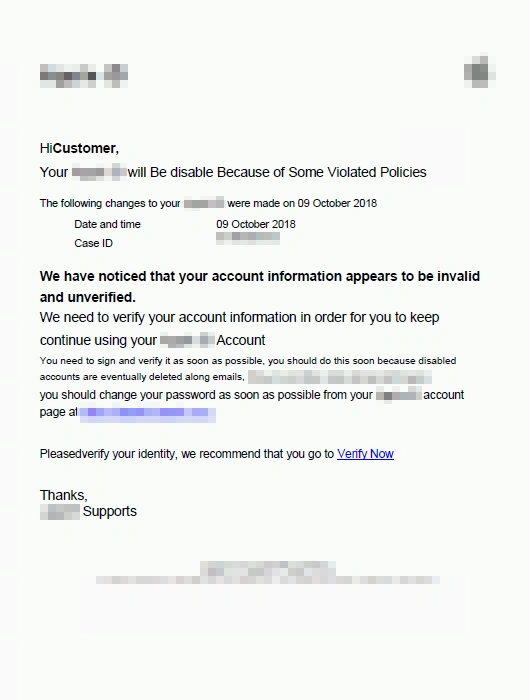
Microsoft describes a cloud-based classifier that examines PDF content and metadata and draws on signals about links, domains and email. A document that asks the reader to sign in can trigger this alert even if the reader never visits the page. Keep the PDF/ part of the name when looking it up. Search results for Trojan:Win32/Sonbokli.A!cl refer to a different detection. The PDF alert alone gives you no basis to conclude that a Windows program ran or a password was stolen.
What did you do before the alert?
- I only received or saved the file.
- Keep it quarantined. If it arrived by email, use the mail app’s phishing-report option. For work mail, follow your security team’s reporting process. A password reset is unnecessary solely because Defender found an unopened attachment.
- I opened or previewed the PDF.
- Close it without using any links or prompts. Update your PDF reader or the browser that displayed it. If the viewer was out of date, behaved unexpectedly, or Defender reports another item, update Defender and run a full scan. The PDF safety guide explains why the viewer version matters.
- I clicked a link but stopped at the sign-in page.
- Close the page. Check the browser’s downloads for anything saved at the same time and leave unexpected files unopened. If you need to check an invoice or account notice, open the service from a bookmark or its official app.
- I entered my password, supplied a code or approved a sign-in.
- From a trusted device, go directly to the real service. Change the exposed password and any reused copies, sign out other sessions, and review recent sign-ins and recovery methods. If it was a work account, tell IT immediately which account and approval were involved so they can revoke sessions. A clean antivirus scan cannot close an attacker’s account session.
- I installed a viewer or ran a file downloaded from the page.
- Disconnect the affected PC from the network and stop using it for sensitive accounts. On a managed device, contact IT before removing evidence. On a personal PC, open Defender’s Scan options → Full scan and review the results. Record the downloaded filename and any additional detections.
If a second program ran, removing the PDF can leave behind the program itself, a startup entry or a scheduled task. On a personal Windows PC, Gridinsoft Anti-Malware can check for those leftovers. Update its detection database, run a full scan, and review the items it finds. If fresh detections continue after restart, follow the Windows security audit after malware.
Why does the Sonbokli alert keep appearing?
Compare the timestamps first. An older quarantine entry can remain visible in Protection History for up to two weeks. Seeing that same entry tomorrow does not establish that the file came back. A new event with a later timestamp is the one to investigate.
Compare the affected paths on the two cards. If the new event points to a mail attachment cache just after the inbox syncs, check for the source message in the mailbox. If it points to Downloads just after you retrieved the document again, stop downloading that copy. Avoid deleting an entire Outlook data file or mail folder to remove one attachment. If the path points to a company mailbox or shared archive, give IT the time, path and detection name so they can locate the item safely.
Could a PDF you were expecting be a false positive?
Start with the source. Call the sender using a number you already have, or sign in to the organization’s portal from a known address and request the document there. Ask whether the PDF is supposed to send you to an external sign-in page. A familiar sender name or a second scanner’s clean result is insufficient reason to choose Allow on device.
If an independently obtained copy is also flagged, keep it quarantined and ask the publisher or your security team to investigate. Microsoft’s detection entry links to its file-analysis submission process. For a confidential invoice, contract or medical document, get authorization before sharing it with any analysis service.
References
- Microsoft. Trojan:PDF/Sonbokli.A!cl. Microsoft Security Intelligence. Updated January 14, 2019.
- Microsoft. Tackling phishing with signal-sharing and machine learning. Microsoft Security Blog. December 19, 2018.
- Microsoft. Protection History in the Windows Security App. Microsoft Support. Accessed November 12, 2026.