

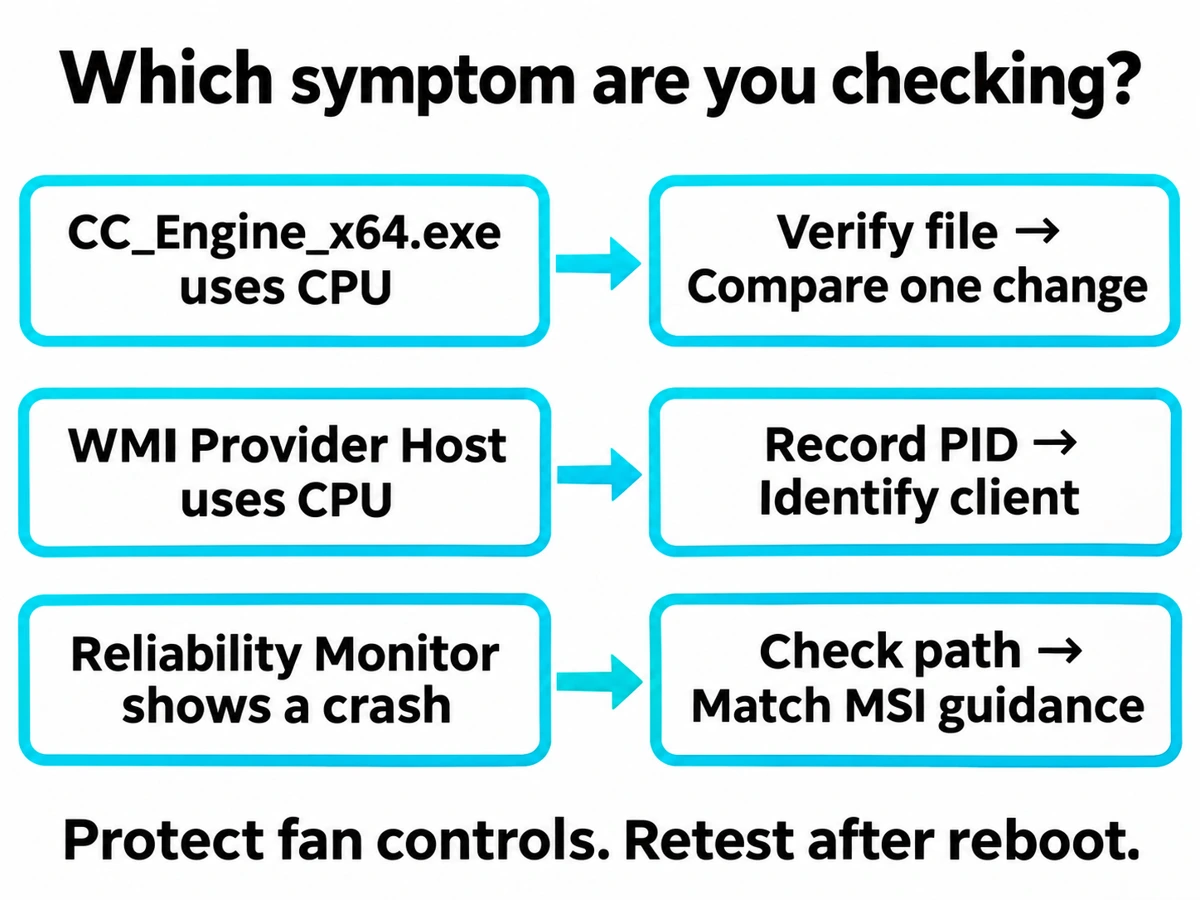
CC_Engine_x64.exe is associated with MSI Center and related MSI utilities. If it keeps using CPU while your PC is idle, first verify the running file, then compare one monitoring feature or app at a time. A high CPU reading alone does not identify malware. Also check which process owns the load: a busy CC_Engine_x64.exe, a busy WmiPrvSE.exe, and a CC Engine crash in Reliability Monitor lead to different investigations.
The useful result is a repeatable connection between a particular change and the symptom. Deleting the executable or replacing it with a file from a forum can break MSI features and destroy that evidence.
Check the running file before changing MSI Center
- Open Task Manager with Ctrl + Shift + Esc. In Details, find
CC_Engine_x64.exe, note its PID, and confirm that its own CPU column is high. - Right-click that entry and select Open file location. Compare the folder with the MSI software installed on this PC. An MSI directory under
C:\Program Files (x86)\MSI\fits the expected context, but a familiar folder name does not authenticate a file. - Open the file’s Properties. Check its product/version information and, when available, Digital Signatures and the signature details. Compare the publisher with the official MSI package for your device.
- Check Settings → Apps → Installed apps for MSI Center, its SDK, or an older MSI utility. Note the version and whether the problem began after an installation or update.
If the path, publisher, and installed package do not agree—or an antivirus alert identifies this exact file—use the suspicious-copy branch below. Do not restore or allow it just because the name resembles an MSI component. If the process is actually OmApSvcBroker.exe, use the separate OmApSvcBroker guide; it is another MSI-related process.
Record a baseline that you can compare
Before updating, uninstalling, or restarting anything, save your work and make a small record. This gives MSI support something more useful than “my CPU is high.”
- Machine and software: exact device or motherboard model, Windows version, MSI Center version, installed feature modules, and other hardware-monitoring utilities currently running.
- Symptom: the process name and PID, an approximate CPU range over several minutes, and whether the load is steady or intermittent. Record memory separately if that is the value increasing.
- Trigger: startup, opening a monitoring page, closing the Center window, launching a game, or resuming from sleep. Note the time so it can be matched to a crash or event.
Compare readings under similar conditions. A reading taken during a game, update, or antivirus scan is not a useful baseline for an idle-PC test. Let unrelated work finish; do not disable security protection to make the numbers lower. Avoid adding several new monitoring tools at once, since that changes the workload you are investigating.
Isolate one monitoring trigger safely
Check your cooling controls first. MSI Center features vary by product, and its User Scenario controls can include CPU and fan settings. Record your current profile and confirm a supported cooling arrangement before removing or stopping a hardware-control feature. MSI’s manual describes both that variability and its separately managed feature sets. [1]
If temperatures are abnormal, the system is shutting down, or you cannot verify cooling behavior, stop the workload and get device-specific support. Do not stress-test a machine while experimenting with its fan control.
- Start with an optional monitoring app. If another sensor dashboard or overlay is open, exit it through its own interface, provided it is not responsible for cooling or another necessary function. Keep MSI Center and the rest of the workload unchanged.
- Observe the same process again. Compare its CPU range over a similar interval. If the load drops, record the app you closed and the time. If it does not, restore the original state before testing a different factor.
- Check a specific MSI feature only when safe. Use the supported controls available in your version to turn off or remove an optional feature you do not need. Do not delete its executable, rename SDK folders, or stop every MSI service together.
- Interpret the result. A repeatable drop after one change makes that combination a useful suspect. A single drop can also coincide with background work finishing. Recheck the comparison only if it is safe; do not deliberately reproduce overheating or repeated crashes.
This is a diagnostic comparison, not a claim that every monitoring utility conflicts with MSI Center. Once a particular combination is implicated, check for an official update or ask MSI support about that exact model, module, and version. Keep necessary fan, lighting, and performance functions in mind when choosing what to leave disabled.
If WMI Provider Host owns the CPU load
If WmiPrvSE.exe is busy while CC_Engine_x64.exe is not, you are looking at a different process. WMI serves requests from other software; the client making requests and the provider doing the work need to be identified. Record the busy WMI instance’s PID and the time of the spike. Microsoft documents this distinction and a provider/client investigation. [2]
Use the WMI caller-identification steps to investigate the corresponding events. Match any client PID to the process running at that time, since process IDs can change after a restart. MSI Center being installed is not enough to blame it. If evidence points to its engine, return to the controlled comparison above.
Do not disable Windows Management Instrumentation or rebuild its repository merely because MSI Center is present. That would change a shared Windows component before you have identified the requesting application.
If Reliability Monitor says CC Engine stopped working
A crash record is not a CPU measurement. Search Start for View reliability history, select the relevant failure, and open its technical details. Record the application path, version, faulting module, and time. Check the actual executable: a shortened display name such as CC_Engin.exe does not tell you which file ran.
MSI FAQ 10024, dated November 30, 2023, addresses CC_Engine_x64 errors in Reliability Monitor and recommends MSI Center 2.0.28.0 or later for its listed models. That is historical, scoped guidance—not a recommendation to install that old version today, and not evidence that it fixes every high-CPU case. Use the currently supported release for your device. [3]
After updating, compare the next occurrence with the old event. If the same failure returns, send MSI the model, app/module versions, and fault details. A screenshot of Task Manager alone cannot explain a crash that happened earlier.
Repair the package, then repeat the original test
For a verified MSI installation, update through the official MSI support route for your exact device and the supported distribution channel for that package. Check installed feature updates as well. If a clean reinstall is needed, follow MSI’s current instructions for that product; do not download a loose “fixed” CC_Engine_x64.exe from a video description, file database, or chat server.
If you no longer need the utility, uninstall it through Windows Apps rather than deleting one file. MSI’s manual lists MSI Center and MSI Center SDK as separate items in its removal procedure. Your installed package may differ, so check the device’s current instructions before removing related components. [1]
Restart when the official procedure requires it, then repeat the original conditions: the same idle period, same optional monitoring tools, and same action that triggered the symptom. Confirm both that the load has improved and that your required fan/performance controls still work. Check for a new crash at that time. If the problem returns only after reinstalling a particular feature, preserve that finding for support instead of cycling through unrelated Windows repairs.
If the file or its installation source is suspicious
A file launched from %USERPROFILE%\Downloads or %LOCALAPPDATA%\Temp, an unexplained publisher, or an independent security alert needs investigation rather than MSI performance tuning. These clues are reasons to check the specific file, not a verdict based on its name. Keep a flagged file quarantined while you verify its origin.
If the issue followed an unknown installer, or suspicious activity returns after a file is removed, a bundled component or startup mechanism may remain. Gridinsoft Anti-Malware can check for malware and related persistence. Install it from the official site, update the database, run a Full Scan, review the findings, apply the recommended cleanup, and restart. Recheck the original symptom afterward.
A malware scan does not repair a legitimate MSI software bug. Nor does a clean result prove that no earlier exposure occurred. If the verified MSI component is simply busy, return to the package and monitoring checks above.
FAQ
Why does CC_Engine_x64.exe return when I close MSI Center?
Closing the visible window need not stop the package’s background components. Ending a task also does not uninstall the software that launches it. Check whether the returning file belongs to the installed MSI package; recurrence alone is not proof of malware.
Can it appear without an MSI motherboard?
Check the installed software and other MSI hardware or utilities rather than deciding from the motherboard brand alone. If you cannot connect the file to an intentional installation, verify its source and publisher before trusting it.
What if memory keeps growing but CPU is low?
Record memory growth separately, including how long the app has been running and which feature is open. Do not describe it as a high-CPU fault. A similar one-change comparison can help identify a trigger, but a CPU-focused workaround does not establish a fix for memory growth.
References
- MSI. MSI Center User Guide, v1.3. For motherboards, desktops and liquid cooling; sections on feature sets, User Scenario and removal. Accessed November 10, 2026.
- Microsoft. Troubleshoot WMI high CPU usage issues. Microsoft Learn; accessed November 10, 2026.
- MSI. CC_Engine_x64 errors appear in Reliability Monitor, how do I fix it? FAQ 10024, updated November 30, 2023; accessed November 10, 2026.