

GfxDownloadWrapper.exe can belong to an Intel graphics package. Some Intel graphics software uses this helper for game settings. If your firewall names it or Windows says it stopped working, start with the full path in that event. Looking up a different copy with the same name can give you the right answer about the wrong file.
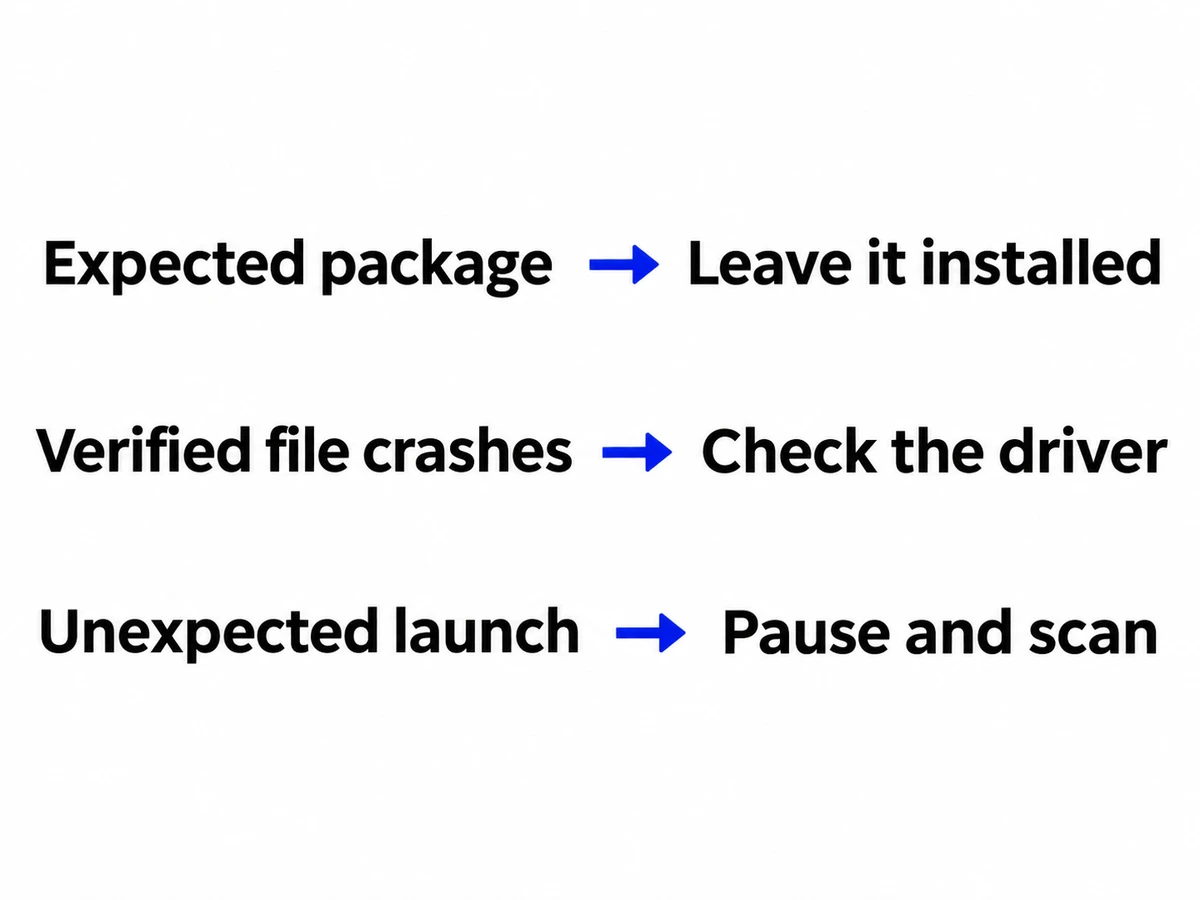
- It belongs to the installed Intel package and nothing failed: leave it installed. Check the connection details before changing a firewall rule.
- The installed copy keeps crashing: record the error and driver version, then troubleshoot the package supplied for your PC model.
- It ran from a download, an extracted archive or another unexpected location: leave the connection blocked, do not reopen the file, and investigate what launched it.
Match the alert to the copy that ran
- Start with the event. Expand the firewall notification or open its history. For a crash, search Windows for View reliability history, select the failure at the matching time, and open its technical details. Record the application name, path and time. The faulting module is a separate field; a DLL named there is not necessarily the application you need to repair.
- Inspect that file without opening it. If it is still running, use Task Manager → Details, right-click the process, and select Open file location. Compare that location with the event. Driver packages can keep files under
C:\Windows\System32\DriverStore\FileRepository; the subfolder varies. A file found by searching the whole drive does not identify which copy ran. - Check the publisher and package together. In the file’s Properties, open Digital Signatures if present, select the signature, and check its details. Then open Device Manager → Display adapters → your Intel adapter → Driver. Record the provider and version and compare them with the package offered for your exact PC. A missing signature tab leaves a question open; the filename or “Intel” in the Details tab cannot answer it. For other ways to verify an unfamiliar copy, see how to check an EXE without running it.
The firewall blocked a connection. Should you allow it?
Leave the existing rule in place while you check. Was it an outbound attempt? Which application path, destination and time did the firewall record? Was the connection actually blocked, or did the product just notify you that a program accessed the network for the first time? A blocked attempt does not establish that a download succeeded. An Intel-looking destination alone does not authenticate the local file.
If the path matches the installed package and the alert coincided with opening the graphics software, record that context. If everything works, there is no need to grant the file permanent access just to silence a notification. On a work PC, give IT the event details so they can compare them with policy. If the alert instead followed a downloaded “driver fix,” check that installer separately; the fake driver updater guide covers that case.
The verified Intel copy keeps crashing
In a 2019 Intel Community case, an administrator saw the helper fail on HP desktops. A restrictive firewall seemed a possible explanation. The application log, however, recorded a missing-directory exception, and a later file trace pointed to a directory absent from the user profiles. That evidence narrowed the investigation without establishing a firewall fault. It also explains why copying a folder fix from an old forum post is a poor first step on a different PC.
- Capture one repeatable failure. Keep the faulting application path, exception code or message, driver version, and what you were doing. If Windows remained usable, describe it as an application crash; a blue screen or whole-PC restart needs its own record.
- Use the PC maker’s supported graphics package. Look up the exact model on the manufacturer’s support site. If the error began after an update, compare the previous version and ask whether a supported rollback is available. Otherwise use the manufacturer’s normal installation or repair procedure. A clean installation of a generic Intel driver can overwrite manufacturer customizations. Never download a loose replacement EXE or delete the copy in DriverStore.
- Retest the original trigger. Restart if the installer requests it, repeat the same action, and look for a new failure time. The old Reliability Monitor entry remains visible even after a successful repair. If it still fails, send support the model, before/after driver versions and the new event. If the fault instead names igfxCUIService.exe or igfxEM.exe, follow the guidance for that component.
What if the file is signed but its launch makes no sense?
A valid signature is evidence about the file’s publisher and integrity. It cannot tell you who launched the file or whether you intended that action. Trend Micro researchers documented a renamed, legitimate copy of the Intel helper in the Earth Yako campaign in 2023. The concern was how that copy was used. An ordinary Intel crash or firewall alert does not link your PC to that campaign.
If you only downloaded an unfamiliar copy, do not run it to test it. Keep the alert details and scan the file. If it already ran from an unexpected folder, or a security alert returns after quarantine or reboot, save the path and timestamp and run a full scan with Gridinsoft Anti-Malware. A scan can check for related downloads and startup entries that might explain the return. On a managed PC, report it to your security team before changing files or collecting more evidence. A clean result alone cannot explain an unexpected launch.
FAQ
Can I turn off Intel game promotions instead of removing the file?
If your version of Intel Graphics Command Center offers them, open Preferences and turn off Promotions and Show Games. Intel documents these as display preferences. They do not promise to stop every launch or network request, and there is no reason to remove a working driver to hide a games tab.
The event lists a file I can no longer find. What should I send support?
Keep the original event, including its time, full application path, rule action or exception, and the graphics driver version. Note whether you installed a driver or quarantined a download afterward. Avoid taking a different copy off the internet to recreate the error. Redact usernames and machine identifiers before posting a log publicly.
References
- Intel Community. GfxDownloadWrapper.exe crashing. Support discussion, June 2019; accessed November 10, 2026.
- Intel Corporation. Will I lose OEM customizations if I update my graphics driver? Intel Support, article 000096252, reviewed September 5, 2024; accessed November 10, 2026.
- Intel Corporation. How to change the Show Games setting in Intel Graphics Command Center. Intel Support, article 000057884, reviewed September 4, 2024; accessed November 10, 2026.
- Trend Micro. Invitation to Secret Event: Uncovering Campaigns Targeting East Asia by Earth Yako. JSAC 2023, slide 21; accessed November 10, 2026.