

If your Mac security app reports MacOS.Backdoor.PersistAgent, open the app from Applications and check its scan history. Expand the detection and write down the original file path, time and action taken. If the file is already in quarantine, leave it there while you identify it. The label alone cannot tell you which app put the file there or whether anyone accessed your Mac.
The most useful clue is often the folder. A finding inside an installer you never opened calls for a different response from a file that reappears in your login items every time you sign in. If the warning appeared only on a website, close the tab and check the installed security app directly. For a banner sent by a site, follow the Safari notification guide.

Check which files 67 Cleaner flags on your Mac
Run a free Quick Scan and compare the paths with your original alert. Quarantine for eligible findings is included in the seven-day trial and Premium.
What file did the scanner flag?

“Backdoor” is a warning about possible unauthorized access. “PersistAgent” suggests something that may start again later. The photo shows the wording someone can search for. It leaves out the details that would establish the cause. Open the full result and use the original location, even if the scanner has since moved the file. If the status says only “detected” or “action needed,” avoid opening the file. On a personal Mac, use the scanner’s quarantine option if it offers one. On a work Mac, send the report to IT.
- A download or disk image. If the report points inside a
.dmgor.pkgin Downloads and you never opened it, keep the item quarantined. If you mounted the image, note whether you also launched the app or ran the installer. Mounting an image and running its contents are separate actions. - A file inside an installed app. Note the enclosing
.appname and where you obtained it. If you ran a copy from an unfamiliar site, quit the app and leave the finding quarantined. On a work Mac, give IT the report before uninstalling anything. - A property list in a LaunchAgents folder. A
.plistthere can describe a background job. The file named in the alert and the program that job starts can be two different files. Record both paths if the report shows them. Leave unrelated login items in place.
Could a legitimate login helper trigger this alert?
Start with an app you remember installing. For example, Nous Research documents ~/Library/LaunchAgents/ai.hermes.gateway.plist for the Hermes Agent messaging gateway on macOS. If you deliberately installed that gateway and the report shows this exact path, you have a specific match to ask the publisher about. The path alone cannot authenticate the file. [1]
In System Settings → General → Login Items & Extensions, check the app or developer shown under background activity. Legitimate apps can use background items for jobs such as syncing data. If you expected the helper, give the scanner’s support team the exact path, app version and detection time for a false-positive review before restoring it. If you simply want to remove a known app and its helper, follow the Mac app uninstall steps. [2]
How to compare the finding with a 67 Cleaner scan
Open 67 Cleaner and run the free Quick Scan. When it finishes, review the file names and locations it flags. Compare them with the original report. Two scanners can use different names for an item. If the first scanner already quarantined a file, leave it there. A second scan may have nothing to inspect at the original location.
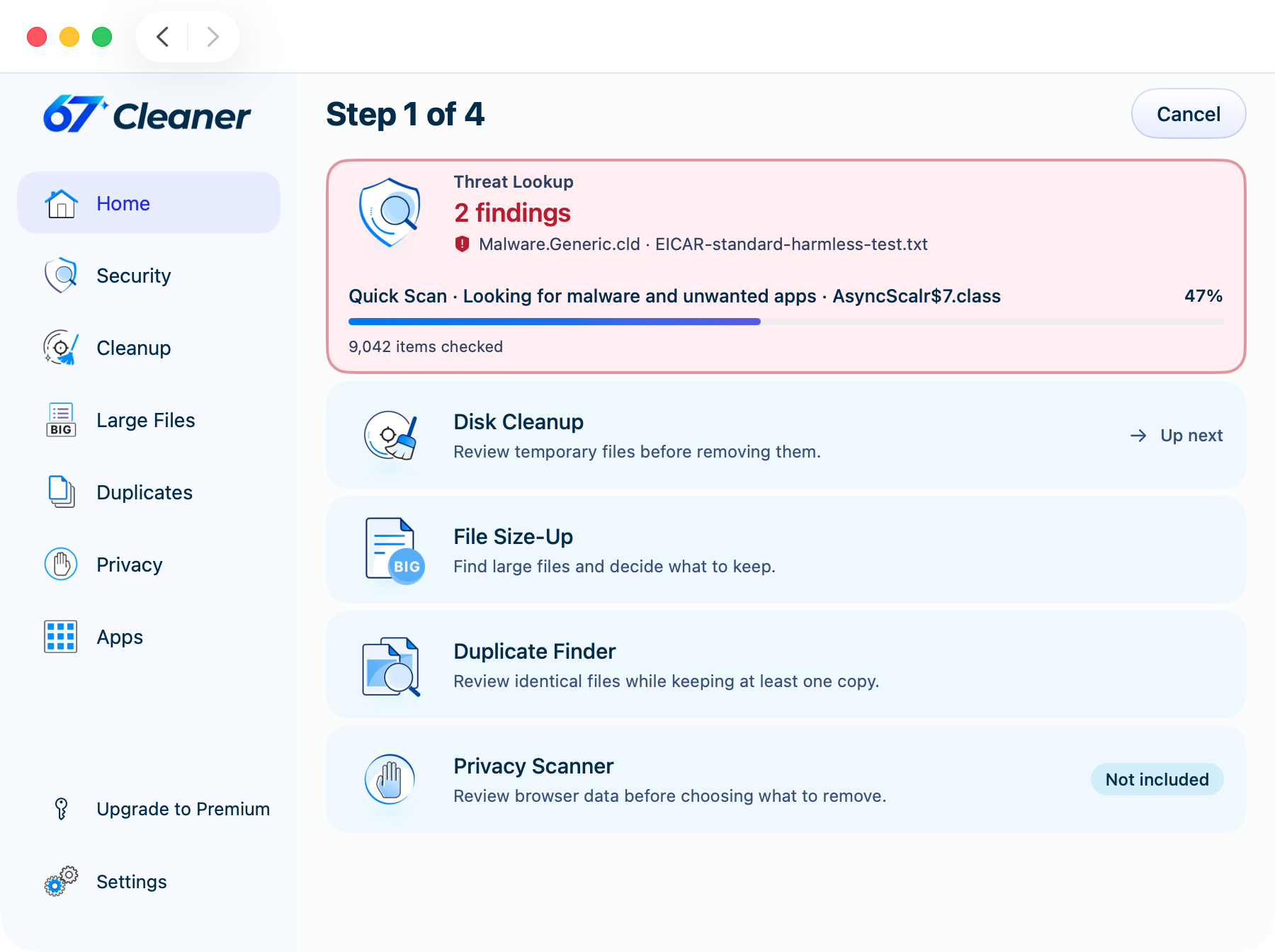
The free scan leaves files in place. If 67 Cleaner finds an eligible item, the seven-day trial and Premium include quarantine. Full and Custom scans are Premium features. Choose a quarantine action only after checking the selected file. A clean Quick Scan cannot settle whether a file ran earlier. [3]
Did PersistAgent actually come back after restart?
Compare the newest detection time and original path with the first report. For example, if you sign in at 10:15 and history still shows only the 09:40 quarantined item, you are looking at the earlier event. A fresh 10:16 entry at the same original path deserves follow-up. If the new path names a backup or a second installer in Downloads, it points to a different copy.
If an unknown file returns at the same path or you see an unexpected remote session, disconnect the Mac from Wi-Fi and Ethernet. Save both reports. On a managed Mac, contact IT from another device. On a personal Mac, ask your security provider to identify what is recreating the file. If you entered a password into a suspicious app or can see an unauthorized sign-in, use a trusted device to change the affected password and revoke unfamiliar sessions.
References
- Nous Research. Messaging Gateway. Hermes Agent documentation. Accessed November 20, 2026.
- Apple. Change Login Items & Extensions settings on Mac. Mac User Guide. Accessed November 20, 2026.
- Gridinsoft. 67 Cleaner for Mac, features and plan comparison. Accessed November 20, 2026.