

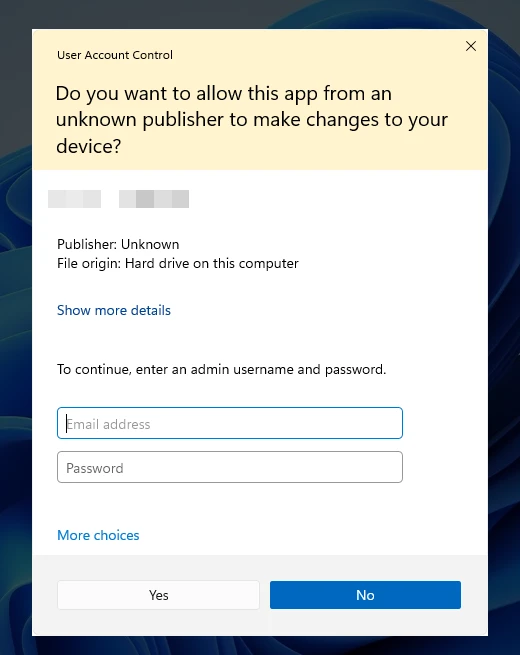
If SiteGuard.exe asks to make changes as soon as you sign in to Windows, choose No if you did not start or expect it. First, note the publisher and open Show more details to record the program location if Windows displays it. Once the prompt is closed, match that location to the executable in Microsoft Autoruns. Two Windows users found a sign-in entry named SiteGuardUnified that pointed to an unsigned %LOCALAPPDATA%\SiteGuard\SiteGuard.exe. If your PC shows the same combination, leave the elevation request declined and investigate that startup entry.
Read the app name, publisher and path in the UAC prompt
User Account Control (UAC) appears when an app asks to run with administrator privileges. No declines that request. An installer or another component could already have run earlier, so note whether this started after you opened a download or installed something.
Record the exact app name and publisher, including Unknown if that is what Windows shows. Use Show more details for the full program location when available. The File origin line can say the file is on your hard drive without telling you which folder it is in or where it originally came from. If you already closed the prompt, use the startup entry to find the path. Leave the EXE unopened.
What the two SiteGuard.exe reports showed
- November 23, 2026. A BleepingComputer user reported declining an unexpected startup prompt and disabling the startup item. Their diagnostic log listed
SiteGuardUnifiedin a per-userRunentry and marked its target unsigned. After a forum helper walked them through a repair, the user reported that the pop-ups and Startup Apps entry had disappeared. The thread’s last visible reply at the time of review asked for one more full scan. - October 27, 2026. A different user found SiteGuard.exe in Task Manager after getting partway through an installer presented as Claude Desktop. Their log showed the same unsigned path and
SiteGuardUnifiedentry. Other startup symptoms continued after they disabled entries and rebooted. The user later reported that Windows Security updates were working again after further troubleshooting, and a helper closed the thread as apparently resolved.
The files had different sizes in the posted logs. Use the shared entry name, target path and signature status to compare what you see on your own PC. The two reports establish that pattern on two computers. An unverified publisher or a familiar filename on its own leaves the file’s identity unresolved.
Match SiteGuardUnified to the executable in Autoruns
- Sign in to the Windows account that saw the prompt. Download Autoruns for Windows from Microsoft Sysinternals using the link in References. Open Autoruns and select the Logon tab. If you are checking from another account, use the User menu to select the affected one.
- Filter for
SiteGuardUnified. If that name is absent, look forSiteGuard.exe. Read the row’s full Image Path and check the publisher with signature verification enabled in Autoruns’ scan options. For a second look, right-click the file in File Explorer and open Properties without launching it. The EXE verification guide explains how to check the signer and installation source. - Compare the row to the prompt you recorded. If the path, entry name and unsigned status match the reports and you cannot identify a trusted source, save the details and uncheck that row on a personal PC. This reversibly stops that entry from launching at sign-in. On a work or school PC, send the details to IT before changing startup items.
For example, the location in the prompt may end in \AppData\Local\SiteGuard\SiteGuard.exe. If the full path in Autoruns matches it, including the Windows user folder, you have identified a plausible launcher to test on the next sign-in. If the row points to a different folder or a separate signed program, keep it in place while you verify its vendor and look for the path Windows showed. If Logon has no matching row, search Everything in Autoruns for that path. A scheduled task or another autostart location can call the same file.
Scan and check the next sign-in
Scan the PC if the entry matches, the app may have run, or an unfamiliar installer preceded the prompt. The entry you disabled only controls one sign-in launch. A different task, service or bundled component can remain active. You can use Gridinsoft Anti-Malware for a local check. Update its Threat List, open Scan, choose Full, and review any reported detections before quarantining them. Save the scan result so you can compare the affected paths after you restart.
Restart Windows and sign in to the same account. Compare these three things with what you recorded earlier.
- The prompt is gone and the row is still disabled or gone. The startup symptom did not recur on that sign-in. Keep the scan result and confirm your security software can still get current updates.
- Autoruns says the file is missing. Compare the row’s stored path with your scanner’s quarantine history. A leftover row can point to a file that has already been moved or removed. Leave it disabled while you check.
- The prompt or entry comes back, or a different window still appears. Record its exact path, time and message. A re-enabled or replacement launch item is worth investigating even if the original dialog went quiet. If you see a command window that opens a website, follow the CMD startup redirect checks. If security updates fail or the scan keeps finding new items, get help with the computer before using it for sensitive accounts.
References
- BleepingComputer forum participant. “Malware – pop up on boot, Siteguard.exe.” BleepingComputer, November 23–24, 2026. Accessed November 24, 2026.
- BleepingComputer forum participant. “Malware – pop up on boot, Siteguard.exe and sslconf.exe.” BleepingComputer, October 27–29, 2026. The linked follow-up has a Previous link to the original report. Accessed November 24, 2026.
- Mark Russinovich. “Autoruns for Windows.” Microsoft Sysinternals, June 17, 2026. Accessed November 24, 2026.
- Microsoft. “How User Account Control works.” Microsoft Learn. Accessed November 24, 2026.