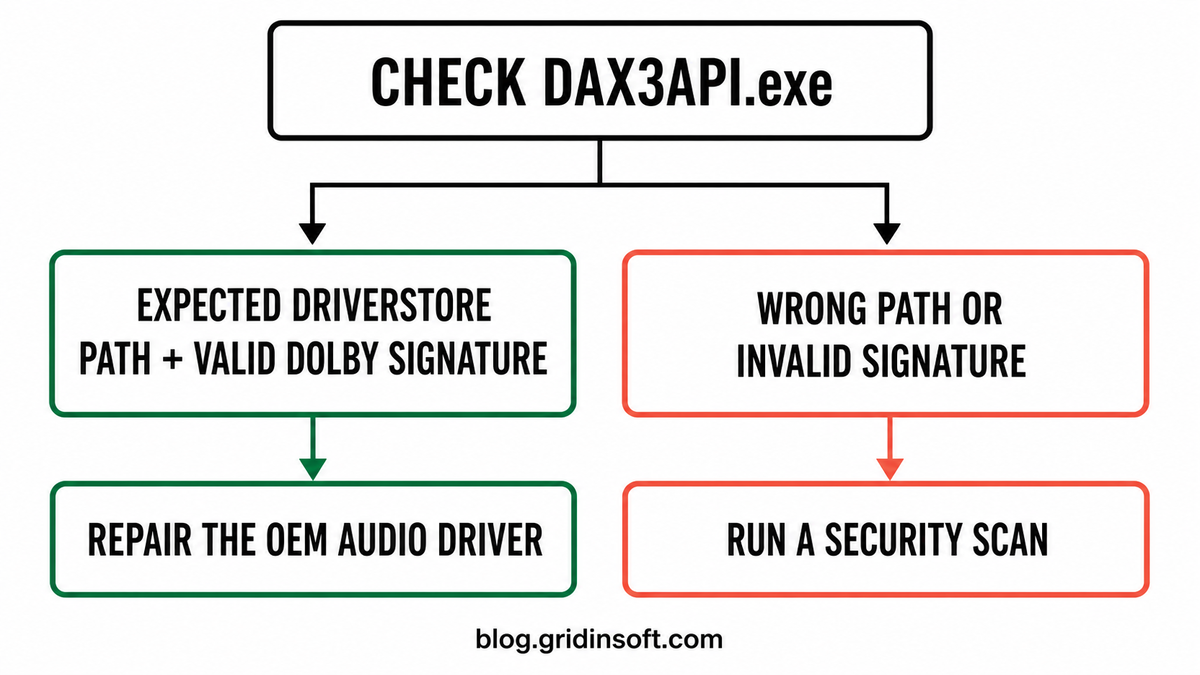
DAX3API.exe is normally part of the Dolby DAX audio package installed by a PC manufacturer. It helps connect Dolby processing to the OEM audio driver; it is not a core Windows file. A startup popup or application crash usually points to a broken or mismatched audio package, not malware. Before disabling it, check the running file’s location and digital signature. Repair a valid Dolby-signed copy through the support page for your exact PC model. Disable the service only as a test because Dolby profiles or enhancements may stop. A wrong-path or invalid-signature copy deserves a separate security check.
What does DAX3API.exe do?
DAX3API.exe belongs to an OEM audio stack rather than Windows itself. On supported laptops and desktops, the Dolby DAX API Service lets the device maker’s audio package expose Dolby processing, speaker tuning, spatial effects, or a matching control app. It can be installed even when you did not download Dolby software separately because it arrived with the factory audio driver.
This is similar to other manufacturer-supplied audio helpers, but it is not interchangeable with them. The NahimicSvc64.exe guide covers A-Volute/Nahimic packages, while Audiodg.exe is the separate Windows audio-processing host.
| What you see | What it usually means and what to do |
|---|---|
| Signed DAX3API.exe inside a matching OEM audio package, low resource use | Normal Dolby audio behavior. Leave it running if the expected features work. |
| A command window or error appears at sign-in | The service may be restarting, missing a matched component, or using a damaged package. Repair the OEM audio driver. |
| Application Error, stopped working, or repeated Event ID 1000 | Record the fault time and module, then update, roll back, or reinstall the complete device-specific audio package. |
| Dolby controls fail after the service is stopped | Expected dependency evidence. Re-enable the service and repair the package rather than deleting the executable. |
| Wrong folder, invalid signature, or no matching Dolby/OEM installation | Do not trust the filename alone. Preserve the path and scan the copy and its startup context. |
Why DAX3API.exe keeps popping up or crashing
A recurring DAX3API.exe window is usually a symptom of a service or package problem. The visible executable may be the component that fails, but the underlying mismatch can be in the Realtek or Intel audio driver, a Dolby extension, the control app, or an OEM update that installed only part of the stack.
- The problem began after Windows Update: a new base audio driver may no longer match the installed Dolby component.
- The problem began after an OEM utility update: one part of the audio bundle may have advanced to a different version.
- The popup appears at every sign-in: the Dolby DAX API Service may start, fail, and restart while Windows initializes the audio device.
- The crash follows sleep, a headset, or an output-device change: an audio endpoint or enhancement may be stuck.
- CPU or memory stays high: reproduce the load with and without audio playback before blaming the process. A brief startup spike is different from sustained idle use.
Open Reliability Monitor and Event Viewer around the time of the popup. A repeated DAX3API.exe fault with the same module is useful repair evidence. A single event during an update is not enough to call the file malicious.
Check the path and signature before changing DAX3API.exe
Do not search the drive and inspect a random copy. In Task Manager, right-click the running DAX3API.exe process and choose Open file location. OEM layouts vary. A legitimate build may run from a Dolby directory or a package folder under C:\Windows\System32\DriverStore\FileRepository\. The folder must make sense for the installed audio driver, and the running file should have a valid Dolby Laboratories signature.
- Right-click the file, select Properties, and open Digital Signatures.
- Confirm that Windows reports the signature as valid and that the signer matches Dolby Laboratories or the documented OEM package.
- Open Device Manager and identify the installed audio device and provider.
- Compare the file with the audio package offered for the exact laptop, desktop, or motherboard model.
- If the file is unsigned, runs from a user-writable folder, or has no matching audio package, move to the suspicious-copy branch rather than deleting it immediately.
PowerShell can inspect the signature of the running executable without guessing its location:
Get-CimInstance Win32_Process -Filter "Name='DAX3API.exe'" |
ForEach-Object {
    Get-AuthenticodeSignature -LiteralPath $_.ExecutablePath |
    Select-Object Path, Status, @{Name='Signer';Expression={$_.SignerCertificate.Subject}}
}
A valid signature strongly supports identity and integrity, but context still matters. Use the broader EXE safety checklist when the package, path, or startup behavior does not match what the PC maker installed.
Can you disable the Dolby DAX API Service?
You can stop the service temporarily as a reversible test. Press Win + R, enter services.msc, open Dolby DAX API Service, and choose Stop. Reproduce the popup, crash, or resource spike, then start the service again.
Basic Windows audio may continue, but the result depends on the OEM package. Dolby profiles, EQ, spatial processing, speaker tuning, volume behavior, microphone effects, or the Dolby control app may stop working or show a driver-access error. That change is evidence that you stopped the real component. It is not a reason to delete DAX3API.exe.
If stopping the service removes the symptom, set it back to its original startup type and repair the matched audio package. Leave it disabled only when the device maker documents that choice or when you knowingly accept the lost audio features. Do not disable unrelated Windows Audio services, and do not download a standalone replacement EXE.
Fix DAX3API.exe application errors, popups, or high resource use
- Restart once and record the trigger. Note whether the problem follows sign-in, sleep, Windows Update, an audio-driver update, a headset connection, or opening the Dolby app.
- Turn off audio enhancements for one test. Open Settings > System > Sound, choose the active output device, set Audio enhancements to Off, and test again. This isolates the enhancement path without deleting the package.
- Restart the Dolby service. In
services.msc, stop and start Dolby DAX API Service once. If it stops again immediately, continue to the package repair. - Install current Windows audio updates. Check Windows Update, including applicable optional driver updates, then restart.
- Use the support page for the exact PC model. Download the current audio driver and its Dolby component from the laptop, desktop, or motherboard manufacturer. Keep the base audio driver and Dolby extension from the same supported package family.
- Roll back a recent bad driver when appropriate. In Device Manager, open the audio device, choose Properties > Driver, and use Roll Back Driver if the failure began immediately after an update and the option is available.
- Reinstall the OEM package cleanly. Follow the manufacturer procedure, restart when asked, then install the complete supported audio bundle. Avoid third-party driver-updater tools and standalone DLL/EXE download sites.
- Retest every output you use. Check speakers, wired headphones, Bluetooth or USB audio, the microphone, Dolby profiles, and the app that originally triggered the fault.
If the high CPU remains after stopping DAX3API.exe, investigate the process that still owns the load instead of forcing a Dolby removal. The audio engine, a headset utility, a conferencing app, or another enhancement service may be the actual source.
When DAX3API.exe may be suspicious
Treat the file as a separate security case when it runs from %TEMP%, %APPDATA%, %USERPROFILE%\Downloads, a browser profile, or an unrelated program folder; when its signature is invalid or missing; when no matching Dolby/OEM audio package is installed; or when it appeared after an unknown installer and returns through an unfamiliar startup entry or scheduled task.
Do not remove only the visible EXE if it already ran. A companion file, service, startup entry, or scheduled task can recreate the activity after reboot. Record the full path and signature result, disconnect from suspicious downloads, and inspect the related startup context. The suspicious startup apps guide explains how to verify an unfamiliar entry before deleting it.
After those manual checks, run a full Gridinsoft Anti-Malware scan to look for related files, bundled apps, startup entries, tasks, and persistence. Remove confirmed detections, reboot, and scan again if the process or security warning returns. A scan can find leftovers; it cannot prove that no exposure occurred or undo data already sent elsewhere.
If the process path is wrong, the name imitates a Windows component, or high CPU started after an unknown installer, scan for hidden miners, services, startup entries, and bundled components.
Scan a suspicious DAX3API.exe copyConfirm that the repair worked
- DAX3API.exe no longer opens a command window or error dialog at sign-in.
- Reliability Monitor does not record a new DAX3API.exe failure during normal use.
- The Dolby DAX API Service stays in its expected state after reboot.
- Speakers, headphones, microphone, and device switching work normally.
- Dolby profiles or OEM audio effects still work if you intend to keep them.
- Task Manager shows normal idle resource use and every DAX3API.exe instance resolves to the same trusted package context.
FAQ
Is DAX3API.exe a virus?
Usually no. It is commonly part of an OEM Dolby audio package. Verify the running file’s location, valid digital signature, installed audio driver, and behavior. A same-name copy in a temporary or unrelated folder needs separate analysis.
Can I remove DAX3API.exe?
Do not delete the executable manually. If you no longer want the Dolby features, use the PC maker’s documented uninstall or audio-driver procedure. Manual deletion can leave a broken service and recurring popup while removing only one part of the package.
Why does DAX3API.exe keep popping up?
The service may be crashing and restarting because the base audio driver, Dolby extension, or control app is damaged or mismatched. Record the trigger, test enhancements off, and reinstall the complete OEM audio package for the exact device model.
Will disabling Dolby DAX API Service break sound?
Basic sound may continue, but Dolby profiles, spatial effects, EQ, microphone processing, speaker tuning, or the control app can stop working. Use a temporary stop to diagnose the problem, then repair the package and restore the original service setting.
Why are multiple DAX3API.exe processes running?
First confirm that every entry uses the same trusted package path and valid signature. Multiple helpers can belong to one OEM audio stack, but repeated instances after crashes can also show a stuck service state. Restart, repair the package, and investigate any instance from a different folder.
References
- Microsoft Q&A. “DAX3API.exe Stopped Working.” Microsoft Learn, accessed August 28, 2026. learn.microsoft.com
- Microsoft. “Update Audio Drivers in Windows.” Microsoft Support, accessed August 28, 2026. support.microsoft.com
- Microsoft. “Get-AuthenticodeSignature.” Microsoft Learn, accessed August 28, 2026. learn.microsoft.com