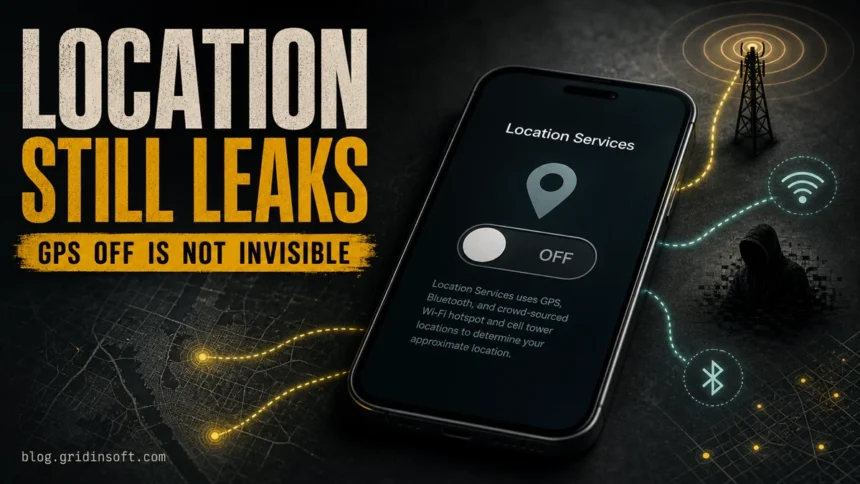
Turning off Location Services reduces precise GPS-based tracking, but it does not make a phone invisible. A phone can still reveal a rough or recent location through cell towers, Wi-Fi networks, Bluetooth offline-finding networks, account sharing, carrier records, and spyware. The right response depends on whether you are worried about a lost phone, a shared Apple or Google account, a hidden Bluetooth tracker, or malware running on the device.
If you only need privacy from normal apps, review location permissions and sharing settings. If you suspect someone is tracking you without consent, check Find My or Find Hub, account sessions, unknown tracker alerts, device-admin or accessibility permissions, and suspicious apps before assuming GPS is the only problem.
Can a Phone Still Be Tracked With Location Services Off?
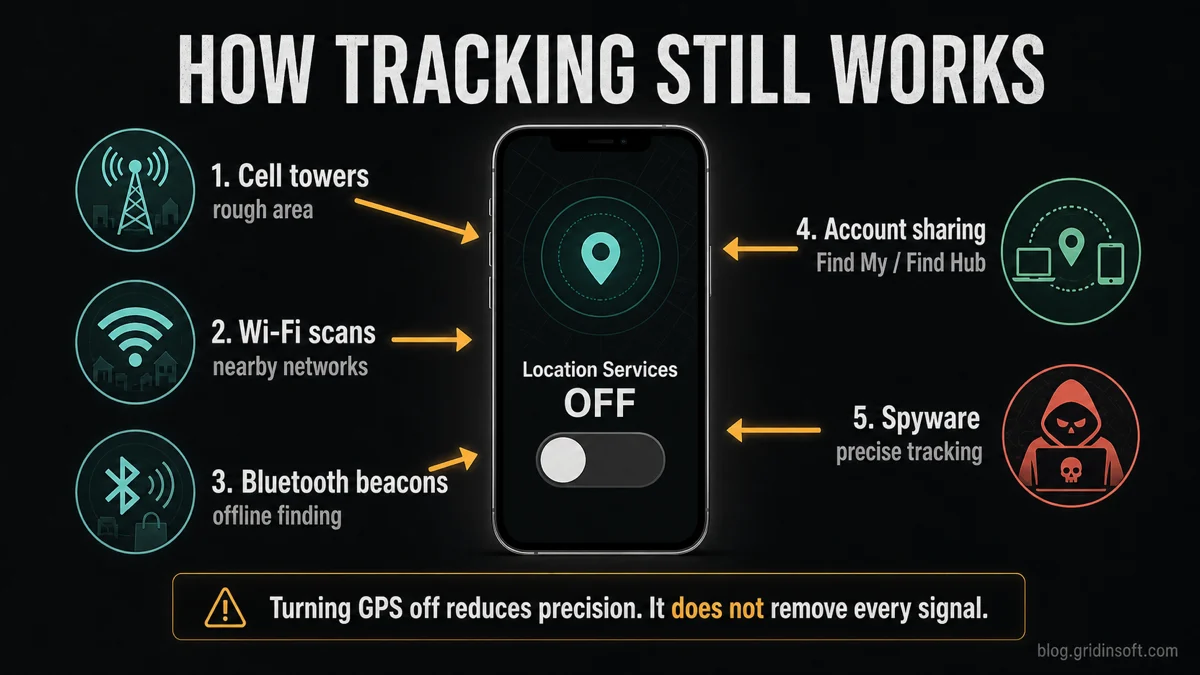
Yes, but the tracking usually becomes less precise unless another permission, account feature, or malicious app is involved. Location Services mostly controls app access to precise location sensors such as GPS and system location APIs. It does not turn off the cellular modem, Wi-Fi radio, Bluetooth radio, account-based lost-device features, or every record that a carrier or cloud account may already have.
| Tracking path | What it can reveal and what to check |
|---|---|
| Cell towers | Usually a rough area based on carrier network connection. You cannot fully hide from a mobile carrier while the phone is connected to cellular service. |
| Wi-Fi and IP address | Nearby Wi-Fi networks or the current internet connection can reveal an approximate area, especially to apps, websites, and account services. |
| Bluetooth and offline finding | Find My and Find Hub-style networks can help locate supported devices or trackers even when they are offline, depending on settings and device support. Apple and Google document these controls in their support pages.[1][3] |
| Account sharing | A person with access to your Apple Account, Google Account, Family Sharing, Find My, Google Maps sharing, or a paired device may see location or last-known location data. |
| Spyware or stalkerware | Malware can abuse permissions, accessibility services, VPN profiles, device admin rights, or account access to collect location and activity data. If you need to separate ordinary spyware from known-person monitoring, see the spyware vs stalkerware comparison. |
| Hidden tracker tags | AirTag-compatible or Find Hub-compatible trackers can move with you physically. iPhone and Android both have unknown tracker alert workflows.[4] |
Location Services Off vs. Phone Powered Off
Do not mix up these two situations. Location Services off means the phone is still on, connected, and able to send or receive signals. It simply limits normal app access to location data. A powered-off phone usually stops live network communication, but supported iPhones can still be findable for a limited time through the Find My network when that feature is enabled, and last-known locations may remain visible for a while.[1]
For most people, the important privacy question is not “Can the phone be tracked forever?” It is “Which signal is still active right now?” A carrier connection, a shared account, an offline finding feature, a Bluetooth tracker, or spyware each requires a different fix.
What Can Still Reveal Your Location?
Cell Towers
A phone connected to a mobile network constantly communicates with nearby towers. This is necessary for calls, texts, and mobile data. The result is usually approximate rather than GPS-level precise, but in dense urban areas it can still narrow the location enough to matter. Turning off Location Services does not disconnect your phone from the carrier network.
Wi-Fi, IP Address, and Nearby Networks
Wi-Fi can reveal location in two ways. First, websites and apps can estimate your area from your IP address. Second, phones can see nearby Wi-Fi networks, and large location databases may associate those networks with places. If you are trying to reduce location leakage, review app permissions, avoid untrusted public Wi-Fi, and turn Wi-Fi off when you do not need it.
Bluetooth and Offline Finding
Bluetooth is used by wireless earbuds, watches, trackers, cars, and offline-finding networks. Apple’s Find My network and Google’s Find Hub can use nearby devices to help locate supported devices or items when they are not connected normally.[1][3] This is useful for lost devices, but it also means privacy settings should be reviewed intentionally.
Find My, Find Hub, and Shared Accounts
Location sharing is often not a “hack” at all. It can be a setting that was enabled earlier, a family-sharing feature, a signed-in device you forgot about, or a compromised account. If someone knows your Apple or Google password, they may not need a spyware app to learn where you are or where your device was last seen.
Spyware and Stalkerware
Spyware is the highest-risk case because it can combine location, messages, screenshots, contacts, browser activity, microphone access, and account theft. A suspicious app may request accessibility access, device admin rights, notification access, VPN control, or a configuration profile. If your phone also shows unknown apps, unusual data usage, overheating at idle, or repeated security warnings, treat the issue as a compromise investigation, not just a privacy setting.
How to Check an iPhone for Location Tracking
Start with Apple’s built-in privacy and safety controls. Apple notes that turning off Location Services stops apps and services on the device from using Location Services until you grant permission again, and no one is notified just because you turn it off.[2] That is useful, but you still need to check sharing, accounts, and Find My.
- Open Find My and review People. Remove anyone who should not see your location.
- Check Share My Location. In Find My, open the Me tab and confirm whether sharing is enabled.
- Use Safety Check if personal safety is a concern. On iOS 16 or later, Safety Check can review who has access to your information and can stop sharing quickly.[2]
- Review Find My iPhone and Find My network. These features help recover lost devices, but you should know whether offline finding and Send Last Location are enabled.[1]
- Check Apple Account devices. Remove old, unknown, or untrusted devices from your account.
- Review app permissions. Go to Privacy & Security, then Location Services. Remove precise or always-on access from apps that do not need it.
- Check profiles and VPNs. Unknown configuration profiles, MDM profiles, or VPN apps can be a serious warning sign.
- Look for unknown tracker alerts. If an AirTag or other tracker is moving with you, follow the alert workflow and keep evidence if you feel unsafe.
How to Check Android for Location Tracking
Android settings vary by manufacturer, but the same core checks apply: Google account access, Find Hub, app permissions, unknown tracker alerts, and suspicious apps. Google’s current Find Hub documentation includes offline device settings such as finding offline devices in busy places or everywhere, depending on device support and setup.[3]
If another person may be monitoring you, plan changes from a trusted device first. Preserve relevant messages, alerts and screenshots, and get help before changing apps, permissions or sharing settings if those changes could put you at risk.
- Review Google Account security. From a trusted device, check signed-in devices, recent security activity, recovery email, recovery phone, and two-step verification.
- Open Find Hub settings. Check whether offline finding is enabled and whether the setting matches what you actually want.
- Check Google Maps location sharing. Open Maps, tap your profile, then Location sharing. Remove people who should not see your location.
- Review app location permissions. Remove location access from apps that do not need it, especially unknown utilities, cleaners, launchers, keyboards, and parental-control apps you did not install.
- Check unknown tracker alerts. Android can alert you when a compatible unknown tracker appears to be traveling with you, and Google documents steps to make the tracker play a sound or find it nearby.[4]
- Inspect special app access. Look at accessibility services, notification access, device admin apps, VPN apps, and “install unknown apps” permissions.
- Plan suspicious-app removal safely. If another person may be monitoring you, use a trusted device to get help and preserve any evidence before changing the phone. When it is safe to remove an unwanted app, revoke its device-admin access or use the manufacturer’s Safe mode instructions if uninstall is blocked.
Check for a suspicious app on the phone
If unfamiliar apps or sensitive access point to spyware rather than ordinary location sharing, Trojan Scanner for Android can help you find malicious or unwanted Android apps and review what needs removal. Its clear findings are useful when a familiar icon or an absent home-screen shortcut tells you little about what is installed. Anti Spy also helps review hidden apps with suspicious sensitive access.
If it is safe to change the phone, open Trojan Scanner, tap Start, and review the app and warning in each finding. Choose removal for unwanted detections and confirm Android’s uninstall prompt. Restart and check again. Keep Play Protect enabled and install Android updates.
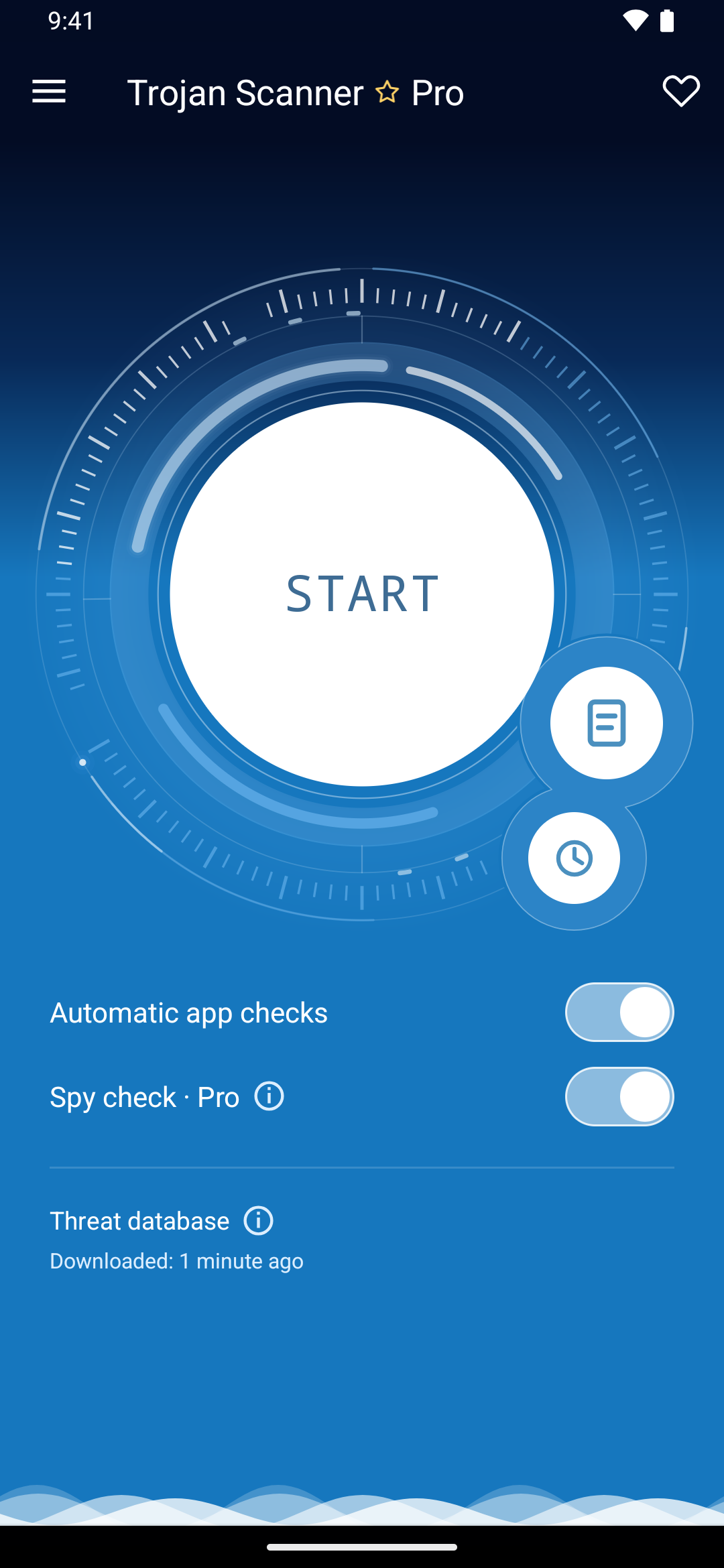
This app check addresses software installed on the Android phone. Review Google Maps sharing, account access, Find Hub and unknown-tracker alerts separately: removing an app does not turn those location mechanisms off.
Signs Spyware May Be Tracking Your Phone
A warm phone or fast battery drain does not prove spyware by itself. Apps, updates, weak signal, old batteries, and background sync can cause the same symptoms. Treat the signs below as a pattern, especially when several appear together.
- Unknown apps, parental-control tools, VPNs, profiles, or device-admin entries appear.
- The phone stays hot or drains battery while idle.
- Mobile data use jumps without a clear reason.
- Security settings, browser settings, or account settings change by themselves.
- You receive login alerts, password-reset emails, or unusual account notifications.
- The camera, microphone, clipboard, or notifications behave unexpectedly.
- A security app flags stalkerware, spyware, risky permissions, or unwanted apps.
If the symptoms look like malware rather than normal sharing, read our guides on how to tell if your phone is hacked, phone virus signs, and spyware symptoms.
What to Do If You Think Someone Is Tracking You
If there is any personal-safety risk, do not confront the suspected person through the same phone. Move to a safe place, use a trusted device, and contact a trusted person or local authorities if needed. Technical cleanup is important, but safety comes first.
- Use a trusted device first. Change your Apple Account and Google Account passwords from a device the other person cannot access.
- Turn on two-step verification. Remove old recovery methods and unknown trusted devices.
- Stop active location sharing. Check Find My, Google Maps, Family Sharing, and any family-safety or parental-control apps.
- Review unknown tracker alerts. Take screenshots of alerts and maps if you may need evidence.
- Update the phone. Install current iOS or Android security updates.
- Remove suspicious apps and profiles. Pay special attention to accessibility, device admin, VPN, and configuration-profile access.
- Check connected accounts. Email, social media, cloud storage, smart home apps, and messaging apps can reveal routines even without direct phone tracking.
- Back up safely. Preserve important photos, messages, and evidence before major cleanup.
- Factory reset if compromise remains likely. Reset only after securing accounts and saving what you need. Restoring every app from an old backup may bring the same unwanted app back.
How to Reduce Location Leakage Day to Day
- Use “While Using” or “Ask Next Time” location permission instead of “Always” when possible.
- Turn off precise location for apps that only need an approximate area.
- Review Find My, Find Hub, Google Maps, family sharing, and social media location sharing every few months.
- Remove apps you do not recognize or no longer use.
- Use strong account passwords and two-step verification.
- Keep Bluetooth and Wi-Fi off when you do not need them in sensitive situations.
- Keep iOS and Android updated so unknown tracker alerts and privacy controls work correctly.
- Be careful with “phone cleaner,” “family tracker,” and free VPN apps from unknown developers.
FAQ
Can someone track my phone if Location Services are off?
Yes. Location Services off reduces normal app access to precise location, but a phone may still reveal rough or recent location through cell towers, Wi-Fi, Bluetooth offline finding, account sharing, and spyware.
Can my phone be tracked if it is powered off?
Usually there is no live cellular, Wi-Fi, or GPS tracking after a phone is fully powered off. However, some supported devices may still show a last known location or limited offline-finding location if those features were enabled before shutdown.
Does Airplane Mode stop phone tracking?
Airplane Mode reduces live network signals, but it is not a complete privacy solution. Wi-Fi or Bluetooth may be re-enabled manually, offline-finding features may behave differently by device, and account history or last-known locations may still exist.
Can spyware track location without permission?
Spyware often tries to get permission indirectly by abusing accessibility services, device admin rights, profiles, VPN access, account access, or social engineering. That is why permission checks and account security checks both matter.
How do I know if my location is being shared?
On iPhone, check Find My, Share My Location, Safety Check, and Apple Account devices. On Android, check Google Maps location sharing, Find Hub, Google account sessions, app permissions, and unknown tracker alerts.
References
- Apple Support. “How to turn on Find My on your iPhone, iPad, or Mac.” Apple, updated 2026, accessed June 11, 2026. https://support.apple.com/en-us/102648
- Apple Support. “Safety Check for an iPhone with iOS 16 or later.” Apple Personal Safety User Guide, accessed June 11, 2026. https://support.apple.com/guide/personal-safety/safety-check-iphone-ios-16-ips2aad835e1/web
- Google Android Help. “Be ready to find a lost Android device.” Google Help, accessed June 11, 2026. https://support.google.com/android/answer/3265955?hl=en
- Google Android Help. “Find unknown trackers.” Google Help, accessed June 11, 2026. https://support.google.com/android/answer/13658562?hl=en