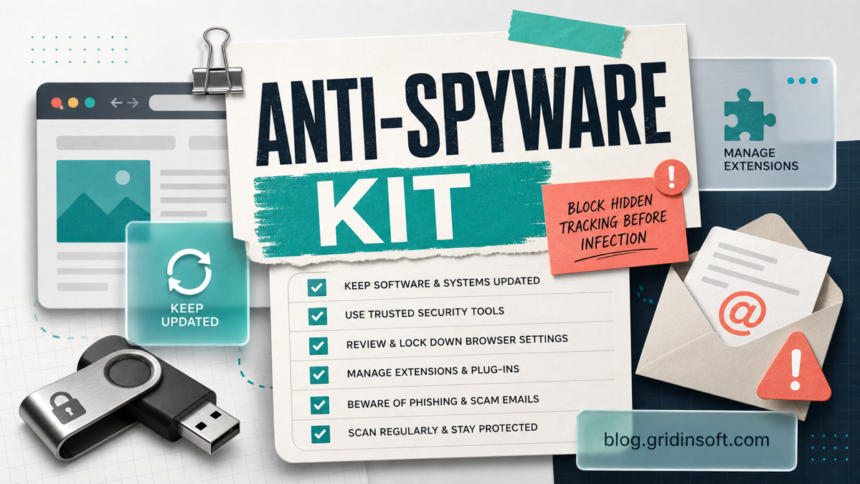
Good anti-spyware protection in 2026 is not one setting or one scanner. The practical approach is to block risky installers, keep browsers and extensions under control, update software quickly, use strong account protection, and run a full scan when something looks wrong. These anti-spyware tips are written for normal Windows users who want fewer infections, fewer stolen sessions, and fewer “I clicked something suspicious” moments.
What Anti-Spyware Means in 2026
Spyware is a type of malware that collects data without clear consent. It may record keystrokes, steal saved browser sessions, watch clipboard content, redirect searches, collect screenshots, or help an attacker access accounts. Modern anti-spyware protection is therefore a mix of habits, browser hygiene, operating-system security, and malware scanning.
If you already see symptoms such as disabled security tools, strange network activity, or account alerts, start with our spyware symptoms checklist before treating this as a prevention-only problem.
9 Anti-Spyware Tips That Actually Reduce Risk
1. Install software only from trusted sources
Cracks, keygens, fake installers, cheat tools, and “free premium” downloads are some of the easiest spyware delivery paths. When possible, download apps from the vendor site, Microsoft Store, or another source you can verify. Avoid download pages that show several fake buttons or force a separate installer wrapper.
2. Slow down on freeware installers
Bundled installers often hide browser extensions, tracking components, or unwanted apps behind “recommended” choices. Use custom installation, read each screen, and decline optional offers. If an installer will not let you skip extras, do not continue.
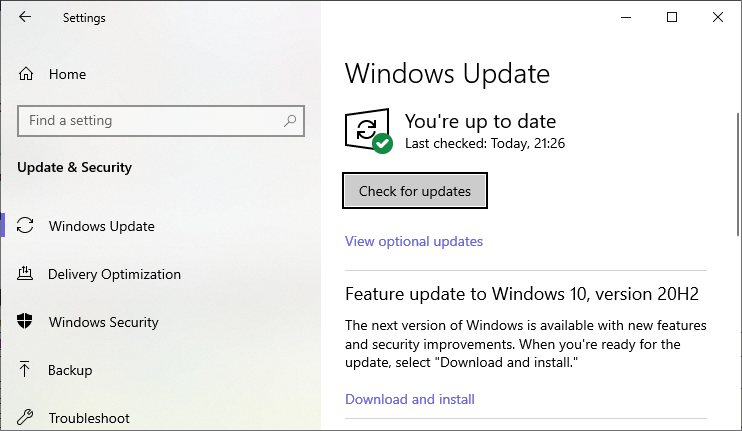
3. Keep Windows, browsers, and document apps updated
Spyware does not always need a user to run a suspicious file. Attackers also use browser, PDF reader, Office, archive-tool, and driver vulnerabilities. Enable automatic updates for Windows and your main browser, then update high-risk apps such as PDF readers, archive tools, password managers, and remote-access software.
4. Audit browser extensions every month
Extensions can read pages, modify requests, redirect searches, or capture sensitive form data when they are abused. Remove extensions you no longer use, avoid unknown coupon/search/PDF converters, and be careful with extensions that ask to read and change data on every website.
5. Treat pop-ups and fake alerts as hostile
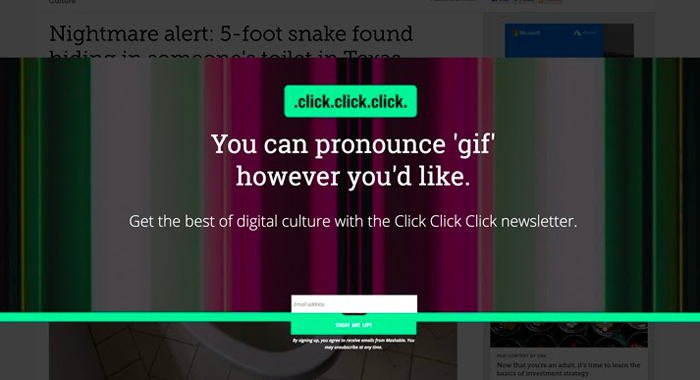
Spyware often arrives through fake security warnings, fake browser updates, fake video codecs, or scam pages that claim your computer is infected. Close the browser tab, do not call phone numbers shown in alerts, and do not install anything pushed by a pop-up.
6. Use MFA and a password manager
Anti-spyware is also account protection. If spyware steals one password, MFA can stop some account takeovers. A password manager helps you use unique passwords so one stolen login does not unlock every account. For email, banking, work, and cloud storage, review active sessions regularly.
7. Disable USB autorun and avoid unknown drives
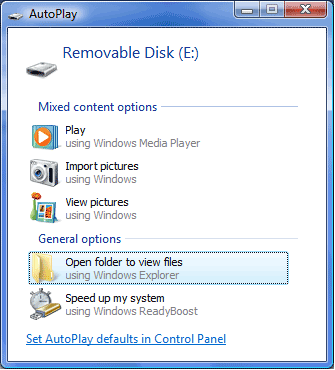
Windows is safer than it used to be, but removable media is still risky. Do not open unknown USB drives, do not run scripts or installers from them, and scan external drives before copying files. In work environments, use device-control policies when available.
8. Run regular scans and scan after risky events
Real-time protection is useful, but it does not replace manual checks after risky downloads, fake update pages, unexpected archive files, or suspicious email attachments. Update the scanner first, then run a full scan. If the security tool is blocked, try Safe Mode with Networking and scan again.
9. Keep backups that spyware cannot rewrite
Backups are not only for ransomware. If spyware steals credentials or damages the system during cleanup, a clean backup gives you a safer recovery path. Keep one backup disconnected or protected by versioning, and do not restore unknown installers, cracks, scripts, or browser profile folders after a cleanup.
What to Do After a Suspicious Click
- Disconnect from the site or close the tab without installing anything else.
- Do not log in to email, banking, work, or password-manager accounts from that device.
- Update your security tool and run a full scan.
- Review recent downloads, browser extensions, notification permissions, and startup apps.
- Change important passwords from a clean device if you entered credentials after the click.
- Watch for new sign-ins, forwarding rules, payment attempts, or MFA prompts.
After uninstalling the suspicious app or deleting the visible threat, use Gridinsoft Anti-Malware to check hidden files, startup entries, scheduled tasks, bundled apps, browser changes, and other persistence points that can restore malware.
Download Anti-MalwareAnti-Spyware Checklist
- Only install apps from trusted sources.
- Use custom install and reject bundled offers.
- Keep Windows, browsers, and high-risk apps updated.
- Remove browser extensions you do not actively use.
- Block suspicious notification permissions.
- Use unique passwords and MFA for key accounts.
- Scan after risky downloads or fake update pages.
- Keep a backup that is not always connected.
FAQ
Do I need a separate anti-spyware tool?
You need reliable malware protection that can detect spyware, browser hijackers, stealers, and unwanted apps. Some users rely on built-in protection plus safer habits; higher-risk users should add a trusted second-opinion scan after suspicious events.
Can browser extensions be spyware?
Yes. A malicious or sold extension can read pages, inject ads, redirect searches, or collect data. Remove extensions you do not recognize, especially if they request access to all websites.
Are pop-up virus warnings real?
Most browser pop-up warnings that demand a phone call or a download are scams. Close the tab and scan with your installed security tool instead of following the pop-up instructions.
How often should I scan for spyware?
Run real-time protection continuously and do a full scan after risky downloads, fake update pages, suspicious email attachments, or unexplained account alerts. A monthly full scan is a reasonable routine for many home PCs.
References
- Cybersecurity and Infrastructure Security Agency. “Secure Our World.” CISA, accessed June 4, 2026. https://www.cisa.gov/secure-our-world
- Federal Trade Commission. “Malware: How To Protect Against, Detect, and Remove It.” FTC Consumer Advice, accessed June 4, 2026. https://consumer.ftc.gov/articles/malware-how-protect-against-detect-and-remove-it
- Microsoft Learn. “Microsoft Defender SmartScreen overview.” Microsoft, accessed June 4, 2026. https://learn.microsoft.com/en-us/windows/security/operating-system-security/virus-and-threat-protection/microsoft-defender-smartscreen/