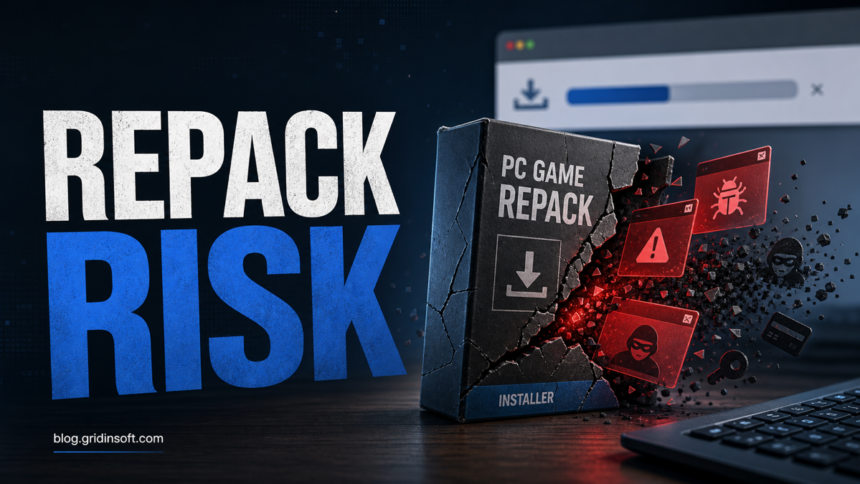
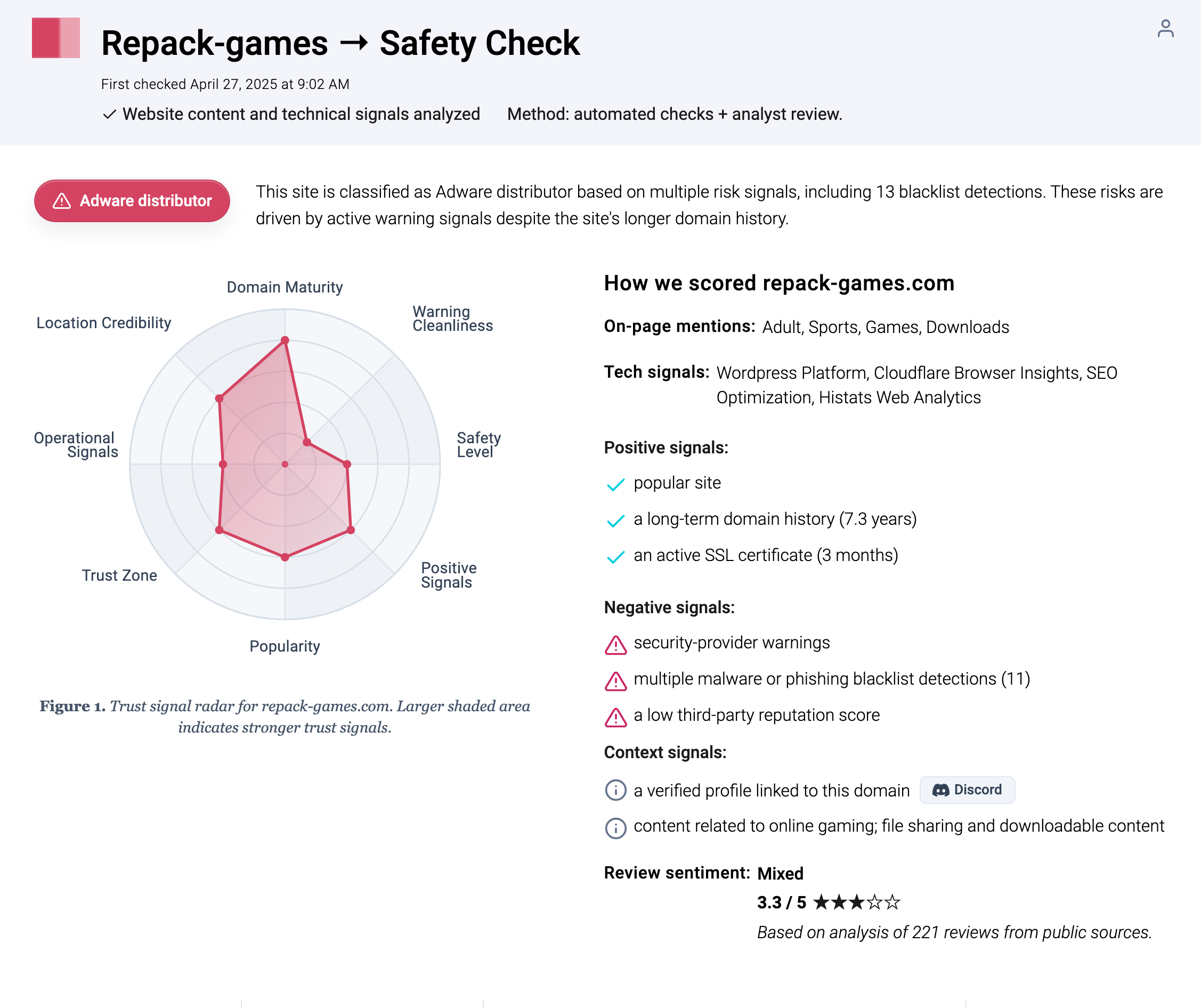
Repack-Games.com is not a site I would treat as safe for Windows downloads. Treat downloads and installers from the chain as untrusted; a clean scan alone cannot authenticate a modified game package. On October 1, 2026, the Gridinsoft Website Reputation Checker report showed a 61/100 score and external security-provider warnings. That domain-level rating does not establish whether a particular archive or installer is safe, and it does not prove that every file is infected.
The biggest risk is the download chain. Repack and cracked-game pages often mix the main archive with ads, fake download buttons, redirect hosts, browser prompts, and installers that ask users to weaken security. If you only visited the page, block it and close it. If you downloaded or ran a file, check Windows startup entries, browser changes, account sessions, and security-tool alerts before assuming the PC is clean.
Quick Verdict: Is Repack-Games.com Safe?
Treat the download chain as risky even when a domain reputation score changes. Check what you actually downloaded and whether anything ran: a website rating is not a verdict on your copy of an installer. The practical danger is that one click may not download the file you think it downloaded.
| Situation | Risk and what to do |
|---|---|
| You only opened a Repack-Games.com page. | Close it, block notifications if prompted, and avoid clicking mirrored download buttons. |
| You downloaded an archive but did not run anything. | Delete it or scan the archive and the extracted folder before opening any EXE, script, or setup file. |
| You ran a setup, crack, patcher, or launcher. | Run a full Windows scan, review the results, and check again after a restart. Keep the installer quarantined. |
| You saw account alerts after installing a game. | Use a clean device now to change affected passwords and revoke sessions. Clean the affected PC before signing in there again. |
The same checklist applies when the concern is another cracked-game domain: our GameDrive.org safety guide, FitGirl Repack safety guide, and DODI Repacks safety guide use the same cautious split between the site, the redirect chain, and the file that actually ran.
Why Repack-Game Downloads Are Risky
A repack is already a modified software package. The installer may unpack files, replace executables, run helper scripts, patch DLLs, or ask for antivirus exclusions. That behavior gives malware and unwanted apps a convenient place to hide because the user expects warnings and unusual file changes.
Microsoft warns that malware can arrive bundled with other software from third-party sites or peer-to-peer networks, including downloads that install extra unwanted software or additional threats after the first infection [2]. That is the correct frame for this topic: not every repack is automatically a confirmed trojan, but the install path is high-risk.
Red Flags Before You Run Anything
- The download button opens a different host, mirror, shortener, or archive name than expected.
- The page asks you to disable Microsoft Defender, SmartScreen, browser warnings, or real-time protection.
- The archive contains extra setup helpers, password-protected executables, scripts, or unknown DLLs.
- The installer wants administrator rights for a simple game launch.
- Browser tabs, ads, or fake update prompts appear during the download.
- The file is detected as adware, PUA, trojan, loader, miner, or stealer by more than one security engine.
If You Downloaded A File From Repack-Games.com
- Do not add antivirus exclusions. If the site or a comment says the game needs an exclusion, treat that as a warning sign, not setup help.
- Keep the archive closed until it is scanned. Scan the original archive and the extracted folder. Pay attention to executable files, scripts, DLLs, and patchers.
- Check the file name and source chain. A game archive that came through an unrelated host, fake button, or renamed installer should not be trusted.
- Scan before running the download. Gridinsoft Anti-Malware can check the downloaded files for adware, PUA, loaders, miners, and stealers. If a setup, crack, or script already ran, follow the full-system cleanup steps below.
- Delete suspicious downloads before testing again. Do not keep several failed installers in Downloads or Temp; they make later cleanup harder.
If You Already Ran The Installer
Stop running the setup, crack, patcher, or launcher, and leave detected files quarantined. A security tool may remove the visible installer while a loader, scheduled task, service, browser change, exclusion, or bundled module remains and recreates symptoms. Gridinsoft Anti-Malware can check the affected Windows PC for these threats and leftovers.
Cracks, repacks, and activators can add Defender exclusions, startup tasks, services, browser changes, stealers, or miners outside the folder you meant to install. Scan for those changes before trusting the PC.
Download for Windows- Update and run a full scan. Download Gridinsoft Anti-Malware for Windows using the button above, install it, update its detection database, and choose a full system scan. Include the original download and extracted game folder; scanning only the quarantined EXE can miss other changes.
- Review the detections before cleanup. Note the detection names, file paths, and any associated startup entries or tasks. Apply the recommended cleanup to detected threats. Do not restore a flagged crack or add an exclusion just to launch the game.
- Restart Windows after cleanup. Complete any restart requested by the scanner. Then check whether the unwanted tabs, new startup helper, or security alert returns without reopening the game or installer.
- Scan again and compare the evidence. A new alert for the same path or a recreated file after restart needs further investigation. Compare timestamps and paths with the earlier result so an old quarantine entry is not mistaken for a new infection. Save the scan report if the detection returns; a clean scan does not prove that passwords or sessions were never stolen.
If an alert or symptom returns, use the scan report to narrow these checks. An unfamiliar name alone is not a reason to delete a Windows task or service:
- Startup apps and Run keys: look for random names, game-related helpers, unknown publishers, or AppData/Temp paths.
- Task Scheduler: inspect recently created tasks that launch
powershell.exe,cmd.exe,wscript.exe, browsers, or files from user-writable folders. - Browser state: remove new extensions, search changes, pop-up permissions, and suspicious notification senders.
- Security alerts: do not restore quarantined files just to make the game work.
- Network and accounts: watch for login alerts, new sessions, email rules, Discord/Steam account changes, and browser-session theft symptoms.
If the alert or suspicious behavior started after a game, mod, launcher, or crack, use the more detailed infostealer after downloading a game or mod checklist. For broader context on cracked-game risk, compare this exact-domain case with our guide on why cracked games are unsafe and the HackTool:Win32/Keygen cleanup guide.
When To Treat It As Stealer Risk
Do not panic just because you visited the page. Escalate to stealer-risk cleanup when one of these happened:
- you ran an EXE, patcher, crack, launcher, or script from the download;
- your browser, Discord, Steam, Epic, email, or social accounts show new logins;
- security software reports a loader, stealer, miner, or trojan, not just a generic web warning;
- the installer asked for exclusions or disabled security controls;
- password manager, browser cookies, or saved sessions were active during the suspicious install.
In that higher-risk case, use a separate clean device to change affected passwords, revoke sessions, review email forwarding rules, reset game-store tokens where available, and enable MFA. You do not need to wait for the scan on the affected PC to finish before securing accounts from that clean device. Keep those accounts signed out on the affected PC until cleanup and the restart check are complete.
Remove Browser Pop-Ups And Redirects
If the problem is pop-ups rather than a Windows infection, start in the browser. Remove unfamiliar notification permissions, extensions, search providers, and startup pages. A fake download button can leave you with notification spam or a hijacker even if the game archive was never installed.
If a website keeps showing unwanted pop-ups, you likely granted it permission to send notifications. To stop them, you need to revoke that permission in your browser settings.
- Copy and paste this into the address bar:
chrome://settings/content/notifications - Scroll down to the Allowed to send notifications list.
- Find the suspicious site.
- Click the three dots (...) next to it and select Remove (or Block).
- Open Safari and go to Settings (or Preferences).
- Click the Websites tab and select Notifications on the left.
- Find the suspicious site in the list on the right.
- Select it and click Remove (or change "Allow" to "Deny").
- Copy and paste this into the address bar:
about:preferences#privacy - Scroll down to Permissions and click Settings... next to Notifications.
- Type the suspicious site in the search bar or find it in the list.
- Select the site and click Remove Website.
- Copy and paste this into the address bar:
edge://settings/content/notifications - Look under the Allow section.
- Find the suspicious site.
- Click the three dots (...) next to it and select Remove (or Block).
- Copy and paste this into the address bar:
brave://settings/content/notifications - Scroll to the Allowed to send notifications list.
- Find the suspicious site.
- Click the three dots (...) and select Remove (or Block).
- Copy and paste this into the address bar:
opera://settings/content/notifications - Check the Allowed to send notifications list.
- Find the suspicious site.
- Click the three dots next to it and select Remove.
- Launch Chrome.
- Click the three dots (...) in the top right corner.
- Select Extensions > Manage Extensions.
- Click Remove next to the extension you want to delete.
Quick Access: Type chrome://extensions/ in the address bar.
- Open Safari.
- In the menu bar, click Safari and select Settings (or Preferences).
- Click on the Extensions tab.
- Select the extension and click Uninstall.
- Click the menu button, select Add-ons and themes.
- Go to the Extensions tab.
- Click the three dots (...) next to the extension and select Remove.
Quick Access: Type about:addons in the address bar.
- Launch Microsoft Edge.
- Click the three dots (...) in the top right corner.
- Select Extensions.
- Find the extension and click Remove.
Quick Access: Type edge://extensions/ in the address bar.
- Launch Brave browser.
- Click the menu icon > Extensions.
- Find the extension and click Remove.
Quick Access: Type brave://extensions/ in the address bar.
- Launch Opera.
- Click the Opera logo in the top left corner.
- Select Extensions > Extensions.
- Click the X or Remove button next to the extension.
Quick Access: Type opera://extensions/ in the address bar.
What Not To Do
- Do not disable Defender, SmartScreen, or browser download warnings to satisfy a repack installer.
- Do not trust comments that tell you a password-protected EXE is normal.
- Do not install extra “fixers” or codec packs from pop-ups opened during the download.
- Do not change passwords on the same Windows profile before cleanup if you ran a suspicious file.
- Do not keep using the same browser session after suspected cookie theft.
Safer Options For Games
The safest option is to avoid cracked-game download sites entirely and use official stores, publisher pages, demos, free weekends, subscription catalogs, and legitimate free-to-play releases. That advice is not only about copyright. It also removes the need to trust modified installers from download chains you cannot audit.
For another exact-brand game-download verdict, see the Gogunlocked.com safety check, especially if a downloaded archive, crack, or launcher already ran on the PC.
FAQ
Is Repack-Games.com a virus?
The domain is a website, not a Windows virus by itself. The risk comes from downloads, redirects, adware prompts, fake buttons, and modified installers. Treat files from the chain as untrusted until they are scanned.
Can I get infected just by visiting Repack-Games.com?
Most users are not infected merely by looking at a page, but malicious ads, browser prompts, fake updates, and unsafe downloads can still create risk. If you did not click downloads or allow notifications, close the page and avoid returning.
What should I scan first?
Scan the downloaded archive, the extracted folder, and any executable or script you ran. Then run a full system scan if the installer executed, security tools showed alerts, or browser/account symptoms appeared.
Should I change passwords after running a repack installer?
Change passwords from a clean device if you ran a suspicious installer and saw account alerts, stealer detections, disabled security tools, or unusual browser/session behavior. Keep those accounts signed out on the affected PC until it has been cleaned and checked after a restart.
Why do cracked games trigger antivirus alerts?
Some alerts come from patching behavior, packed files, or modified executables. Others are real malware. Do not assume a detection is harmless just because a forum says cracks often trigger false positives.
References
- Gridinsoft. “Repack-games.com Reputation Check.” Gridinsoft Website Reputation Checker, checked October 1, 2026, accessed October 1, 2026. https://gridinsoft.com/online-virus-scanner/url/repack_games-com
- Microsoft Support. “How malware can infect your PC.” Microsoft, accessed October 1, 2026. https://support.microsoft.com/en-us/windows/how-malware-can-infect-your-pc-872bf025-623d-735d-1033-ea4d456fb76b