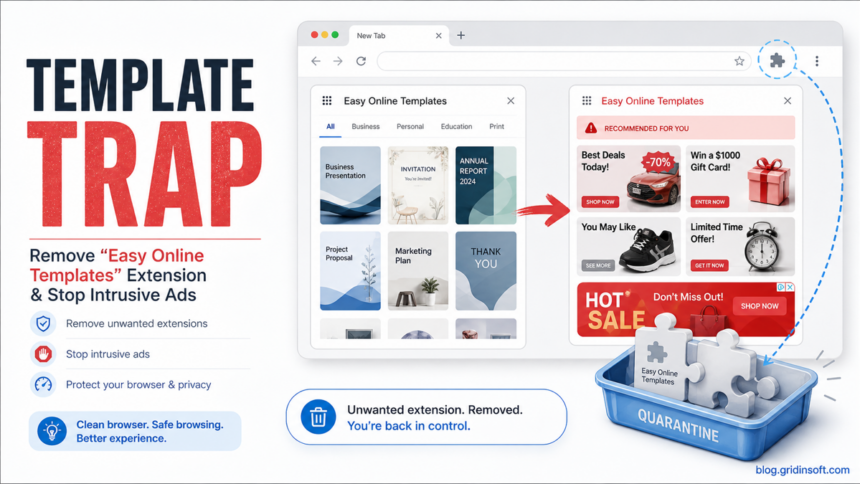
Easy Online Templates adware is best treated as a potentially unwanted browser-extension problem, not as a classic self-replicating virus. If the extension appeared after a bundled install, started showing sponsored cards, changed browser behavior, or keeps coming back after removal, remove the extension first, check browser sync and notification permissions, then scan Windows for the app or task that may be restoring it.
The name can also be confused with ordinary online-template websites. The cleanup steps below are for the browser extension and the related easyonlinetemplates.net activity, especially when the install was not clearly requested or the browser starts showing ads and redirects.
What Is Easy Online Templates?
Easy Online Templates is presented as a template-finding browser extension. Public extension-index data lists the Chrome extension ID hkbkibopiobmhghfjhniplljakcjkhpp, an unlisted Chrome Web Store status, and a low review footprint. That does not prove every installation is malware, but it is enough to treat unexpected installs, intrusive ads, or redirect behavior as a PUA/adware risk.
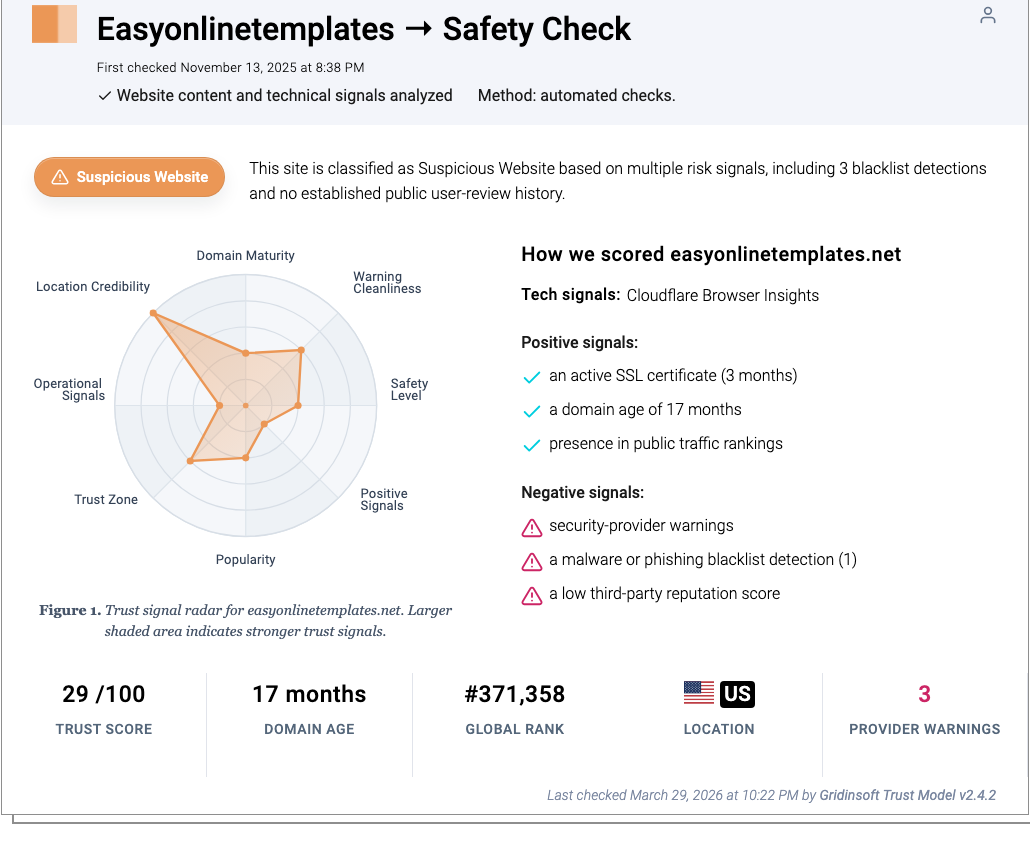
Gridinsoft also tracks the related domain easyonlinetemplates.net as a suspicious website. The current Website Reputation Checker report shows a 29/100 trust score, a suspicious verdict, provider warnings, and blacklist-related signals. Use that as a risk signal for the domain, while judging the browser extension by what it actually does on your device.
Signs The Extension Is Causing The Ads
- Ads, coupons, “recommended for you” cards, or shopping panels appear on pages that normally do not show them.
- Chrome, Edge, or Firefox opens a template/search page when you create a new tab.
- The extension returns after you remove it, especially after signing back into browser sync.
- Your search engine, startup page, or notification permissions change without clear consent.
- The browser says it is managed by your organization on a personal computer.
- A security tool reports adware, PUA, browser modifier, or blocked outbound traffic after the extension appears.
How To Remove Easy Online Templates
- Remove the extension from each browser. In Chrome, open
chrome://extensions; in Edge, openedge://extensions; in Firefox, openabout:addons. Remove Easy Online Templates and any template/search/shopping extensions you do not recognize. - Turn off browser sync temporarily. If the extension comes back, sync may be restoring it from another signed-in browser profile. Remove it on every synced device before turning sync back on.
- Reset search, startup, and new-tab settings. Restore your preferred search engine and remove unknown startup URLs. If the setting changes again, continue with the Windows checks below.
- Revoke notification permissions. In Chrome or Edge, search settings for “notifications” and remove easyonlinetemplates.net plus any unknown sites from the Allow list.
- Uninstall companion apps. Open Windows Settings -> Apps and remove recently installed template, PDF, shopping, coupon, browser helper, or “search” apps you did not choose intentionally.
- Check persistence points. Review Startup apps, Task Scheduler, browser shortcuts, and suspicious Run entries if the extension or ads return after reboot.
- Scan the computer. Use Gridinsoft Anti-Malware or another trusted security tool to look for adware leftovers, bundled installers, and browser-policy persistence.
- Launch Chrome.
- Click the three dots (...) in the top right corner.
- Select Extensions > Manage Extensions.
- Click Remove next to the extension you want to delete.
Quick Access: Type chrome://extensions/ in the address bar.
- Open Safari.
- In the menu bar, click Safari and select Settings (or Preferences).
- Click on the Extensions tab.
- Select the extension and click Uninstall.
- Click the menu button, select Add-ons and themes.
- Go to the Extensions tab.
- Click the three dots (...) next to the extension and select Remove.
Quick Access: Type about:addons in the address bar.
- Launch Microsoft Edge.
- Click the three dots (...) in the top right corner.
- Select Extensions.
- Find the extension and click Remove.
Quick Access: Type edge://extensions/ in the address bar.
- Launch Brave browser.
- Click the menu icon > Extensions.
- Find the extension and click Remove.
Quick Access: Type brave://extensions/ in the address bar.
- Launch Opera.
- Click the Opera logo in the top left corner.
- Select Extensions > Extensions.
- Click the X or Remove button next to the extension.
Quick Access: Type opera://extensions/ in the address bar.
Open Extensions/Add-ons again and remove any entry linked to Easy Online Templates or clearly out of place.
If Easy Online Templates keeps showing unwanted pop-ups, you likely granted it permission to send notifications. To stop them, you need to revoke that permission in your browser settings.
- Copy and paste this into the address bar:
chrome://settings/content/notifications - Scroll down to the Allowed to send notifications list.
- Find Easy Online Templates.
- Click the three dots (...) next to it and select Remove (or Block).
- Open Safari and go to Settings (or Preferences).
- Click the Websites tab and select Notifications on the left.
- Find Easy Online Templates in the list on the right.
- Select it and click Remove (or change "Allow" to "Deny").
- Copy and paste this into the address bar:
about:preferences#privacy - Scroll down to Permissions and click Settings... next to Notifications.
- Type Easy Online Templates in the search bar or find it in the list.
- Select the site and click Remove Website.
- Copy and paste this into the address bar:
edge://settings/content/notifications - Look under the Allow section.
- Find Easy Online Templates.
- Click the three dots (...) next to it and select Remove (or Block).
- Copy and paste this into the address bar:
brave://settings/content/notifications - Scroll to the Allowed to send notifications list.
- Find Easy Online Templates.
- Click the three dots (...) and select Remove (or Block).
- Copy and paste this into the address bar:
opera://settings/content/notifications - Check the Allowed to send notifications list.
- Find Easy Online Templates.
- Click the three dots next to it and select Remove.
- Tap on the three dots (...) in the top right corner and Choose Settings.

- Choose Reset and Clean up and Restore settings to their original defaults.

- Tap Reset settings.

Quick Access: Type chrome://settings/reset in the address bar.
- Open Safari.
- In the menu bar, click Safari > Clear History.
- Select all history and click Clear History.
- Go to Safari > Settings (or Preferences).
- Click the Privacy tab and select Manage Website Data... > Remove All.
- In the Advanced tab, check Show features for web developers.
- In the menu bar, select Develop > Empty Caches.
- Launch Brave browser.
- Click the menu icon in the top right corner and select Settings.
- Click Additional settings > Reset settings.
- Tap Restore settings to their original defaults.
- Confirm by clicking Reset settings.
Quick Access: Type brave://settings/reset in the address bar.
- In the upper right corner tap the three-line icon and Choose Help.

- Choose More Troubleshooting Information.

- Choose Refresh Firefox... then Refresh Firefox.

Quick Access: Type about:support and click Refresh Firefox.
- Tap the three dots.

- Choose Settings.

- Tap Reset Settings, then Click Restore settings to their default values.

Quick Access: Type edge://settings/reset in the address bar.
- Launch the Opera browser.
- Click the Opera menu button in the top left corner and select Settings.
- Scroll down to the Advanced section in the left sidebar and click Reset and clean up.
- Click Restore settings to their original defaults.
- Click Reset settings to confirm.
Quick Access: Type opera://settings/reset in the address bar.
After reset, verify that Easy Online Templates is no longer set as your default search engine or homepage.
If Easy Online Templates Keeps Coming Back
When an extension reappears after manual removal, the extension is usually only the visible part. A synced profile, policy key, scheduled task, startup entry, or companion app can reinstall it. Work in this order: disable sync, remove the extension from every browser profile, remove recently installed apps, check for “managed” browser policies, and then scan Windows.
For deeper persistence troubleshooting, use our guide for a browser extension that keeps reinstalling itself. If the symptom is mostly changed search and new-tab redirects, the broader PUA and browser hijacker removal guide explains what else to inspect.
Should You Change Passwords?
Changing passwords is not always necessary just because an unwanted extension was installed. Do it from a clean browser or another device if you signed into accounts while the extension was active, saw unexpected account prompts, installed a bundled executable, or your security scan finds a stealer, loader, or credential-related detection. Start with email, Google/Microsoft accounts, password managers, banking, crypto, and social media.
How To Avoid Similar Template Extensions
- Install extensions only when you understand what browser permissions they request.
- Avoid installers that bundle template tools, coupon tools, search helpers, PDF converters, or browser “enhancers”.
- Be careful with landing pages that push an extension before showing the actual template or document.
- Review extensions monthly and remove anything you no longer use.
- Keep Chrome, Edge, and Firefox updated so removed or policy-violating extensions are more likely to be disabled.
After uninstalling the suspicious app or deleting the visible threat, use Gridinsoft Anti-Malware to check hidden files, startup entries, scheduled tasks, bundled apps, browser changes, and other persistence points that can restore malware.
Download Anti-MalwareFAQ
Is Easy Online Templates a virus?
Usually it should be treated as adware or a potentially unwanted extension unless a security scan identifies a specific malware payload. The practical response is still to remove it, clean browser settings, and scan for bundled components.
Why does Easy Online Templates still show ads after I remove it?
Another extension, notification permission, browser sync, or companion app may still be active. Remove unknown extensions from every browser profile, revoke notifications, disable sync temporarily, and check Windows startup items.
Can I just block easyonlinetemplates.net?
Blocking the domain can reduce redirects, but it does not remove the extension or the app that installed it. Use blocking as a temporary safety step, then clean the browser and scan Windows.
What if Chrome says the browser is managed?
On a personal computer, a managed-browser message can mean a policy was added by software. Remove suspicious apps first, then inspect Chrome or Edge policy entries if the message remains.
References
- Extpose. “Easy Online Templates – hkbkibopiobmhghfjhniplljakcjkhpp.” Extpose extension index, accessed June 5, 2026. https://extpose.com/ext/hkbkibopiobmhghfjhniplljakcjkhpp
- Google Chrome Help. “Install and manage extensions.” Google, accessed June 5, 2026. https://support.google.com/chrome/answer/2664769
- Google Chrome Help. “Remove unwanted ads, pop-ups and malware.” Google, accessed June 5, 2026. https://support.google.com/chrome/answer/2765944
- Microsoft Support. “Add, turn off, or remove extensions in Microsoft Edge.” Microsoft, accessed June 5, 2026. https://support.microsoft.com/en-us/edge/add-turn-off-or-remove-extensions-in-microsoft-edge
- Chrome for Developers. “Deceptive Installation Tactics FAQ.” Google, accessed June 5, 2026. https://developer.chrome.com/docs/webstore/program-policies/deceptive-installation-tactics-faq