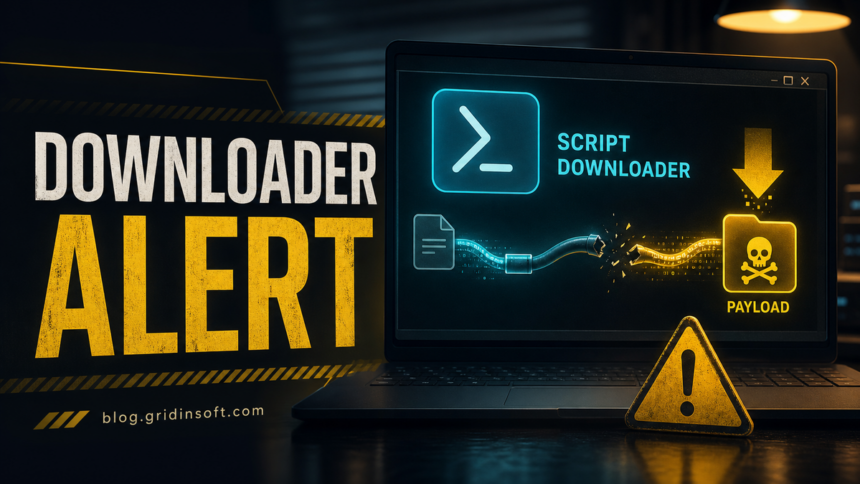
Trojan:Script/Downloader!MSR is a Microsoft Defender detection for a script that tries to download another payload, often through PowerShell, Command Prompt, a browser-launched script, or a fake document/installer. Treat the alert as real until you can prove the file came from a trusted source, because the visible item in Protection History may be only the loader while the downloaded payload, startup entry, scheduled task, or browser change remains elsewhere on the PC.
If Defender shows this detection now, do not restore the item just because the alert names powershell.exe. Keep it quarantined, check the affected path and source, remove the suspicious download or installer, and run a full follow-up scan before opening the file again.
What Trojan:Script/Downloader!MSR Means
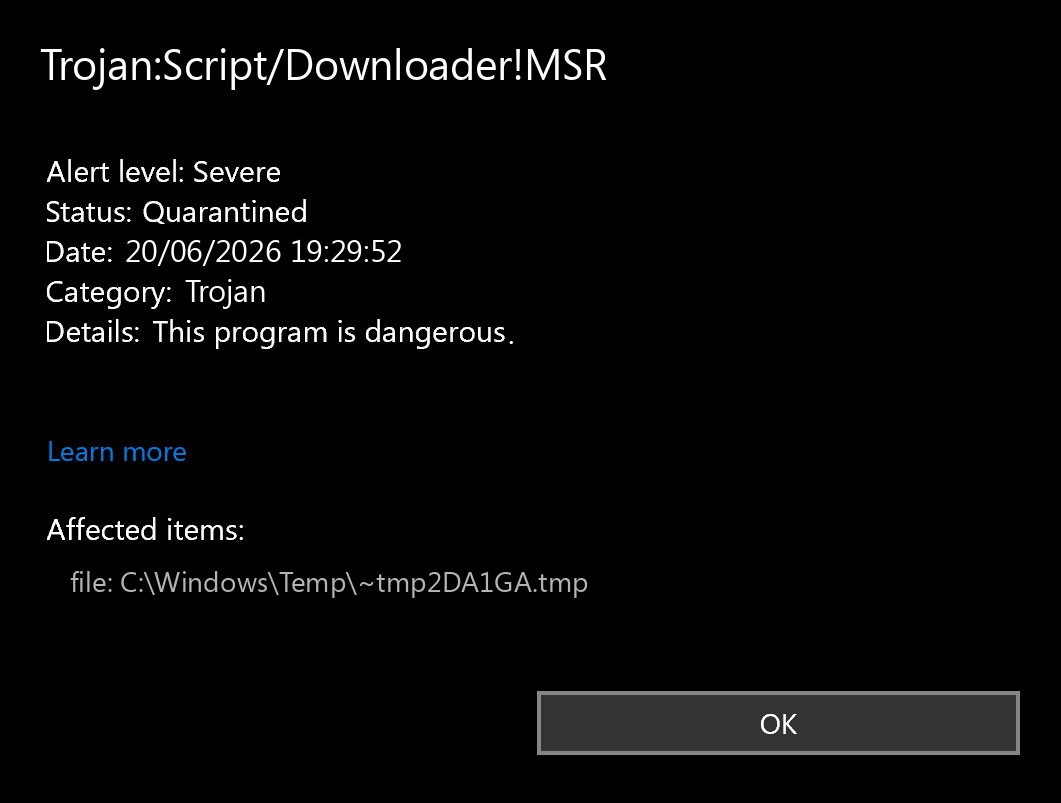
Trojan:Script/Downloader!MSR is not a normal app name. It is a Microsoft Defender malware label for suspicious script behavior: a small script runs, contacts a remote location, and attempts to download or launch another file. That second file can be spyware, a remote-access tool, ransomware, adware, a password stealer, or another loader.
The confusing part is that Defender may name powershell.exe, cmd.exe, wscript.exe, a browser cache file, or a temporary file as the affected item. Those Windows tools can be legitimate, but attackers abuse scripting interpreters to run commands and fetch payloads. MITRE ATT&CK documents PowerShell abuse as a common execution technique because it is built into Windows and can run scripts, commands, and downloaded content [1].
What To Do First
- Leave the item quarantined. Open Windows Security → Virus & threat protection → Protection history and expand the card. Microsoft says Protection History is where Windows Security shows actions Defender has taken and lets you review threat details [2].
- Check where the alert came from. Downloads, browser cache, email attachments, cracks, KMS activators, game mods, fake invoices, and
%TEMP%paths are higher risk than a signed installer from a vendor you intentionally installed. - Remove the original lure. Delete the suspicious archive, installer, document, browser download, or shortcut that started the alert. If it came from a crack, repack, fake update, or unknown attachment, assume the file already ran until scans prove otherwise.
- Scan for leftovers. A downloader can disappear after launching the next stage. Scan for hidden payloads, startup entries, scheduled tasks, browser changes, and bundled apps before you restore or keep anything related to the alert.
Why Defender May Name PowerShell
Many Downloader!MSR cases involve a small script that asks a built-in Windows interpreter to do the work. Defender sees the behavior inside that interpreter and may show powershell.exe or another host process in the affected item. That does not mean PowerShell itself is malware, and it also does not prove the original file is safe.
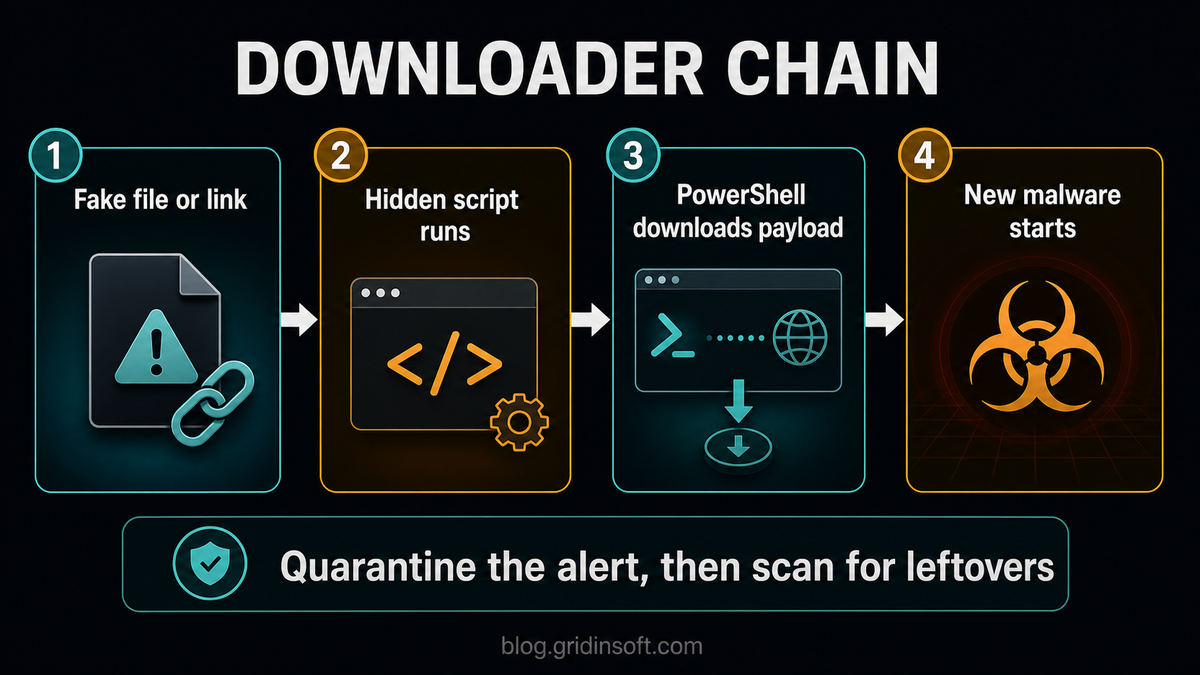
The useful question is not “is PowerShell a virus?” The useful question is “what launched it, from which path, and did anything else start afterward?” A detection tied to Downloads, %TEMP%, browser cache, an archive, or an unknown installer deserves a cleanup pass even if the Defender card says the immediate action was successful.
Common Sources
- Cracked software, KMS activators, keygens, repacks, game mods, trainers, and cheat loaders.
- Fake invoices, shipping documents, “view document” downloads, or scripts hidden inside archives.
- Fake browser, Flash, codec, VPN, security update, or media-player installers.
- Drive-by downloads and browser cache entries after visiting a compromised or malicious page.
- Obfuscated JavaScript, PowerShell, BAT, CMD, VBS, or shortcut files disguised with a normal icon.
False Positive Or Real Malware?
A false positive is possible, but it should be the exception. Microsoft lets users submit files they believe are malware or incorrectly classified for analysis [3]. Before restoring anything, compare the evidence below.
| Situation | Risk and what to do |
|---|---|
| Alert came from a crack, activator, mod, fake update, email attachment, or browser cache | High risk. Keep it quarantined, remove the source file, scan the system, and change important passwords if the file ran. |
Defender names powershell.exe but the source path points to %TEMP%, Downloads, or an archive |
Likely script abuse. Look for what launched PowerShell and scan for downloaded payloads or persistence. |
| A known signed business tool triggered the alert after an update | Possible false positive. Verify the publisher, hash, download source, and submit the file to Microsoft before restoring. |
| The same detection returns after reboot | Something remains. Check startup entries, scheduled tasks, browser extensions, Defender exclusions, and recently installed programs. |
| Other symptoms appeared: pop-ups, new extensions, disabled security settings, unknown processes, account logins | Treat as active compromise. Disconnect from sensitive accounts, scan, remove detections, and rotate passwords from a clean device. |
Removal Checklist
- Open Protection History and write down the detection name, affected path, and action status.
- Delete the original download, archive, shortcut, document, or installer that caused the alert.
- Uninstall suspicious programs installed on the same day as the warning.
- Review browser extensions, notification permissions, homepage/search settings, and recently downloaded files.
- Check Startup Apps and Task Scheduler for unfamiliar entries that point to user folders, temporary folders, scripts, or random names.
- Run a full system scan. If the alert returns, reboot into Safe Mode with Networking or use an offline scan path, then scan again.
- After cleanup, change passwords for accounts used on the PC if the suspicious file actually ran or if you saw browser/session symptoms.
Gridinsoft Anti-Malware is useful at this stage because the visible Defender alert may only be the first part of the incident. A full scan checks detections, hidden files, startup entries, scheduled tasks, bundled apps, browser changes, and persistence points that can recreate the alert after quarantine.
Defender can quarantine the visible file, but repeated alerts may mean a loader, scheduled task, service, browser change, or bundled component is recreating it. Scan the PC before trusting the cleanup.
Scan for hidden leftoversHow To Prevent Another Downloader Alert
- Do not run cracks, keygens, KMS activators, repacks, or unknown game mods on a daily-use Windows profile.
- Keep Microsoft Defender, browser protection, and SmartScreen enabled unless you are testing in an isolated lab.
- Download installers from the vendor’s official site and avoid “download manager” mirrors.
- Keep PowerShell security logging and Windows updates enabled on machines you rely on.
- Back up important files before testing unknown software, and never restore a quarantined script without verifying the source.
FAQ
Is Trojan:Script/Downloader!MSR a virus?
It is a malware detection for downloader behavior. The script itself may be small, but its purpose is to fetch or start another payload, so it should be treated as dangerous until verified.
Why does Defender say powershell.exe is affected?
Attackers often use legitimate Windows interpreters to run malicious commands. Defender may show the interpreter because that is where the behavior happened, while the original script or downloaded file sits in another path.
Can I restore the file if I think it is a false positive?
Only restore it after checking the publisher, source, hash, and context. If the file came from a crack, fake update, browser cache, or unknown email attachment, do not restore it. Submit a trusted file to Microsoft for review if you believe the detection is wrong.
Why does Trojan:Script/Downloader!MSR keep coming back?
A scheduled task, startup entry, browser extension, Defender exclusion, or downloaded payload may still be present. Remove the original source and scan for persistence instead of only dismissing the visible alert.
References
- MITRE ATT&CK. “Command and Scripting Interpreter: PowerShell (T1059.001).” MITRE, accessed June 20, 2026. https://attack.mitre.org/techniques/T1059/001/
- Microsoft Support. “Protection History.” Microsoft, accessed June 20, 2026. https://support.microsoft.com/en-us/windows/protection-history-f1e5fd95-09b4-46d1-b8c7-1059a1e09708
- Microsoft Security Intelligence. “Submit a file for malware analysis.” Microsoft, accessed June 20, 2026. https://www.microsoft.com/en-us/wdsi/filesubmission