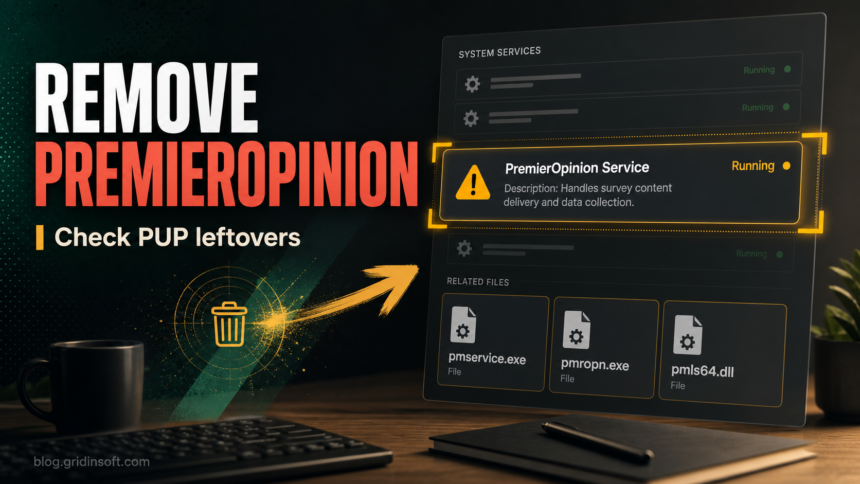
PremierOpinion is a potentially unwanted Windows survey and advertising component, not a required system process. It may run through the PremierOpinion service and files such as pmservice.exe, pmropn.exe, pmropn32.exe, or pmropn64.exe. If it appeared without a clear choice, uninstall the parent app and remove its service and leftovers instead of deleting one file at random.
If the same PC also shows AlsulicsApplication, AlsulicsService.exe, or C:\ProgramData\PluckyPositiveFire\fortimex.exe, treat them as a same-install bundle until cleanup proves otherwise. Check every recently added app and service, scan the full system, reboot, and confirm that none of the components returns.
What Is PremierOpinion on a PC?
PremierOpinion is associated with survey, market-research, and advertising software. Microsoft tracks it as a potentially unwanted application family, which means the main concern is unwanted behavior, bundled installation, persistence, or privacy-impacting activity rather than a single destructive payload.
On affected Windows systems, users may notice one or more of these signs:
- a service or process named like
premieropinionorpmservice.exe; - files such as
pmropn.exe,pmropn32.exe,pmropn64.exe,pmls64.dll,pmph.dll, orsnt.datin an installed-program folder; - pop-ups, survey prompts, or unwanted browser behavior that started after a free installer, cleaner, browser helper, or driver tool was installed;
- PremierOpinion appearing beside other PUPs, browser hijackers, or utilities that were not intentionally installed.
Those names are useful clues, not proof by themselves. A cleanup guide should answer two questions: is PremierOpinion still installed, and is another bundled component restoring it?
Should You Remove PremierOpinion?
Remove PremierOpinion if you did not knowingly install it, if it appears with other unwanted programs, if a security tool flags it as PUA, or if its service returns after you uninstall it. Even when the component is not a password stealer or ransomware, it can still make the PC harder to trust because it may collect usage data, show unwanted prompts, or arrive through a bundle that installed more than one item.
Keep the wording cautious: not every survey component behaves identically, and not every file with a similar name is malicious. The practical risk is that a bundled installer can leave several pieces behind, so you should remove the visible program and then verify the system state.
How To Remove PremierOpinion From Windows
- Disconnect risky activity first. Stop entering passwords or payment details in browsers that are showing unwanted pop-ups, redirects, or unknown extensions.
- Open installed apps. In Windows 11, go to Settings → Apps → Installed apps. In Windows 10, open Control Panel → Programs and Features.
- Uninstall PremierOpinion if listed. Also review recently installed utilities, browser helpers, coupon tools, survey apps, and driver updaters added around the same date.
- Close active processes. Open Task Manager and look for
pmservice.exe,pmropn.exe,pmropn32.exe,pmropn64.exe, or unfamiliar processes running from a PremierOpinion folder. End the task only after confirming the path. - Check Services. Press
Win+R, typeservices.msc, and look for a service named like PremierOpinion orpmservice. If it remains after uninstall, stop it and set it to disabled while you complete cleanup. - Inspect startup locations. Open Task Manager → Startup apps, then check Task Scheduler for entries that launch PremierOpinion,
pmservice.exe, or related files after sign-in. - Review browser changes. Remove unknown extensions, reset notification permissions, and check whether search/new-tab settings were changed. If browser changes return, handle it as a broader PUA bundle.
- Reboot and re-check. After restarting, confirm that the service and files do not reappear.
If PremierOpinion appeared together with a suspicious browser, cleaner, or driver utility, compare the case with the OneStart.ai cleanup guide, Adaware Web Companion PUA guide, and fake driver updater cleanup checklist. These bundled-app cases often need the same pattern: remove the visible app, then check services, scheduled tasks, startup, and browser leftovers.
Found PremierOpinion With AlsulicsApplication or fortimex.exe?
PremierOpinion can be only one visible component in a bundled installation. If pmservice.exe appears alongside AlsulicsApplication, AlsulicsService.exe, or the Altruistik detection name, use the AlsulicsApplication cleanup guide for that second service, its uninstall entry, settings files, and application folder.
Also check Windows Services and C:\ProgramData for a service named fortimexsvc or C:\ProgramData\PluckyPositiveFire\fortimex.exe. Do not assume that removing PremierOpinion alone cleans these separate components. Review apps installed on the same date, remove or quarantine confirmed detections, reboot, then run Quick or Standard verification scans. A clean follow-up scan and no returning service, popup, or startup entry are stronger confirmation than one missing executable.
PremierOpinion File And Service Checklist
| Item to check | Why it matters |
|---|---|
pmservice.exe |
Common service-style artifact to verify in Task Manager, Services, and installed-program folders. |
pmropn.exe / pmropn32.exe / pmropn64.exe |
Executable names to treat as PremierOpinion-related only when the folder, signature, or install context matches. |
pmls64.dll / pmph.dll |
DLL leftovers can remain after a partial uninstall; do not delete from random folders without path verification. |
snt.dat |
Data/config-style file to remove only as part of a confirmed PremierOpinion cleanup, not as a generic Windows file. |
| PremierOpinion service | If it returns after reboot, another installer, scheduled task, or bundled app may still be active. |
Scan For PUP Leftovers
Windows uninstallers often remove the main entry but leave the reason it came back: a scheduled task, startup entry, companion app, browser policy, or bundled module. That is why repeated PremierOpinion detections should be scanned as a PUA/adware cleanup case, especially when the files live under a user profile, temporary installer folder, or unknown vendor directory.
Run a full Gridinsoft Anti-Malware scan after the manual checklist, remove detected PUA/adware items, reboot, and scan again if pmservice.exe or browser changes return. The scan can help find hidden files, startup entries, scheduled tasks, bundled apps, browser changes, and persistence; it cannot recover data already shared with a survey or advertising component.
Browser reset can remove visible symptoms, but adware may keep a desktop app, extension source, notification permission, or startup task that brings pop-ups and redirects back.
Scan for PremierOpinion leftoversWhat Not To Do
- Do not delete files from
C:\WindowsorC:\Program Filesonly because the name looks unfamiliar. Confirm the path and publisher first. - Do not install another unknown “removal tool” from a search result. Use Windows uninstall, trusted security software, and known vendor sources.
- Do not ignore co-installed apps. PremierOpinion may be only one visible part of a bundle.
- Do not keep using a browser profile that still has unknown extensions, notification permissions, or managed-policy changes. Use the browser hijacker removal guide if redirects or settings keep returning.
How To Avoid PremierOpinion-Style Bundles
- Download apps from the vendor’s official site or a trusted store.
- Choose custom installation and reject optional survey tools, browser helpers, and “recommended” utilities.
- Keep Microsoft Defender’s potentially unwanted app blocking enabled.
- Review newly installed apps after running free installers, cracks, driver tools, or browser extensions.
- Keep a clean restore point before testing unfamiliar utilities.
FAQ
Is PremierOpinion a virus?
It is better described as a potentially unwanted application, not a classic file-encrypting or password-stealing virus. Remove it if it arrived through a bundle, runs services you did not approve, or is flagged by your security tool.
Can I just delete pmservice.exe?
No. Delete-or-quarantine only after confirming the path and related PremierOpinion context. If a service, scheduled task, or companion app restores it, deleting one executable will not solve the problem.
Why does PremierOpinion come back after reboot?
A remaining service, startup entry, scheduled task, browser policy, or another bundled app may be restoring it. Re-check installed apps, Services, Task Scheduler, startup entries, and browser settings.
What if PremierOpinion appeared with AlsulicsApplication?
Remove both parent components and check their separate services and folders. Also look for fortimexsvc or C:\ProgramData\PluckyPositiveFire\fortimex.exe if they appeared in the same install window. Reboot and scan again rather than treating one removed process as proof that the bundle is gone.
Should I change passwords after removing PremierOpinion?
Change passwords if you also saw browser hijacking, unknown extensions, suspicious downloads, or account warnings. For a plain PUA cleanup with no credential symptoms, focus first on removing the bundle and verifying that it stays removed.
References
- Microsoft Security Intelligence. “PUA:Win32/PremierOpinion threat description.” Microsoft, accessed July 3, 2026. https://www.microsoft.com/en-us/wdsi/threats/malware-encyclopedia-description?Name=PUA%3AWin32%2FPremierOpinion
- Microsoft Support. “Protect your PC from potentially unwanted applications.” Microsoft, accessed July 3, 2026. https://support.microsoft.com/en-US/security/protect-your-pc-from-potentially-unwanted-applications