Trojan:PowerShell/Boxter!MTB is a Microsoft Defender detection for a PowerShell-related threat. Keep the detected item quarantined and save the alert’s time, status, and affected items before cleaning up. If it returns, compare the new event with the old one: a fresh detection needs investigation, while an old entry in Protection History does not by itself mean the threat is still running. Do not delete powershell.exe or allow the file just to silence the warning.
If you ran an unknown installer, opened a suspicious shortcut, or pasted a command before the alert, disconnect the affected PC from the network and avoid sensitive sign-ins until you have assessed it. A blocked item is useful evidence, but it does not reconstruct everything that happened before the block.
What Trojan:PowerShell/Boxter!MTB tells you
Microsoft has an entry for this exact label, published September 27, 2023. It identifies a threat detected by Defender, but its technical-behavior section supplies no detailed analysis. The name alone therefore cannot tell you which file started it, what it downloaded, or whether it accessed an account. Do not borrow a list of files or registry keys from a different Boxter variant and delete matching-looking items on your PC. [1]
Keep the complete name when asking for help. Additional letters in a label such as Boxter.HGS!MTB identify a different detection entry; they are not a reason to create an entirely different cleanup routine. The event details and the source of the activity still determine the next step.
Also check which security product raised the alert. Heur.BZC.PZQ.Boxter is a Bitdefender label with its own false-positive and restore workflow. Similar spelling does not establish that the two engines found the same file or behavior.
Read the alert before changing anything
Open Windows Security → Virus & threat protection → Protection history, expand the relevant event, and record the full detection name, timestamp, action, and affected items. Microsoft distinguishes an item awaiting action from one already quarantined or blocked; Remediation incomplete means cleanup did not finish. Choose quarantine when the item is untrusted, and follow any outstanding action shown in the event. [2]
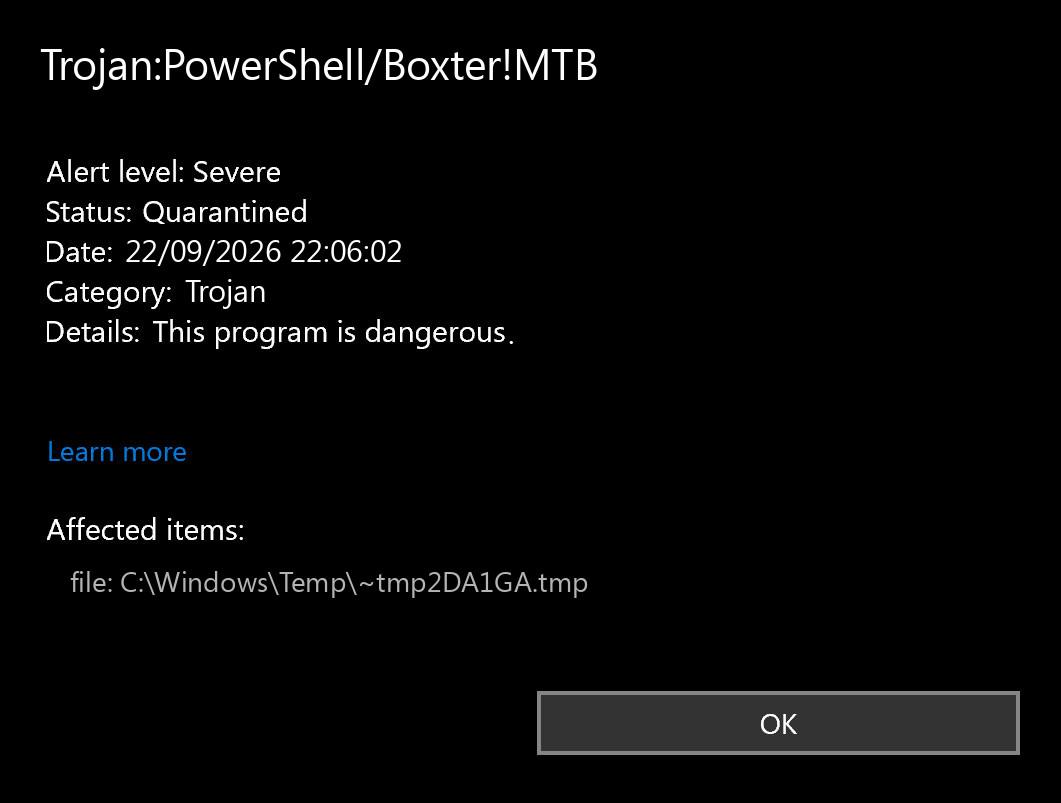
The pictured date and temporary-file path illustrate the alert fields; they are not a Boxter indicator list. Use the affected items from your own event. Save those details privately rather than posting personal paths or complete diagnostic logs in a public comment.
- A blocked or quarantined download you never opened. Leave it isolated, remove the untrusted source download when appropriate, and run a follow-up scan. Do not open it to test the warning.
- A detection inside a browser cache or unopened archive. Record the location. Close the relevant app; remove the untrusted archive or clear that app’s cache through its own controls. Stored content alone does not establish execution. Scan before returning to the source.
- An
amsi:entry or a PowerShell process. Treat this as a lead about scanned script activity. Check what you were opening or installing at that time; do not delete the Windows host executable. - A new alert after every restart or at regular intervals. Compare timestamps and affected items. A launcher, scheduled task, app, or repeated download may be triggering new scans. Use the full cleanup path below.
- You ran the source, or cannot establish what happened. Contain the PC and scan it. If other findings suggest theft or remote access, handle account recovery from a clean device as well.
Why the alert can point to powershell.exe
PowerShell is a legitimate Windows scripting tool. Microsoft’s Antimalware Scan Interface, or AMSI, lets security software inspect script content handled by supported applications, including PowerShell. An AMSI detection can therefore concern code being processed by the host, rather than a malicious replacement of the host executable itself. Microsoft specifically advises against disabling PowerShell as a general response to fileless malware. [3]
For example, seeing C:\Windows\System32\WindowsPowerShell\v1.0\powershell.exe in the event does not tell you which shortcut, installer, task, or application invoked it. The useful question is what launched that activity. Our script-based malware guide explains how scripts can connect a seemingly small file to a larger attack.
Do not paste commands from a forum fix into PowerShell simply because the same detection name appears in the discussion. A cleanup script written for someone else’s logs can remove unrelated settings or files.
Remove the detected threat and check the rest of the PC
Start with containment: leave the item quarantined, close the source download or installer, and stop reopening it. On a work-managed device, give the alert details to your IT team before running a separate cleanup product.
If the source ran or the alert returns with a new timestamp, checking only the visible file is too narrow. A loader, scheduled task, startup entry, or bundled component may remain and trigger the activity again. That is a reason for a full-system scan, not proof that every Boxter alert has the same persistence mechanism.
- Download Gridinsoft Anti-Malware from its official site and install it. If the affected PC is isolated, use a clean device to obtain the installer and follow the product’s connection requirements for updates. Avoid sensitive browsing on the affected PC.
- Update the scanner and run a Full Scan. Let it complete so the review covers more than the originally named file.
- Review the detections and apply cleanup to the malicious items. Retain the report. If a result belongs to a trusted business or development tool, resolve that exact-file question with the vendor or IT team rather than excluding an entire folder.
- Restart when requested, then check the original symptom. Look for newly dated Defender events and any remaining cleanup action. If fresh alerts appear, save their details and follow the recurrence checks below.
Defender can quarantine the visible file, but repeated alerts may mean a loader, scheduled task, service, browser change, or bundled component is recreating it. Scan the PC before trusting the cleanup.
Download Gridinsoft Anti-MalwareYou do not also need to delete tasks and registry entries manually as a compulsory second cleanup routine. Targeted inspection is a fallback when the scan cannot finish, fresh detections continue, or the source remains unexplained. A completed scan helps assess the device; it cannot reverse information already taken from an account.
If Boxter keeps coming back after quarantine
First separate a new event from a remembered event. Compare the timestamp, affected item, and recorded action. Reopening the same historical card is different from receiving a new alert at the next sign-in. Keep the history while troubleshooting; erasing it removes your timeline rather than removing a launcher.
Next, look for a repeatable trigger without rerunning a suspicious file. Does the alert arrive at sign-in, while a particular browser is already open, or when a known application updates? Compare that timing with the scan report and recently installed apps. A cache-only hit needs a different investigation from new PowerShell activity at each logon.
If you or a technician inspect Task Scheduler or Startup Apps, examine the actual target and its relationship to the event. An unfamiliar task name alone is not enough to delete it. Save its details and confirm the source before changing anything. If a trusted application is involved, use its vendor’s support channel; if an unknown launcher keeps returning, seek assisted remediation or a clean reinstall.
Could Trojan:PowerShell/Boxter!MTB be a false positive?
A legitimate script can be misclassified, but a familiar filename or a clean result from another scanner does not settle the question. Keep the item isolated while checking whether it came from the developer’s genuine distribution, matches the expected version, and performs the task you intended. Ask the software vendor and Microsoft to review the exact detection when those checks support a mistake.
Do not restore an unknown download, exclude the whole Downloads folder, or allow PowerShell globally to make the notification disappear. If you already allowed the threat, review the Allowed threats list and remove that allowance unless the file has been verified as safe.
When account recovery or reinstalling Windows matters
The Boxter name alone does not demonstrate password theft. Escalate when you know untrusted code ran, other detections identify a stealer or remote-access tool, security settings changed unexpectedly, or accounts show unexplained activity. From a clean device, revoke affected sessions, change exposed passwords, and review recovery methods and multifactor authentication. The password-stealer recovery guide covers that separate account task.
A clean reinstall is a reasonable recovery choice when repeated remediation fails, unauthorized access cannot be bounded, or you cannot restore confidence in the operating system. Preserve needed documents and evidence first, use trusted installation media, and avoid restoring the same untrusted installer or script. One blocked download with no execution evidence does not automatically call for wiping the PC.
For this alert, the useful finish line is a completed remediation, no new detection during ordinary use, and an understood source or an escalation plan. Keep the original event and scan report so a returning warning can be compared with evidence rather than guessed at.
References
- Microsoft. “Trojan:PowerShell/Boxter!MTB.” Microsoft Security Intelligence, September 27, 2023; accessed September 22, 2026. Threat description.
- Microsoft. “Protection History in the Windows Security App.” Microsoft Support, accessed September 22, 2026. Protection History actions.
- Microsoft. “Anti-malware Scan Interface (AMSI) integration with Microsoft Defender Antivirus.” Microsoft Learn, updated May 26, 2026; accessed September 22, 2026. AMSI and script inspection.