If your Gmail was hacked and now asks an unfamiliar “parent” to approve sign-in, you may be facing unauthorized Google Family Link supervision. Start with Google’s account recovery process, but recognize the roadblock: knowing an old password or cleaning your computer may not remove a parent-approval requirement. Protect your other accounts from a separate trusted device immediately. If recovery stops at that screen, preserve the details and use Google’s Family Link contact route; there is no verified universal bypass or guaranteed recovery.
Why an Adult’s Gmail Can Ask for a Parent
In May 2026, ReversingLabs documented attackers abusing Family Link after gaining access to Google accounts. In the researched scenario, account-age changes and an attacker-controlled parent account turned a takeover into a persistent sign-in barrier. The researchers also encountered parental approval during recovery. This was a reported investigation, not a recovery method tested by Gridinsoft. [1]
The revealing distinction is between knowing a password and having authority to approve access. If Google asks a different account to approve the sign-in, another password reset attempt may return to the same barrier. A Windows reinstall cannot change that server-side relationship.
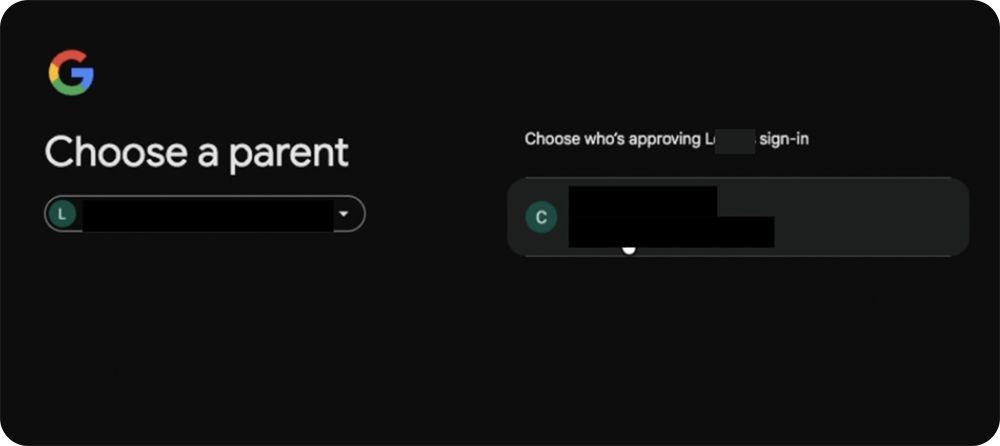
A parental prompt alone does not establish a hack. First check that you selected the correct Google account and that a legitimate family member did not set up supervision. An unfamiliar parent combined with unexpected password, birthday or recovery-detail changes warrants treating the account as compromised.
Family Link also has different account arrangements. Google’s documentation for supervision added to an existing account says that arrangement does not let the parent check or reset its password. Separate child-account management documentation describes password resets and their effects on sign-ins and two-step verification. Do not assume every supervised account has identical controls—or that a generic “remove Family Link” tutorial applies to your lockout. [2] [3]
Choose Your Next Step by What You Can Still Access
You can still open account settings on a trusted device.
Review security activity, unfamiliar devices and recovery methods. Secure the account using the controls still available. If a change requires an unknown parent’s approval, record that exact stopping point.
The password or recovery details changed, but recovery offers questions you can answer.
Continue through Google’s official recovery flow. Give accurate previous details and use a familiar, trusted device where possible.
Sign-in or recovery stops at “Choose a parent” or asks an unknown parent to approve.
Save the screen privately and prepare a Family Link support request. Protect independent services now; do not wait for Gmail to return.
Suspicious software ran on your PC before the account changed.
Stop signing in from that PC. Handle device cleanup separately while you pursue account recovery from a trusted device.
Try the Official Google Recovery Route
Open Google Account recovery directly. Google recommends this route when an intruder changes the password or recovery information, or when you cannot sign in for another reason. It does not promise that the flow will bypass hostile supervision. [4]
Use a device, browser and location you normally use when they are safe. For example, a familiar phone that was not involved in a suspicious Windows download is preferable to entering fresh credentials on the suspect PC. Answer the questions actually presented and supply the most recent password you remember when asked. Google’s recovery tips explain that available questions vary. [5]
If the flow instead asks an unfamiliar parent for approval, note that difference. “Google could not verify ownership” and “a parent must approve” are different obstacles; describe the one you actually reached. Do not delete the account, deliberately change its age again or install a “Family Link bypass” utility as a recovery experiment.
If Parent Approval Blocks Recovery
The official Google For Families email contact form provides a place to describe a Family Link issue and attach the relevant screen. At the time of checking, it asked for the affected supervised account and device details. Its presence is not a promise that Google will accept a particular case, remove supervision or restore access.
Explain that you are the legitimate owner and that the parent relationship was added without authorization. If a form field assumes a legitimate parent, describe the attacker-controlled parent as unknown; do not invent device details or pretend to control that account. Use a safe contact account if the form allows it, and explain which mailbox you can actually access.
Prepare a short, factual record for the official support route:
- The affected account address and when you last had normal access.
- The unexpected changes you observed, distinguishing confirmed changes from suspicions.
- The exact screen that blocks you, with a screenshot if appropriate.
- The recovery route you tried and the result, plus any existing case reference.
- Device and browser details you know; say when information is unavailable.
Keep that record private. Do not put passwords, backup codes, session cookies or identity documents in a community post or send them to someone offering recovery in a direct message. Google’s recovery guidance says it does not request passwords or verification codes through email, calls or messages. Enter those only in the genuine Google sign-in flow. [5]
ReversingLabs identified Family Link support as a possible route but did not test it in the research setup. That is a reason to try an official channel carefully, not evidence of a guaranteed fix or a particular response time. Paying an attacker also does not establish that the supervising account will relinquish control. [1]
Protect Other Accounts While Gmail Is Unavailable
Do this in parallel with recovery. Make a list of important services that use the affected Gmail address for password resets or sign-in. Start with financial services, your password manager, work accounts and accounts that can contact other people in your name.
- Where you still have independent access, replace reused passwords, review active sessions and remove unfamiliar recovery methods.
- Change the contact or recovery address to a secure mailbox you control when the service permits it. Protect that mailbox with a unique password and multifactor authentication.
- If confirmation goes only to the compromised Gmail, use that service’s official account-recovery channel. Do not assume changing a displayed email address changes its sign-in or recovery settings.
- If you use “Sign in with Google,” check the service’s own options before disconnecting it. Establish an independent login first if supported, so you do not lock yourself out.
- Warn contacts through a separate trusted channel if your accounts are sending messages without you.
After Google access returns, review devices, security settings, third-party access and Gmail forwarding, filters and delegation. A working login is the start of the review, not the final check. Google’s compromised-account guide provides the relevant account and Gmail checks. [4]
If a Suspicious Windows Download Was Involved
Do not assume malware solely because a parental screen appeared. If an unfamiliar game, installer or other executable actually ran, however, stop using that PC for sign-ins and check it for malware. Deleting the downloaded file may leave additional components behind. Recurring detections, browser changes or unexpected startup activity justify further investigation.
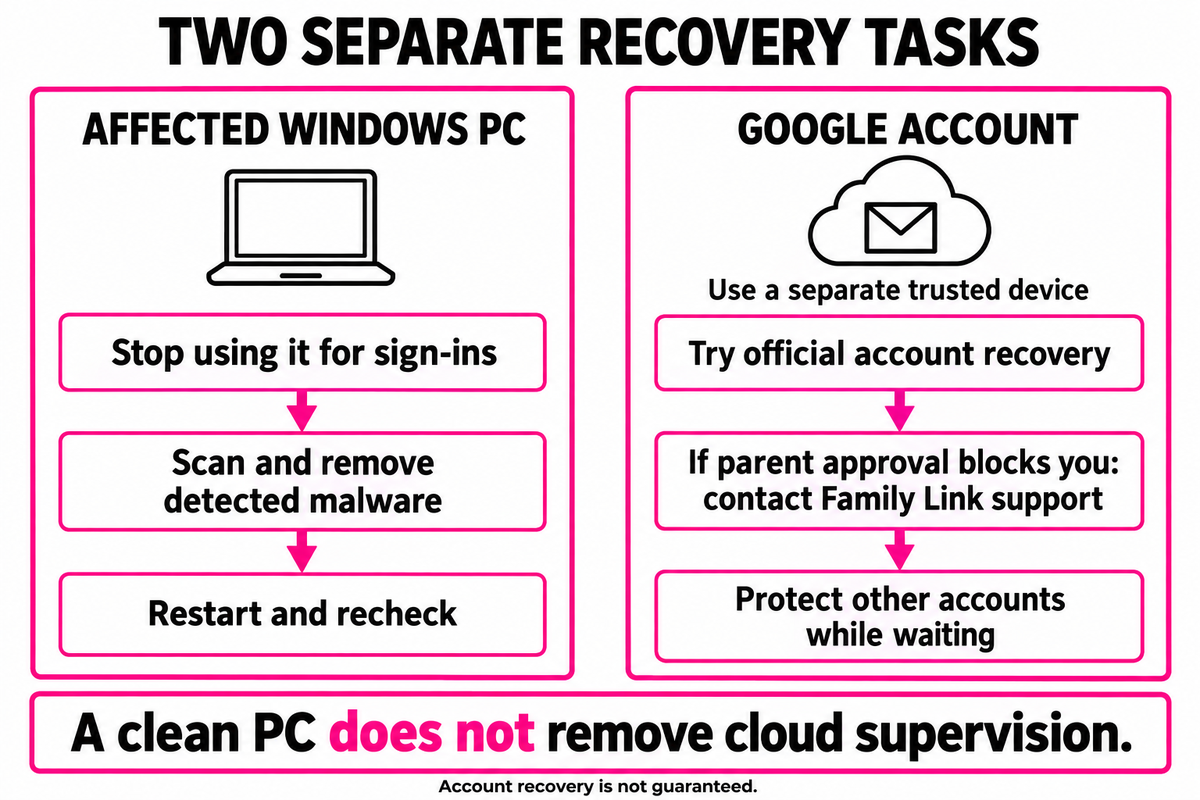
On the affected Windows PC, download and install Gridinsoft Anti-Malware, update its database, run a Full Scan, review the detections and apply the recommended cleanup, then restart and recheck the original symptoms. Manual persistence checks are an optional follow-up if problems remain. Our game or mod infostealer guide covers the full device response.
If suspicious Windows software ran, check for malware and remaining components. Continue Google recovery from a separate trusted device; a scan cannot remove Family Link supervision or recover your mailbox.
Check this PC for malwareIf the incident began with a friend’s request to test a game, the Cronigame Discord game-scam guide explains that lure and the difference between downloading and running a file. A similar message or filename does not identify the same malware.
The practical goal is to regain account control through Google while limiting what an attacker can do elsewhere. Keep account recovery and device cleanup moving separately, and treat any promise of instant paid recovery as a warning sign.
References
- Zaria Vuksan. “Hackers abuse parental controls to hijack Google accounts.” ReversingLabs, May 20, 2026. Research and sign-in screenshots.
- Google. “Add & manage supervision on a current Google Account.” Google For Families Help, accessed October 25, 2026. Added-supervision capabilities.
- Google. “Manage your child’s Google Account with Family Link.” Google For Families Help, accessed October 25, 2026. Child-account management.
- Google. “Secure a hacked or compromised Google Account.” Google Account Help, accessed October 25, 2026. Compromised-account response.
- Google. “Tips to complete account recovery steps.” Google Account Help, accessed October 25, 2026. Recovery details and precautions.