Microsoft Compatibility Telemetry can use high CPU or disk while Windows checks software and device compatibility. The process is usually CompatTelRunner.exe. If the load falls after a background run and the PC becomes responsive again, you may only need to let it finish. If the slowdown returns at every startup, continues through normal work, or coincides with repeated crashes, check the running file and match the timing to Microsoft Compatibility Appraiser in Task Scheduler. Turning off optional diagnostic data is a separate privacy choice; it is not a reliable repair for a stuck appraisal.
Start with the process that is actually busy
Press Ctrl+Shift+Esc to open Task Manager. Sort Processes by CPU, then by Disk. A disk total of 100% does not mean the selected telemetry process accounts for all of it. Note the value on its own row and whether another process is competing for the same drive.
- Microsoft Compatibility Telemetry: right-click it and choose Go to details, where available. Record the executable name and PID, then use Open file location. Check the actual running copy, not a similarly named file found through a search.
- WSAPPX: follow the Microsoft Store app troubleshooting steps. Its update and installation work is a different problem.
- SearchIndexer.exe: use the Windows Search CPU and disk guide to inspect indexing activity.
- The whole PC freezes: if the disk remains saturated after CompatTelRunner exits, broaden the investigation with the computer freezing checklist.
A common Windows location is C:\Windows\System32\CompatTelRunner.exe. In the file’s Properties, inspect its digital signature and verify that it belongs to Microsoft. A familiar filename or a Microsoft-looking description alone does not authenticate a file. An unexpected location, failed signature verification, or an antivirus alert needs the separate file-check branch below.
What Compatibility Telemetry is checking
Windows uses compatibility information about installed software and hardware when assessing updates. Microsoft documents the Compatibility Appraiser separately from the Universal Telemetry Client, also called DiagTrack: one evaluates compatibility state, while the other handles diagnostic-data transmission. The documentation also distinguishes pending restarts and Appraiser run results. That is why changing a sharing preference and repairing a repeating local scan are different actions. [1]
Do not judge the run by a single CPU percentage. A short burst on a fast SSD and prolonged activity on a busy older drive can look very different. More useful questions are whether the work finishes, whether the slowdown follows the same trigger, and whether the same error repeats. There is no universal number of minutes that diagnoses a broken Appraiser on every PC.
Match the slowdown to the Appraiser history
- Note the time the slowdown begins and whether it follows a restart, waking from sleep, or installing an update. Record the process’s CPU/disk values and PID.
- Open Task Scheduler from Start, or run
taskschd.msc. Browse to Task Scheduler Library → Microsoft → Windows → Application Experience. Select Microsoft Compatibility Appraiser if it is present. - Read Status, Last Run Time, Last Run Result, and the task’s History tab. If history is disabled, choose Enable All Tasks History in the Actions pane and observe the next occurrence; this will not recreate missing past events.
- Match the task’s start and completion events to the slowdown. Check Actions to see what the task launches, but do not replace its executable or arguments with a command copied from another Windows build.
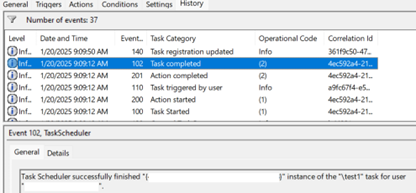
Microsoft’s Task Scheduler guidance uses History to distinguish a task that never starts from one that starts and remains running. Its sample below illustrates the controls; it is not evidence that your Compatibility Appraiser completed. [4]
A nonzero result is not automatically a failure
Task Scheduler exposes both error codes and informational status codes. For example, 0x41301 means the task is running, 0x41303 means it has not yet run, and 0x41306 records termination by the user. Copy the exact code and its accompanying message before deciding what it means. A stopped task that you ended yourself is different from an unexplained crash. [3]
Likewise, a successful task return is a result from that scheduled action. It does not, on its own, establish that the PC’s storage is healthy or that every compatibility check succeeded. Microsoft exposes separate Appraiser run-result information for managed-device diagnostics. [1]
Example: one long run versus repeated launches
Suppose you record a slowdown at 09:00. At 09:08 the same PID is still using CPU, and Task Scheduler shows one start event with the task still running. That observation describes one continuing run; it does not yet show a restart loop. Check whether the process is making progress and whether the drive is busy with other work.
Now suppose History instead shows starts at 09:00, 09:04, and 09:08, each followed by the same failure, while Task Manager shows a new process instance. That pattern points toward repeated launches. Record the error and investigate the update or task failure. If the task finished at 09:02 but the machine still freezes at 09:08 without CompatTelRunner running, follow the process or drive that remains busy.
These times illustrate how to interpret your own notes; they are not measured performance limits. Keep a small record of trigger, start/end time, PID, task result, and whether the PC recovered. That gives the next repair a result you can compare.
Repair a recurring slowdown in this order
1. Finish Windows servicing and restart once
Save your work. Check Windows Update for an installation waiting to finish or a restart request. Complete the restart, then allow background work to settle before retesting. Microsoft’s Appraiser documentation specifically recognizes a pending reboot as a condition affecting useful data collection. If the same update keeps failing, keep its KB number and error code: repair that failure rather than repeatedly ending the telemetry process. [1]
If you changed several privacy or debloat settings immediately before the problem started, review the changes you actually made. Restore only a known relevant change using its documented rollback. A bulk reset of tasks, services, or registry settings makes the cause harder to isolate.
2. Separate disk contention from a storage problem
Open Resource Monitor from Start and inspect the Disk tab during the slowdown. Compare the active processes, file activity, and response times. A drive can spend most of its time handling requests without showing a large transfer rate; the useful clue is which processes and files remain active.
If a backup, search index, or app update is running at the same time, let that job complete and compare the next Appraiser run under similar conditions. Keep antivirus protection enabled. If the PC freezes even after the scan finishes, produces storage warnings, or loses access to files, back up accessible important data and investigate drive health before running repeated intensive repairs. Do not treat a filesystem check as a complete hardware-health test.
3. Check Windows system files when failures continue
For recurring Appraiser crashes or other Windows malfunctions, use Microsoft’s repair sequence after updating and restarting. Open Command Prompt as administrator and run the first command. Continue to the second after DISM reports successful completion. [5]
DISM.exe /Online /Cleanup-Image /RestoreHealth
sfc /scannow
If DISM cannot complete or SFC cannot repair files, save the exact error instead of rerunning the commands indefinitely. Seek the repair procedure for that error or ask support with the task timing and Windows build. Do not download a replacement CompatTelRunner.exe from a file-download site.
4. Retest the trigger that caused the problem
Repeat the same startup or sleep/resume pattern that produced the slowdown, with roughly the same apps open. Compare your notes: did the task finish, did the repeated error stop, and did CPU/disk activity settle without you killing the process? Check another comparable occurrence before calling the issue resolved. A quiet Task Manager immediately after ending the task only proves that the current process stopped.
Should you disable Microsoft Compatibility Telemetry?
Use privacy settings for privacy; use the task evidence to diagnose performance. On Windows 11, open Settings → Privacy & security → Diagnostics & feedback and review Send optional diagnostic data. On Windows 10, the corresponding page is under Settings → Privacy → Diagnostics & feedback. Selecting required data still leaves required collection in place. Managed settings may be controlled by your organization. [2]
Disabling the Compatibility Appraiser task prevents its scheduled launches while it remains disabled, but does not repair the reason a run was failing. It also reduces the compatibility information Windows can gather. Do not assume it switches off all telemetry or that the change will survive servicing.
If you are testing a confirmed recurring Appraiser problem on your own unmanaged PC, you can record the task’s current state and temporarily choose Disable for that specific task. Compare the original symptom, then choose Enable again to restore an originally enabled task. Treat an improvement as evidence that scheduled work contributes to the slowdown, not a completed repair. Ask IT on a managed machine, and stop if Windows denies access.
Avoid deleting, renaming, or taking ownership of CompatTelRunner.exe, removing every task in Application Experience, or adding antivirus exclusions for it. Those changes are broader than the diagnosis requires.
If the file or installer is suspicious
If the process runs from an unexpected user-writable folder, its signature cannot be validated, or the slowdown began after an unknown installer, record the full path and any security-tool alert. Keep a quarantined file quarantined while checking it; do not allow it solely because its name resembles a Windows component.
When a suspicious copy returns after removal or reboot, a startup entry, scheduled task, service, or bundled app may be recreating it. A Gridinsoft Anti-Malware scan can check for detections and associated persistence. Review the findings, remove confirmed threats, restart, and check whether the suspicious process returns. High CPU from a legitimate Microsoft-signed appraisal alone is not a reason to buy a cleanup tool.
If the process path is wrong, the name imitates a Windows component, or high CPU started after an unknown installer, scan for hidden miners, services, startup entries, and bundled components.
Scan for malware and leftoversFAQ
Why does CompatTelRunner still run after optional diagnostic data is off?
The optional-data switch changes the diagnostic information you choose to share. It does not promise to stop local compatibility work, and required diagnostic data remains. Check the task timing if performance is the problem.
What if Microsoft Compatibility Appraiser is missing or access is denied?
Do not import a task definition from a random guide or change system permissions. Task names and actions can differ by Windows version and management policy. Confirm the actual executable and Windows build, check for pending updates, and ask your administrator or Microsoft support if the task configuration appears damaged.
References
- Microsoft. “Win32CompatibilityAppraiser CSP.” Microsoft Learn, accessed September 10, 2026. Appraiser configuration and run results.
- Microsoft Support. “Diagnostics, feedback, and privacy in Windows.” Accessed September 10, 2026. Windows diagnostic-data controls.
- Microsoft. “Task Scheduler error and success constants.” Microsoft Learn, updated October 29, 2024; accessed September 10, 2026. Task Scheduler status-code definitions.
- Microsoft. “Troubleshoot issues with scheduled tasks not running.” Microsoft Learn, updated February 12, 2026; accessed September 10, 2026. Task history and execution troubleshooting.
- Microsoft Support. “Using System File Checker in Windows.” Accessed September 10, 2026. DISM and SFC repair sequence.