Securewalle.com pop-ups are reported as fake security-scan windows and recurring browser interruptions. Close the warning without using its scan, download or payment buttons, then identify where it came from: a browser tab, a website notification, or an app that keeps opening the browser. Block the actual sender’s permission or remove the setting that launches the page. A scan animation on a website does not establish that your computer was scanned or infected.
The difficult case is the warning that comes back. An ElevenForum user reported that removing an apparent Securewalle entry from their browser stopped the interruptions, but occasional pop-ups later returned. That report does not identify a verified extension package or prove which component caused the recurrence.[1] It does explain why simply searching Windows for an app named “Securewalle” may miss the source.
Stop the alert at its source
Only a website notification? Block the sender in Chrome or Edge. If the warning is only an open tab, close it without restoring the page. Neither case alone proves that Windows is infected.
Unwanted tabs return after permission cleanup, or you ran an installer from the warning? Use Gridinsoft Anti-Malware to scan Windows for adware and other unwanted software. A remaining app or startup component may reopen the page; you do not need to identify every scheduled task manually before scanning.
Check Windows for unwanted software behind recurring browser interruptions with Gridinsoft Anti-Malware. Review the scan results and apply the appropriate cleanup.
Download Anti-Malware for WindowsAfter downloading: install the app, update its databases, activate the trial if eligible, and run a Full Scan. Review detections, apply cleanup, restart, and check for fresh interruptions without reopening the warning site. If they remain, use the targeted source checks below. Keep legitimate work or school settings with your administrator.
A scan does not confirm that a notification permission was revoked or recover information already submitted. If you granted remote access or entered account or payment details, follow the separate recovery steps as well.
Find out what is showing the Securewalle warning
Read the browser name, sender hostname and time before dismissing the next alert. The large security-company name inside a message can be part of the page design; the sender shown by the browser or operating system is the more useful clue. Check the spelling: securewalle.com is not the same name as “Secure Wallet,” and a redirect may finish on a different hostname.
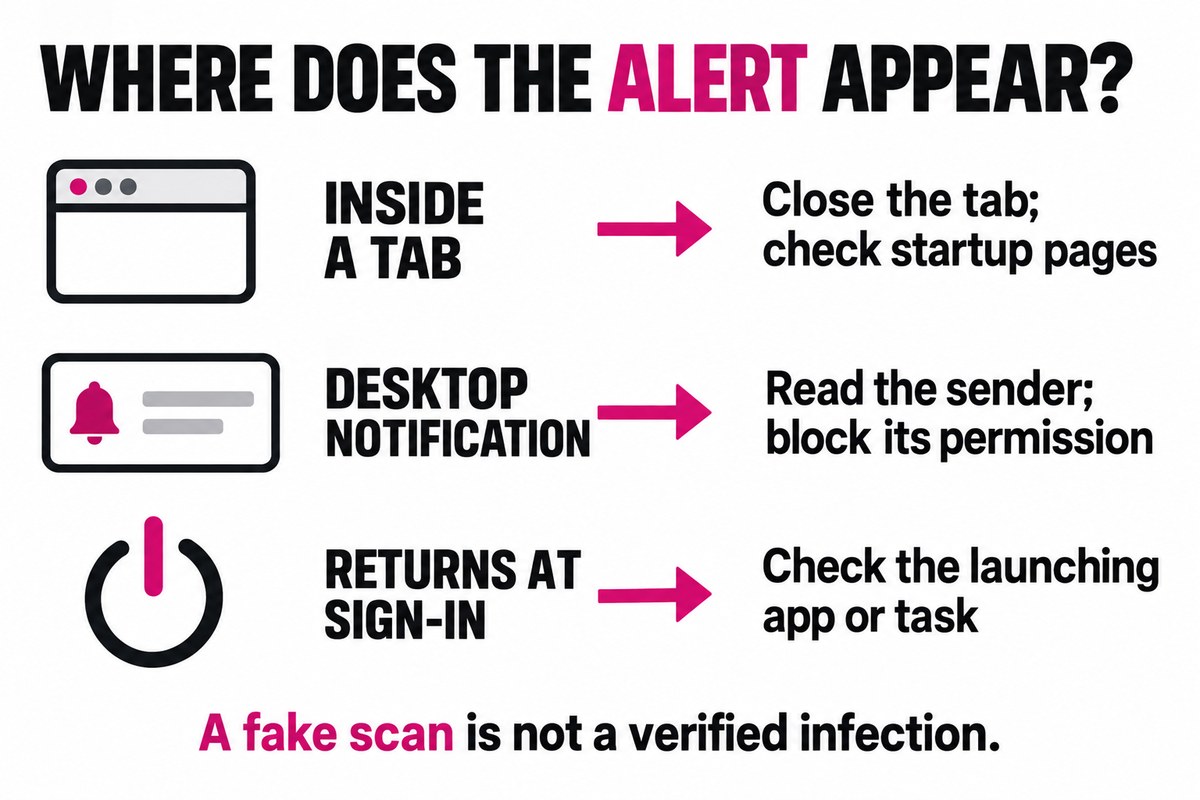
- The scan fills a browser tab or window. Use the browser’s own tab controls to close it. If it reappears only when you restore the previous session, check restored tabs and startup pages first.
- A small notification appears on the desktop. Read its browser and site attribution. Block that website’s notification permission in the named browser profile. Turning off all Windows notifications would also hide useful alerts and would not remove the site’s permission.
- A browser window opens again at Windows sign-in or on a schedule. Check what launched it. An installed app, startup entry or task may open a URL; deleting browser history alone will not remove that launch instruction.
These are investigation branches, not three confirmed features of Securewalle.com. For the broader distinction between a genuine security-tool warning and a page imitating one, see our fake virus alert guide.
Close the fake scan without following its instructions
- Do not call a number, allow notifications, run a command or install a suggested cleaner from the warning. Close the tab with Ctrl+W, or use the browser window’s normal close button.
- If the page traps the window, press Ctrl+Shift+Esc and end the affected browser in Task Manager. This can lose unsaved work in that browser, so use it when normal closing fails.
- If Task Manager is inaccessible, try Ctrl+Alt+Delete and open Task Manager from that screen. If the PC remains unusable, restart from the Windows security screen.
- Reopen the browser without restoring the interrupted pages. If offered a restore button, leave it alone while you inspect settings. Do not revisit Securewalle.com to test whether the warning is gone.
Remove Securewalle notification and pop-up permissions
Open settings directly; you do not need to visit the suspicious website.
Google Chrome on a computer
Go to Settings → Privacy and security → Site settings → Notifications. Inspect the allowed sites and block the sender from the alert. You can also add its address to Not allowed to send notifications.[2] If you have several Chrome profiles, check the one identified by the notification.
Next inspect Site settings → Pop-ups and redirects and remove any allowance for the unwanted site. Notifications and new windows have separate permissions: changing one may leave the other enabled.
Microsoft Edge on a computer
Go to Settings → Privacy, search, and services → Site permissions → All sites. Select the sender, find Notifications, and choose Block. Microsoft notes that permitted website notifications can appear even when Edge is closed; a closed browser window therefore does not by itself prove that a separate malicious app is running.[3]
If your browser version uses a different menu layout, search its Settings for “notifications.” Block the hostname actually shown by the alert, which may differ from the Securewalle address displayed on the page. Dismiss old notifications afterward and look for a new timestamp.
If Securewalle comes back after removal
Change one identified source, then compare the next trigger. This is more informative than repeatedly clearing everything and losing the clue.
- It returns only when the browser starts: inspect the browser’s startup pages and session-restoration setting. Remove the unwanted URL. Check the shortcut you actually use; if its target has an unfamiliar web address after the browser executable, record it before correcting that shortcut.
- It appears on unrelated websites: review extensions installed around the time the problem began. Disable a suspect extension, browse normally without visiting the warning page, and see whether new interruptions stop. Remove the extension when the connection is established. Do not assume every unfamiliar name is malicious.
- An extension or setting reappears: record its name, ID and browser profile. Use the returning-extension checklist to examine sync, forced installation and companion software. Leave legitimate work or school policies to the administrator.
- A tab opens at Windows sign-in: inspect Startup apps and the action of the matching scheduled task. The website-opening startup command guide explains this case. Match the command, URL and timing before disabling an entry; do not delete tasks or registry keys simply because their names look technical.
If no item is named Securewalle, that does not end the check. The domain can be a destination opened by something with a different name. Record the sender and launching app instead of deleting every search result containing “secure.”
What changes if you clicked, downloaded or paid?
- You only saw or closed the warning: follow the sender and recurrence checks. The appearance of a fake scan alone is not a reason to erase Windows or change every password.
- You downloaded a file but did not run it: leave it unopened and remove the unwanted download. If you are unsure whether it ran, include the file and recently installed apps in the cleanup review.
- You installed software or granted remote access: stop using that PC for sensitive accounts while investigating. If remote control is still active, disconnect it from the network and seek trusted help removing the access software and checking the system.
- You entered a password or payment details: recover the affected account from a trusted device, change the password and revoke unfamiliar sessions. Contact your card issuer through a known channel for card exposure or an unauthorized charge. Closing the pop-up does not reverse information already submitted.
Confirm that the source stopped
After cleanup, restart Windows, open the browser normally without restoring the warning tab, and revisit only trusted pages. Check for fresh notifications and whether an unwanted startup URL, extension or app returns. Compare the sender and timestamp with your original note. If the interruption returns only after opening one particular site or app, that trigger is the next lead to investigate—not a reason to allow the warning or reinstall the same promoted cleaner.
References
- Polonut. “securewalle.com.” ElevenForum, accessed September 15, 2026. User report of recurring interruptions; the reported extension identity is unverified. Securewalle recurrence report.
- Google. “Use notifications to get alerts.” Google Chrome Help, accessed September 15, 2026. Chrome notification settings.
- Microsoft. “Manage website notifications in Microsoft Edge.” Microsoft Support, accessed September 15, 2026. Edge website notification settings.