
“Your organization used App Control for Business to block this app” means a Windows policy stopped code from running. The message alone doesn’t tell you who set the policy, whether your PC is managed, or whether the file is malware. Note the time and what you were opening. On a work or school PC, that may be all you need to give the help desk. If you need to identify the file yourself, look for event 3077 at that time: an installer can open successfully while Windows blocks one of its components.
First, match the words on the screen
Older dialogs may call the feature Windows Defender Application Control (WDAC). If the message instead names Smart App Control, follow that guide. A dialog saying “This app has been blocked for your protection” is another look-alike. Keep the exact wording when asking for help; these messages can lead to different decisions.
Find the file Windows actually blocked
- Open Event Viewer from Start. Expand Applications and Services Logs → Microsoft → Windows → CodeIntegrity → Operational.
- Select Filter Current Log, enter 3077 in the event ID field, and match the event time to the warning. Open the event and select Details. Under EventData, read File Name for the blocked component and Process Name for the program that tried to load it. Copy the full paths privately; a familiar filename alone can identify the wrong copy.
- To check signing information, clear the 3077-only filter. Look for 3089 and compare System → Correlation → ActivityID in the two events. Match the ID, not just the clock time: one file can have several signatures. A signature identifies a signer; it does not grant permission to run the file. [1]
How to read a real 3077 event
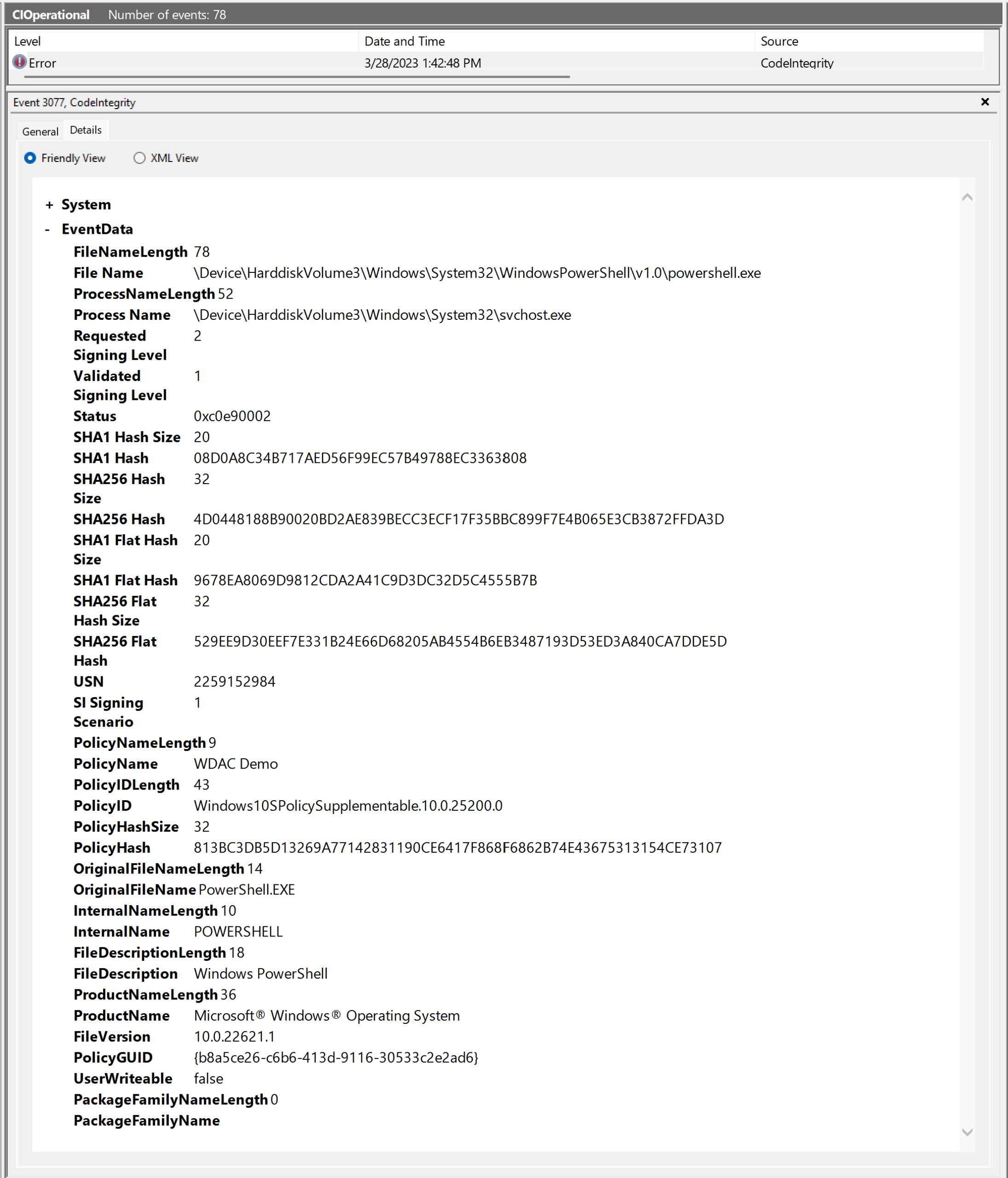
In Microsoft’s example below, File Name ends in powershell.exe, while Process Name ends in svchost.exe. The policy stopped PowerShell in this attempt; the service host requested it. Reporting “Windows blocked svchost” would send support looking at the wrong file. The same distinction matters when you click a familiar setup program but a DLL inside its package fails the policy check. [2]
Found 3076 instead? That policy was auditing: the file would have been blocked under enforcement. That entry alone cannot explain a visible block. For an MSI installer or a script, also look under Microsoft → Windows → AppLocker → MSI and Script. Event 8029 records an enforcement decision; a script host may restrict what the script can do instead of stopping it outright. If you can’t read the logs or find a matching event, report the time, file source and exact message. There’s no need to run the installer again just to create evidence.
Who can help: work, school, or personal PC?
On a managed device: use your organization’s software catalog if it offers the app. If not, ask IT whether there is an approved version or whether the specific component needs review. Include the publisher and version of the installer you obtained. Even a correctly signed file with a clean scan can fall outside the organization’s rules.
On a personal PC: open Settings → Accounts → Access work or school and look for a connection you recognize. A listed account is a clue, not proof that it supplied this rule; an empty list doesn’t identify the policy either. Leave connections as they are. If the PC was supplied by a school, employer or refurbisher, ask who configured the Windows installation. For your own installation with no known manager, give Windows support the OS build from Settings → System → About and the matching event.
If many unrelated apps started failing after an update, include the previous build or a recent rollback. There is a documented example: after a rollback from Canary build 27764, an incorrect policy could block third-party programs. Microsoft reported a fix in 27766 in January 2025. That specific preview-build issue explains why the build number matters; it does not establish the cause on a current retail PC. [3]
What to put in a support ticket
Try: “At [time and time zone], I opened [app and version] from [software catalog or official vendor]. Windows showed [exact warning]. The device is [work, school, or personal], on Windows build [number]. Event 3077 names [blocked file] under File Name and [launcher] under Process Name. Is there an approved package for this device?” If no event was available, say so. Send full paths and policy identifiers only through your private support channel; redact names and organization details before sharing a screenshot publicly.
Leave the blocked copy closed while you wait. If an unknown installer already ran before this warning and you also see unexpected changes to protection settings, report that separately. On a personal PC, the Windows security audit checklist can help you review those changes. The block itself is evidence about one attempted launch, not a diagnosis of the entire device.
References
- Microsoft. “Understanding App Control event IDs.” Microsoft Learn, accessed November 10, 2026. Event ID reference.
- Microsoft. “App Control debugging and troubleshooting guide.” Microsoft Learn, accessed November 10, 2026. Worked example and original event screenshot.
- Amanda Langowski and Brandon LeBlanc. “Announcing Windows 11 Insider Preview Build 27766 (Canary Channel).” Windows Insider Blog, January 3, 2025. Canary build release notes.