“Smart App Control blocked an app” means Windows refused to run code it did not trust. Keep the block in place while you identify the file and its source. A legitimate program can be affected, especially when the blocked item is one component rather than its main executable. The useful next step is to obtain a supported, authentic release—not to treat every block as malware or turn off protection to test an unknown download.
Start by recording the warning, the file name and what you were opening. Those three details determine whether you need a replacement installer, help from the developer, your organization’s administrator, or a malware check after earlier execution.
Make sure Smart App Control is the feature blocking you
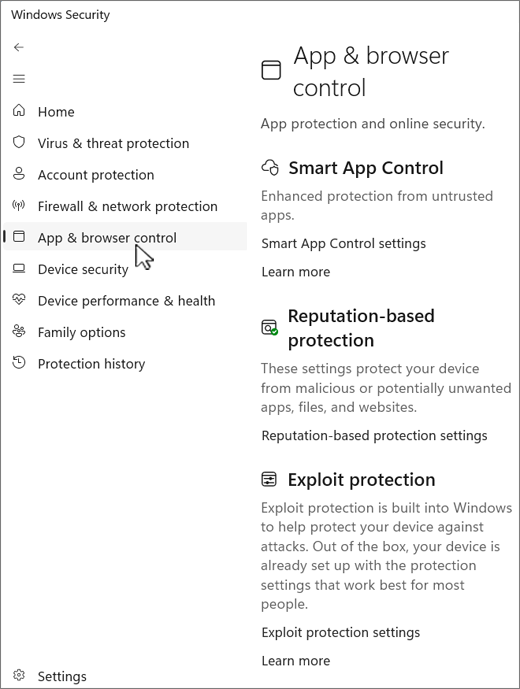
Open Windows Security → App & browser control → Smart App Control settings from Start. Do not follow a settings button offered by a web page. Microsoft places SAC and reputation-based protection in separate sections; they are related protections with different decisions.[1]
- Smart App Control blocked an app or part of an app. Follow the file, source and component checks below. SAC has no individual-app allow button.
- Windows protected your PC. This is usually a SmartScreen reputation warning. See the separate SmartScreen and Run anyway decision guide.
- This app has been blocked for your protection. Match the complete dialog to the administrator and UAC refusal guide.
- A named antivirus detection or quarantined item. Check that security tool’s detection details and affected path. An antivirus exclusion is not a SAC permission.
SAC is a Windows 11 feature. If a Windows 10 browser tab claims that Smart App Control found infections, close the page and check Windows Security directly. A website’s warning is not a system verdict.
Find the component before replacing the program
If the message says “part of this app,” do not assume the main application file is the blocked item. A launcher, updater, plug-in, DLL or script can be a separate component. Write down the named file and full location when the alert provides them. A valid signature on the main installer does not describe every file it subsequently loads.
- Match the time to your action. Did the block occur when opening an app, adding a plug-in, installing an update, or immediately after a download? Record the app version and the action, rather than repeatedly relaunching it.
- Check where the package came from. Use the developer’s own distribution page or the authentic Store listing. Search advertisements, mirrors, “fixed” DLL downloads and repacks are poor substitutes for a known source.
- Check the blocked file, not a similarly named copy. In File Explorer, inspect its Properties and, where available, Digital Signatures. Compare the signer with the developer. A familiar filename or an icon alone does not establish who supplied it.
- Send a useful report. Give the developer or IT administrator the warning, component name, application version and Windows build from
winver. Redact personal folder names before sharing screenshots publicly.
For a broader download check, use our guide to checking an EXE before running it. Do not upload a confidential work file to a public scanning service without your organization’s permission.
Optional: inspect a file’s signature without launching it
Windows PowerShell’s Get-AuthenticodeSignature reads signature information. For example, run Get-AuthenticodeSignature -LiteralPath 'C:\Users\Public\Downloads\example.exe', replacing the example with the exact file path. This inspects the file; it does not execute or unblock it.[2]
A Valid result is one piece of evidence, not a promise that Windows will allow the entire application or that its behavior is harmless. Check the signer as well. If the signature is missing or invalid, keep the block and ask the publisher for a correctly signed, current release. Do not obtain an unrelated certificate or change Windows trust settings to make the result look acceptable.
Choose the next action from the source and behavior
- Current app from its genuine developer; one component is blocked. Check for a replacement release or signed component from that developer. Include the component details in a support request. Do not replace individual DLLs from download sites.
- Older app you have used for years. Check whether the application, plug-in or updater changed. Previous use does not establish the identity of today’s file. Ask the vendor about the exact version and component.
- Work or school device. Ask IT to review the software and policy. Do not change security controls or switch to developer mode to evade the block.
- Crack, repack, unsolicited attachment or fake update. Stop using the package. Replace it with an authentic distribution. If anything from it ran before the warning, follow the scan branch below.
- Your own development build. Treat this as a signing and distribution issue for the development team. A consumer guide cannot approve your executable or create a SAC exception.
Why “allow this app” and “unblock file” are different
Microsoft’s current FAQ says SAC does not offer per-app bypasses. Its decision combines cloud reputation with signing checks when reputation is inconclusive. An untrusted result can therefore affect legitimate software too.[3]
The downloaded-file Unblock checkbox and PowerShell’s Unblock-File concern a file’s download-origin marker. They do not repair a signature, establish the publisher’s identity or create an individual SAC allow rule. Do not use an online “unblock everything” command as a substitute for identifying the warning and file.
Likewise, running as administrator answers a permissions question. It is not evidence that the blocked code is safe. A malware scan and SAC also answer different questions: a clean scan does not grant application trust.
Check the actual settings before assuming SAC can be restored
The available states are On, Evaluation and Off. Evaluation assesses suitability; it is not the same as enforcing blocks. Record the displayed state and your Windows build before requesting support.
Microsoft’s feature-specific FAQ now says recent updates allow enabling or re-enabling SAC without a clean installation on eligible devices. Do not turn it off on the assumption that every Windows 11 installation has the same restoration path. The broader settings overview still describes reset-dependent conditions, and availability depends on the device and installed updates. If the switch is unavailable, use current Microsoft guidance or IT support for that build instead of registry scripts copied from a forum.
You do not need to resolve a settings problem to make the immediate safe choice: leave an unverified file blocked and request a supported replacement. A reset or reinstall is not the first troubleshooting step for one refused application.
If an unknown installer already ran
A blocked component does not tell you whether an earlier stage executed. If you ran a suspicious installer before the alert, or new pop-ups and unwanted apps appeared afterward, a scan can check for malware and bundled components. Removing the visible download alone may leave startup entries, scheduled tasks or other installed files.
- Stop reopening the package and close its related installer windows.
- Download and install Gridinsoft Anti-Malware from the official site, then update its detection database.
- Run a Full Scan, review the findings and apply the recommended removal actions for detected threats.
- Restart Windows and check the original symptoms. If they recur, preserve the new alert details for support.
If you only downloaded a file and SAC prevented its first launch, the block alone does not establish an infection. Keep the file blocked while checking its source. Scanning does not repair a vendor signature, override SAC or recover stolen accounts; handle suspicious account activity separately.
If the page or email made you download an invoice, coupon, tracking app, browser extension, or support tool, scan the PC before opening it again or logging into sensitive accounts.
Scan after an unknown downloadReferences
- Microsoft. “App & browser control in the Windows Security App.” Microsoft Support, accessed October 22, 2026. Windows Security settings and screenshot.
- Microsoft. “Get-AuthenticodeSignature.” Microsoft Learn, accessed October 22, 2026. Signature inspection documentation.
- Microsoft. “Smart App Control Frequently Asked Questions.” Microsoft Support, accessed October 22, 2026. SAC decisions and supported settings.