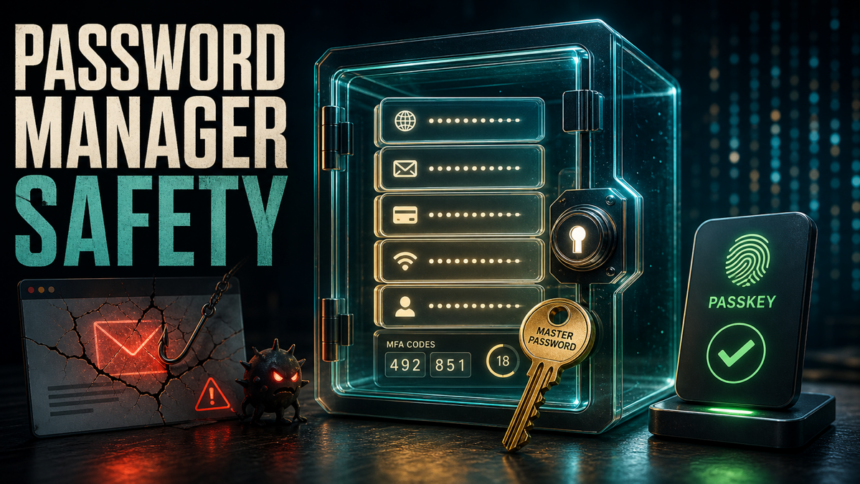
Yes, a reputable password manager is usually safer than reusing passwords, saving them in a browser on every device, or keeping them in notes and spreadsheets. The safer setup is not just the app itself: use one long master password, turn on multi-factor authentication, keep recovery codes offline, remove unknown devices, and keep the computer clean. A password manager can protect you from password reuse and many phishing pages, but it cannot protect a weak master password, an unlocked device, a malicious extension, or password-stealing malware.
Use a password manager if you can secure the vault.
- Use one unique password for every account and let the manager generate them.
- Protect the vault with a long master passphrase and MFA or a passkey when available.
- Do not unlock the vault on shared, public, or infected devices.
- Treat provider alerts, unknown-device emails, and MFA prompts as account-security events, not routine messages.
Why password managers are still safer
The main advantage is simple: a password manager makes password reuse unnecessary. If one shopping site, forum, or game account leaks a password, that leak should not also unlock your email, bank, cloud storage, or social media. Official cyber-safety guidance from NCSC says password managers help users keep unique passwords and can also reduce phishing risk because autofill should work only on the correct site [1].
Modern password guidance also assumes password managers exist. NIST’s current authentication guidance tells services to allow password managers, autofill, and paste because these tools help people choose stronger passwords in real life [2]. That does not make every password manager perfect, but it does mean the basic idea is no longer fringe advice.
For a separate storage-focused setup guide, use the Gridinsoft article on how to store passwords securely. This page focuses on the safety decision: when a password manager helps, when it becomes risky, and what to do after an alert.
When a password manager is safe vs risky
| Safer setup | Risky setup |
| One strong master passphrase that is not reused anywhere else. | A short, guessed, reused, or personally meaningful master password. |
| MFA, passkey, or hardware-key protection for the vault account. | No second factor, or approving unexpected MFA prompts without checking. |
| Vault unlocked only on trusted personal devices. | Vault opened on public, shared, unmanaged, or visibly infected devices. |
| Autofill used only after checking the domain. | Typing the master password into links from ads, email, chat, or pop-ups. |
| Recovery codes stored offline in a safe place. | Recovery codes stored in the same email, browser profile, or screenshots folder. |
The real risks: master password, phishing, malware, and devices
The biggest password-manager risk is not usually someone “breaking AES” or magically opening an encrypted vault. The practical risks are more ordinary and more common:
- Weak master password: if attackers can guess it, reuse it from another breach, or phish it, the whole vault is at risk.
- Phishing pages and malicious ads: attackers may imitate a password-manager login page or support page to steal the master password and MFA codes.
- Password-stealing malware: infostealers, keyloggers, malicious browser extensions, and remote-access trojans can attack the device where the vault is unlocked.
- Unknown registered devices: if an attacker registers a new device, they may be able to sync encrypted vault data and then try to attack it offline.
- Unlocked sessions: an unattended laptop or phone can expose accounts even if the vault technology is strong.
The Canadian Centre for Cyber Security describes password managers as useful but attractive targets, and recommends MFA, strong primary passwords, zero-knowledge encryption, updates, breach alerts, and a recovery plan [3].
Browser password manager or dedicated password manager?
A browser password manager is much better than reusing the same password everywhere. It is convenient, built into Chrome, Edge, Safari, Firefox, and mobile operating systems, and can warn about some compromised passwords. For many low-risk personal accounts, that is a reasonable start.
A dedicated password manager is usually better when you need cross-browser use, family sharing, vault organization, stronger recovery controls, better audit tools, emergency access, or clearer separation between browser compromise and password storage. If your browser account, browser profile, or extensions are compromised, passwords saved only in that browser can be easier to expose.
For high-value accounts such as email, banking, cloud storage, work SSO, crypto, developer accounts, and the password manager itself, use the strongest available MFA or passkey option. Do not keep the master password or recovery codes in the browser that unlocks the vault.
What to do after a password-manager alert or lockout
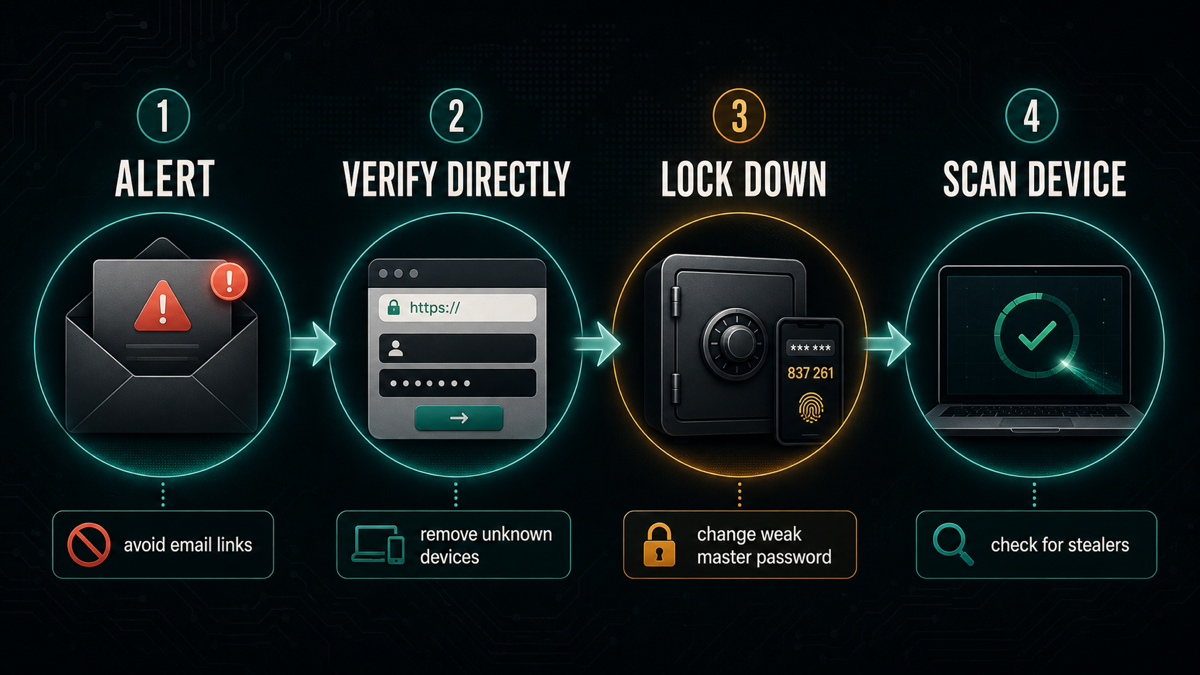
Do not click password-manager login links in an unexpected email. Open a clean browser tab, type the official website address yourself, or use the installed app you already trust. Then work through the alert calmly.
- Verify the alert directly. Check the password manager’s official status page, support page, and in-app security center instead of trusting email links.
- Check registered devices. Remove devices, sessions, or browser extensions you do not recognize.
- Review MFA and recovery. Make sure MFA is enabled, backup codes are offline, and recovery email/phone details are yours.
- Change the master password only when needed. Change it if it is weak, reused, phished, typed on a suspicious device, or the provider specifically tells you to.
- Rotate critical account passwords from a clean device. Start with email, bank, cloud, work, social, shopping, gaming, and any account that reused a password.
- Revoke sessions. Use “sign out everywhere” and remove connected apps where available, because password changes do not always invalidate stolen tokens.
- Scan the original device if malware is plausible. If the alert followed a cracked download, fake update, browser redirect, unexpected extension, or suspicious PowerShell/terminal command, clean the device before trusting new logins.
The 2026 Dashlane incident is a useful example. Dashlane said an external actor targeted device registration, causing temporary account locks, and fewer than 20 personal-plan users had encrypted vault copies downloaded. Dashlane also said it directly notified users whose vaults were affected and that users without a vault-risk message were not impacted [4]. The lesson is not “never use password managers”; it is to verify alerts directly, secure new-device registration, keep MFA strong, and avoid weak master passwords.
If malware touched the device, fix the device first
A password manager cannot make an infected computer trustworthy. If a stealer, keylogger, malicious browser extension, or remote-access tool is active, changing passwords from that same device can hand attackers the new credentials immediately. Start with the device, then the accounts.
- Disconnect or stop using the suspicious device for sensitive logins.
- Remove suspicious extensions, recently installed apps, startup entries, and browser policies.
- Run a full security scan before opening the vault again. Gridinsoft Anti-Malware can help check for stealers, keyloggers, browser hijackers, and bundled malware when the problem started after a download or fake update.
- Use a clean phone or computer to change important passwords and revoke sessions.
- For stealer cases, follow the broader Gridinsoft password stealer response guide and the post-infostealer recovery checklist.
Password manager safety checklist
- Pick a reputable manager. Look for clear security documentation, regular updates, encryption details, independent audits or transparency reports, export options, and breach-alert features.
- Use a long master passphrase. A memorable passphrase is usually safer than a short complex-looking password. Never reuse it.
- Turn on MFA. Prefer app-based MFA, passkeys, or hardware security keys over SMS where possible.
- Store recovery codes offline. A printed copy in a safe place is better than a screenshot, email draft, or cloud note.
- Generate unique passwords. Let the manager create long random passwords for each site. For password rules, see the Gridinsoft guide to strong passwords in 2026.
- Use autofill deliberately. Autofill can help catch phishing, but still check the domain before submitting sensitive credentials.
- Keep the app and browser updated. Password managers are software; delayed updates can leave fixed bugs open longer than necessary.
- Review vault health monthly. Fix reused, weak, old, and breached passwords. Start with email and recovery accounts.
What not to store in a password manager
A password manager is a good place for logins, secure notes, recovery hints, and some identity details if the vault is well protected. Still, avoid turning it into the only copy of everything valuable.
- Do not store the master password inside the same vault.
- Do not keep all recovery codes only in the vault if losing the vault would lock you out.
- Do not store seed phrases, private keys, or banking recovery data unless you fully understand the risk and have offline backups.
- Do not save work secrets in a personal vault when company policy requires an approved enterprise manager.
- Do not use the same vault profile on a shared computer where other people can access the unlocked session.
Do passkeys replace password managers?
Passkeys reduce phishing risk because they are tied to the real site and do not require typing a reusable password. Use passkeys for important accounts when they are available. In practice, most people still need a password manager because many services still require passwords, recovery codes, security questions, app passwords, or backup credentials.
New Unit 42 research shows why that advice still depends on a clean endpoint: malware on Windows can abuse Google Password Manager’s synced passkey workflows after the device is already compromised.
The best 2026 setup is not “password manager or passkeys.” It is passkeys where available, unique generated passwords where passkeys are not available, MFA for important accounts, and recovery codes stored safely offline.
FAQ
Are password managers safe to use?
Yes, reputable password managers are usually safer than password reuse, notes, spreadsheets, or browser saving on every device. They are safest when protected by a long master password, MFA, offline recovery codes, and a clean device.
Can a password manager be hacked?
It can be attacked through the user account, the device, phishing, malicious extensions, or provider bugs. Strong encryption helps protect stored vault data, but it does not protect a weak master password or an infected computer.
Should I change every password after a password-manager alert?
Not automatically. First verify the alert through the official app or website. Change the master password if it was weak, reused, phished, or used on a suspicious device. Rotate critical saved passwords if the provider says your vault was affected or if malware may have stolen credentials.
Is a browser password manager safe enough?
It is safer than reusing passwords, especially on a personal updated device. A dedicated manager is usually better for cross-device use, high-value accounts, family sharing, stronger vault controls, and separation from browser-profile compromise.
Should I use a password manager after malware?
Yes, but only after the device is clean. If a stealer or keylogger was present, change passwords from a clean device, revoke sessions, enable MFA, and scan the original computer before opening the vault there again.
References
- National Cyber Security Centre. “Managing your passwords.” NCSC, accessed June 12, 2026. https://www.ncsc.gov.uk/collection/top-tips-for-staying-secure-online/password-managers
- National Institute of Standards and Technology. “SP 800-63B: Authentication and Authenticator Management.” NIST, accessed June 12, 2026. https://pages.nist.gov/800-63-4/sp800-63b.html
- Canadian Centre for Cyber Security. “Password managers: Security tips (ITSAP.30.025).” Government of Canada, accessed June 12, 2026. https://www.cyber.gc.ca/en/guidance/password-managers-security-itsap30025
- Dashlane. “Security advisory: Brute force attack on Dashlane user accounts.” Dashlane Support, published June 1, 2026, updated June 4, 2026; accessed June 12, 2026. https://support.dashlane.com/hc/en-us/articles/36038764990866-Security-advisory-Brute-force-attack-on-Dashlane-user-accounts