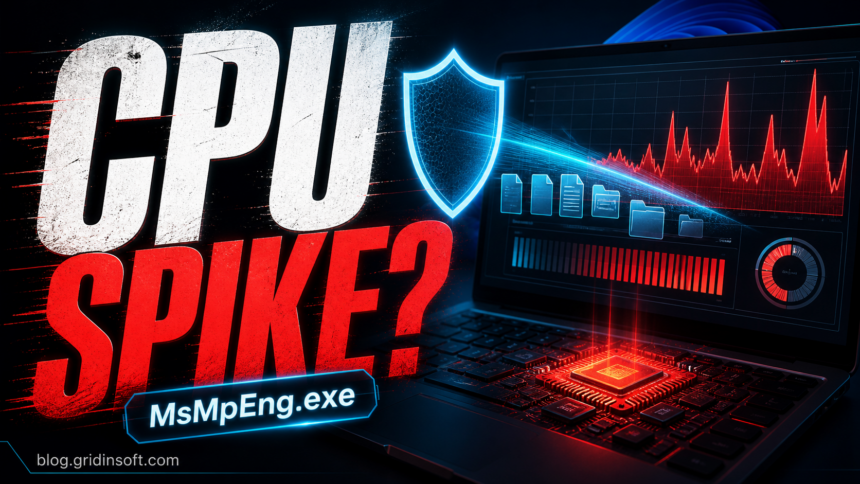
If Antimalware Service Executable or MsMpEng.exe is pushing CPU, memory, or disk usage high, the safest fix is not to permanently disable Microsoft Defender. First confirm the process is the real Defender component, let short scans finish, move scheduled scans away from work hours, and use narrow exclusions only for folders you trust. If the process runs from the wrong location or the spike never settles, treat it as a possible malware or damaged-Windows problem.
Quick Fix Checklist
| What you see | What to do first |
|---|---|
| CPU jumps for a few minutes after startup, update, or a download | Wait 10-20 minutes, keep Windows Security updated, and check whether usage drops after the scan finishes. |
| CPU stays high while you work or play | Move Defender scheduled scans to idle hours and check whether a large folder, game library, archive, or build directory is being scanned repeatedly. |
| Disk is near 100% and the PC freezes | Pause heavy downloads or installers, reboot once, then check scan history and storage health if the problem returns. |
| MsMpEng.exe runs from an unusual folder | Do not whitelist it. Check the file path, digital signature, startup items, and run a full malware scan. |
What Is Antimalware Service Executable?
Antimalware Service Executable is the Task Manager name for Microsoft Defender Antivirus activity. The underlying process is usually MsMpEng.exe. It scans files, scripts, downloads, archives, and app activity so Windows can detect malware before it runs.
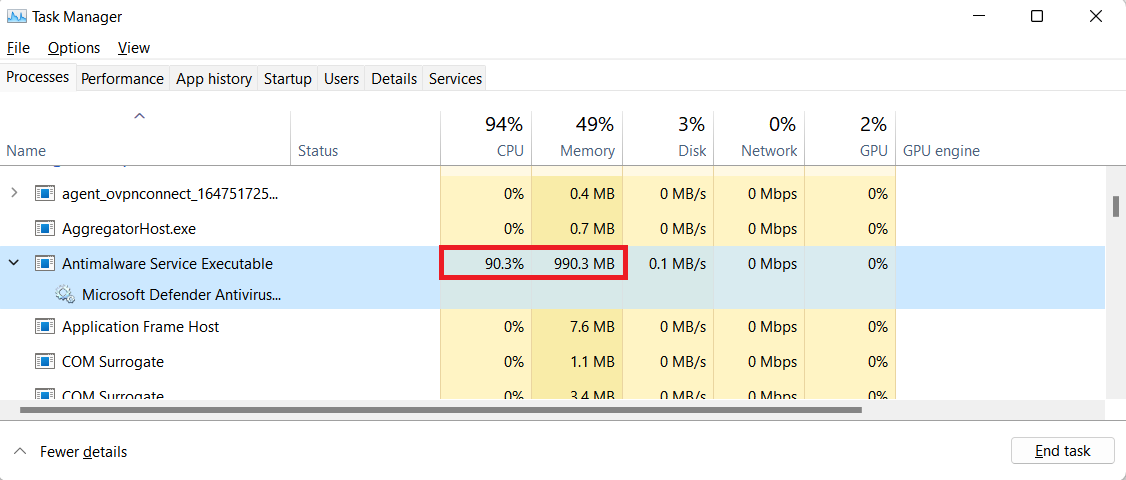
Short CPU spikes are normal during a quick scan, a security intelligence update, or when you open many new files. The problem starts when the spike lasts long enough to make the PC hot, noisy, frozen, or unusable. That usually means Defender is scanning a heavy workload, a scheduled scan is running at the wrong time, another security tool is conflicting with it, or Windows security components need repair.
Confirm MsMpEng.exe Is Legitimate
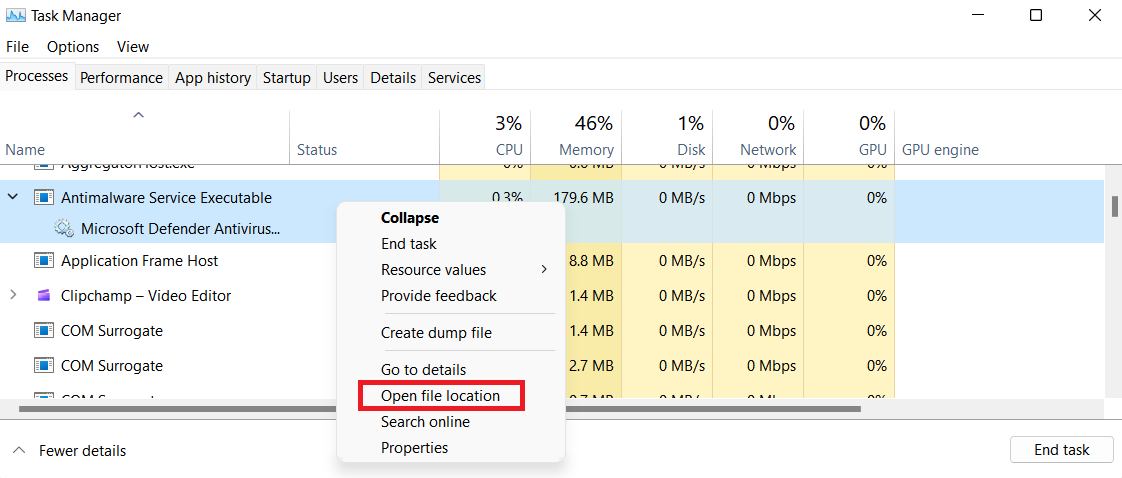
Before changing Defender settings, confirm that the process is actually Microsoft Defender and not a lookalike. Open Task Manager, right-click Antimalware Service Executable, and choose Open file location. On modern Windows, the file commonly appears under a Microsoft Defender platform folder such as C:\ProgramData\Microsoft\Windows Defender\Platform\..., or in the Windows Defender program folder.
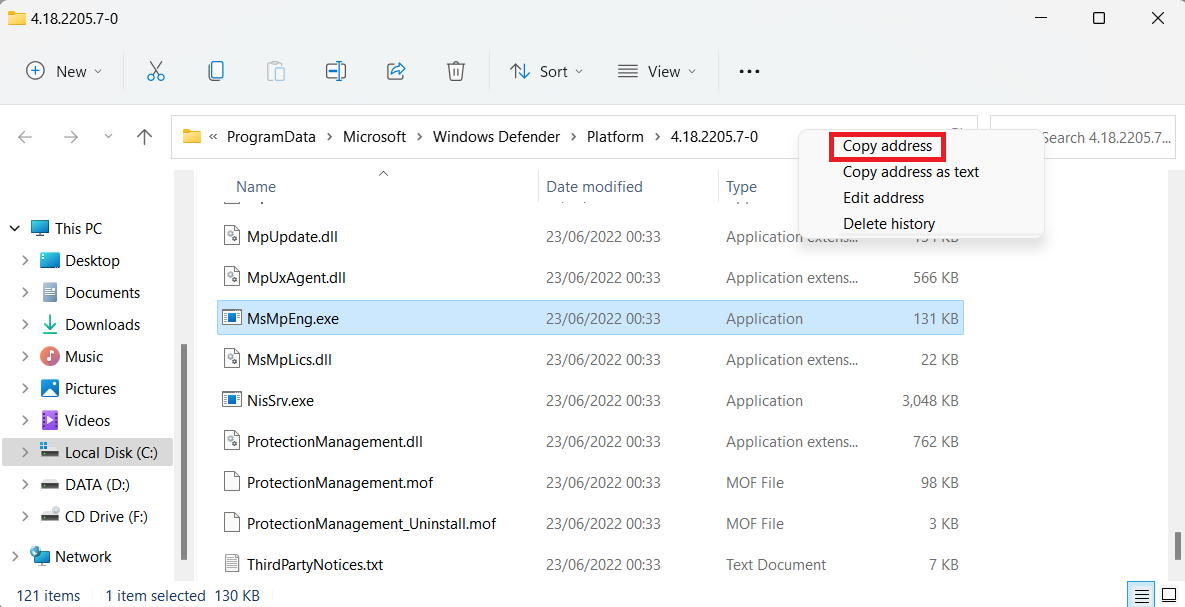
Be suspicious if the file is in Downloads, Temp, a random user profile folder, or a folder with a misspelled Microsoft name. A fake process may use a similar name to hide. In that case, do not add exclusions. Scan the system and check startup entries, scheduled tasks, browser extensions, and recently installed software.
Move Defender Scans Away From Work Hours
If the spike happens at predictable times, a scheduled scan is the likely trigger. You can move it to a time when the computer is on but not being used heavily.
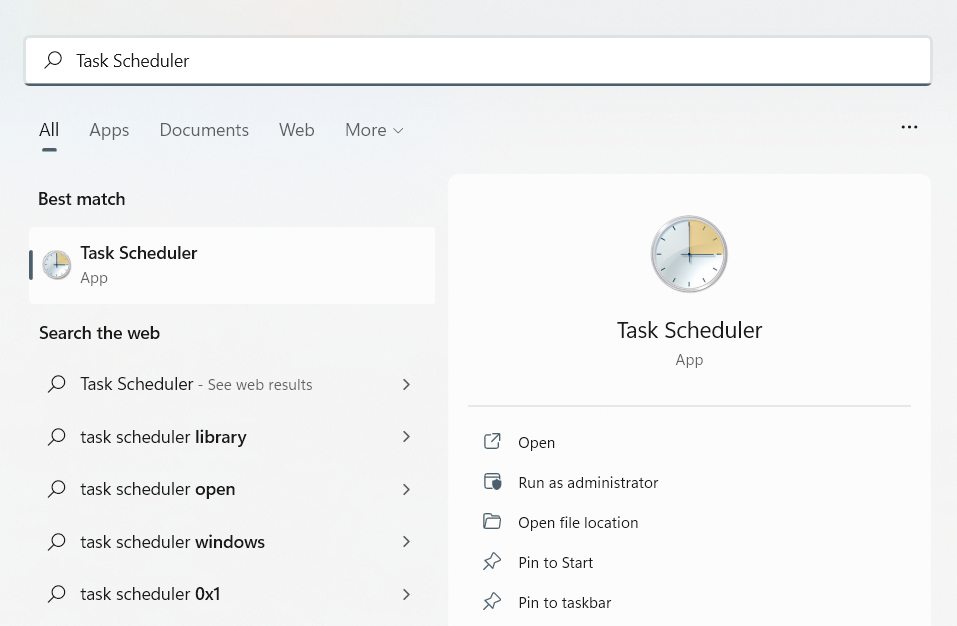
- Open Start, type Task Scheduler, and open it.
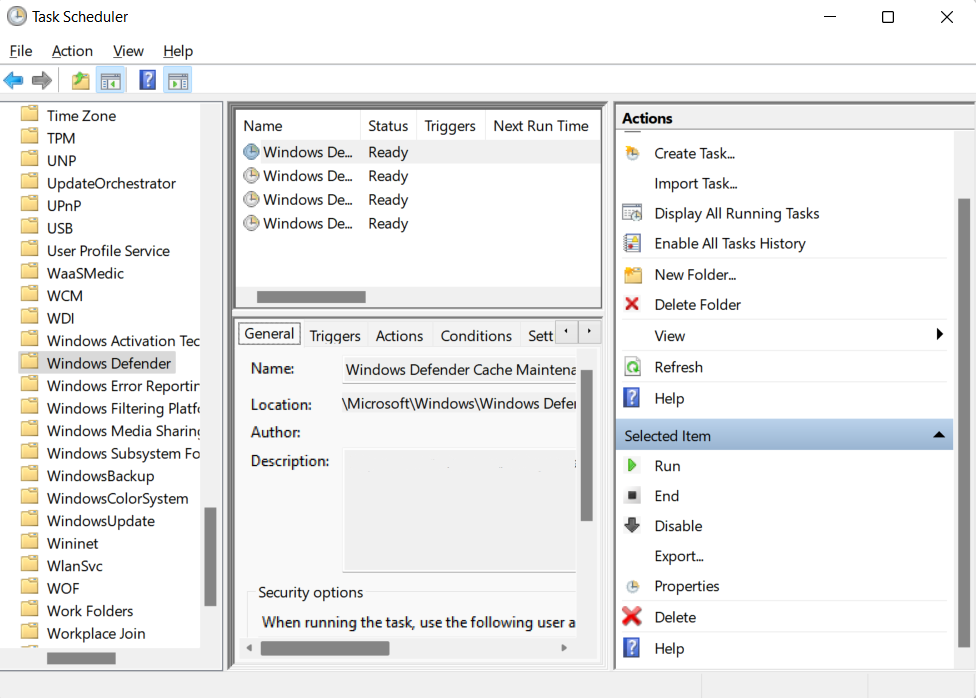
- Go to Task Scheduler Library > Microsoft > Windows > Windows Defender.
- Open Windows Defender Scheduled Scan.
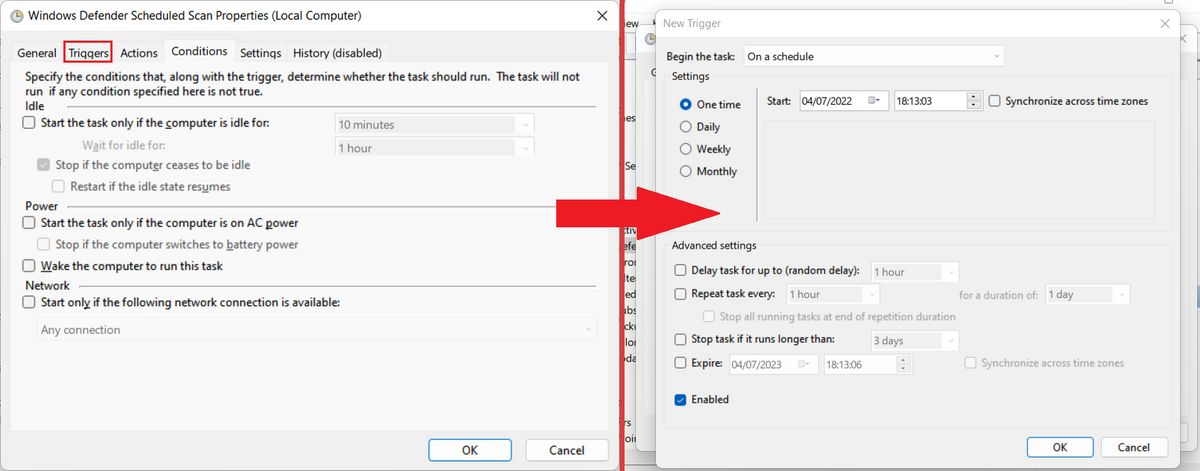
- Use the Triggers tab to choose a time outside your work, gaming, or meeting hours.
- Use the Conditions tab to prefer idle or power-friendly conditions when that fits your device.
Find the Folder or App That Defender Keeps Scanning
Many persistent MsMpEng.exe spikes come from one noisy workload: a game launcher unpacking files, a developer build directory, a folder with thousands of small files, a virtual machine disk, a large archive, or a sync client constantly changing files. On Windows 10 and Windows 11, Microsoft provides Defender Performance Analyzer for deeper troubleshooting. It records Defender scan activity and reports the files, paths, extensions, and processes that cost the most scan time.
For advanced users, open PowerShell as administrator and record the slow moment:
New-MpPerformanceRecording -RecordTo C:\Temp\defender-scan.etlReproduce the spike, stop the recording, then review the report:
Get-MpPerformanceReport -Path C:\Temp\defender-scan.etl -TopPaths 10 -TopFiles 10 -TopProcesses 10This is better than guessing. If the report shows one safe project folder, game cache, or trusted build output folder causing the loop, you can tune that exact location instead of weakening protection across the whole PC.
Use Exclusions Carefully
Exclusions can reduce Defender’s workload, but they also create blind spots. Do not exclude your whole system drive, Downloads, Temp, script extensions, unknown executables, or a suspicious copy of MsMpEng.exe. Exclude only a specific folder or file path you already trust and understand.
To add a narrow exclusion:
- Open Windows Security.
- Go to Virus & threat protection > Manage settings.
- Scroll to Exclusions and choose Add or remove exclusions.
- Add only the exact safe folder or file that repeatedly triggers heavy scanning.
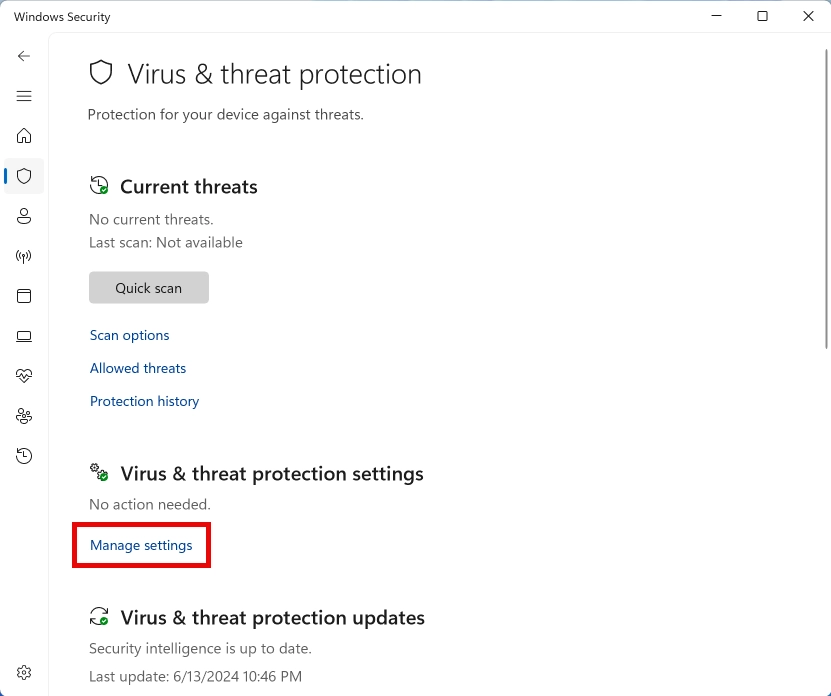
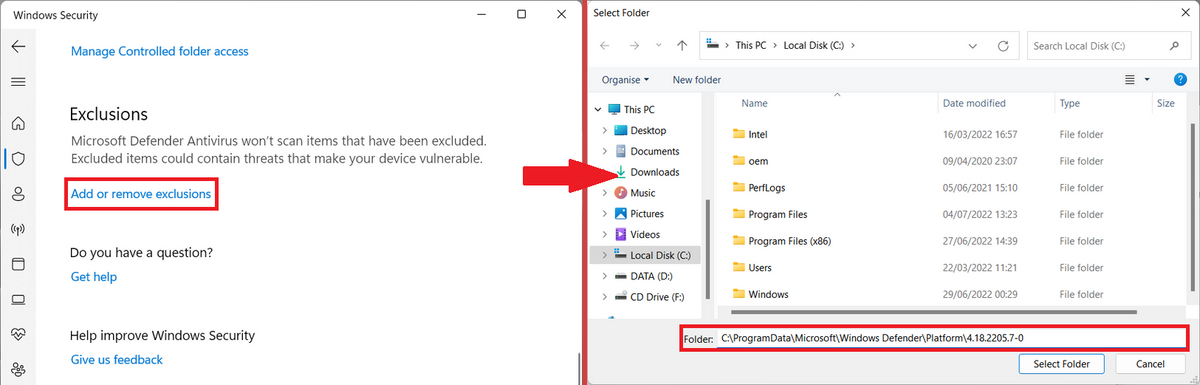
If you are not sure whether a folder is safe, scan it first. You can also upload a suspicious file to Gridinsoft Online Virus Scanner before deciding whether it deserves an exclusion.
Lower Scheduled Scan CPU Pressure
On systems where scheduled scans are the main pain point, you can check Defender’s scan CPU guidance setting. This is not a hard ceiling for every situation, but it can reduce average scan pressure during scheduled scans.
Get-MpPreference | Select-Object ScanAvgCPULoadFactorTo set a lower value, open PowerShell as administrator and use a number that still lets scans finish:
Set-MpPreference -ScanAvgCPULoadFactor 30If the device is managed by work, school, Intune, or Group Policy, local changes may be overwritten. In that case, document the spike and ask the administrator to review Defender scan policy instead of fighting the setting locally.
Repair Windows Security When the Spike Never Settles
If Antimalware Service Executable stays high after every reboot and no heavy folder explains it, repair the Windows side before disabling protection.
- Install pending Windows updates and Microsoft Defender security intelligence updates.
- Restart the PC once after updates finish.
- Run System File Checker from an elevated terminal:
sfc /scannow- If SFC reports damage it cannot repair, run DISM:
DISM /Online /Cleanup-Image /RestoreHealth- Reboot and check Task Manager again.
Also check whether another real-time antivirus, endpoint agent, VPN security module, or DLP tool is scanning the same files. Two tools watching the same file operations can multiply CPU and disk work.
Do Not Permanently Disable Defender Just to Stop CPU Spikes
Turning off real-time protection can make the spike disappear, but it also removes a major safety layer. Use temporary disablement only for a controlled test, and turn protection back on afterward. Do not rely on old registry tricks such as DisableAntiSpyware as a normal fix; modern Windows security settings, Tamper Protection, and managed policies may ignore or reverse those changes.
If you install another trusted antivirus, Microsoft Defender Antivirus normally switches off automatically on Windows 10/11 devices that are not onboarded to Microsoft Defender for Endpoint. On Windows 11, Smart App Control being On or in Evaluation can instead leave Defender in passive mode; managed devices onboarded to Defender for Endpoint can also use passive mode. A normal disabled state does not mean the switch failed. Check Windows Security to confirm your chosen antivirus is active, and do not force the mode by stopping security services or changing registry settings. This automatic handover is different from leaving the PC without working antivirus protection. [4]
When High CPU May Mean Malware
Antimalware Service Executable itself is normally legitimate, but malware can trigger Defender repeatedly or imitate Windows process names. Treat the situation as suspicious when:
- MsMpEng.exe runs from a non-Microsoft folder.
- Defender or Windows Security will not open.
- CPU spikes began after a crack, game cheat, fake update, unknown installer, or email attachment.
- Browser redirects, pop-ups, new extensions, unknown scheduled tasks, or unknown startup items appeared at the same time.
- Defender finds the same threat again after every reboot.
In those cases, run a full scan and use a second-opinion cleanup tool. Gridinsoft Anti-Malware can help check active malware, suspicious startup entries, unwanted apps, and files that keep Defender busy.
After uninstalling the suspicious app or deleting the visible threat, use Gridinsoft Anti-Malware to check hidden files, startup entries, scheduled tasks, bundled apps, browser changes, and other persistence points that can restore malware.
Download Anti-MalwareWhat Victims Usually Search For
Searchers usually arrive with one of four urgent problems: Antimalware Service Executable high CPU, MsMpEng.exe high memory, Windows Defender high disk usage, or is MsMpEng.exe a virus? The right answer depends on the symptom. A scan spike after startup is often normal. A constant spike during idle time needs scheduling, performance analysis, or repair. A wrong file path needs malware triage, not an exclusion.
If Task Manager shows MpDefenderCoreService.exe instead, that is a separate Defender Core Service. Use the MpDefenderCoreService.exe safety and internet-access guide to check its versioned platform path, Microsoft signature, normal service connections, and an Access denied message before changing the service.
If Task Manager instead shows NisSrv.exe or Microsoft Network Realtime Inspection Service, use the NisSrv.exe safety and high-CPU guide to verify WdNisSvc, the Defender Platform path, and the signature before trying to disable it.
FAQ
Is Antimalware Service Executable a virus?
Usually no. It is normally Microsoft Defender Antivirus running as MsMpEng.exe. It becomes suspicious when the file runs from an unusual folder, has no valid Microsoft signature, or appears with other compromise symptoms.
Why does MsMpEng.exe use so much CPU?
Common reasons include a scheduled scan, real-time scanning of many changed files, a large archive or game folder, a Defender update, another security tool scanning the same files, or Windows security component damage.
Can I end Antimalware Service Executable in Task Manager?
Windows usually prevents you from killing it because it is a protected security process. Even if you could stop it temporarily, the better fix is to schedule scans, identify the heavy path, repair Defender, or use a trusted alternative antivirus.
Should I exclude MsMpEng.exe from Defender scans?
Avoid broad or blind exclusions. Microsoft warns that exclusions reduce protection. If you use exclusions, make them narrow and only for a trusted path that you have confirmed is causing repeated scanning.
Is high memory usage always bad?
No. Moderate memory use by a security service can be normal if the PC remains responsive. Troubleshoot when memory keeps growing, CPU stays high for a long time, disk usage freezes the system, or the same spike returns after every restart.
Bottom Line
Antimalware Service Executable high CPU is usually a Defender workload problem, not a reason to switch protection off. Confirm the file path, move scans to idle hours, use Performance Analyzer when the cause is unclear, add only narrow trusted exclusions, and scan for malware if the behavior started after a risky download or the process looks fake.
References
- Microsoft. “Performance analyzer for Microsoft Defender Antivirus.” Microsoft Learn, last updated January 15, 2026. https://learn.microsoft.com/en-us/defender-endpoint/tune-performance-defender-antivirus
- Microsoft. “Microsoft Defender Antivirus full scan considerations and best practices.” Microsoft Learn, accessed June 7, 2026. https://learn.microsoft.com/en-us/defender-endpoint/mdav-scan-best-practices
- Microsoft. “Common mistakes to avoid when defining exclusions.” Microsoft Learn, last updated February 20, 2026. https://learn.microsoft.com/en-us/defender-endpoint/common-exclusion-mistakes-microsoft-defender-antivirus
- Microsoft. “Microsoft Defender Antivirus compatibility with other security products.” Microsoft Learn, last updated August 21, 2026; accessed October 19, 2026. Microsoft Defender compatibility documentation.