
The svchost.exe Application Error message usually means that a Windows service host crashed while reading or writing memory. It can be triggered by corrupted Windows files, a broken update service, a bad driver, unstable RAM, disk errors, or malware pretending to be svchost.exe. Do not delete svchost.exe. First confirm which service crashed, then repair Windows components, test memory/storage, and scan for malware only when the file path or behavior is suspicious.
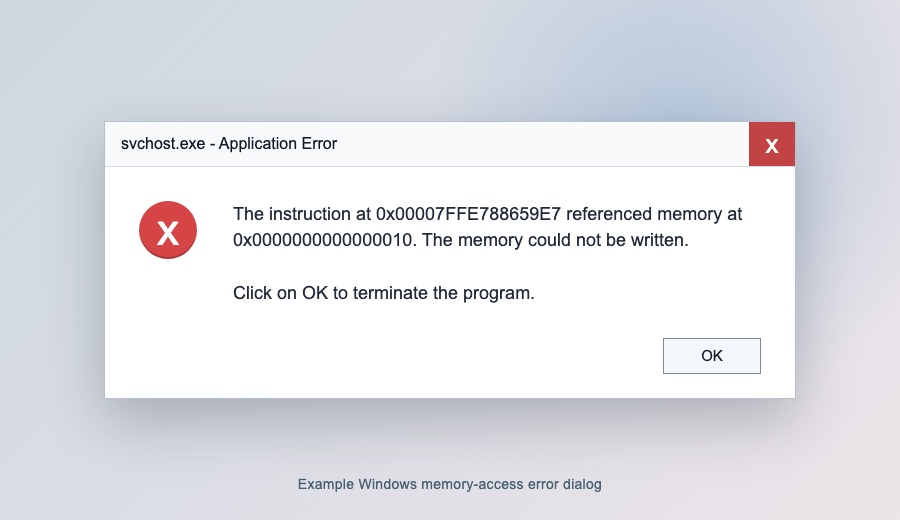
What the svchost.exe Application Error Means
svchost.exe, or Service Host, is a normal Microsoft Windows process that runs background services from DLL files. Seeing several svchost.exe processes in Task Manager is expected. The error appears when one hosted service, or something injected into that service process, crashes with a memory-access problem such as:
- The instruction at 0x… referenced memory at 0x…
- The memory could not be written or The memory could not be read
- Click on OK to terminate the program
- Related crash codes such as 0xc0000005 or 0xc0000142
The message alone does not prove malware. It says the crashing process is svchost.exe, not which service inside svchost.exe failed. That missing detail is why many generic fixes fail.
Quick Triage: What to Check First
- Note when it appears. Startup, game launch, app launch, Windows Update, Microsoft Store, or random idle crashes point to different service groups.
- Check the file path. Legitimate svchost.exe normally runs from C:\Windows\System32\svchost.exe or, on 64-bit Windows, sometimes C:\Windows\SysWOW64\svchost.exe. A copy in Downloads, AppData, Temp, a game folder, or a random user folder is suspicious.
- Open Event Viewer. Press Win + R, type eventvwr.msc, then check Windows Logs > Application for an Application Error event at the same time. Look for the faulting module, exception code, and process ID.
- Map the process ID to services. Open Command Prompt as administrator and run tasklist /svc /fi “PID eq 1234”, replacing 1234 with the PID from Event Viewer.
- Do not use registry cleaners. They rarely identify the service that crashed and can make Windows service problems harder to repair.
Likely Causes and Best Fix
| What you see | Most useful next step |
|---|---|
| The popup appears after Windows Update, Microsoft Store, Xbox/Gaming Services, or at boot. | Repair Windows component files with DISM and SFC, then reset Windows Update components if update errors continue. |
| Games and several unrelated apps crash immediately with the same memory message. | Test RAM, disable unstable XMP/EXPO overclocking temporarily, update GPU/chipset drivers, and check disk health. |
| Only one app or game triggers the popup. | Repair that app, verify game files, remove overlays, and check whether the crashed service name points to Store, Xbox, audio, network, or anti-cheat services. |
| svchost.exe runs from AppData, Temp, Downloads, or another non-Windows folder. | Treat it as suspicious: disconnect from risky downloads, scan the file/system, and remove persistence entries after confirming detections. |
| The error repeats every few seconds or Windows becomes unstable after clicking OK. | Boot to Safe Mode or Windows Recovery, repair system files offline if needed, and consider an in-place repair install before a clean reinstall. |
Step 1: Identify the Service Behind svchost.exe
If the error is still happening, open Task Manager > Details, right-click the svchost.exe instance, and choose Go to service(s). If the popup already closed, use Event Viewer instead:
- Open Event Viewer.
- Go to Windows Logs > Application.
- Find an Error event around the popup time, often Event ID 1000.
- Write down the Faulting application name, Faulting module name, Exception code, and Process ID.
- Run tasklist /svc /fi “PID eq 1234” in an elevated Command Prompt.
If the mapped services include wuauserv, BITS, InstallService, GamingServices, Dnscache, audio services, or network services, you now have a narrower repair path than simply reinstalling Windows.
Step 2: Repair Windows Files with DISM and SFC
On Windows 10 and Windows 11, run DISM first so the component store is healthy before SFC tries to replace protected files.
- Right-click Start and open Terminal (Admin) or Command Prompt (Admin).
- Run DISM /Online /Cleanup-Image /RestoreHealth.
- When it finishes, run sfc /scannow.
- Restart Windows and test the same action that triggered the error.
If DISM cannot download repair files, connect to the internet, temporarily disable a broken VPN/proxy, or use a matching Windows ISO as a repair source.
Step 3: Reset Windows Update When Update Services Crash
If Event Viewer points to Windows Update, BITS, Microsoft Store installation, or Gaming Services, reset the update cache after the DISM/SFC repair:
- Open Terminal (Admin).
- Run net stop wuauserv and net stop bits.
- Rename C:\Windows\SoftwareDistribution to SoftwareDistribution.old.
- Run net start bits and net start wuauserv.
- Open Settings > Windows Update and check for updates again.
Do not delete random folders under System32. The update cache reset should only target update cache folders and services.
Step 4: Test RAM, Disk, and Drivers
A memory dialog that appears across many apps can be a hardware or driver stability problem rather than a single Windows service issue.
- Run Windows Memory Diagnostic: press Win + R, type mdsched.exe, and choose a restart test.
- If you use XMP or EXPO memory profiles, test once with the default memory profile.
- Check disk health and free space, especially on the system drive.
- Update chipset, storage, GPU, audio, and network drivers from the PC or motherboard vendor.
- If crashes started after a driver update, roll back that driver from Device Manager.
Repeated 0xc0000005 crashes in unrelated programs are especially worth treating as a memory, driver, or disk-health signal.
If Games or Apps Close Immediately
When the svchost.exe Application Error appears as soon as you launch games, Microsoft Word, Paint, browsers, or other unrelated apps, do not treat it as a single game problem first. That pattern usually points to a shared Windows component, driver, memory, disk, Store/Gaming Services dependency, or security-tool conflict.
- If only one game crashes, verify its files, remove overlays, and update the GPU driver.
- If several apps crash overnight or after an update, check Event Viewer for the faulting module and PID, then run DISM/SFC before reinstalling apps.
- If the same popup appears with 0xc0000005, test RAM, disable XMP/EXPO for one test boot, and check disk health.
- If Store, Xbox, Gaming Services, BITS, or Windows Update appears in the mapped service list, reset the update cache after Windows component repair.
- If the crashes continue across many apps after repairs and driver rollback, use an in-place repair install before moving to a clean reinstall.
Step 5: Check for Malware Only Where It Makes Sense
Malware can name itself svchost.exe, inject into services, or break system services, but the Windows error message by itself is not enough proof. Scan when any of these are true:
- The file path is outside C:\Windows\System32 or C:\Windows\SysWOW64.
- The file is unsigned, recently created, or launched from a user-writable folder.
- The error started after downloading cracks, mods, unknown installers, or email attachments.
- Task Manager shows suspicious network traffic, high CPU, or startup entries tied to the same time.
- Security tools were disabled, browser redirects appeared, or new scheduled tasks/services appeared.
Use Gridinsoft Anti-Malware or another trusted scanner to check the full system, including startup entries, scheduled tasks, browser add-ons, and recently downloaded files. If the scanner detects a fake svchost.exe or persistence entry, remove it and reboot before repeating the Windows repair steps.
After uninstalling the suspicious app or deleting the visible threat, use Gridinsoft Anti-Malware to check hidden files, startup entries, scheduled tasks, bundled apps, browser changes, and other persistence points that can restore malware.
Download Anti-MalwareWhen a Repair Install Is the Right Move
If DISM, SFC, update reset, memory testing, and driver rollback do not stop the error, an in-place repair install of Windows is often safer than chasing individual DLL errors for days. A repair install keeps personal files and installed apps while reinstalling Windows components. Back up important files first, then use official Windows installation media that matches your edition and language.
Why One-Size-Fits-All Fixes Fail
Most svchost.exe memory-error cases look similar in the popup, but they do not have the same cause. Windows Update corruption, a Store or Gaming Services crash, unstable RAM, a bad driver, and a fake svchost.exe infection need different fixes. Identify the service behind svchost.exe first, then use the least destructive repair path that matches the evidence.
FAQ
Is svchost.exe a virus?
The real svchost.exe is a Windows system process. It becomes suspicious when it runs from a non-Windows folder, is unsigned, appears after a risky download, or is tied to unusual startup/network activity. If the problem is a wrong-path process rather than an error popup, use the svchost.exe virus identification and removal guide to verify its path, signature, hosted service, and launcher.
Should I delete svchost.exe?
No. Deleting the legitimate Windows svchost.exe can break core services. Identify the service or suspicious copy first, then repair Windows or remove malware based on the evidence.
Why does the error say memory could not be written?
That wording means the crashing process tried to access memory incorrectly. The root cause can be software corruption, a bad update, a buggy driver, unstable RAM, disk corruption, or injected malware.
What if the error appears only when launching games?
Verify game files, remove overlays, update GPU/chipset drivers, and check Event Viewer for Store, Xbox, audio, network, or anti-cheat services. If other apps also crash, test RAM and repair Windows files.
Why did the svchost.exe error start overnight?
A sudden overnight start often follows a Windows update, driver change, Store/Gaming Services update, disk or RAM instability, or a background service crash. Match the Event Viewer time to the service PID before reinstalling random apps.
Is 0xc0000005 related to this error?
Often, yes. 0xc0000005 is an access violation code, which fits many “memory could not be read/written” crashes. It still does not identify the root cause by itself.
Do not confuse the Windows svchost.exe process with Servicehost.exe. The extra letters change the safety check: Servicehost.exe is not a Windows core file and should be judged by path, publisher, and signature.
References
- Microsoft Learn. “Service host grouping in Windows 10.” Microsoft, accessed June 1, 2026. https://learn.microsoft.com/en-us/windows/application-management/svchost-service-refactoring
- Microsoft Learn. “Repair a Windows Image.” Microsoft, accessed June 1, 2026. https://learn.microsoft.com/en-us/windows-hardware/manufacture/desktop/repair-a-windows-image?view=windows-11
- Microsoft Support. “Troubleshoot problems updating Windows.” Microsoft, accessed June 1, 2026. https://support.microsoft.com/en-us/windows/troubleshoot-problems-updating-windows-188c2b0f-10a7-d72f-65b8-32d177eb136c
- Microsoft Surface. “How to Use Windows Memory Diagnostic.” Microsoft, accessed June 1, 2026. https://www.microsoft.com/en-us/surface/do-more-with-surface/how-to-use-windows-memory-diagnostic