

PC App Store is a third-party Windows marketplace from Fast Corporation—not the Microsoft Store. Security products classify some PCAppStore components or builds as adware or potentially unwanted programs (PUPs), while the developer disputes those detections; the filename alone does not prove that a file is malicious. If PC App Store is stuck on screen or you did not install it intentionally, close the blocking window if necessary, then use the Gridinsoft Anti-Malware Full Scan route below to check and clean up unwanted components. Normal Windows uninstall is an alternative for an intentional installation; manual troubleshooting is optional if symptoms remain. If you entered payment details, cancel billing separately: uninstalling the Windows app does not stop subscriptions.
| What you see | Safest next step |
|---|---|
| A PC App Store window blocks the desktop | Use the Windows security screen to open Task Manager and end only the matching process if needed to regain access, then follow the Full Scan route below. |
| PC App Store will not uninstall or is missing from Installed apps | Use the Full Scan route below. If the app returns or scanning cannot run, use the optional path, startup and Safe Mode checks. |
Microsoft Defender reports Adware:Win32/PCAppStore!MSR |
Record the affected-item path, let the security product quarantine it, update definitions, and run a full scan. |
| A charge or renewal continues | Review the PC App Store account and cancel the subscription separately from Windows removal. |
Jump to your problem: stuck window · Full Scan cleanup · normal uninstall · uninstall fails · subscription or charge.
Is PC App Store a virus, adware, or a PUA?
“PC App Store virus” is the phrase many people search after an unexpected install, a persistent pop-up, or a security alert. A more precise answer is that PC App Store is a third-party marketplace, and some specific files associated with it have been classified as adware or PUPs. Microsoft publishes the exact detection name Adware:Win32/PCAppStore!MSR. The operator’s FAQ says antivirus warnings are false positives.
Those statements can coexist because security verdicts apply to a particular file, version, behavior, or detection engine—not every file that shares the name PCAppStore.exe. Gridinsoft’s sample-level records include signed files detected as PUP.PCAppStore and PUP.VeryFast, while other signed builds have required further analysis. A digital signature or familiar filename helps identify the publisher, but it is not a safety verdict by itself.
Treat the installation as unwanted and remove it if you did not choose it, if it arrived with another installer, if it changes search or browser behavior, if it keeps returning, or if a security product identifies a specific component. If you installed it deliberately and see no unwanted behavior or detection, you can still uninstall it normally if you no longer use it.
How to close PC App Store when it is stuck on screen
Do not click an account, payment, update, or “Allow” prompt just to clear the window. First close the running process:
- Press Alt + F4. If the window closes, continue to the Full Scan route below, or choose normal uninstall for an intentional installation.
- If it stays on top, press Ctrl + Alt + Delete and select Task Manager. This Windows security screen is harder for an ordinary app window to block.
- In Processes or Details, look for
PCAppStore.exeor an entry clearly named PC App Store. If you are unsure, right-click it and choose Open file location or Properties; note the path and publisher for the later scan. - Select only the verified PC App Store process and choose End task. Do not end a random Windows, browser, or updater process merely because its name looks unfamiliar.
- Disconnect from the internet temporarily if the window immediately reloads, then restart Windows and begin removal.
If Ctrl + Alt + Delete does not appear, hold the physical power button only as a last resort. An interrupted shutdown can lose unsaved work, so try the Windows security screen first.
Scan and clean up unwanted PC App Store components
For an unexpected installation, a security detection, or symptoms that return, Gridinsoft Anti-Malware is the main cleanup route. A visible app or quarantined file may be only one part of a bundle: a Full Scan can check app files, startup entries, scheduled tasks, browser-related changes and other PUPs together. You do not need to uninstall the app or hunt for folders and startup items before choosing this route.
- Download and install Gridinsoft Anti-Malware using the button below. Reconnect if needed for the download and database update, then choose Full Scan. On a work or school PC, involve IT before installing cleanup software.
- Review each result’s path, risk name, and recommended action. Confirm that the path belongs to the unwanted installation rather than removing files by name alone.
- Apply cleanup to confirmed unwanted components. Keep uncertain items quarantined so the action is reversible.
- Restart Windows and check whether the original pop-up, unwanted app or security alert returns.
- If symptoms return, update and scan again, then use the targeted manual checks below or ask support to review the detection path and logs. A clean scan does not guarantee that no compromise occurred.
Use Gridinsoft Anti-Malware to scan Windows for the unwanted installation, bundled programs and startup items. Update, run a Full Scan, review detections and apply cleanup, then restart and recheck.
6-day full trial for eligible new users, including cleanup. Email activation; no credit card.
Download Anti-Malware for WindowsOptional: normal uninstall in Windows 11 or Windows 10
Use these steps if you intentionally installed PC App Store and simply no longer want it, or prefer to try its normal uninstaller. They are not a prerequisite for the Full Scan route.
Windows 11
- Open Start > Settings > Apps > Installed apps.
- Search for PC App Store.
- Select the three-dot menu beside it, choose Uninstall, and confirm.
- Restart Windows even if the uninstaller does not request it.
Windows 10
- Open Start > Settings > Apps > Apps & features.
- Select PC App Store, choose Uninstall, and follow the prompts.
- Restart Windows.
On either version, you can press Windows + R, enter appwiz.cpl, and look for PC App Store in Programs and Features. This is useful when the newer Settings list does not load.
Optional troubleshooting if PC App Store will not uninstall
If normal uninstall fails, you can use the Full Scan route above without completing this checklist. The following are targeted alternatives when you prefer manual diagnosis, the scanner cannot run, or the same component returns after cleanup.
- Restart and retry. A running PCAppStore process or updater can lock files during the first attempt.
- Check the actual running file. In Task Manager, use Open file location and Properties. Save the full path and the Digital Signatures information. This gives your scanner something specific to evaluate.
- Disable only the matching startup item. Open Task Manager > Startup apps. Disable an entry only when its path and publisher match the PC App Store installation you just inspected. Our startup-app verification guide explains how to assess an unfamiliar entry.
- Try Safe Mode if relaunching blocks the uninstaller or scanner. Open Windows Recovery Environment, then choose Troubleshoot > Advanced options > Startup Settings > Restart > Enable Safe Mode. If device encryption is enabled, have the BitLocker recovery key available before entering recovery options.
- Return to the Full Scan route once access is restored. If no uninstaller exists, the entry returns, or the visible app is only one part of a bundle, the scan can check the file, startup points, scheduled tasks, and co-installed PUPs together. You do not need to repeat every manual check first.
Uninstall asks for permission or the administrator password
A Windows User Account Control prompt is different from a PC App Store account or payment prompt. If Windows requires an administrator account, ask the PC owner or administrator to remove the app; do not enter billing details or grant an unknown app extra permissions to make the window disappear. On a work or school PC, use the IT support route rather than changing ownership of protected folders.
If Windows itself reports a broken uninstall entry, use Microsoft’s installation and removal troubleshooting [4]. Do not download a replacement uninstaller from a pop-up or search advertisement.
Do not delete folders named NWJS, fa_rss, or anything in ProgramData merely because of the name or creation date. NW.js is a legitimate framework used by many apps, and a timestamp does not prove ownership. Delete a leftover only after its path, signature, parent process, and scan result tie it to the unwanted installation.
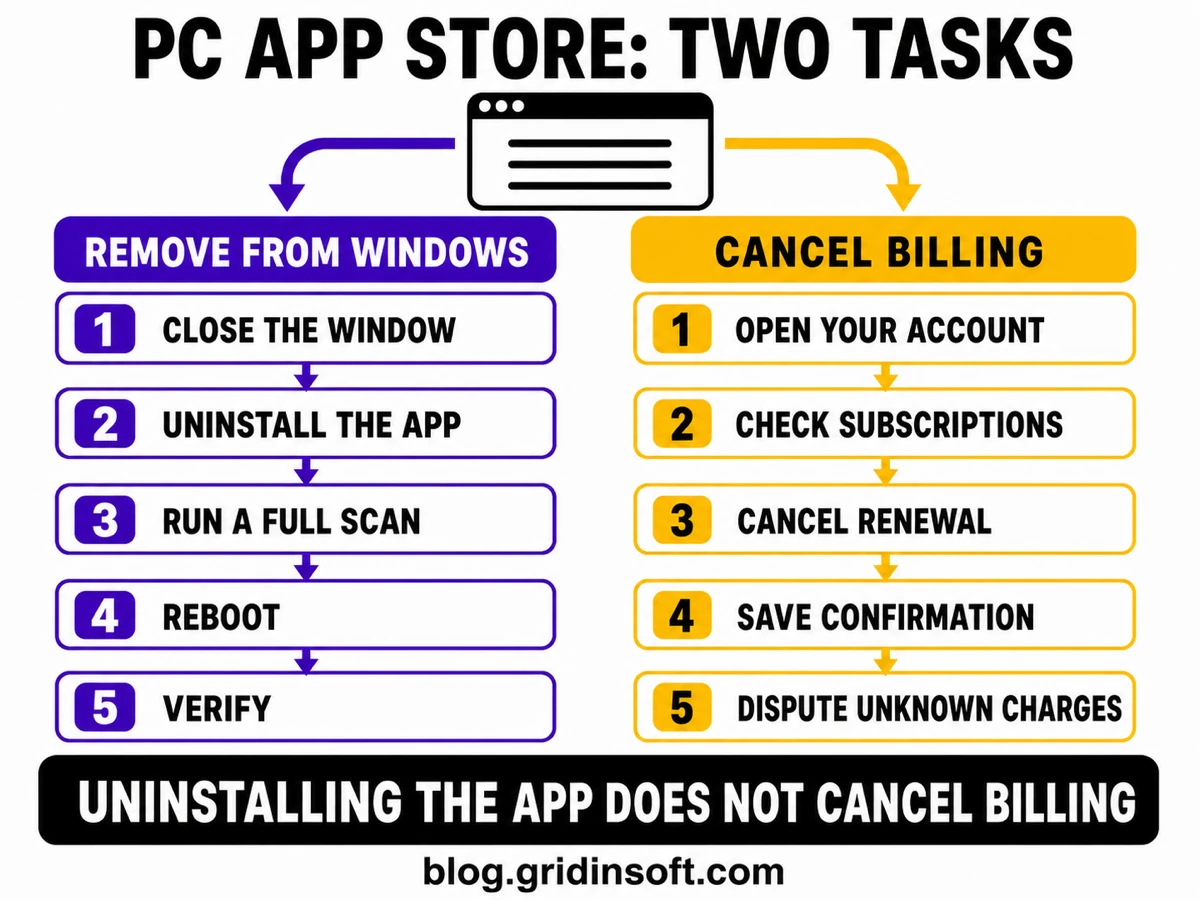
Uninstalling PC App Store does not cancel billing
Windows removal and account billing are two independent jobs. The operator’s FAQ explicitly says that removing the application does not cancel subscriptions or payments.
- Open a clean browser and type
pcappstore.comyourself instead of following a link in a pop-up. - Sign in to the account you used for the purchase and review transaction history, subscriptions, invoices, and the saved payment method.
- Cancel any renewal you do not want and save the confirmation page or email.
- If the account does not expose a cancellation control, contact the operator through the support options on its official FAQ page and keep a copy of the request.
- If you do not recognize a charge, contact your card issuer promptly. Ask about blocking future charges and disputing the transaction; do not send card details through a pop-up or unsolicited support message.
Clean the browser only if its settings changed
You do not need to reset every browser simply because PC App Store was installed. Use these optional, targeted checks if a new search engine, homepage, extension, notification source or redirect remains after cleanup, or if browser settings are the only problem:
- remove extensions you did not approve;
- restore your preferred search engine and startup page;
- revoke notification permission from unfamiliar sites;
- close and reopen the browser, then verify that the change survives a restart.
If a setting returns, use the browser hijacker cleanup guide to trace extension, policy, shortcut, and notification persistence. A factory reset is a later step, not the starting point.
How to verify that removal worked
After your chosen cleanup route, restart and recheck the original symptom. If it persists, these optional checks can help identify what remains:
- no PC App Store window or notification appears at sign-in;
- PC App Store is absent from Installed apps and Startup apps;
- Task Manager does not show the same verified
PCAppStore.exepath; - your browser keeps its chosen search, homepage, and notification settings;
- a follow-up scan finds no returning PC App Store component or bundled PUP;
- the account shows the expected subscription status and no unexplained new transaction.
If the same item returns, do not repeat random folder deletion. Record the detection name and path, note what launches immediately before it appears, and scan again. A recurring result usually points to a startup task, updater, installer cache, browser policy, or another bundled program that the first symptom did not identify.
Do you need to change passwords or reset Windows?
Change the PC App Store account password if you entered credentials into an unexpected prompt, and change any reused password on other services. Contact the card issuer for unrecognized billing. A full Windows reset is rarely the first response to a PUP: consider it only when verified malicious activity persists after quarantine, reboot, follow-up scans, and expert review, or when Windows itself remains damaged.
Related unwanted-app guides
FAQ
Is PC App Store a virus?
PC App Store is a third-party marketplace, not Microsoft Store. Some specific components or builds are detected as adware or PUPs, but a filename alone cannot identify every build. Use the exact file path, publisher, hash, behavior, and security result to decide.
Should I delete PC App Store?
If it arrived unexpectedly, shows unwanted behavior or receives a specific security detection, use the Full Scan cleanup route above. If you deliberately installed it and simply no longer use it, normal Windows uninstall is an alternative. Manual checks are optional if symptoms remain.
Why does PC App Store return after I remove it?
A matching updater, startup entry, scheduled task, installer cache, browser component, or co-installed program may be restoring it. Record the returning item’s path and run a Full Scan rather than deleting unrelated folders with similar names.
Can I delete NWJS or fa_rss to remove PC App Store?
Not by name alone. NW.js is a legitimate app framework, and generic names can belong to unrelated software. Remove a file or folder only when its full path, signature, parent process, and scan result connect it to the unwanted installation.
Does uninstalling PC App Store stop subscriptions?
No. According to the operator’s FAQ, uninstalling the Windows app does not cancel subscriptions or payments. Sign in to the account or contact official support, cancel the renewal separately, and save the confirmation.
What does Adware:Win32/PCAppStore!MSR mean?
It is a Microsoft Defender detection name for a specific PCAppStore-related threat. Note the affected-item path, allow the security product to quarantine it, update definitions, and run a full scan for remnants.
References
- Microsoft Security Intelligence. “Adware:Win32/PCAppStore!MSR.” Published November 2, 2022. Accessed August 14, 2026.
- Microsoft Support. “Windows startup settings.” Accessed August 14, 2026.
- PC App Store, Fast Corporation. “Frequently Asked Questions.” Accessed August 14, 2026.
- Microsoft. “Fix problems that block programs from being installed or removed.” Microsoft Support, accessed September 5, 2026. Windows uninstall troubleshooting.


I encountered this PC APP Store issue and I tried everything that I had read to start my PC in safe mode and nothing worked so I was able to get into System Recovery & Reset so I did a System Recovery to an earlier date. That did the trick my PC was restored to a date about 2 weeks prior which was just fine.