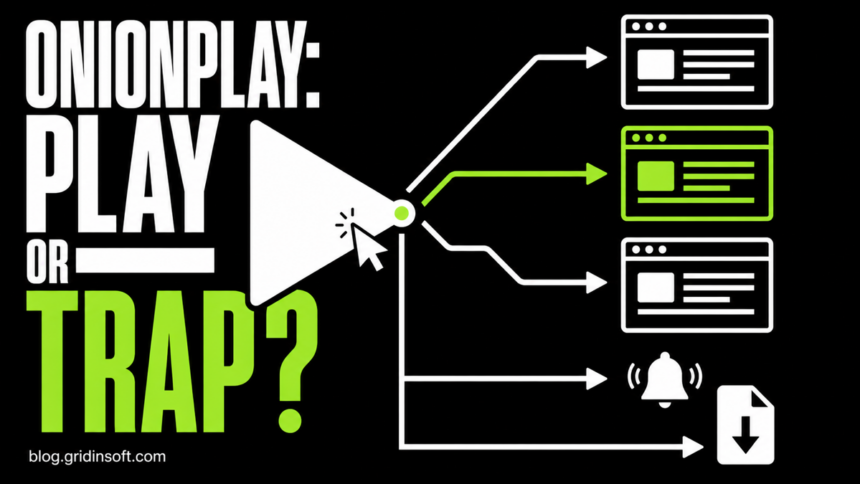
OnionPlay is not safe to trust by name alone. A familiar OnionPlay page can hand the next click to a different player host, advertising network, notification prompt, or download page. Gridinsoft’s July 23, 2026 check classified onionplay.io as phishing with a 1/100 trust score, but that is a dated result for one hostname. It does not certify or condemn every page, app, or file using the OnionPlay name.
The important question is not only “Was I on OnionPlay?” It is “Which hostname handled the click, and what did I allow, download, install, or enter?” If you only closed the tab, your response is different from someone who enabled notifications, ran an installer, or submitted account or payment details.
What the Onionplay.io Report Proves—and What It Does Not
The current Gridinsoft report for onionplay.io recorded a phishing classification, 10 external-provider warnings, a five-month domain age, and a redirect to onionplay.st. The report was last checked on July 23, 2026. Those details are useful because they show that the hostname in the address bar and the final destination can differ.
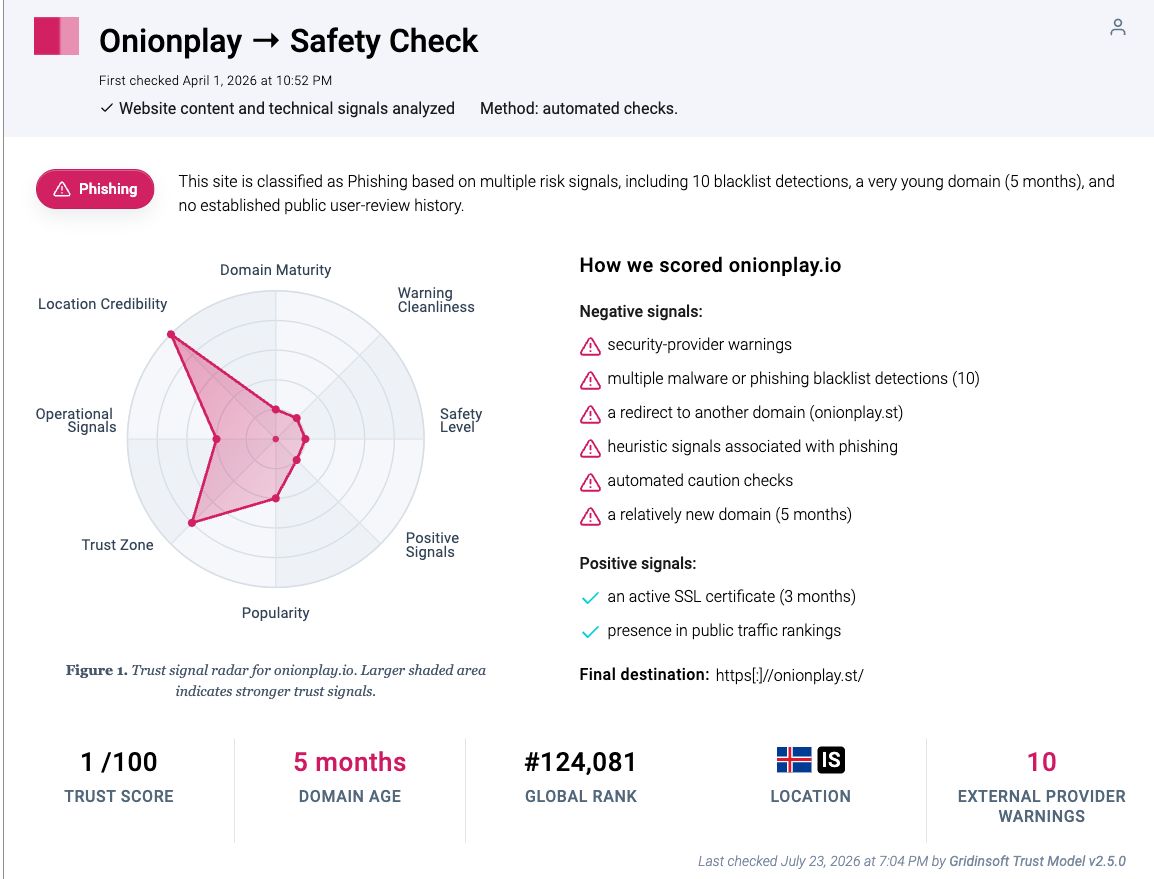
That result has a strict boundary: it applies to onionplay.io at that check time. A clean score for another hostname would also be limited. It would not prove that an embedded player, advertisement, app, extension, codec, or later redirect is safe. Recheck the exact address you actually reached instead of transferring a verdict from one OnionPlay-looking page to another.
OnionPlay Is the Label; the Destination Controls the Risk
Streaming pages commonly load players and advertisements from other hosts. Pressing a Play button may therefore open a new tab, request notification permission, display a fake security warning, or start a download from a domain that is not the one you first visited. The OnionPlay name at the top of the first page does not authenticate those later destinations.
Before interacting, read the full hostname in the address bar. Stop if the page asks you to install a “player,” “codec,” browser extension, APK, profile, or security update. A real video stream does not need you to disable browser protection, approve a surprise download, or enter payment details on an unrelated host.
The word “Onion” is also not proof of Tor privacy. A normal web address such as a .io, .st, or another public suffix is not a Tor .onion service merely because the brand contains the word. Do not assume anonymity, operator identity, or safety from the name.
Choose the Response That Matches What Happened
| What happened | Risk and what to do |
|---|---|
| You opened the page and closed it | Close any extra tabs, check the Downloads list, and review site permissions. If nothing downloaded and you granted no permission, a full system recovery is usually unnecessary. |
| A pop-up or redirect opened | Do not click its Close, Scan, Allow, or Update buttons. Close the tab from the browser’s tab controls. If the page resists, close the browser and reopen it without restoring the session. |
| You allowed notifications | Remove notification permission for the exact sending hostname. A fake virus alert delivered as a browser notification is not proof that Windows or an antivirus detected malware. |
| A file downloaded but stayed unopened | Delete it from Downloads and the recycle bin, then scan it or the device if the source is unclear. Follow the unopened suspicious download checklist for the lower-risk path. |
| You installed or ran something | Uninstall the unexpected app or extension, check startup and scheduled activity, scan the device, reboot, and scan again if symptoms return. |
| You entered a password | From a clean device, change that password and every reused password, sign out other sessions, enable multi-factor authentication, and review recovery details. |
| You entered card or crypto details | Contact the card issuer, bank, wallet, or exchange immediately. Preserve the hostname, receipts, transaction IDs, and screenshots. Do not pay a “recovery” service that promises to reverse a crypto transfer. |
How to Stop OnionPlay Pop-Ups and Notifications
First identify the sender shown on the notification itself. It may be a redirect host rather than an OnionPlay hostname. In Chrome, open Settings, go to Privacy and security → Site settings → Notifications, and remove or block the unfamiliar entry. Also review Pop-ups and redirects. Google’s current Chrome guidance separates pop-up controls from notification permissions because disabling one does not automatically revoke the other.
If onionplay keeps showing unwanted pop-ups, you likely granted it permission to send notifications. To stop them, you need to revoke that permission in your browser settings.
- Copy and paste this into the address bar:
chrome://settings/content/notifications - Scroll down to the Allowed to send notifications list.
- Find onionplay.
- Click the three dots (...) next to it and select Remove (or Block).
- Open Safari and go to Settings (or Preferences).
- Click the Websites tab and select Notifications on the left.
- Find onionplay in the list on the right.
- Select it and click Remove (or change "Allow" to "Deny").
- Copy and paste this into the address bar:
about:preferences#privacy - Scroll down to Permissions and click Settings... next to Notifications.
- Type onionplay in the search bar or find it in the list.
- Select the site and click Remove Website.
- Copy and paste this into the address bar:
edge://settings/content/notifications - Look under the Allow section.
- Find onionplay.
- Click the three dots (...) next to it and select Remove (or Block).
- Copy and paste this into the address bar:
brave://settings/content/notifications - Scroll to the Allowed to send notifications list.
- Find onionplay.
- Click the three dots (...) and select Remove (or Block).
- Copy and paste this into the address bar:
opera://settings/content/notifications - Check the Allowed to send notifications list.
- Find onionplay.
- Click the three dots next to it and select Remove.
If alerts continue after the permission is removed, check browser extensions and installed apps. A browser hijacker or bundled extension can reopen pages, change search settings, or restore permissions. Do not respond to the notification by calling its support number, paying a fee, or downloading its recommended cleaner.
Is an OnionPlay App, APK, Extension, or Player Safe?
The name is not enough to authenticate software. Search results can show unrelated apps using “OnionPlay,” while websites and mirrors may promote different APKs, extensions, or installers. Check the exact developer, store page, package name, digital signature, requested permissions, and download source. A matching icon or familiar wording can be copied.
On Android, keep Google Play Protect enabled and scan installed apps. Treat a request to disable Play Protect or sideload an unknown APK as a stop signal. The same principle applies on Windows: do not bypass SmartScreen or antivirus warnings merely because a page says a player or codec is required. For a fuller Android decision path, see the APK and app-source safety guide.
- Launch Chrome.
- Click the three dots (...) in the top right corner.
- Select Extensions > Manage Extensions.
- Click Remove next to the extension you want to delete.
Quick Access: Type chrome://extensions/ in the address bar.
- Open Safari.
- In the menu bar, click Safari and select Settings (or Preferences).
- Click on the Extensions tab.
- Select the extension and click Uninstall.
- Click the menu button, select Add-ons and themes.
- Go to the Extensions tab.
- Click the three dots (...) next to the extension and select Remove.
Quick Access: Type about:addons in the address bar.
- Launch Microsoft Edge.
- Click the three dots (...) in the top right corner.
- Select Extensions.
- Find the extension and click Remove.
Quick Access: Type edge://extensions/ in the address bar.
- Launch Brave browser.
- Click the menu icon > Extensions.
- Find the extension and click Remove.
Quick Access: Type brave://extensions/ in the address bar.
- Launch Opera.
- Click the Opera logo in the top left corner.
- Select Extensions > Extensions.
- Click the X or Remove button next to the extension.
Quick Access: Type opera://extensions/ in the address bar.
Open Extensions/Add-ons again and remove any entry linked to onionplay or clearly out of place.
If you see onionplay or other suspicious applications that you don't remember installing, you should remove them as well.
- Right-click the Start button and select Installed Apps (or Apps & Features).
- Scroll through the list to find onionplay or any other unfamiliar program.
- Click the three dots (...) next to it and select Uninstall.
- Open Finder and go to the Applications folder.
- Locate onionplay or any app you don't recognize.
- Drag it to the Trash.
- Empty the trash to remove it permanently.
- Go to Settings > Apps > See all apps.
- Find onionplay or any suspicious app in the list.
- Tap on it and select Uninstall.
If You Ran an App, Extension, Codec, or Installer
Disconnect from sensitive accounts while you clean up. On Windows, remove the unexpected program or extension, review browser policies and startup apps, and check Task Scheduler for entries created at the same time. Deleting only the downloaded file is not enough after it has run: a bundled program, browser change, startup entry, scheduled task, or hidden component may remain and recreate redirects or alerts.
For an installed OnionPlay player APK, Trojan Scanner for Android gives you an app check beyond the website verdict. Scan installed apps, review each warning and confirm removal of unwanted apps; leave Play Protect enabled.
On Windows, run a full Gridinsoft Anti-Malware scan, remove detected items, reboot, and scan again if the browser behavior returns. A clean scan reduces risk but cannot prove that no password or session token was exposed, so complete the account steps separately when credentials were entered or a suspicious program ran while you were signed in.
If an OnionPlay player or installer ran on Windows, scan the PC for software it left behind. Recurring browser changes after cleanup also warrant a check beyond the streaming tab.
Check this Windows PCIf You Entered a Password, Card, or Crypto Details
Use a different, trusted device for account recovery when possible. Change the affected password first, then any account that reused it. Revoke active sessions, check forwarding or recovery settings, remove unknown devices, and enable multi-factor authentication. Watch email and financial accounts for password-reset attempts or unfamiliar transactions.
For card details, call the issuer using the number on the card or its official app—not a number shown by the pop-up. Ask whether the card should be locked or replaced. For crypto, contact the exchange or wallet provider immediately and save transaction records, but be realistic: a completed transfer may not be reversible. The broader scam recovery checklist covers evidence, account, and payment steps.
How to Reduce the Risk Next Time
- Use licensed streaming services or official broadcaster and library apps.
- Do not search for or bookmark rotating mirror lists; the same-looking name can move to a different operator or host.
- Keep browser notification requests blocked unless a site has a clear reason to contact you.
- Never install a codec, player, extension, APK, or “security update” demanded by a streaming page.
- Check the exact hostname before entering credentials or payment details.
- Keep the browser, operating system, and security software updated.
For the recurring mechanics behind fake Play buttons, redirects, card checks, and notification abuse, use the free movie streaming site scams guide. It explains the pattern without relying on a single changing brand or domain.
FAQ
Is OnionPlay a virus?
OnionPlay is a site or brand name, not one virus family. Risk depends on the exact hostname, redirect, advertisement, notification permission, app, or file involved. A browser notification that imitates a virus alert may be permission abuse rather than a Windows infection, but a downloaded or installed file needs separate checking.
Can OnionPlay infect my device without a download?
Simply viewing and closing a page is lower risk than installing or running software. However, redirects can still lead to phishing, and an allowed notification can keep sending fake alerts. Check downloads and site permissions; scan the device if something ran, settings changed, or symptoms continue.
Why does OnionPlay open another website when I press Play?
The page may rely on an embedded third-party player or advertising redirect. That destination has its own operator and risk profile. Judge the final hostname, not the brand shown on the page you started from.
Are OnionPlay apps from an app store automatically safe?
No. A store listing is useful provenance, but the same name can belong to an unrelated developer or a different kind of app. Verify the developer, package, permissions, reviews, and purpose, and keep the platform’s app-scanning protection enabled.
Do I need to change passwords after an OnionPlay pop-up?
Change passwords if you entered one into the pop-up or ran suspicious software while signed in. If you only saw and closed the page, focus on downloads and site permissions. Do not change passwords on the suspicious device until you have removed any installed threat.
References
- Google Chrome Help. “Block or allow pop-ups in Chrome.” Google, accessed August 18, 2026. Chrome pop-up, redirect, and notification controls.
- Google Play Help. “Use Google Play Protect to help keep your apps safe and your data private.” Google, accessed August 18, 2026. Google Play Protect guidance.