


Quit the Mac app and check whether its developer supplies an uninstaller. If it does, use that first. Otherwise, open Finder → Applications and move the app to the Trash. Keep the Trash intact until you’ve confirmed that your documents open and that the helper you meant to remove has stopped starting at login.
A good clue is what survived. An icon that reappears in the Dock, a menu-bar helper that still runs, and an old preference file are three different things. You can often fix the first two without touching the folder that holds your projects or profiles.

See which files belong to an app
67 Cleaner shows an installed app alongside its related caches and preferences.
Remove the copy that actually runs
- If the app is running, Control-click its Dock icon and choose Options → Show in Finder where available. Check its location. Two copies can exist, for example one in Applications and another in Downloads.
- Save any open work and quit the app with Command-Q. Closing its last window can leave the process running.
- Look in the app’s folder or its Help menu for an uninstall option. VPN clients, security tools and creative suites can install background components. Follow the developer’s removal instructions for those apps. On a managed Mac, ask the administrator about required software.
- For an ordinary standalone app, move the
.appfrom Applications to the Trash. If macOS says the app is in use, quit its menu-bar helper too, or restart and remove it before relaunching it.
A Dock shortcut can remain after removal. If it shows a question mark, use its Dock menu to remove the shortcut. If clicking it launches a working app, use Show in Finder again. That’s evidence of another copy. If it opens from a mounted installer, follow the disk-image eject and relaunch check.
A helper still opens when you log in
Open Apple menu → System Settings → General → Login Items. On newer releases the pane is called Login Items & Extensions. Under Open at Login, select the entry belonging to the app and use the minus button. Under the background-items list, look for the developer’s name as well as the app’s name.
Suppose you removed a photo editor but still use the same publisher’s video editor. A background entry bearing only the publisher’s name could update both. Check its details or the publisher’s documentation before disabling it. Removing an Open at Login entry changes what starts automatically. It leaves the installed software and your documents in place.
Log out, turn off the option to reopen windows if offered, then log back in. If the helper still appears, use its own menu to identify it. Check for a second copy or the developer’s uninstaller before trying to remove individual system components.
Decide which leftover files you want to keep
- Projects, libraries and exports. Open a file you care about from its saved location or confirm an independent backup. A library in Application Support can contain the only local copy of your work.
- Preferences. These can restore your settings if you reinstall. A small preference file takes little space and its presence alone doesn’t mean the app is running.
- Caches. A large cache for one identified app can be worth reviewing after the app has quit. Leave shared folders intact, especially when you still use other apps from the same developer.
To inspect an identified location, choose Go → Go to Folder in Finder. ~/Library is your account’s Library. Start with a specific folder named in the developer’s instructions. A broad search for the company name can also find saved documents and components used by other apps.
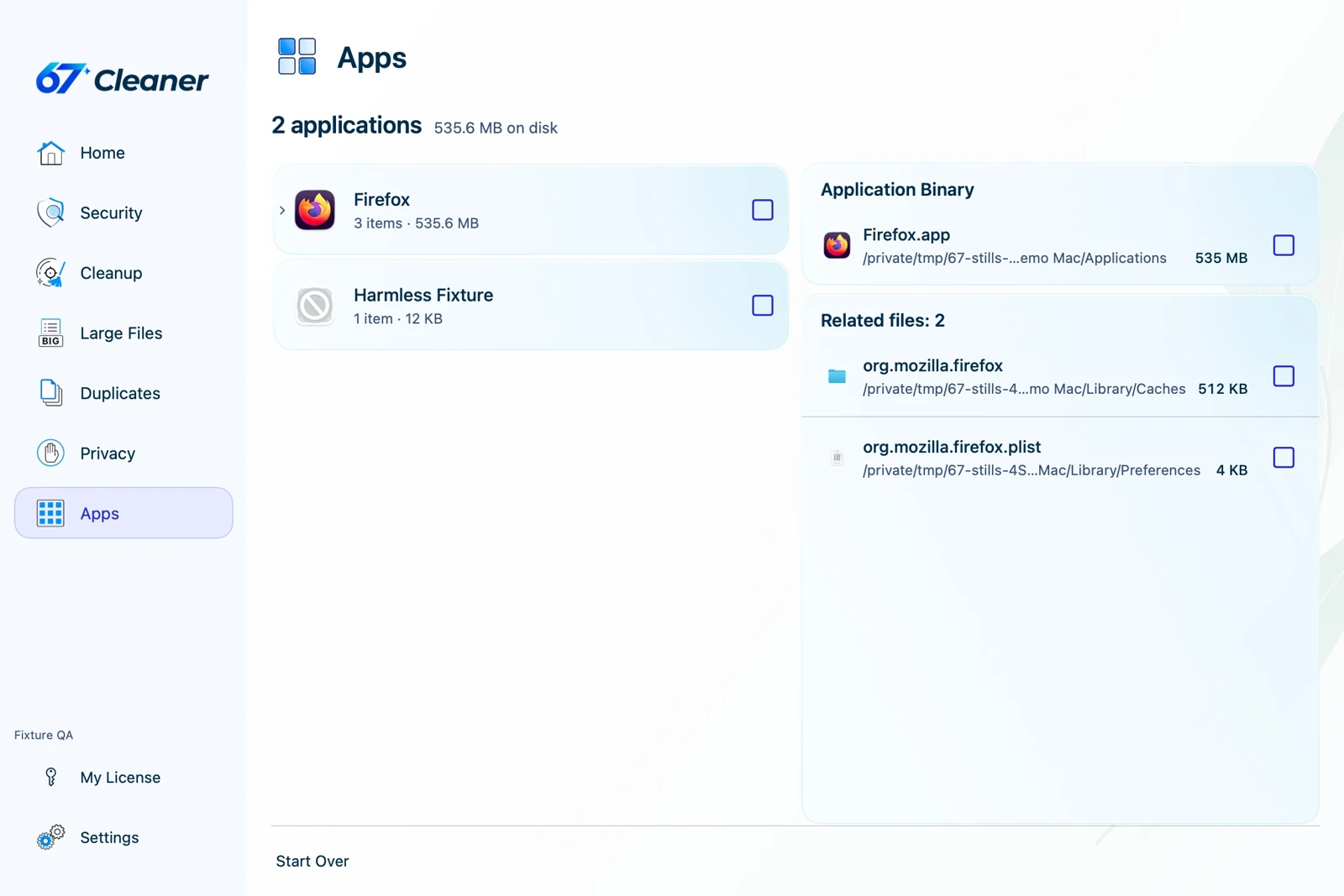
If you use 67 Cleaner, inspect the app and its related files while it is still installed. Reviewing the list is free. Removing the selected app and associated items through App Uninstaller requires the trial or Premium. An app subscription has a separate billing record. If you’re leaving a paid service, cancel it through the store or provider that bills you.
Check the result before emptying the Trash
After a fresh sign-in, confirm the helper stays closed, your remaining apps start, and your documents are accessible. Empty the Trash once you’ve checked its other contents. If your original goal was storage, compare available space under System Settings → General → Storage. A large System Data category can have several causes beyond the app you removed.
References
- Apple. Delete or uninstall apps on Mac. June 08, 2026. Accessed November 20, 2026.
- Apple. Open items automatically when you log in on Mac. Accessed November 20, 2026.