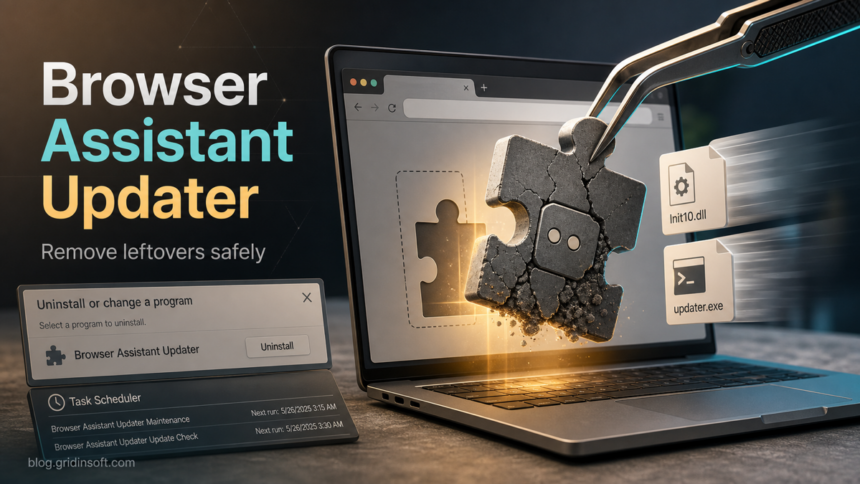
Browser Assistant Updater is not a normal Windows component. If it appears in Installed apps, throws a missing Init10.dll error, asks for a missing BAv*.msi package, or keeps returning after you delete the folder, treat it as an unwanted browser-helper/updater leftover. Remove the visible app first, then check the browser profile, startup entries, scheduled tasks, and the %APPDATA%\Browser Assistant or %LOCALAPPDATA%\Browser Assistant folders before you trust the browser again.
The important part is not to repair the updater. Do not download random DLL or MSI files from search results just because Windows says Init10.dll or BAv1381001.msi is missing. That message usually means the installer cache or updater folder is broken, not that you should restore the unwanted program.
What Is Browser Assistant Updater?
Browser Assistant Updater is usually reported as part of a Browser Assistant or Realistic Media unwanted-software chain. Users often notice it because the uninstall entry remains after the folder was deleted, because Windows Installer asks for a missing BAv1381001.msi, BAv1381009.msi, or similar package, or because a startup error says a Browser Assistant DLL could not be loaded.
That behavior is different from a legitimate browser feature that happens to use similar words. For example, do not remove a file only because it contains the phrase “browser assistant”. Check the publisher, file path, digital signature, install date, and behavior. A signed component inside a trusted browser’s own program folder is a different case from an updater running from %APPDATA%, %LOCALAPPDATA%, %TEMP%, a random task, or a recently installed bundle.
Gridinsoft readers usually land here with a practical problem: the program will not uninstall cleanly, a browser keeps changing, or a security tool reports a BrowserAssistant-related item. The cleanup path below focuses on those leftovers rather than on a generic browser reset.
Common Symptoms And Leftovers
- Installed apps entry: Windows lists Browser Assistant, Browser Assistant Updater, or Realistic Media, but the uninstall fails.
- Missing MSI prompt: the uninstaller asks for a file such as
BAv1381001.msi,BAv1381009.msi, or anotherBAv*.msipackage under a Browser Assistant update folder. - Missing DLL startup error: Windows reports that
Init10.dllor another Browser Assistant DLL cannot be found. - Browser changes: search, homepage, new-tab behavior, extensions, or notification permissions changed around the same time.
- Persistence clues: unknown tasks, startup entries, services, or PowerShell/cmd activity point back to Browser Assistant folders.
- Co-detections: the alert appears with other PUA/adware names, browser hijackers, fake updaters, or bundled utilities.
If your main symptom is a search redirect or extension that returns after deletion, use this page for the Browser Assistant part and compare the browser-specific cleanup with our PUA browser hijacker removal guide and extension keeps returning guide.
How To Remove Browser Assistant Updater
- Close browsers and stop the updater. Save your work, close Chrome, Edge, Firefox, Opera, and any installer window. Open Task Manager and end only clearly related Browser Assistant or unknown updater processes. Do not end Windows system processes just because they are unfamiliar.
- Try the normal uninstall first. Open Settings > Apps > Installed apps, sort by install date, and look for Browser Assistant, Browser Assistant Updater, Realistic Media, or a bundle installed on the same day. Try Uninstall once. If it completes, reboot before checking leftovers.
- If Windows asks for
BAv*.msi, do not hunt for it online. A prompt such as “The feature you are trying to use is on a network resource that is unavailable” usually means the cached installer path is broken. Use Microsoft’s Program Install and Uninstall troubleshooter or Windows’ built-in app repair/removal options instead of downloading a random MSI from a forum or file mirror. - Delete only confirmed leftover folders. After uninstalling or fixing the broken uninstall entry, check these paths for Browser Assistant folders:
%APPDATA%\Browser Assistant,%LOCALAPPDATA%\Browser Assistant, and recent folders under%TEMP%. Keep a note of anything you delete so you can compare it with startup entries. - Check startup and scheduled tasks. Open Task Manager > Startup apps and Task Scheduler. Look for tasks or startup commands that launch
updater.exe,Init10.dll, Browser Assistant folders, or a recently removed bundle. Disable suspicious entries first; delete them only when the action path clearly points to the unwanted app. - Inspect browser extensions and search settings. Open your browser extension page, remove unknown search helpers, PDF converters, coupon tools, download helpers, and extensions installed at the same time. Then check the default search engine, startup pages, notification permissions, and shortcuts.
- Reboot and check whether the alert returns. A clean reboot is the quickest way to tell whether a scheduled task, startup entry, or service is still restoring the updater.
Scan For Leftovers After Manual Cleanup
Browser Assistant Updater can be part of a larger PUA/adware bundle. The visible uninstall entry may be only one piece, while a scheduled task, browser change, startup item, or companion app restores the unwanted behavior after reboot.
After the manual steps, run a full Gridinsoft Anti-Malware scan and remove detections tied to Browser Assistant, adware bundles, suspicious updaters, browser policy changes, startup entries, and scheduled tasks. Reboot, then scan again if the browser changes or startup error returns.
Browser reset can remove visible symptoms, but adware may keep a desktop app, extension source, notification permission, or startup task that brings pop-ups and redirects back.
Scan for Browser Assistant leftoversWhat To Do About Init10.dll Errors
A missing Init10.dll message is a cleanup clue, not a repair instruction. It often appears when a startup entry still tries to load a Browser Assistant component after the file was removed. The right fix is to remove the startup reference and the unwanted app, not to download a replacement DLL.
Check these places for references to Init10.dll, Browser Assistant, or updater.exe:
- Task Manager > Startup apps;
- Task Scheduler Library;
- browser shortcuts that launch with an extra URL or helper executable;
HKCU\Software\Microsoft\Windows\CurrentVersion\RunandHKLM\Software\Microsoft\Windows\CurrentVersion\Run, if you are comfortable reviewing registry entries;- recent folders under
%APPDATA%,%LOCALAPPDATA%, and%TEMP%.
If this is a work or school computer, stop before editing registry or policy settings. Managed devices can have legitimate software deployment entries, and deleting them without approval can break the device management setup.
Clean Browser Changes Separately
Removing the Windows app does not always reset the browser profile. Open each browser you used while the unwanted app was present and check:
- extensions you did not install intentionally;
- default search engine and site-search entries;
- startup pages and home button URL;
- notification permissions for unfamiliar sites;
- “Managed by your organization” messages on a personal PC;
- desktop/taskbar shortcuts that include an extra URL after the browser executable.
If browser notifications or fake alerts were part of the issue, follow the steps in how to disable browser push notifications. If the problem began with a fake converter, search helper, or adware family such as SpecialSearchOffer, compare the cluster symptoms in our SpecialSearchOffer cleanup guide.
When Is A Windows Reset Necessary?
Most Browser Assistant Updater cases do not require wiping Windows. A reset becomes more reasonable when the PC still creates new unknown tasks after cleanup, security tools keep reporting active threats from user-profile folders, a cracked installer or fake update ran with administrator rights, or you see account compromise signs such as new browser sessions, password reset emails, or suspicious payment activity.
Before resetting, back up personal files, export browser bookmarks, and avoid copying executable installers from the affected profile. After reinstalling or resetting Windows, change passwords from a clean device if the unwanted app ran together with a stealer, fake browser update, or cracked software.
How To Prevent It From Returning
- Decline bundled “browser assistant”, “search helper”, “PDF converter”, and “update helper” offers during free-software installs.
- Keep browser extensions minimal and remove ones you no longer use.
- Download browser updates from the browser itself or the official vendor site, not from pop-ups.
- Pause browser sync while cleaning a hijacked profile so bad settings do not return from another device.
- Scan downloads from repack, mod, keygen, and fake-update pages before running them.
FAQ
Is Browser Assistant Updater a virus?
It is usually better described as unwanted software, adware, or a browser-helper/updater leftover rather than a traditional file-infecting virus. Treat it seriously when it will not uninstall, runs from user-profile folders, changes browser settings, or appears with other PUA detections.
Should I download Init10.dll to fix the startup error?
No. A missing Init10.dll message usually means a leftover startup entry is trying to load a removed component. Remove the startup reference and scan the PC instead of downloading DLL files from random sites.
Why does Windows ask for BAv1381001.msi or another BAv file?
The Browser Assistant uninstall entry may still point to a cached MSI package that no longer exists. Use Windows app removal options or Microsoft’s Program Install and Uninstall troubleshooter; do not restore the unwanted updater just to satisfy the missing MSI prompt.
Can I just delete the Browser Assistant folder?
Deleting the folder can stop one error, but it often leaves the uninstall entry, startup command, task, or browser changes behind. Use the normal uninstall path when it works, remove confirmed leftovers, then reboot and scan.
Is Opera Browser Assistant the same thing?
No. Similar names can appear in legitimate browser features. Check the publisher, path, signature, and behavior before deleting files. This guide is for Browser Assistant Updater or Realistic Media-style leftovers, missing MSI/DLL prompts, browser changes, and unwanted updater behavior.
References
- Microsoft Support. “Fix problems that block programs from being installed or removed.” Microsoft, accessed July 3, 2026. https://support.microsoft.com/en-us/windows/deployment/install-upgrade/fix-problems-that-block-programs-from-being-installed-or-removed
- Microsoft Q&A. “What is Browser Assistant Updater which is missing a .dll and causing things to not work correctly.” Microsoft Learn, accessed July 3, 2026. https://learn.microsoft.com/en-us/answers/questions/4325451/what-is-browser-assistant-updater-which-is-missing
- ANY.RUN. “Malware analysis 81b73.msi.” ANY.RUN interactive malware sandbox report, analyzed November 14, 2023, accessed July 4, 2026. https://any.run/report/69925c370a71b0bc37eb5d6381e8fc3309a7e71a7bdade54233214c73c728170/1aa7f6e6-3b96-4db0-8185-f74df89d599d
Related browser-modifier alerts can also come from fake utility installers. If Defender reports BrowserModifier:Win32/MediaArena, check PDFPower/PDFMagic-style converter downloads and browser search settings in addition to MSI leftovers.